When a roofing project requires different materials or scopes of work, you can split a completed roof measurement into separate measurements for each section.

Split a measurement

Before you begin, ensure the measurement order is complete and the job is not in the closed or cancelled state.
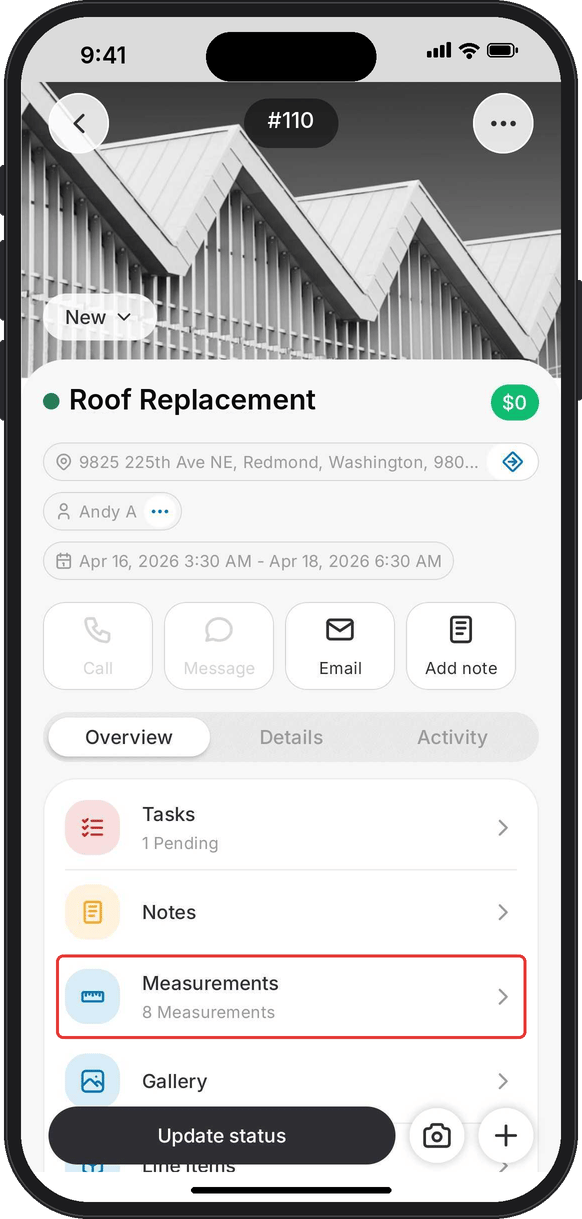
  1. Open the job and go to Measurements.
    Job overview in the Zuper Field Service app with the Measurements row highlighted
  2. Tap More options (⋮) and select Split Measurement.
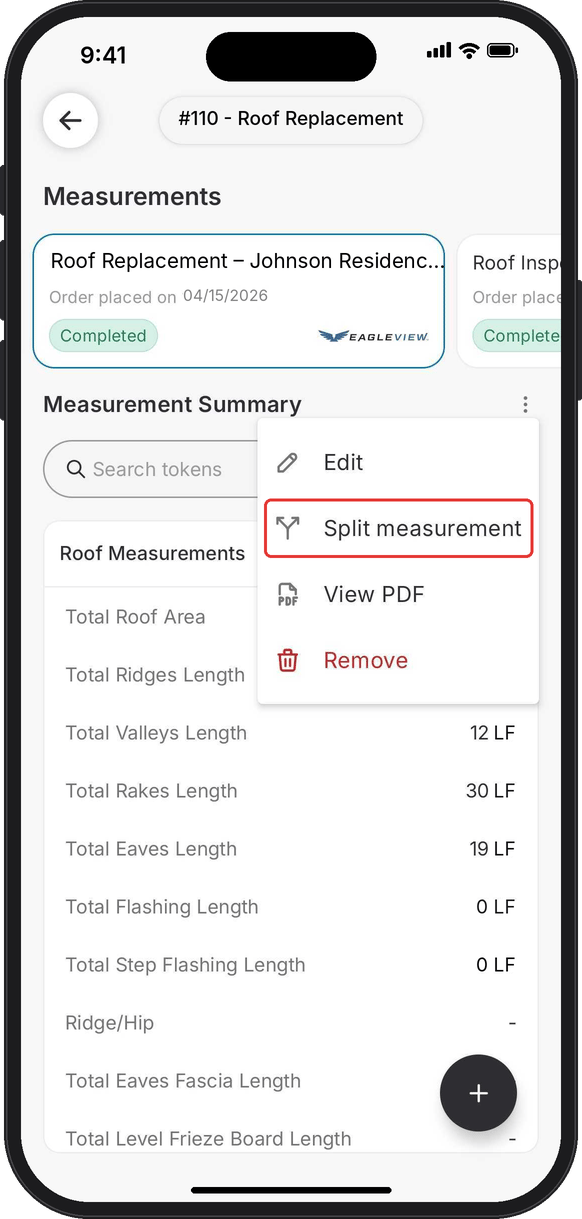
    Measurements screen for the Johnson Residence EagleView report with the More options menu open and Split measurement highlighted
  3. Rename Split 1 and Split 2 to identify each roof section.
  4. Add or remove splits as needed. You can create up to four splits.
  5. Choose whether to enable Pre-fill, then continue.
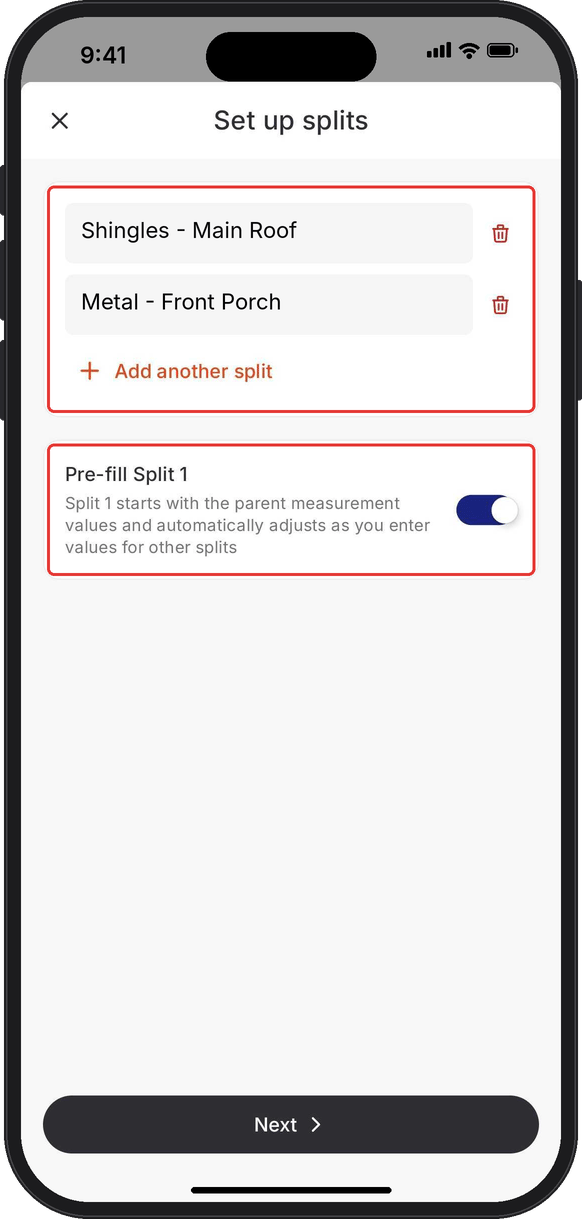
    Set up splits screen with splits named Shingles - Main Roof and Metal - Front Porch, Add another split, and the Pre-fill Split 1 toggle highlighted
    Pre-fill automatically calculates the remaining measurement values for the first split as you enter values for the others.
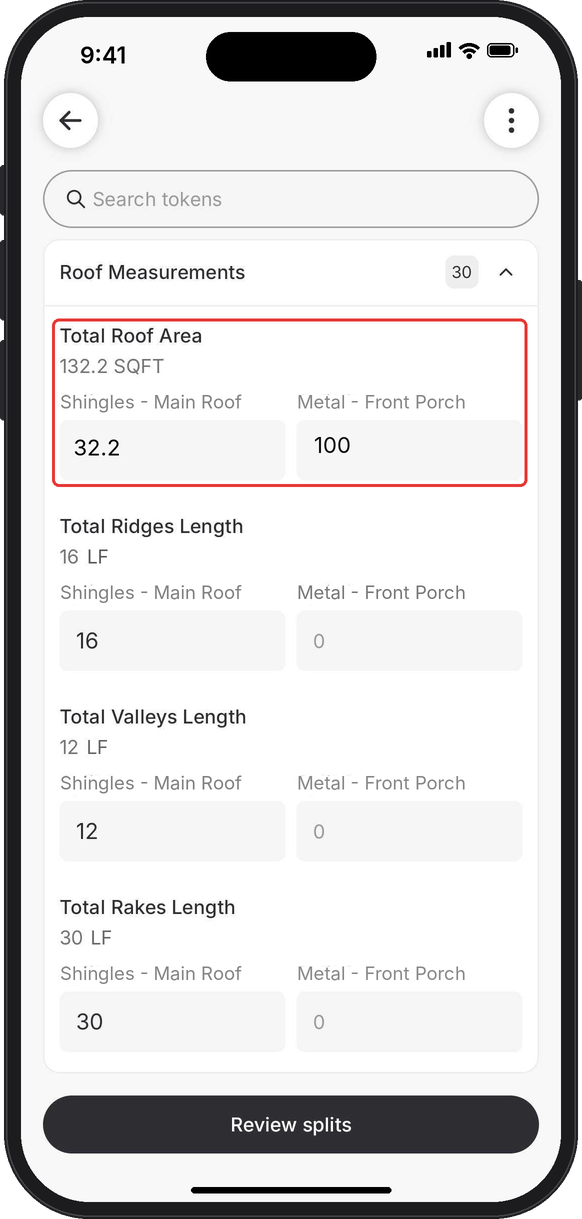
  6. Enter measurement values.
    1. Enter the required measurement values for each split. Under each token, enter each split’s share.
    2. Check any token that shows Under by or Over by. It means your splits don’t match the report, but you can still continue.
    3. Under Split-Specific, enter individual values, such as waste percentages, for each split.
    4. Continue to review splits.
    Value entry screen with Total Roof Area split into 32.2 for Shingles - Main Roof and 100 for Metal - Front Porch
    Tap the More options icon (⋮) to Edit splits or Hide empty values.
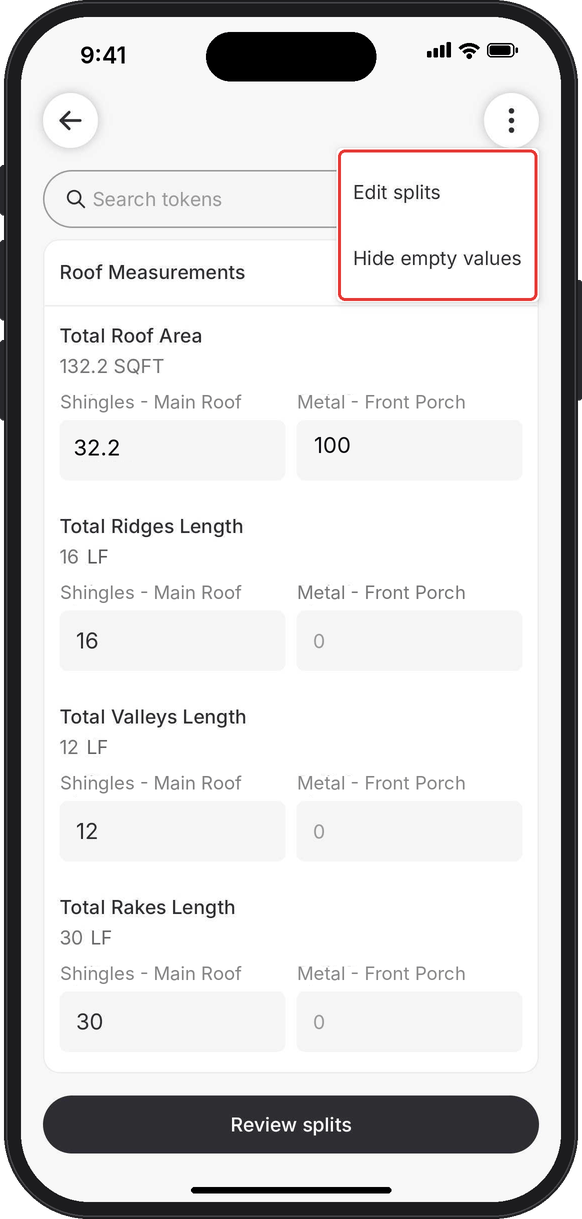
    More options menu on the value entry screen with Edit splits and Hide empty values highlighted
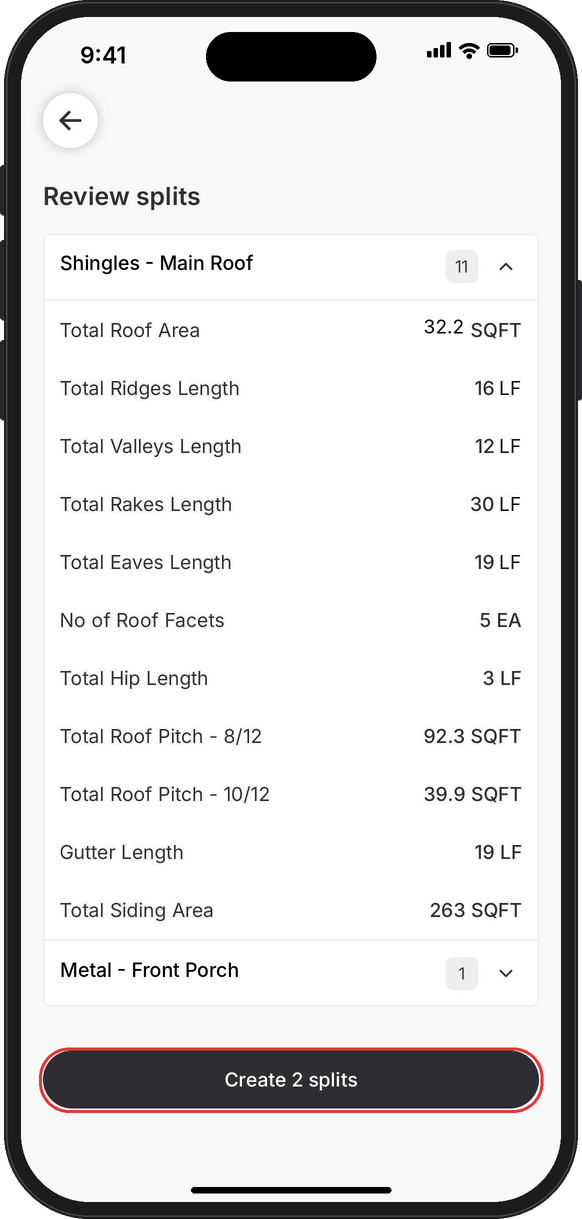
  7. Review and create.
    1. Select each split to review its measurement values.
    2. Make any necessary corrections.
    3. Confirm to create the splits.
    Review splits screen listing the Shingles - Main Roof values with the Create 2 splits button highlighted
Your new split measurements appear in the job’s Measurements section. To learn how splittable and non-splittable tokens work, see Split a measurement.