Managing Material Order
Material Orders (MOs) are essential for the timely procurement of parts and materials required for field service operations. Whether sourcing tools for a job or replenishing stock, effective MO management helps prevent delays, control costs, and ensure supplier accountability. Once an MO is created in the Zuper web application, administrators can track its progress, manage approvals, collaborate with suppliers, and handle fulfillment — all within the Material Orders module.This article explains how to access, manage, and update material orders at every stage of their lifecycle to support a streamlined and transparent procurement process.
Accessing the Material Orders Listing Page
To view all material orders:- Click the Purchasing module from the left navigation menu and select Material Orders.
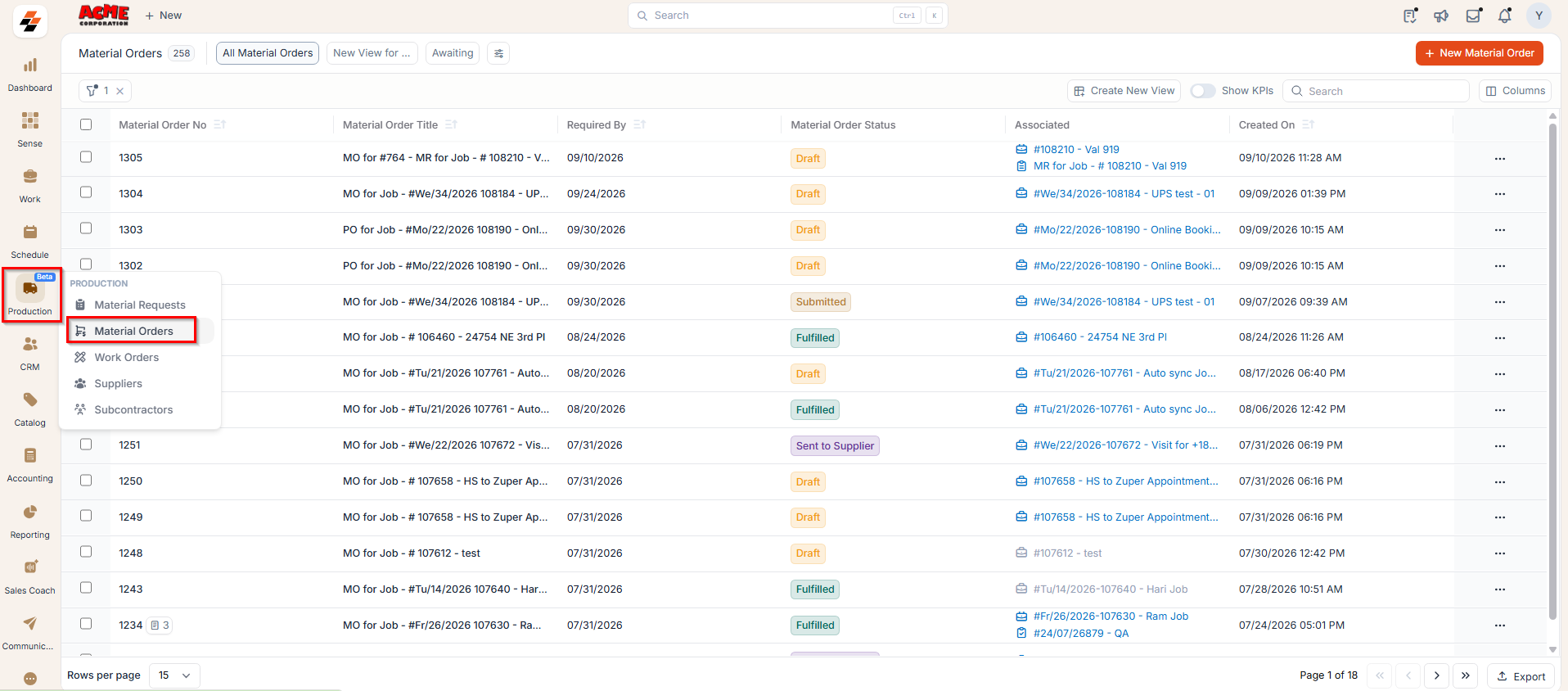
- You’ll see a list of material orders for the selected date range with key details, including:
- Material Order No. – This is the system-generated unique number assigned to each material order for easy identification.
- Material Order Title – This is the name given to the material order, often auto-filled if created from a job or quote.
- Required By: Indicates the target date by when the requested material order is expected to be fulfiled.
- Status – Indicates the current stage of the material order. Statuses include:
- Draft – The MO is being prepared and not yet submitted for approval.
- Submitted – The MO has been submitted and is awaiting internal approval.
- Approved – The MO has received internal approval and is ready to be sent to the supplier.
- Rejected – The MO has been declined during the internal approval process.
- Sent to Supplier – The approved MO has been sent to the supplier for processing.
- Supplier Accepted – The supplier has accepted the MO.
- Supplier Rejected – The supplier has rejected the MO, possibly with comments.
- Partially Fulfilled – Only some items have been received; pending items remain.
- Fulfilled – All items in the MO have been delivered by the supplier.
- Invoiced- The supplier has issued an invoice for the items delivered, and the invoice has been recorded against the Material Order. This status indicates that the MO has moved into the billing stage and is awaiting payment.
- Paid-The payment for the supplier invoice has been completed. This status confirms that all financial obligations related to the Material Order have been settled.
- Cancelled – The MO has been cancelled and will not be processed further.
- Closed – The MO has been completed and closed after fulfillment.
- Associated – Displays the job/project or quote linked to the material order, providing context on where or why the order originated.
- Created on – Shows the date on which the material order was generated, making it easier to track order timelines and monitor processing efficiency.
How costs are calculated on a roll-up
When you roll up a partially fulfilled MO, Zuper recalculates costs automatically so your records stay accurate with no manual adjustment needed.- The original MO updates its total to reflect only the quantity already fulfilled — not the full ordered amount.
- The roll-up MO carries only the unfulfilled remainder, so no items or costs are counted twice across the two MOs.
If you need to audit a roll-up after the fact, go to the Activity tab on either MO. The log shows who initiated the roll-up, when it occurred, and which items moved to the new MO.
Identifying a rolled-up MO
Note: Rolled-up MOs are marked with a dedicated icon next to the MO number on the listing page. Hover over the icon to see the parent MO number and select the link to open the parent MO in a new tab. This helps you trace the relationship between a rolled-up MO and its origin at a glance. The same indicator appears on the Supplier MO page and on associated Jobs and Quotes. For more details, see Understanding Material Order Status.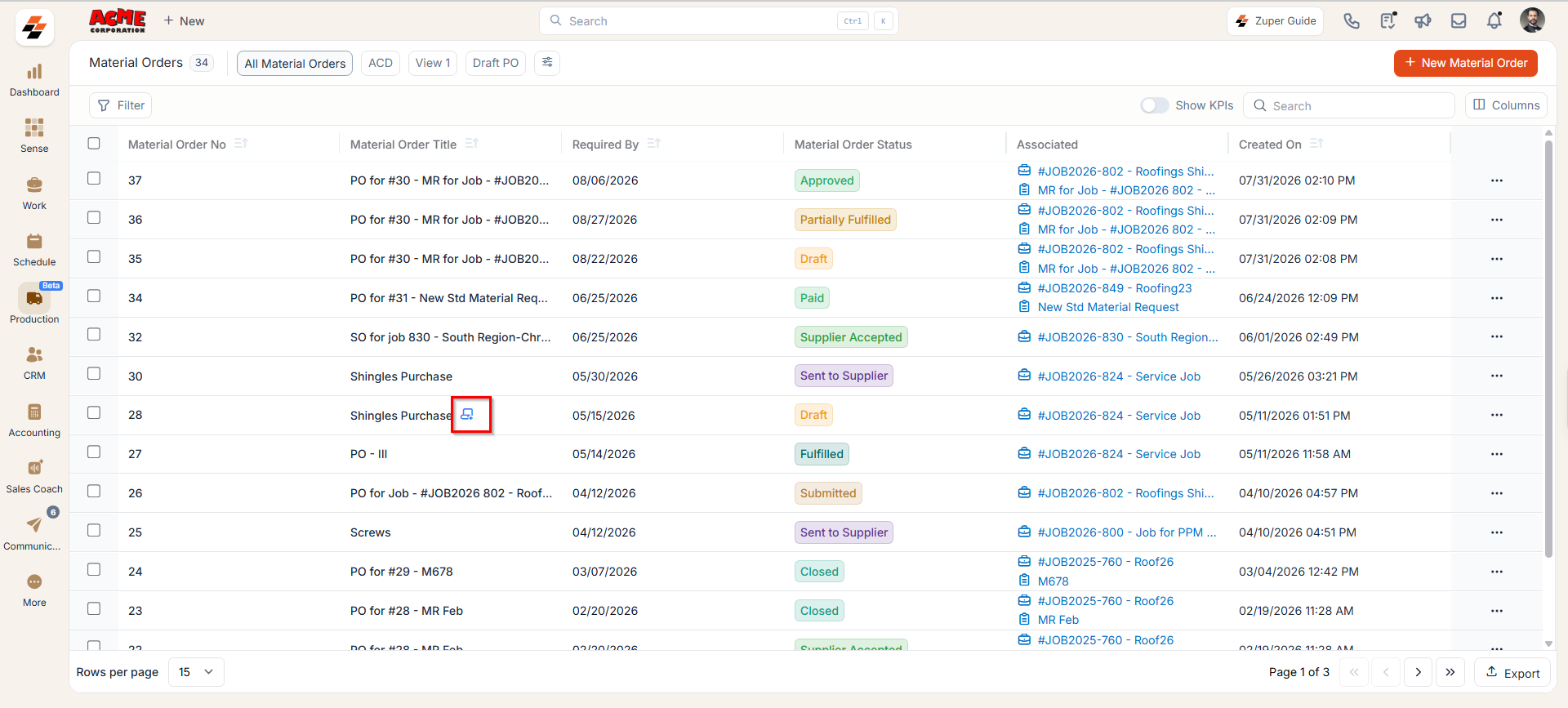
Exploring the Listing Page
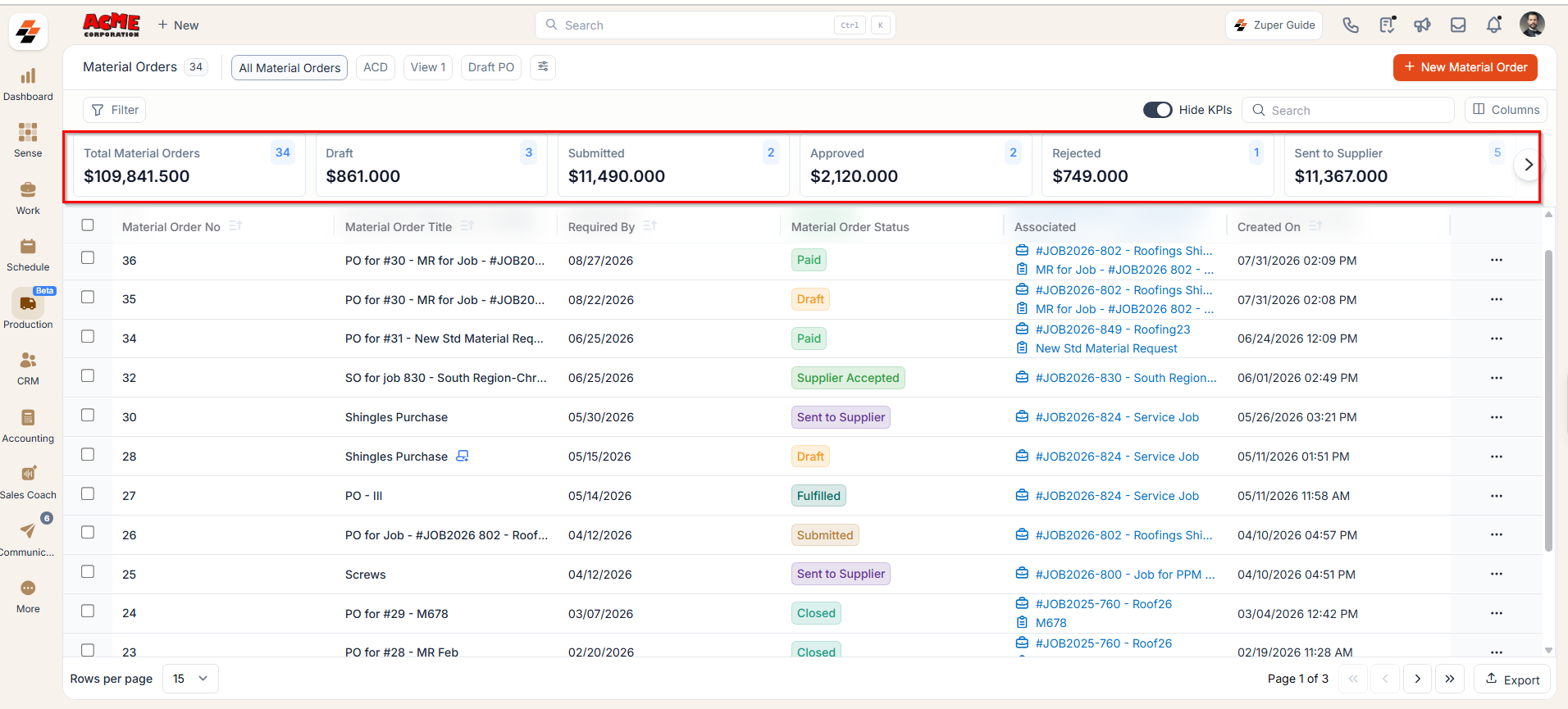
The listing page is designed to provide a structured view of material orders, making it easier to track and manage them efficiently.1. Summary Cards
Enable Show KPIs to display the summary cards at the top of the listing page. These cards provide a quick snapshot of your material order pipeline. The status cards are arranged in chronological order, following the MO workflow from Draft through to Fulfilled.Note: Each summary card includes:
- Total Amount – The combined value of all MOs under that status.
- MO Count – The number displayed in the small badge indicates how many MOs fall under that status.
- Total Material Orders – Displays the total value of all material orders, along with the total count of MOs created.
- Submitted – Shows the total value and count of material orders that have been submitted for approval.
- Supplier Accepted – Indicates the value and count of material orders accepted by the supplier.
- Partially Fulfilled – Represents the value and count of material orders where only some items have been received, and others are pending.
- Fulfilled – Shows the value and count of material orders for which all items have been successfully received.
- Invoiced- Displays the value and count of material orders for which the supplier has issued an invoice, and it has been recorded in the system.
- Paid- Shows the value and count of material orders for which the supplier invoice has been fully paid.
- Rejected – Displays the total value and count of material orders that were declined during the internal approval process.
Note: The Supplier Accepted/Rejected KPI will be displayed only when an approval hierarchy is configured in settings. Also, clicking a summary card filters the list to show only material orders with that status.
2. Customization Options
Tailor the listing view to match your workflow:- Click the Columns button at the top-right corner of the screen to open a panel with Displayed Columns and Available Columns.
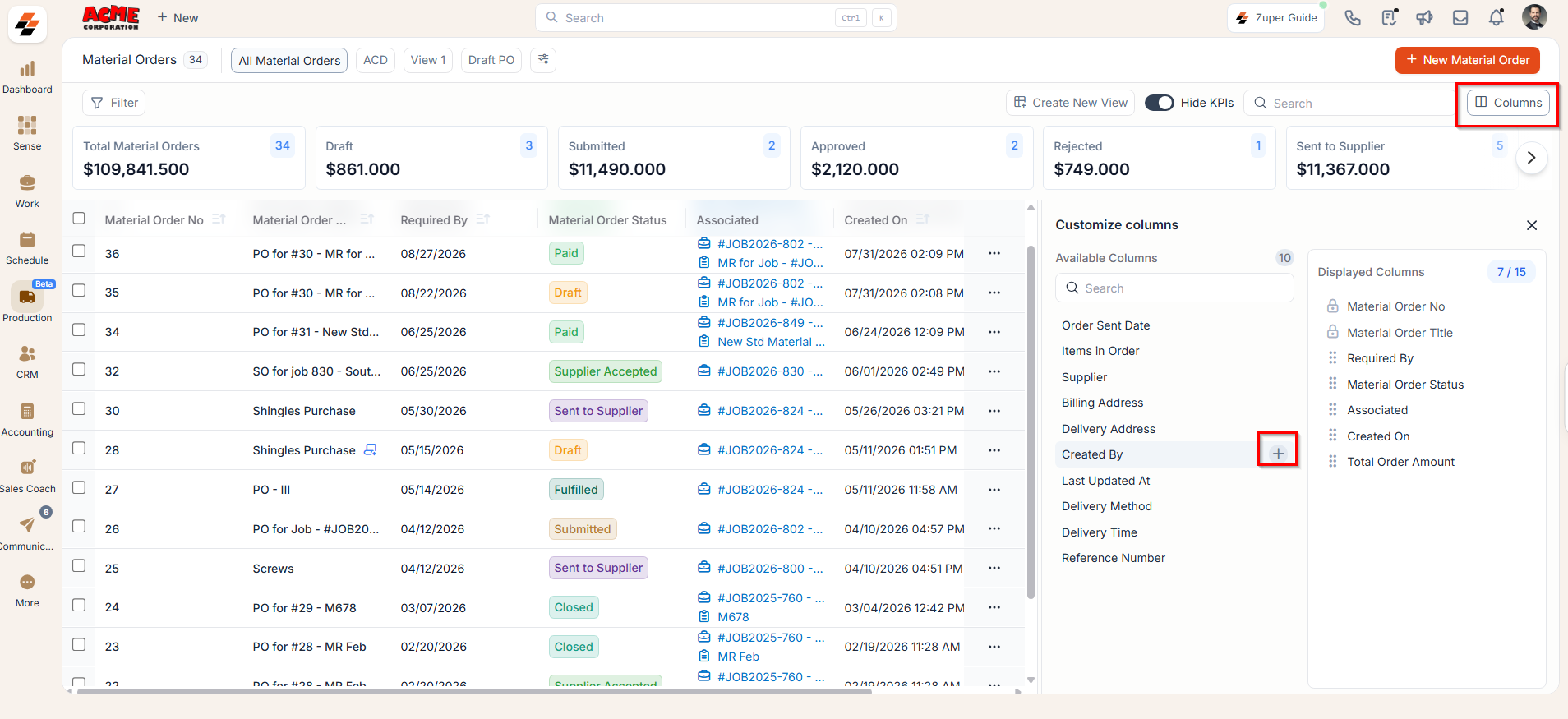
- Hover over any column under Available Columns to reveal the option to add it, or drag and drop it into the Displayed Columns section.
- Reorder fields by simply dragging and dropping columns within the Displayed Columns list.
3. Search & Filtering
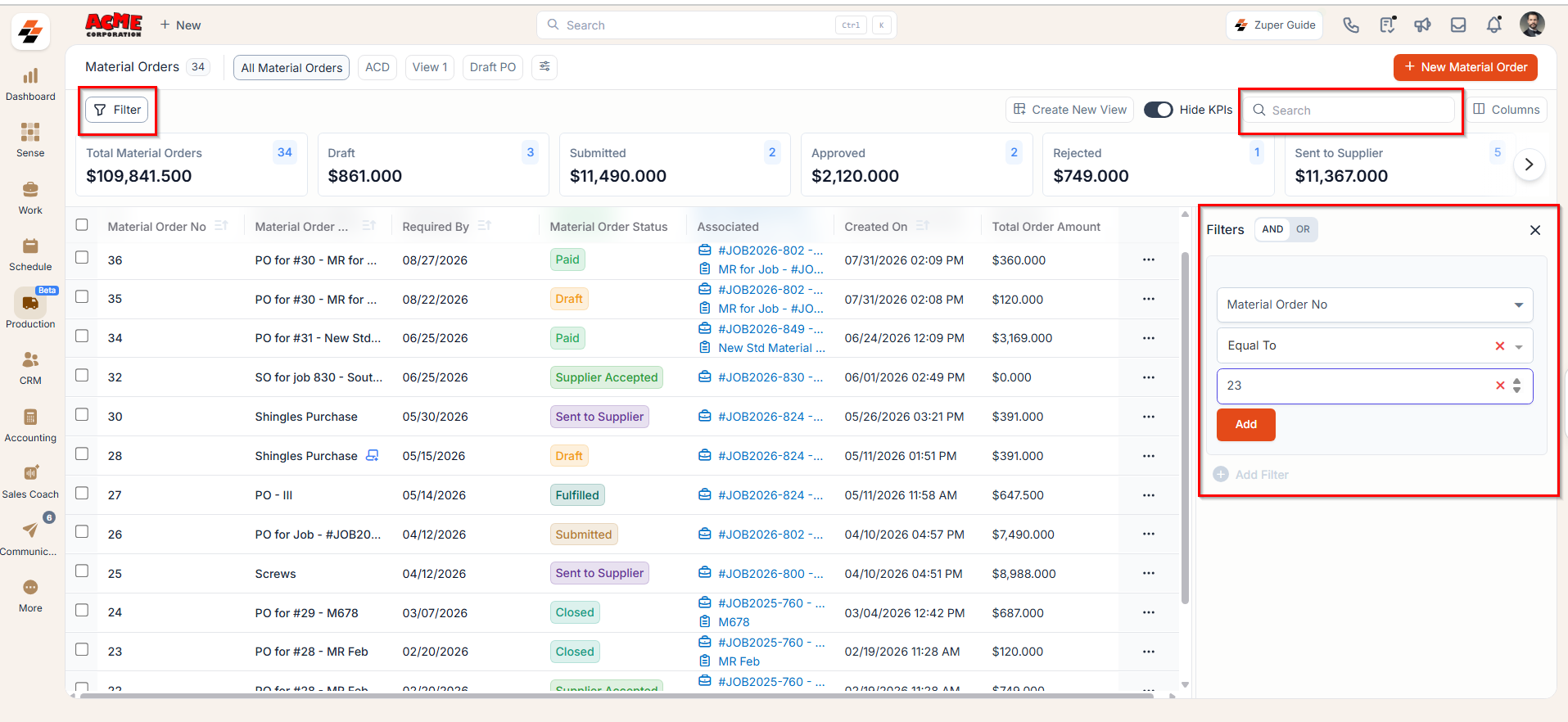
Quickly locate specific material orders using search and filter tools:- Use the Search Bar to look up material orders by title or MO number.
- Apply filters to narrow down results based on:
- MO Status (e.g., Draft, Submitted, Approved)
- Supplier Name
- Associated Project, Job
- MO Title, and more.
4. Bulk Actions
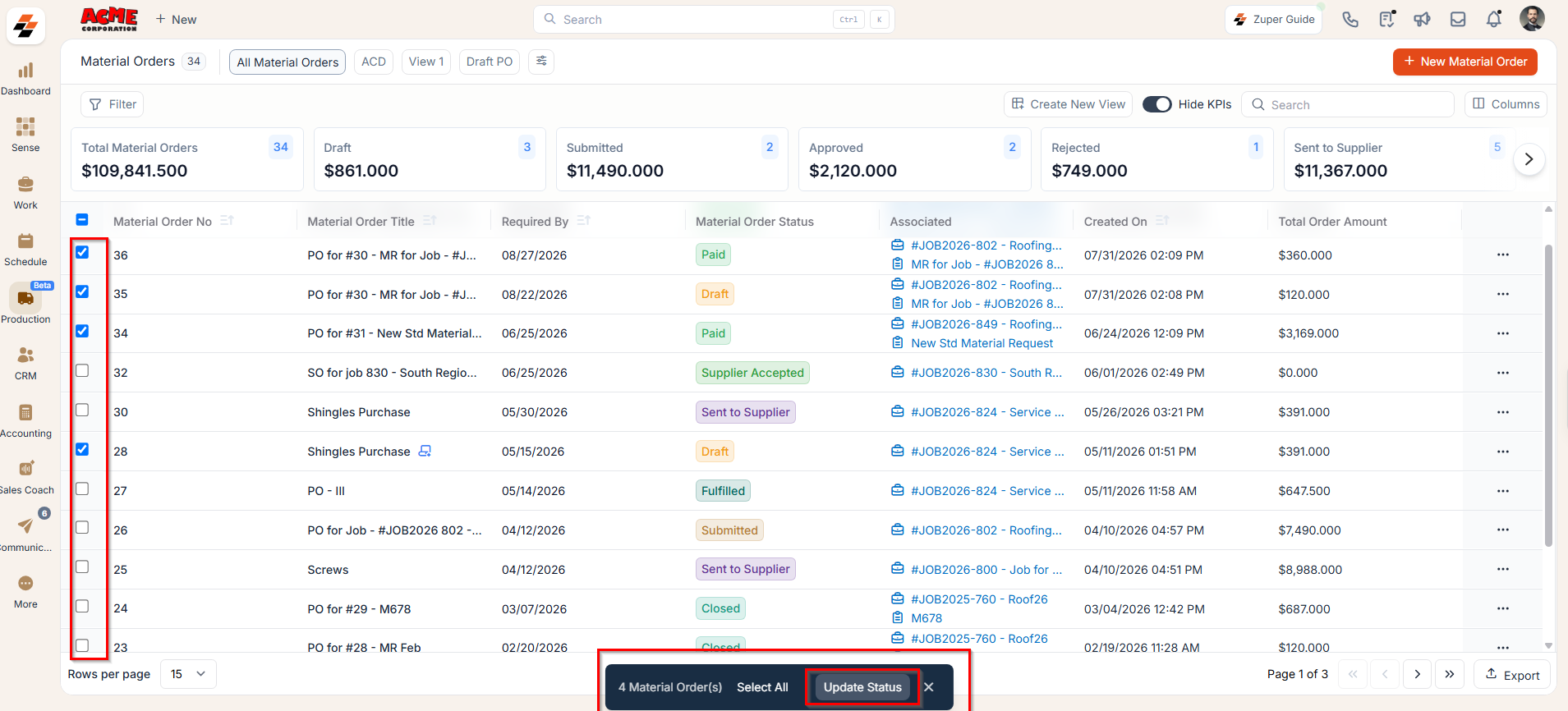
Easily manage multiple material orders in one go:- Select the checkboxes next to the material orders you want to update.
- Click “Update Status” to update the status of the selected material orders in bulk.
5. Pinned filters
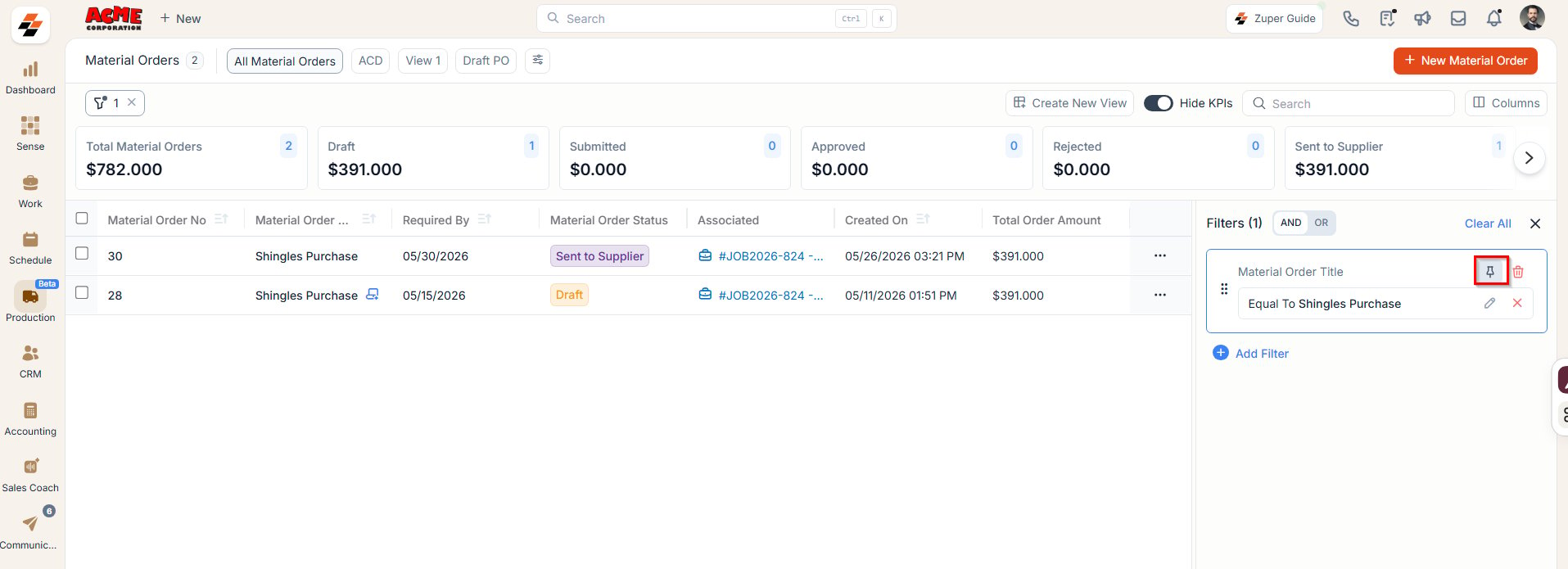
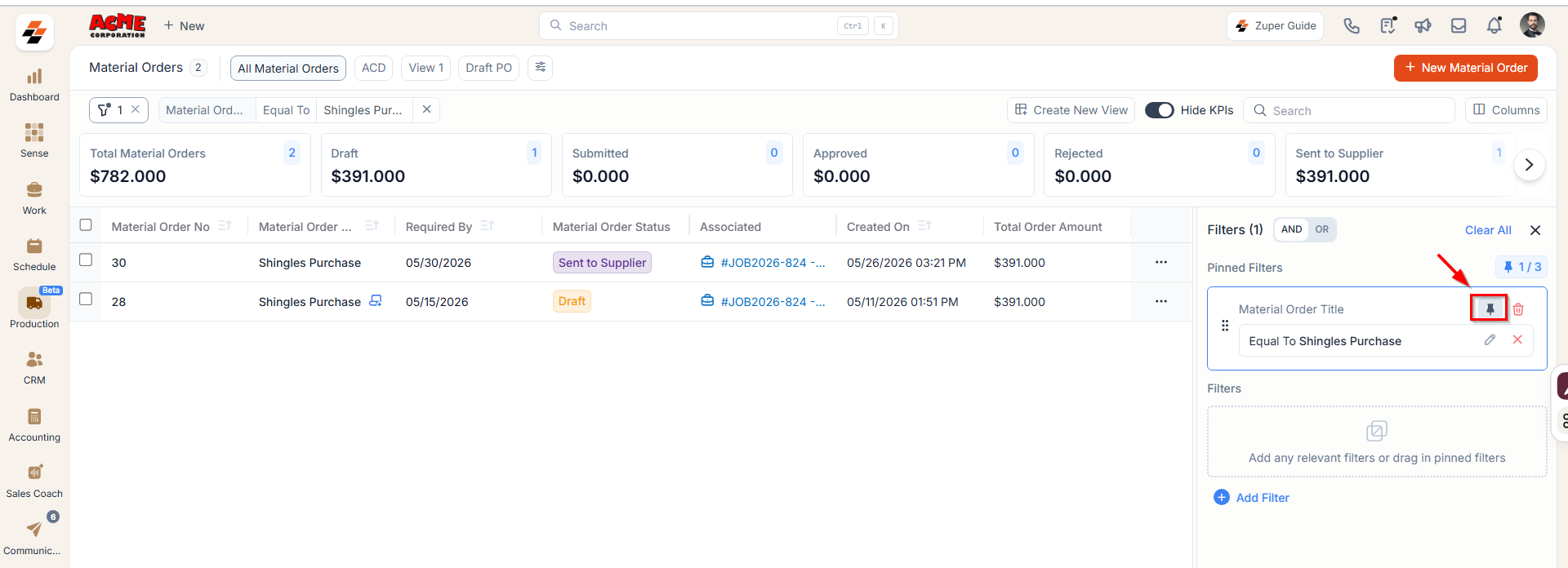
Zuper’s Material Orders module lets you use pinned filters to streamline your filter experience. Pinned filters keep your most-used criteria readily accessible for quick application. Pin up to 3 filters in any module.- Select the “Material Orders” module from the left navigation menu.
- Pin Filters for Quick Access
- Once your filters are set, click the Pin Filters button in the dialog box to save them as pinned.
- Pinned filters appear in the dialog box’s “Pinned Filters” section, allowing you to apply them with one click in future sessions.
- To Unpin the filter:
- To unpin, select a pinned filter and click Remove.
- To apply pinned or default filters, open the dialog box and select them.
- Use Clear All to remove active filters.
6. Notes quick action
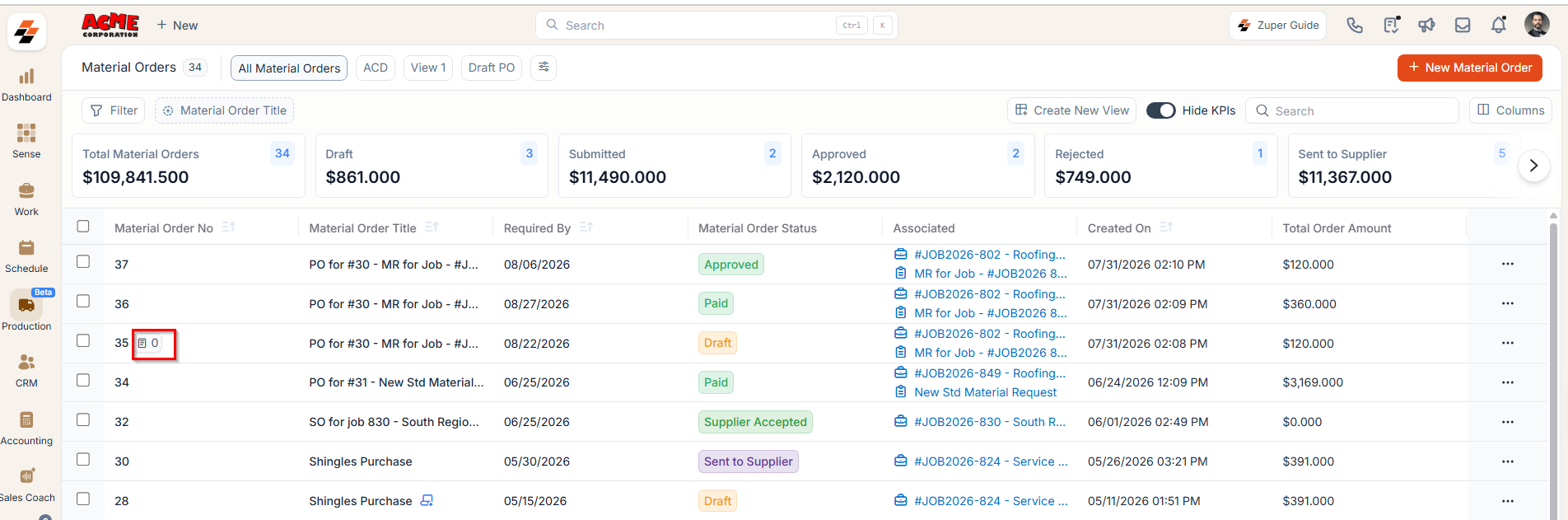
You can add or view notes on a material order directly from the listing page — without opening the full MO record. This saves time when you need to leave a quick update or check a note while reviewing multiple MOs. The same quick action is available from the:- Material Orders listing page
- Supplier listing page
- Material Requests listing page
7. Creating a New Material Order
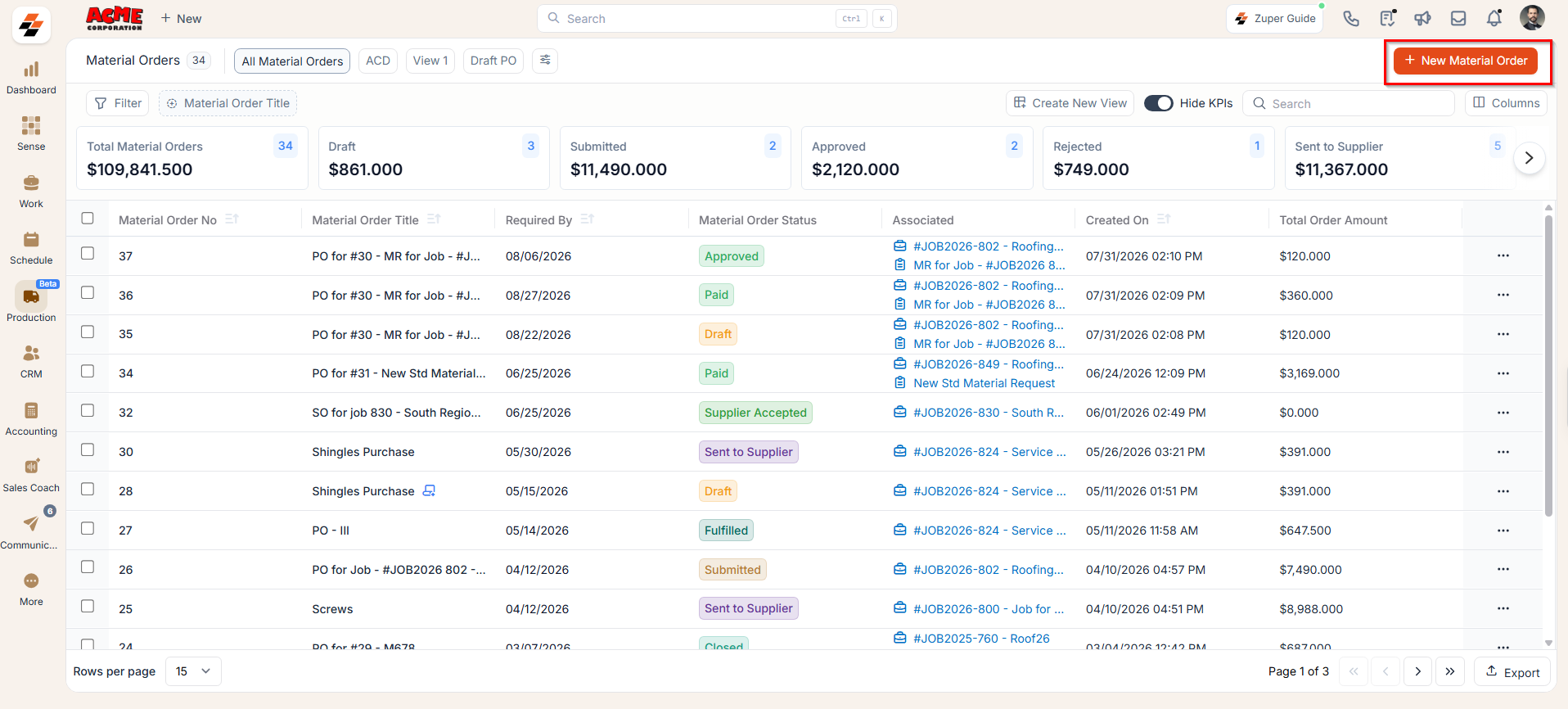
To create a new material order from the listing page:- Click the + New Material Order button in the top-right corner.
8. Customize Your View
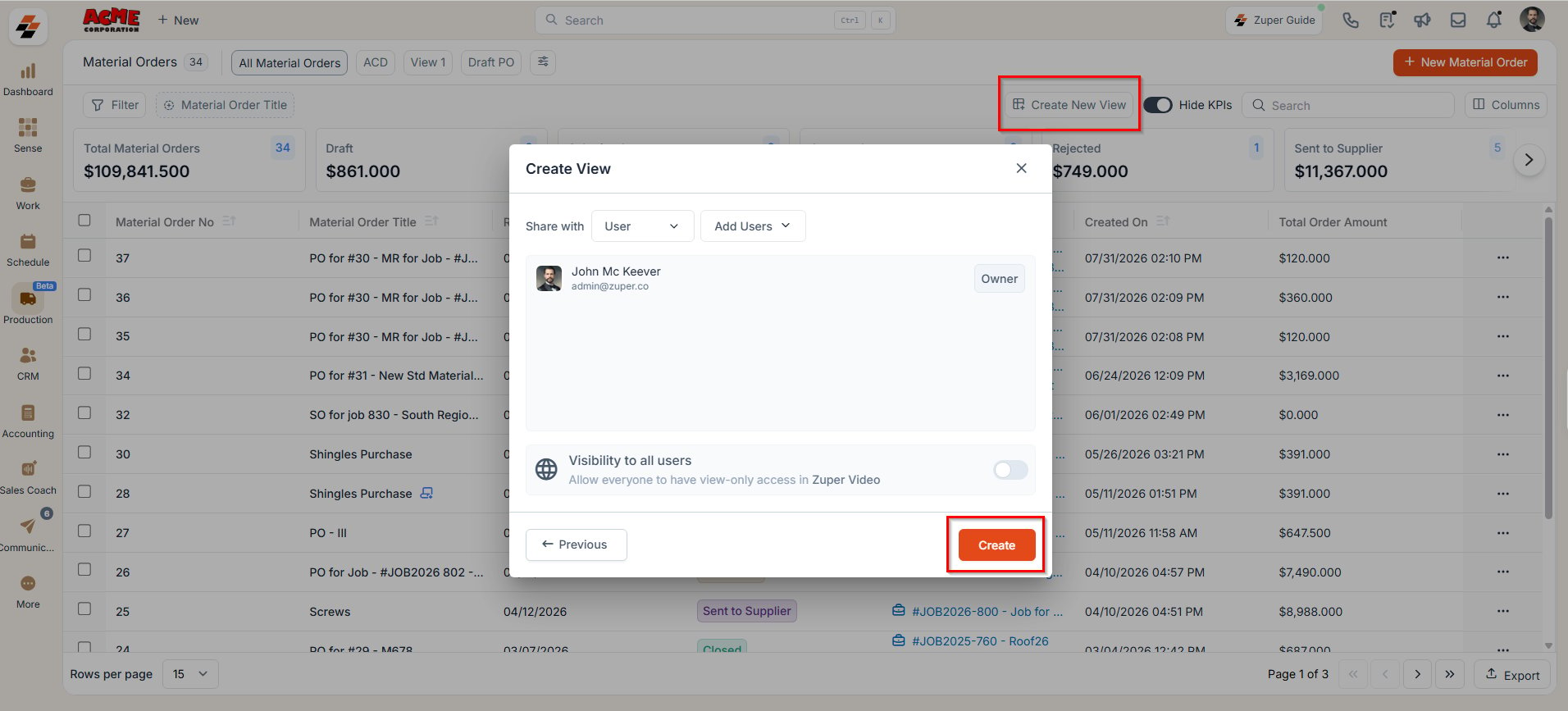
You can further refine how your material orders are displayed:- Create and save personalized views based on your preferences.
- Set view-specific permissions to ensure the right team members have appropriate access.
Managing Material Order Details
Once a material order is created, the Material Order Details Page serves as the central hub for tracking and managing all aspects of the material order. The page features a three-column layout, providing quick access to relevant information and actions within each panel.- Click on any material order from the listing page to open its details page.
Left Panel
The left panel displays key material order information—such as the MO title, supplier name, and current status—along with quick action buttons for calling, emailing, or adding notes. It also provides easy navigation to view MO details, items, notes, and activity history.Call
Call
Click the Call icon to view the supplier’s contact number and initiate a phone call (available only if contact details are provided).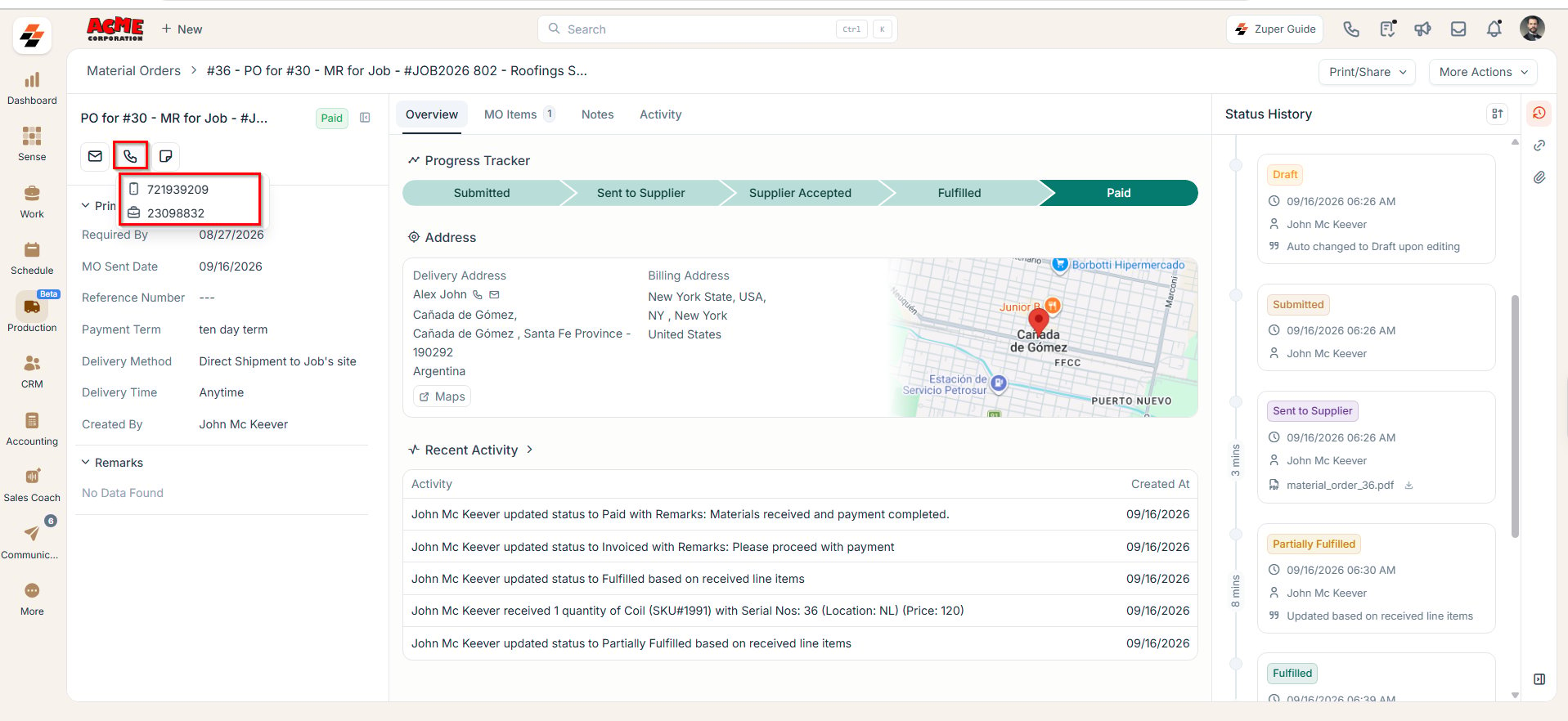
Mail
Click the Mail icon to view the supplier’s email address and send them an email regarding the material order.
Add Note
Add Note
Click “Add Note” to add comments or additional information to a material order throughout its lifecycle. Notes can provide extra context and may include anything from a simple text reminder to an image of parts/products, or even a video or document.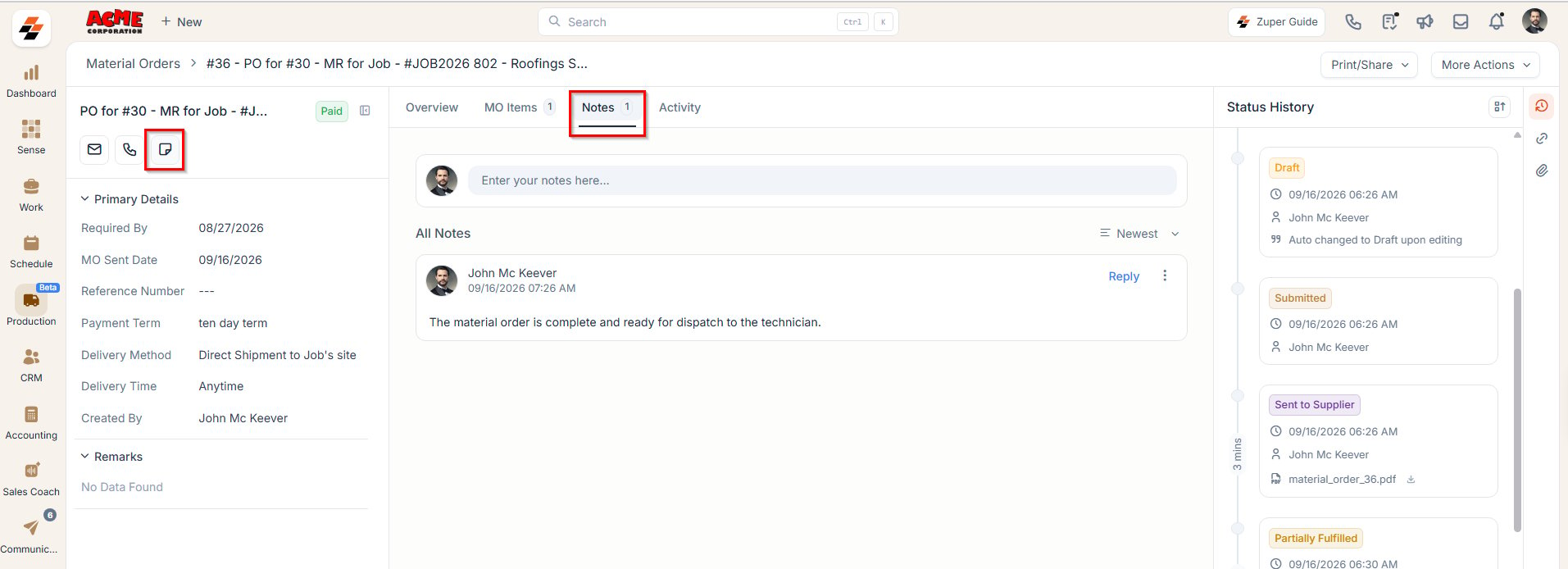
For more information on how to use the notes feature, refer to the Notes and chats article.
For more information on how to use the notes feature, refer to the Notes and chats article.
Details
Details
The material order details section provides an overview of the material order, including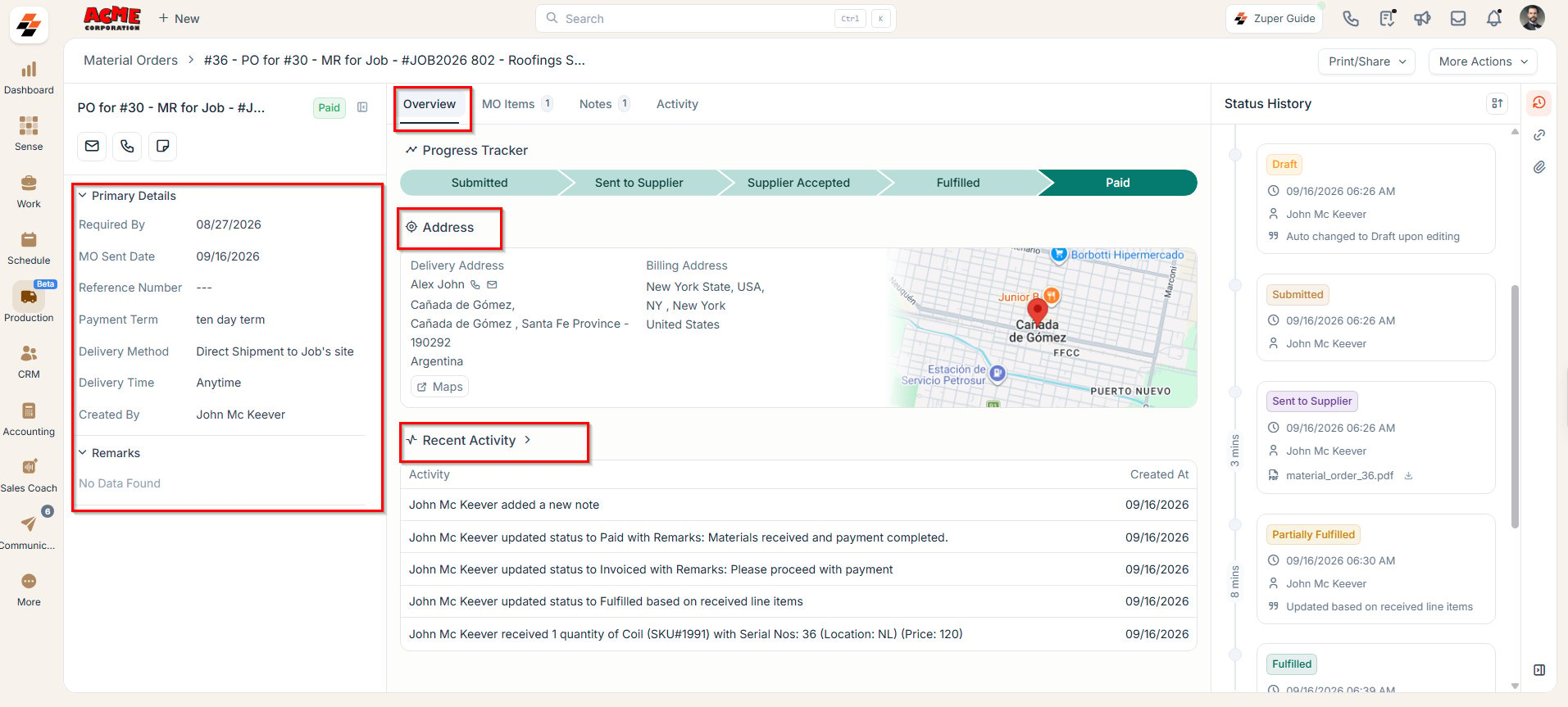
MO items
MO items
This section displays the requested items in a clear, tabular format, making it easy to review and verify material order details. Each row contains the following information: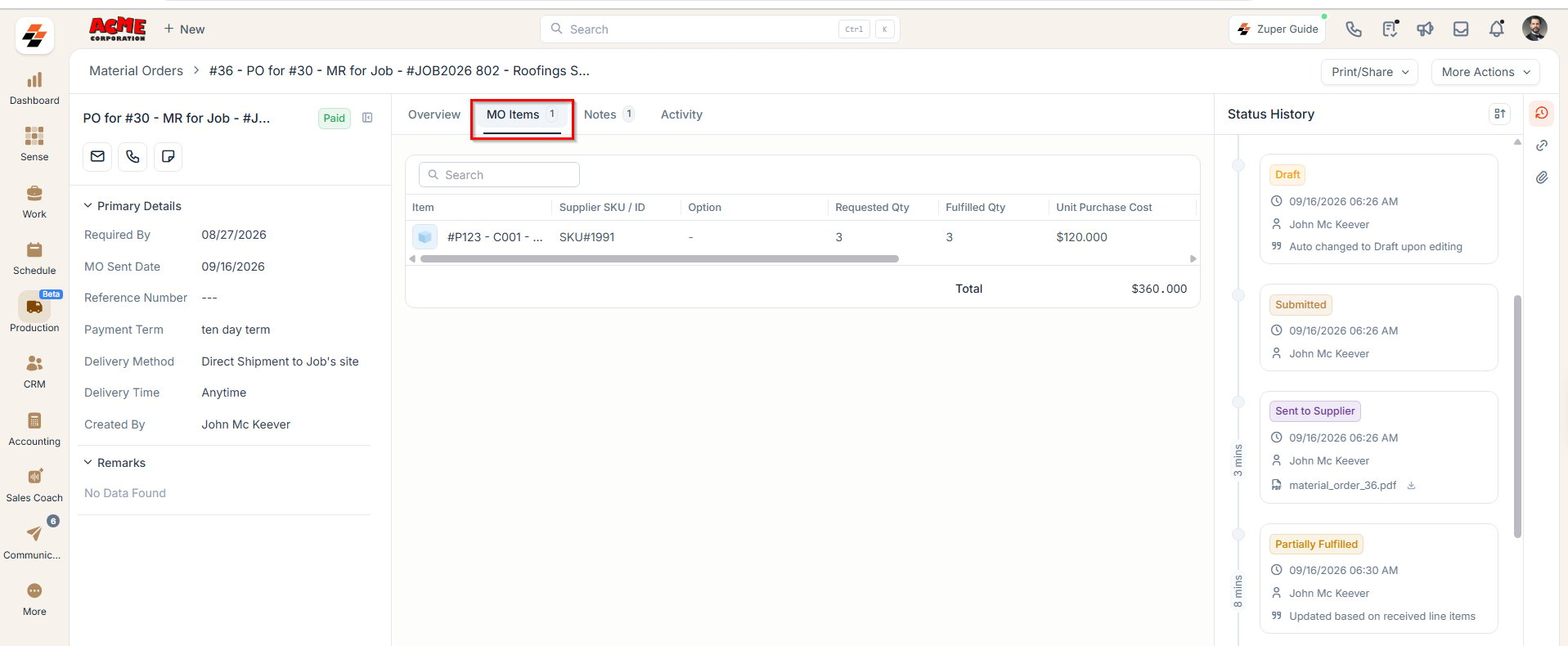
- Item shows the name of the part or product to be purchased.
- Supplier SKU/ID shows the unique identifier or stock-keeping unit assigned to the item by the supplier.
- Requested Quantity shows the total number of items initially requested.
- Fulfilled Quantity shows the number of items that have already been supplied or delivered.
- Required Quantity shows the remaining number of items that still need to be purchased. This field is not available when the status is Fulfilled.
- Unit Purchase Cost shows the price per unit charged by the supplier.
- Total shows the line item total, calculated as Required Quantity × Unit Purchase Cost. This column appears across all MO statuses, from Draft through Paid.
- Remarks shows any specific notes, instructions, or clarifications related to the individual line item.
Note: The Total column shows the calculated amount for each line item. The overall MO total shown at the bottom of the table is the sum of all line item totals, ensuring transparency, accuracy in supplier billing, and better internal budgeting control.
Activity
Activity
This section captures the log of all activities performed on the material order, such as: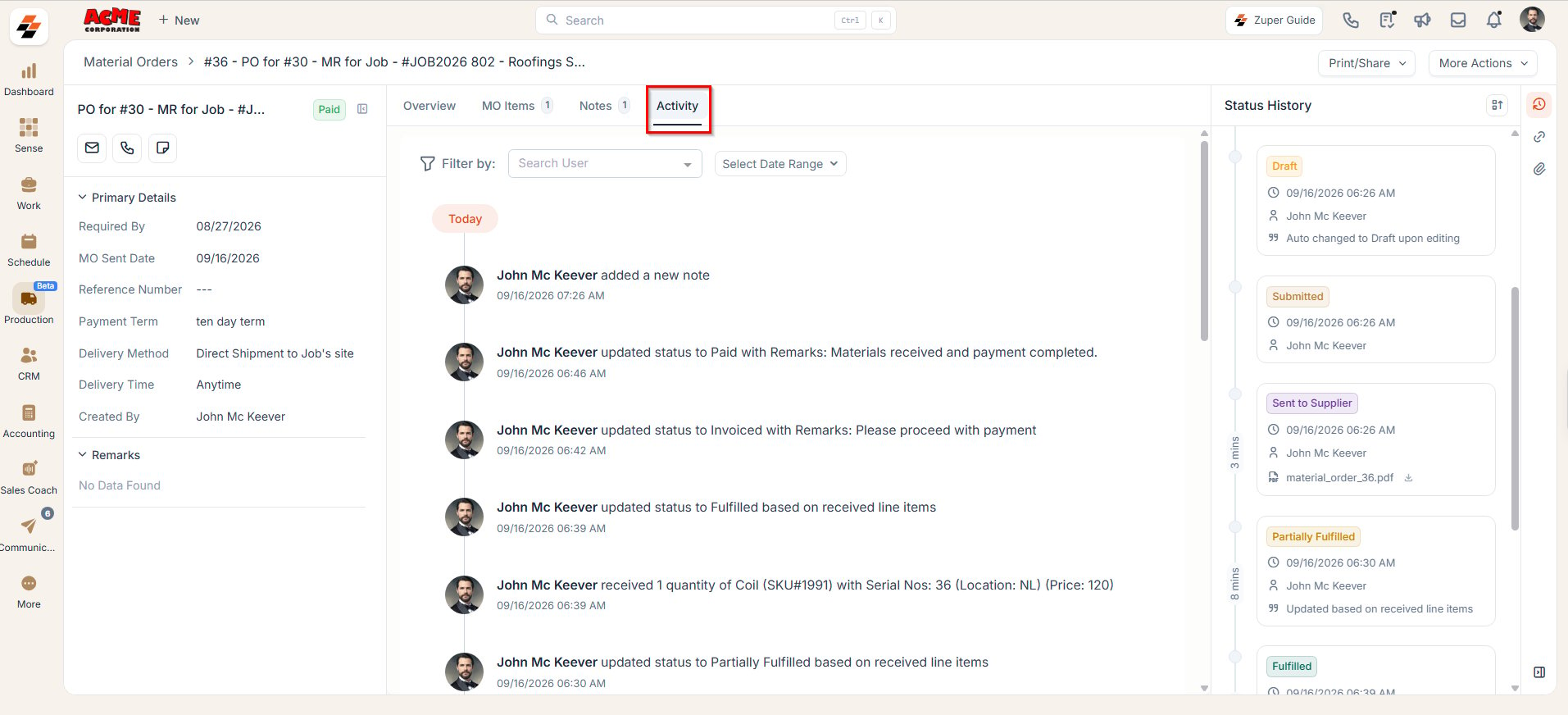
- Notes added
- Status changes
- Attachments uploaded
- Comments or approvals
Status history
Status history
Displays the complete status lifecycle of the material order in chronological order, helping you view each status update along with the timestamp and the user who made the change.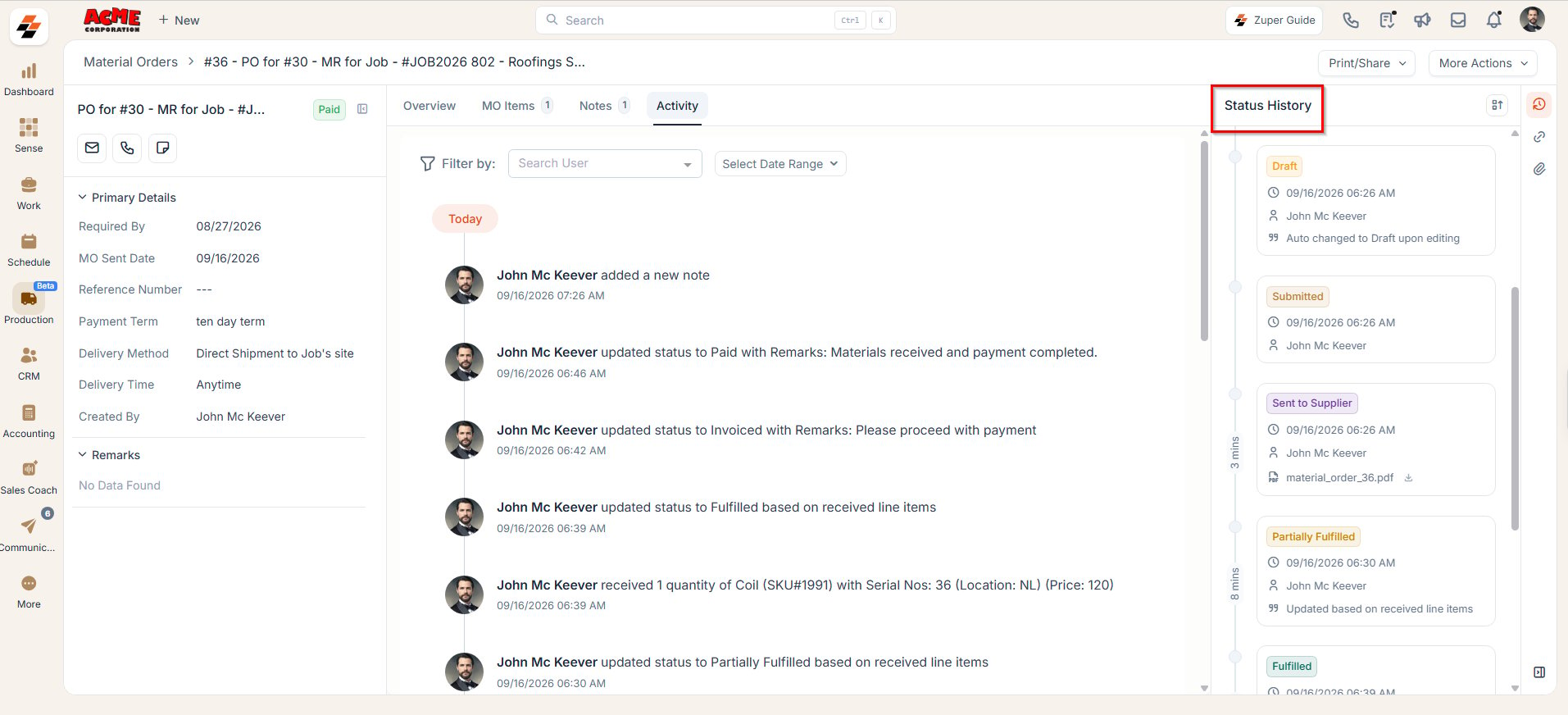
Every time you send an MO to a supplier in PDF or XLS format, Zuper saves a copy of the document in the MO’s Status History section. This gives you a permanent record of exactly what was shared with the supplier and when.What you can do from document history• View the document inline.• Open it in a new browser tab.• Download it directly to your device.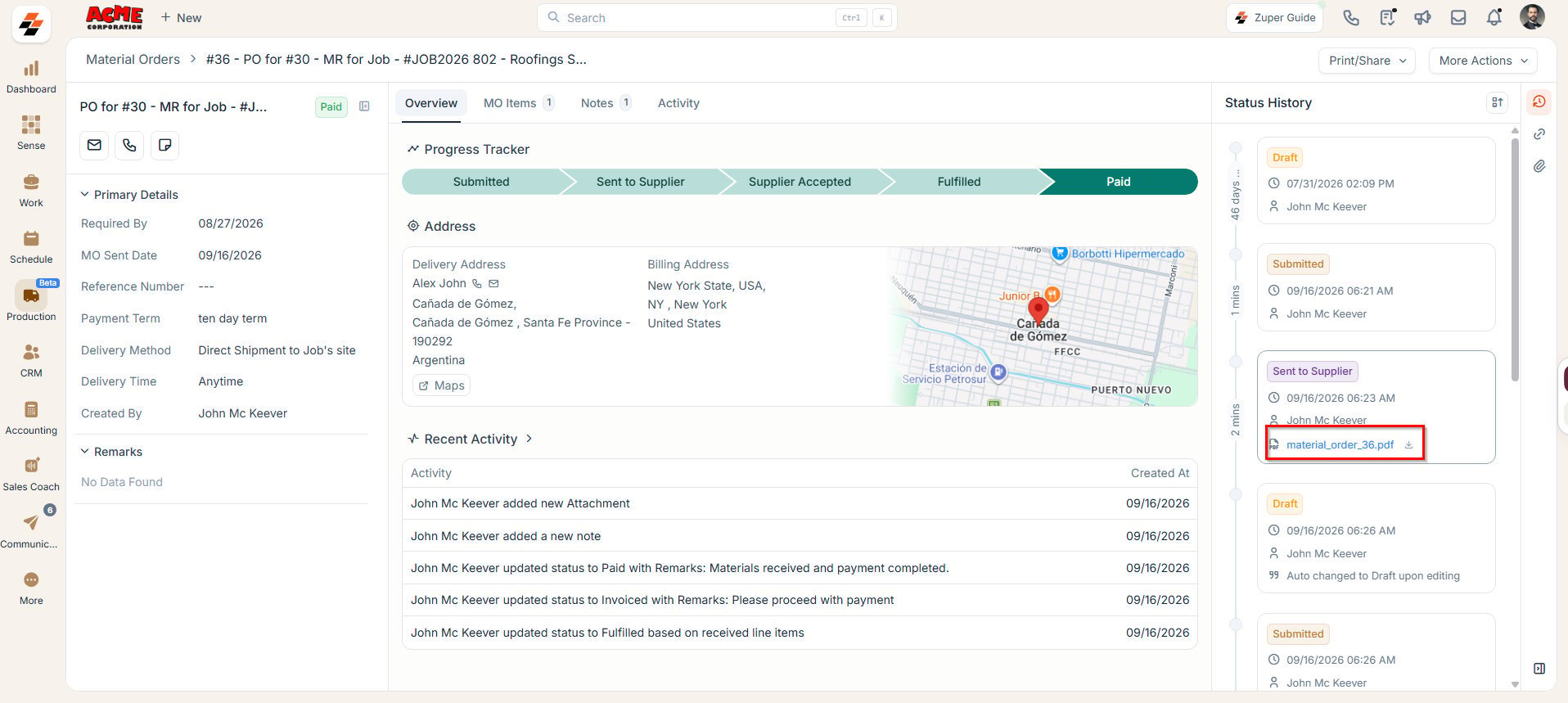
Note: For a detailed explanation of the statuses an MO goes through, refer to the Material Order Status article.
Right Panel
The Right Panel provides additional contextual information and quick-access links related to the selected Material Order (MO). This panel enhances visibility and traceability by consolidating related data in one place.Supplier Details
Supplier Details
Displays key information about the supplier, including: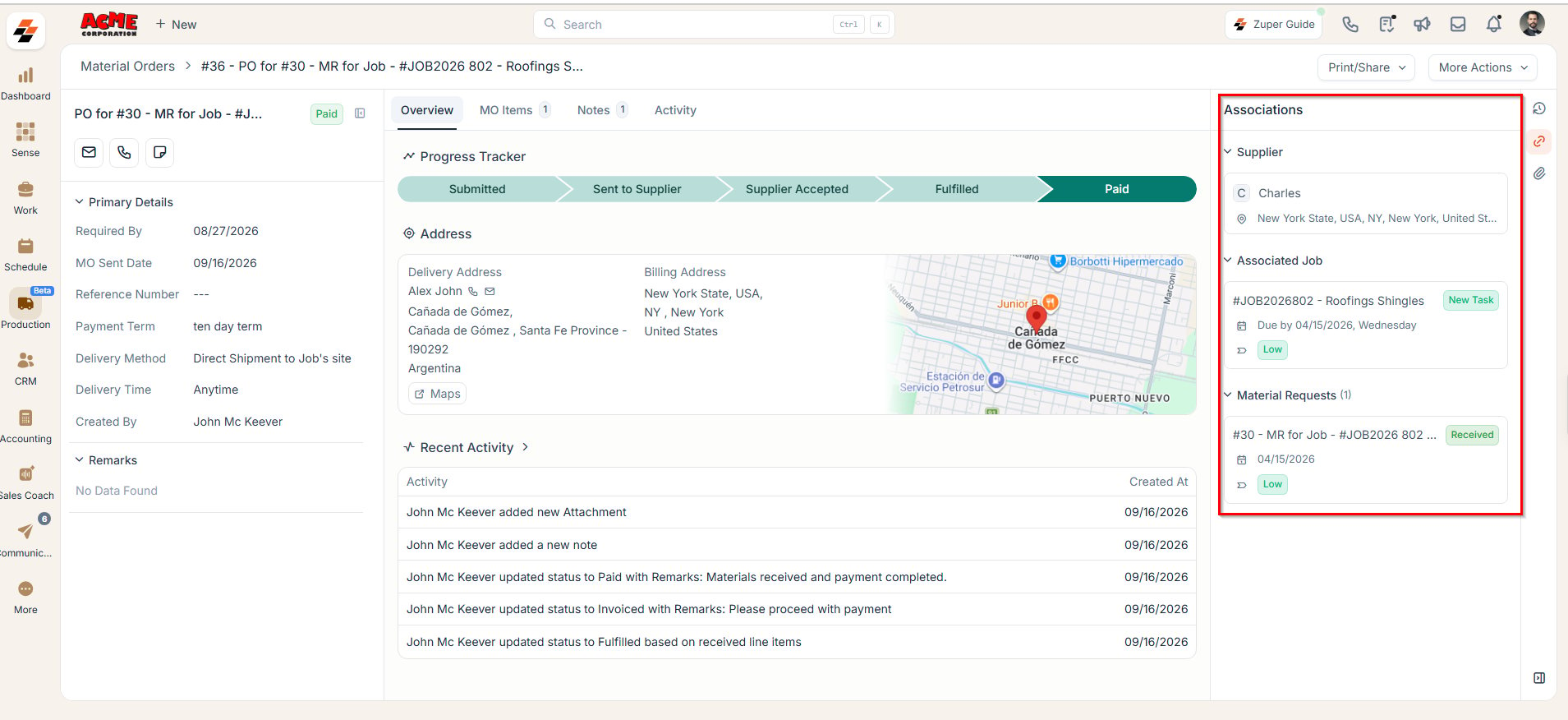
- Supplier name
- Contact information (if available)
- Address
Associated Job/Quote
Associated Job/Quote
This section displays any job or quote associated with the current material order. It allows quick navigation to the corresponding Job or Quote details, offering clear visibility into which job or customer quote the MO supports.
Note: If the associated job or quote is pending materials from the material order, an indication labeled “Waiting on MO” will be shown. This indication helps stakeholders track dependencies and manage timelines effectively. A job or quote linked to a material order can only be closed when the material order status is set to Draft, Cancelled, Closed, or Fulfilled.
Attachments
Attachments
This section allows you to upload and manage documents related to the material order. It displays all files added, such as: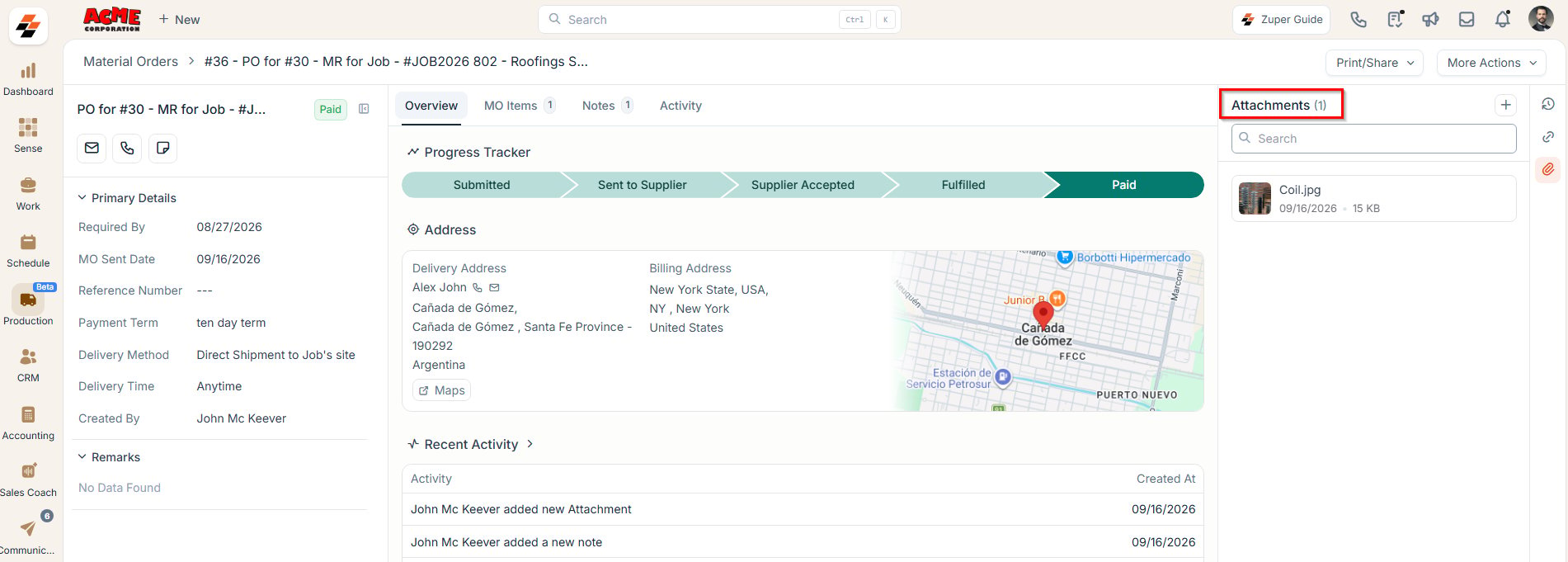
- Supplier quotes
- Product images
- Delivery slips
- Invoices or other supporting documents
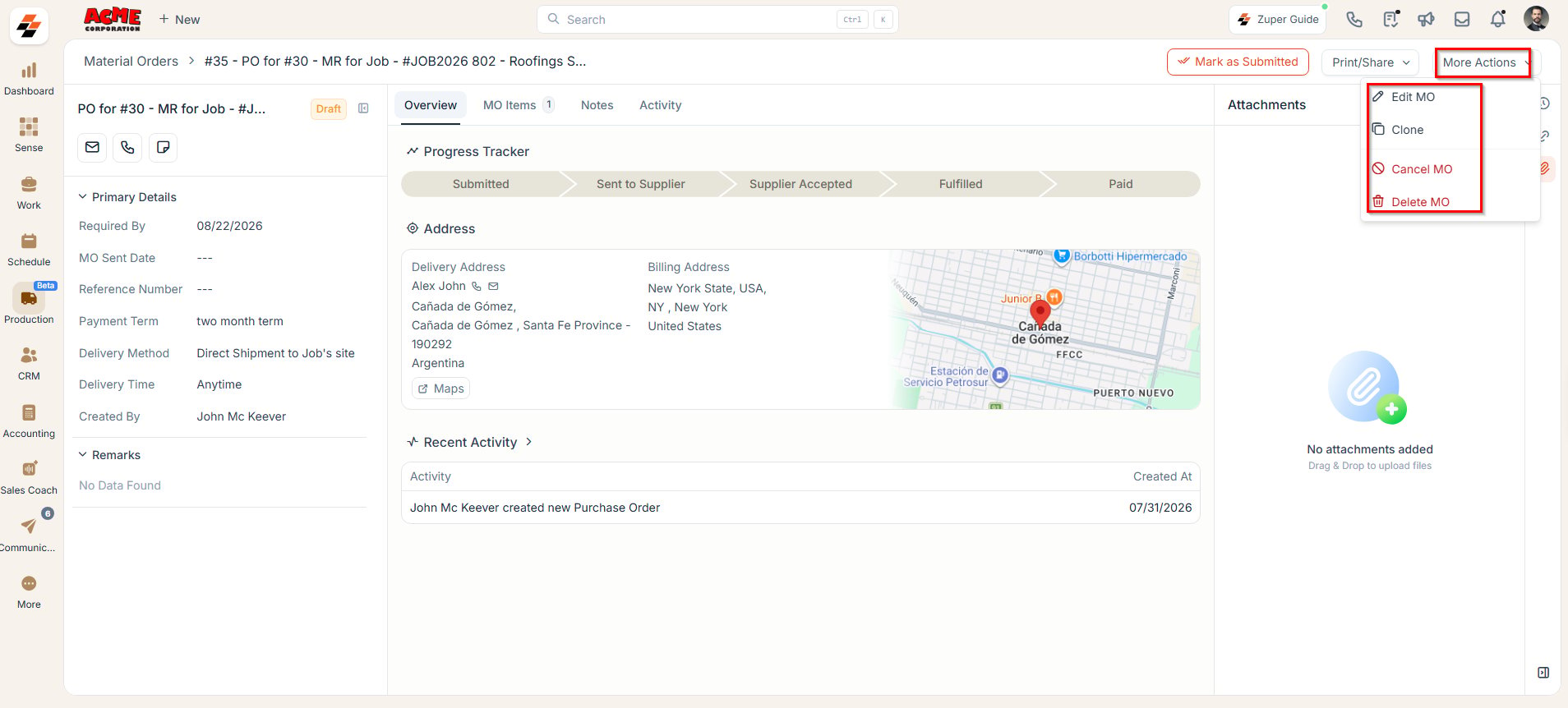
More Actions
More Actions
- Modify Status - You can modify the existing MO status.
- Edit MO - Modify the material order. You can edit the material order for the following statuses: Draft, Submitted, Approved, Sent to Supplier, Supplier Accepted, Supplier Rejected, Partially Fulfilled, and Fulfilled.
Note: If an MO is edited while in the Supplier Accepted state, the new PDF sent to the supplier is recorded as a new version in the Status History section.
- Clone MO - Make a new copy of your existing MO.
- Cancel MO - Cancel your current MO.
- Delete MO - Delete your current MO.