

Before You Begin
- This feature requires account configuration. Please contact Zuper Support for details.
- Zuper provides default access control for this feature based on your user roles. However, if your business requires a different level of visibility, you can customize access using Custom Roles.
Accessing the Commission Listing Page
- Select the Accounting module from the left navigation menu and choose Commissions.
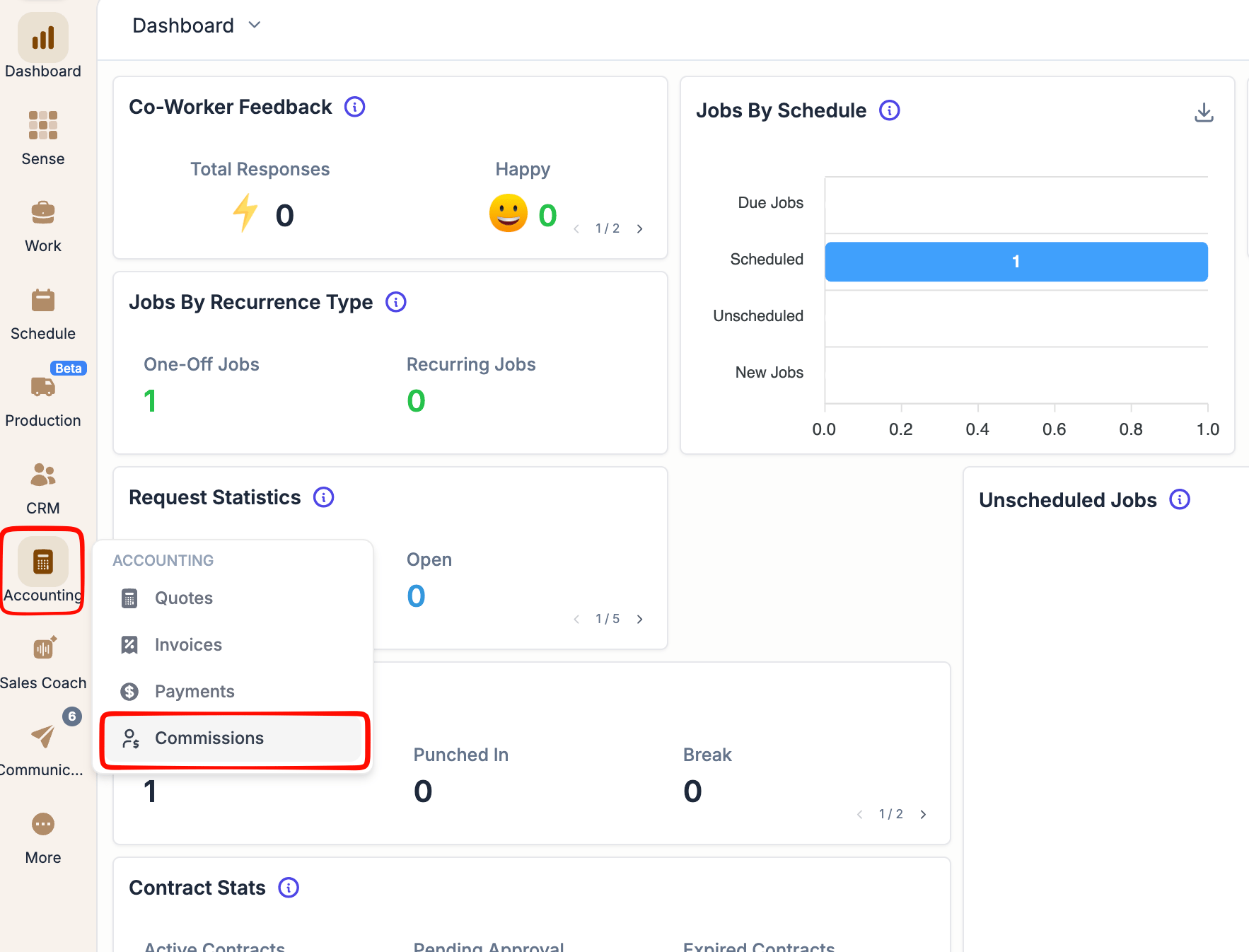
- The Commission Listing page opens. You see a full list of commissions across all jobs and projects.
Recording a Payout for a Single Commission
Use this to record a full or partial payment for one commission at a time.- On the Commissions Listing page, find the commission you want to pay.
- Click Payout in the Actions column for that row.
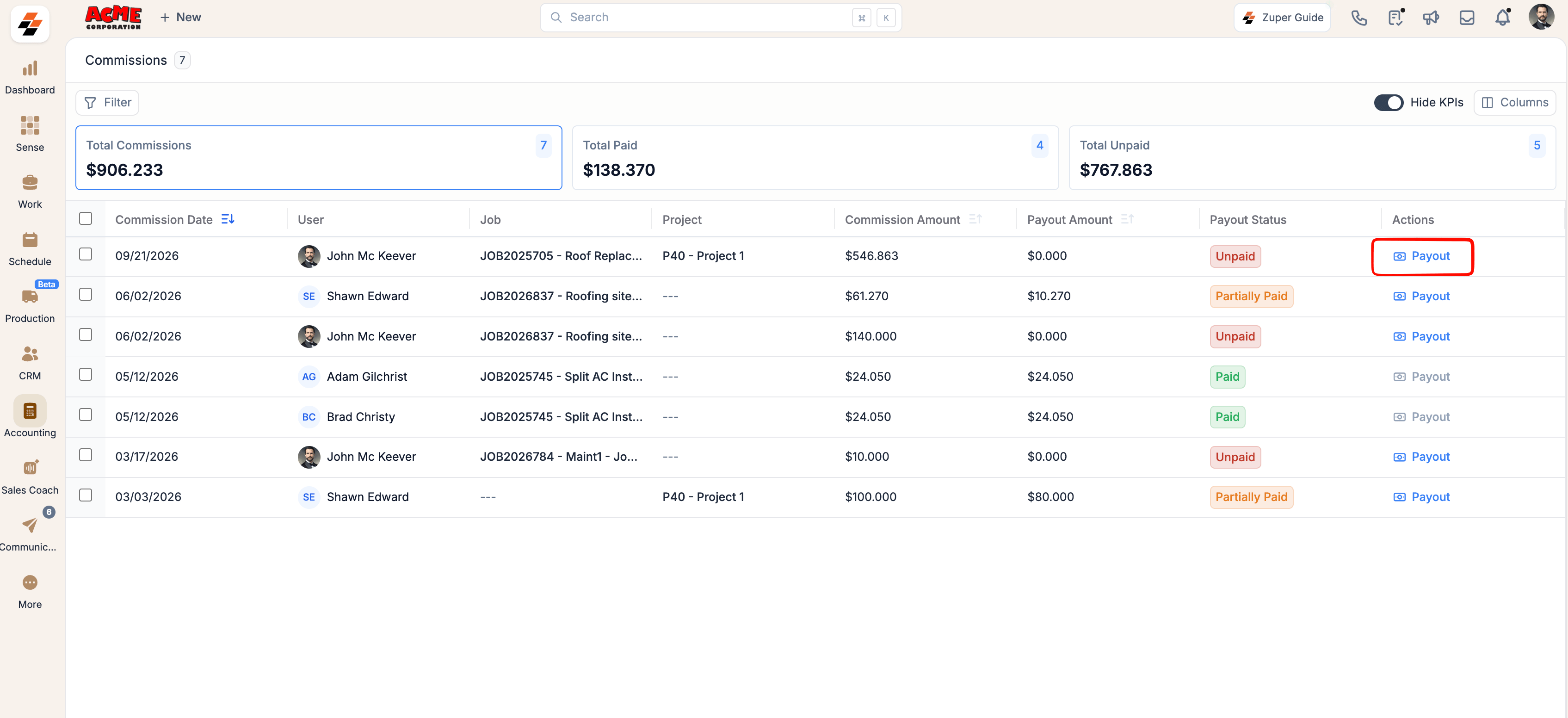
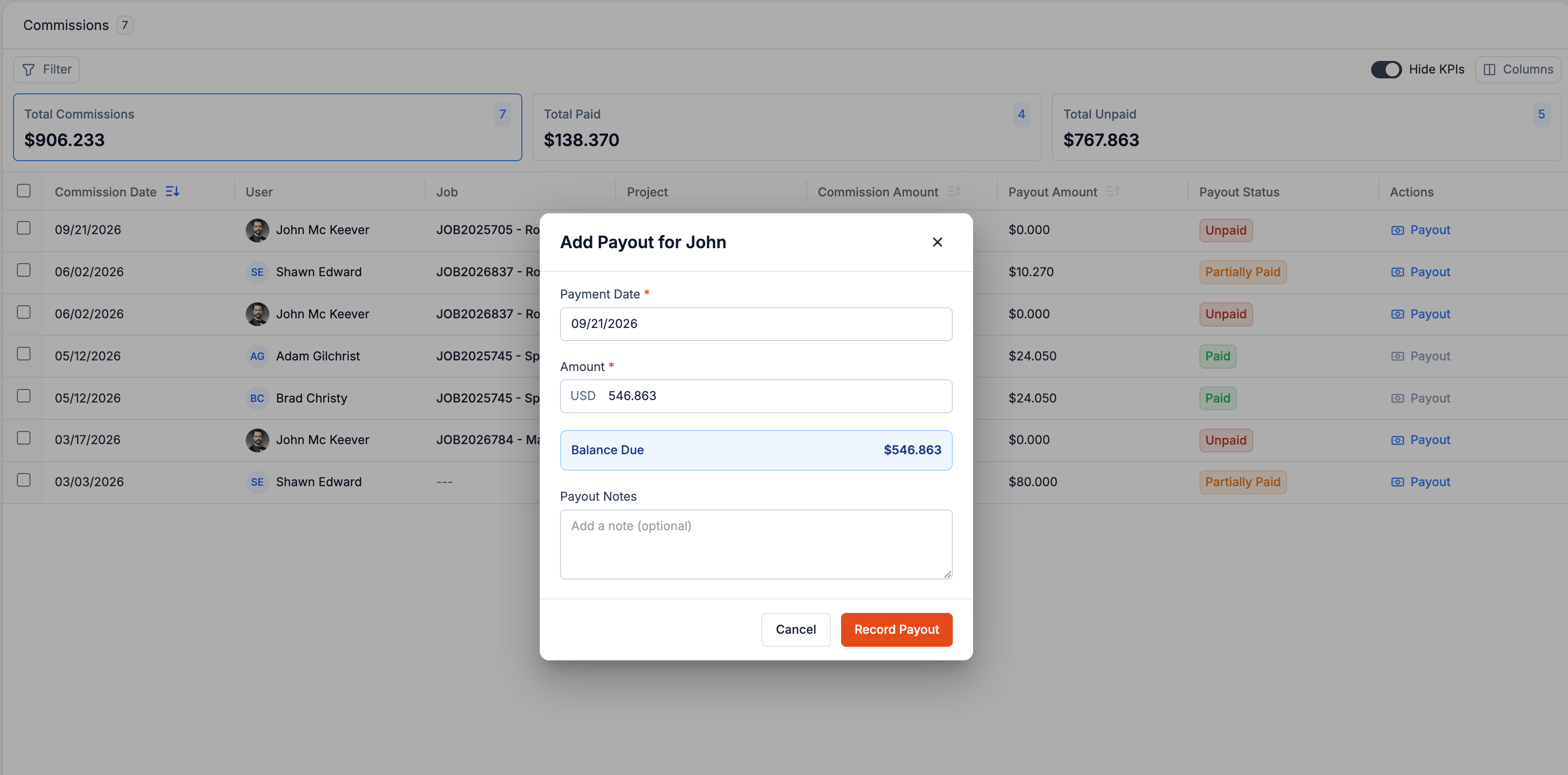
- The Add Payout dialog opens.
- Review or update the Payment Date. It defaults to today’s date. Change it if the payment was made on a past date.
- Enter the Amount you are paying. You can enter the full commission amount or a partial amount.
- Check the Balance Due field - it updates in real time to show the remaining amount after this payout.
- Add an optional note in the Payout Notes field.
- Click Record Payout.
The payout status updates automatically:- Full payment recorded → status changes to Paid
- Partial payment recorded → status changes to Partially Paid, with the remaining balance tracked
You can record multiple partial payouts against the same commission. Each payout reduces the balance due until the commission is fully settled.
Updating Multiple Commissions at Once
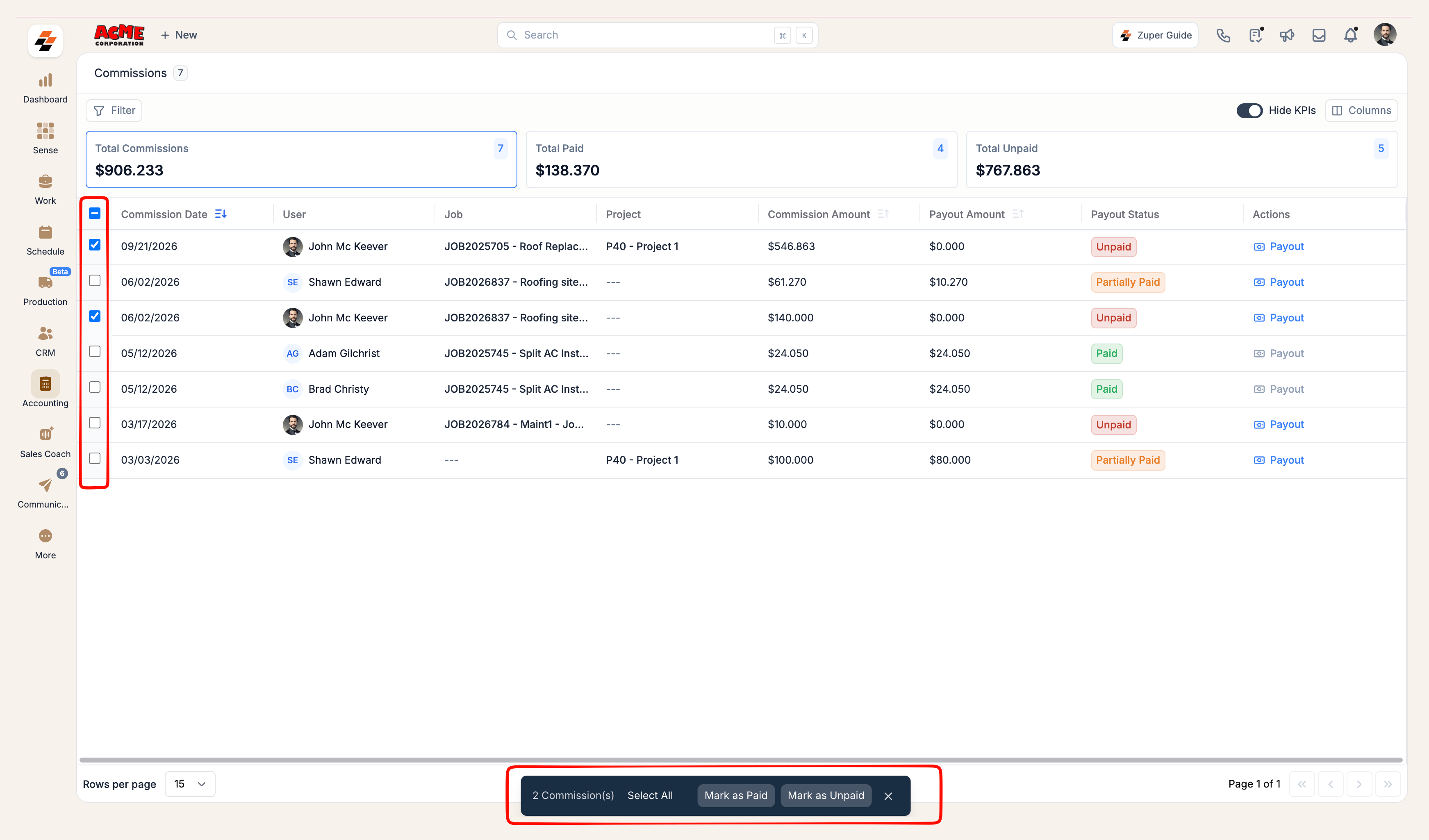
Use bulk actions to mark several commissions as Paid or Unpaid in a single step, ideal for processing multiple commissions at once or correcting payout statuses.- On the Commissions Listing page, select the checkboxes next to the commissions you want to update.
- A bulk action bar appears at the bottom of the page showing the number of selected commissions.
- To select every commission on the current page, click Select All in the bulk action bar.
- Choose your action:
- Mark as Paid - Records the full commission amount as paid
- Mark as Unpaid - Reverses the payout status back to Unpaid
- If you click Mark as Paid or Mark as Unpaid, a confirmation dialog opens. Review or update the Payment Date and add optional Payout Notes.
- Click the button to confirm. All selected commissions update immediately.
Payout Status Labels
Every commission row displays one of four payout statuses: Every commission row displays one of four payout statuses:- Unpaid - No payment has been recorded yet
- Partially Paid - A partial payout has been recorded; a balance remains
- Paid - The full commission amount has been paid out
- Overpaid - The amount paid exceeds the current commission value
Overpaid status cannot be triggered manually through the Payout action. It occurs only when a commission is fully paid, but subsequent changes to the associated job, such as deleted or modified line items. This might reduce the commission amount below what was already paid.
Why does this happen, and how to avoid it
Why does this happen, and how to avoid it
Commissions in Zuper are directly derived from a job’s key financial parameters: Projected Revenue, Projected Profit, Actual Revenue, and Actual Profit. These values are dynamic and recalibrate automatically as materials, labor, and expenses are updated throughout a job’s lifecycle. For example: A 10% commission on an actual profit of $1,000 creates a $100 commission entry. If you pay out $100 and a subsequent expense of $100 reduces the profit to $900, the commission automatically adjusts to $90, but the $100 payout remains, resulting in an Overpaid status.Zuper recommends:
- Create commissions only after a job’s financial parameters are finalized.
- If commissions are created earlier in the job lifecycle, defer payouts until the financials are stable.
- Premature commission creation and early payouts can lead to multiple overpaid entries and directly impact your business’s cash flow.
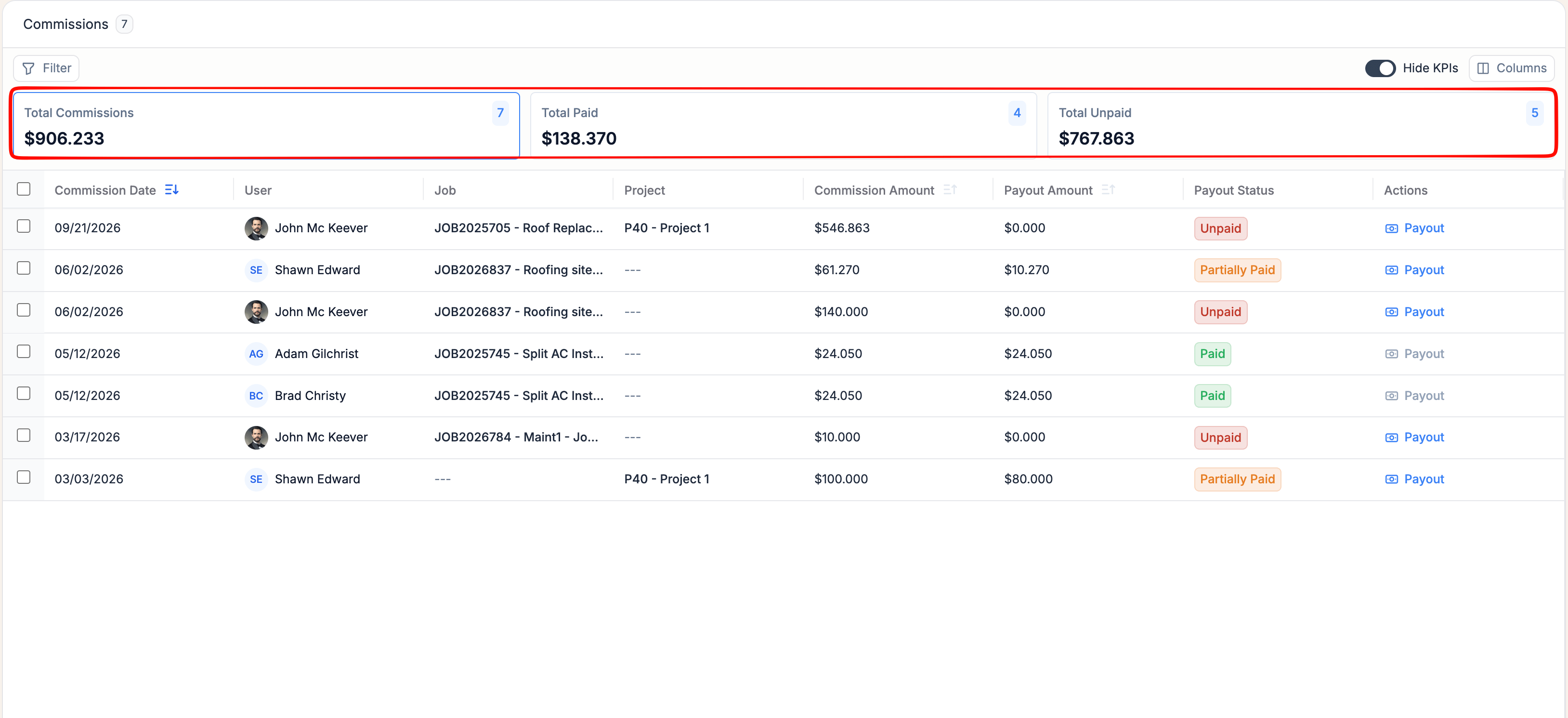
The KPI Banners
At the top of the page, three KPI cards give you an instant financial summary:- Total Commissions: Display the total count and value of all commissions.
- Total Paid: Display the count and value of fully paid commissions.
- Total Unpaid: Display the count and value of commissions with outstanding balances.
Customizing Your Columns
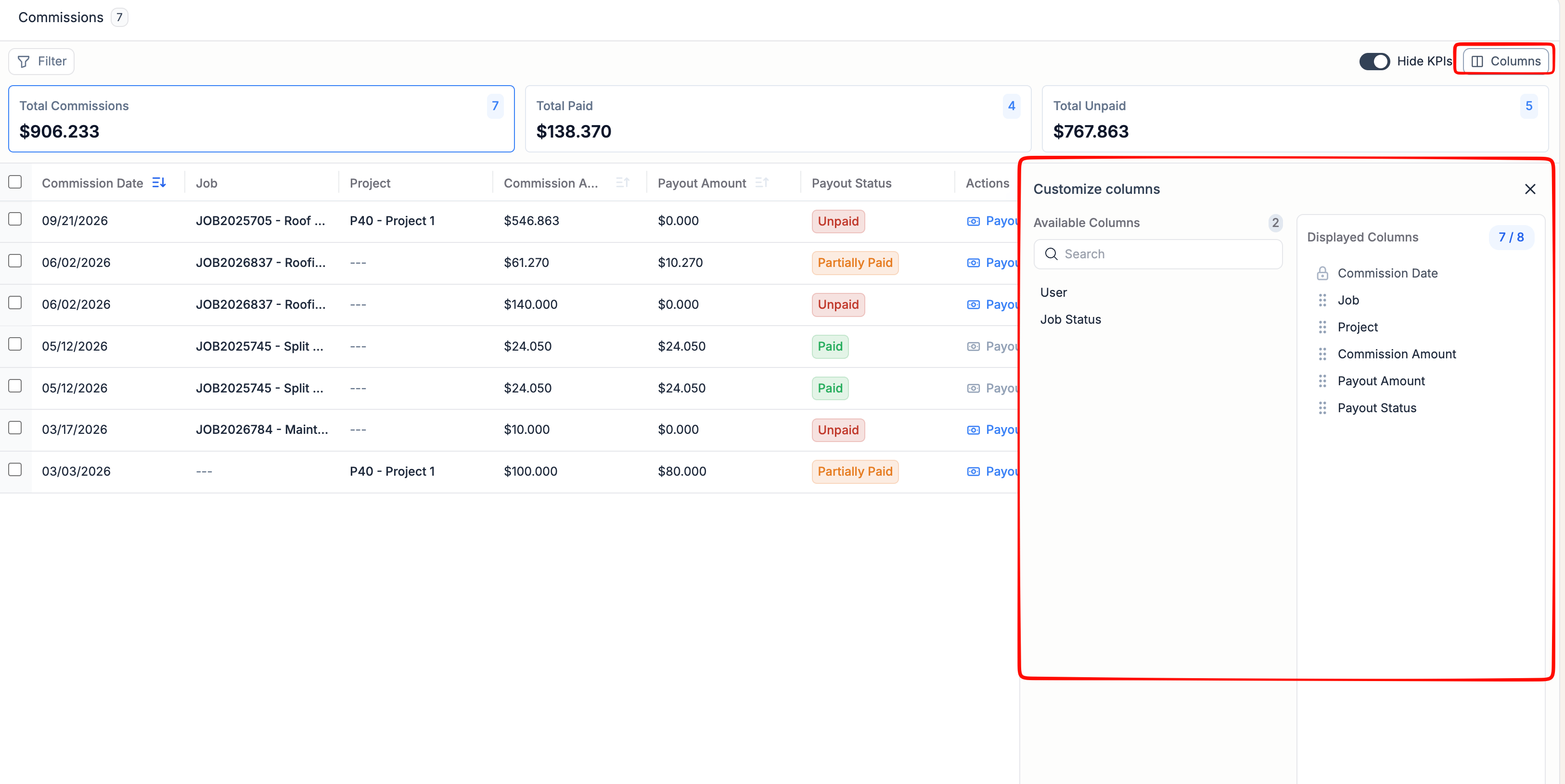
You can choose which columns appear in the listing so you see only the data relevant to your workflow.- Click Columns in the top-right corner of the listing page. The Customize Columns panel opens on the right.
- The Displayed Columns list shows what is currently visible. Columns shown by default include Commission Date, User, Job, Project, Commission Amount, Payout $, and Payout Status.
- Drag a column from Available Columns into Displayed Columns to add it.
- Click the button on a column to remove it from Displayed Columns.
- Reorder columns by dragging them into your preferred position.
- Close the panel. Your changes apply immediately.
Filtering the Commission List
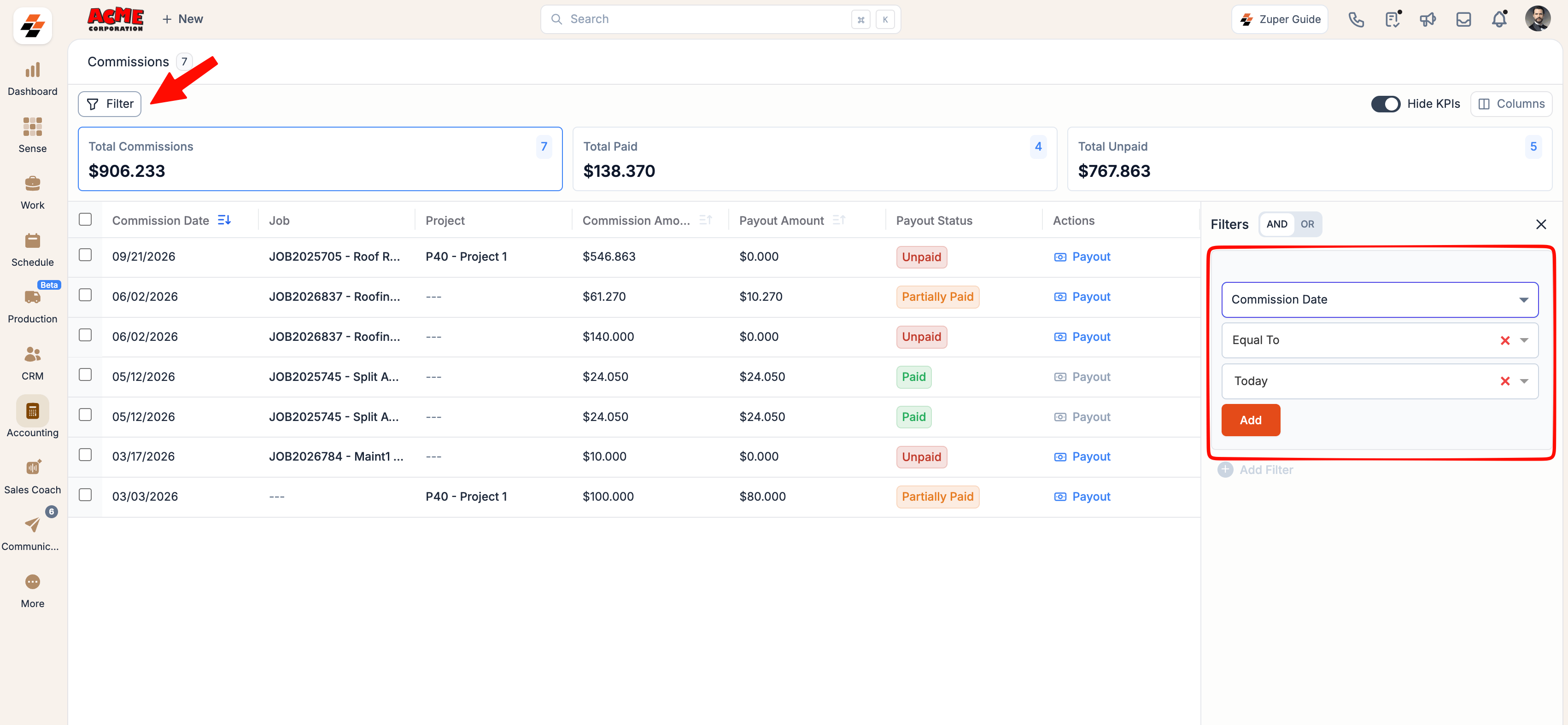
Use filters to narrow down the list to the commissions you need to act on.- Click Filter at the top-left of the listing page.
- Select a filter attribute.
- Set the condition and value for each filter.
- Click Add to apply the filter. The listing updates immediately.
Commission Payout Report
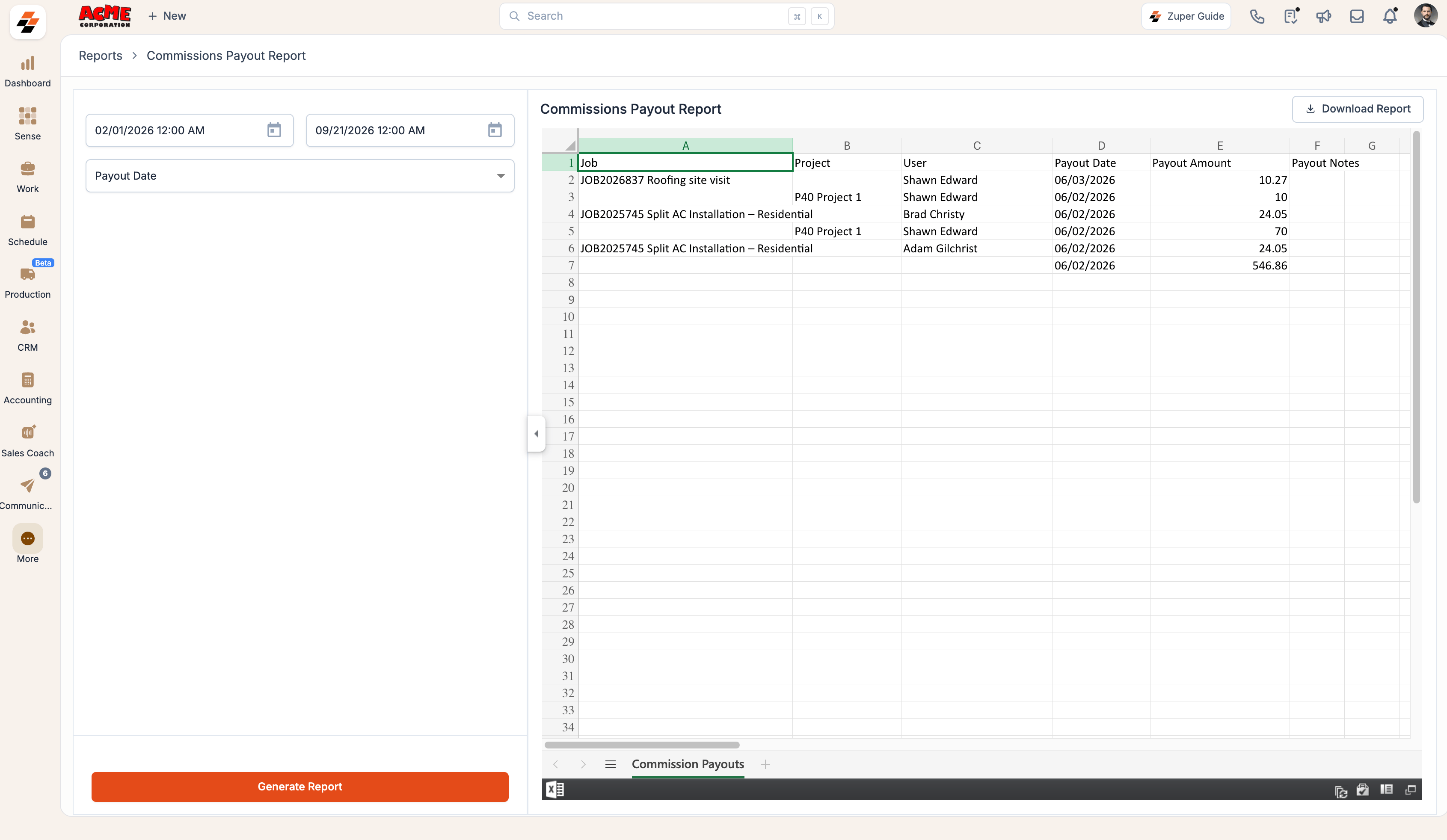
Use this report to reconcile commissions paid during a specific period. Filter by commission date to get an accurate picture of payments processed within your chosen timeframe. To access the Commission Payout Report- Click the Reports module from the left navigation menu.
- Navigate to Miscellaneous Reports > Commissions Payout Report.
This report is accessible to Admin roles only, as it contains financially sensitive information.
Frequently Asked Questions
Can I pay out a commission in installments?
Can I pay out a commission in installments?
Yes. Click Payout in the Actions column and enter any amount less than the full commission. The status changes to Partially Paid and the remaining balance is tracked. You can record additional payouts until the commission is fully settled.
What is the difference between the individual Payout action and the bulk Mark as Paid?
What is the difference between the individual Payout action and the bulk Mark as Paid?
The individual Payout action lets you enter a specific amount and supports partial payments. Bulk Mark as Paid records the full commission amount as paid for all selected commissions at once.
Can I undo a payout after it has been recorded?
Can I undo a payout after it has been recorded?
Yes. Select the commission and click Mark as Unpaid from the bulk action bar to reverse the payout status. For reversing individual partial payout records, contact your administrator.
Where can I view the history of payouts made against a commission?
Where can I view the history of payouts made against a commission?
Hover over the Payout Status of any commission row to see its full payout history. The tooltip shows each payout made, along with the date and amount, in the order they were recorded.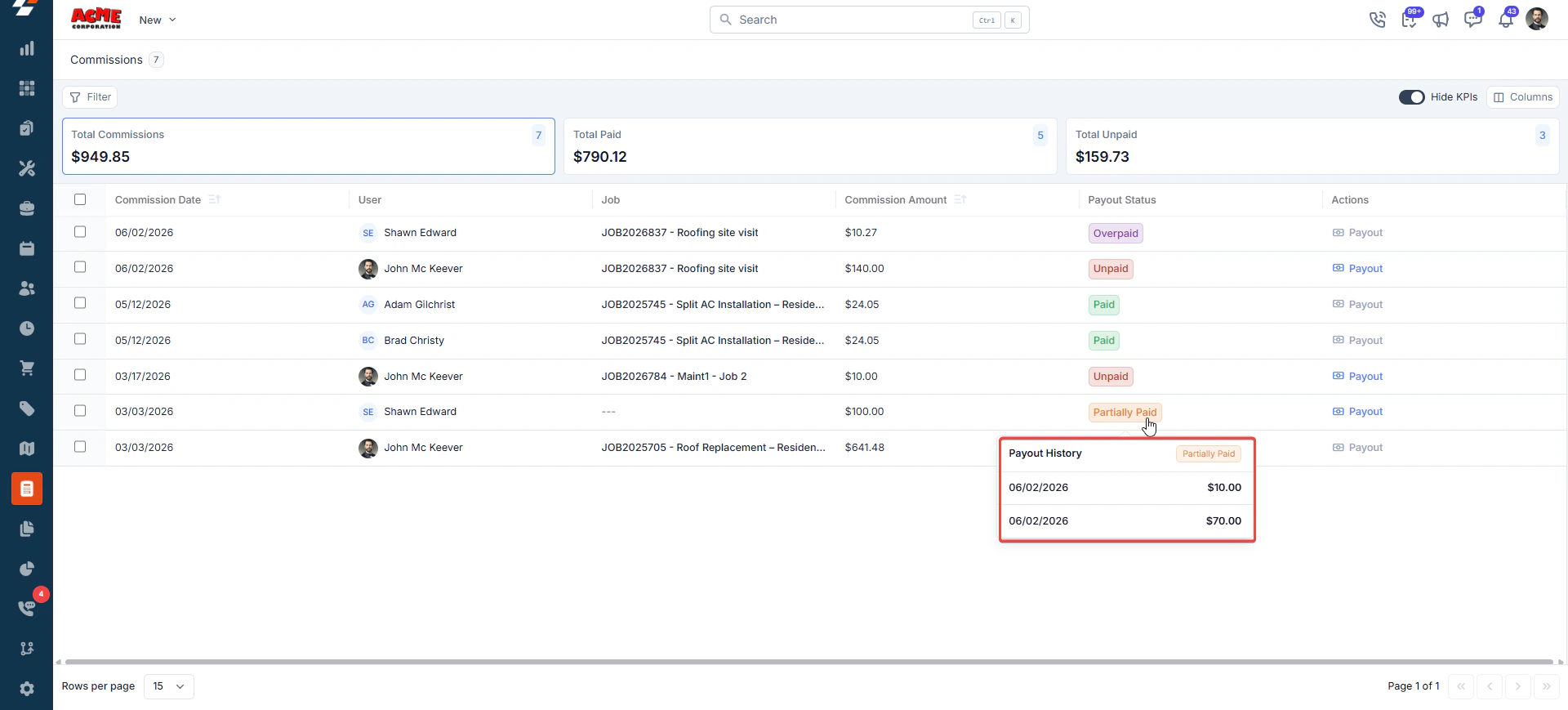
Why is the Payout option not visible against a commission on the job details page?
Why is the Payout option not visible against a commission on the job details page?
The Payout option is not available when the commission value is zero. This typically occurs when the financial parameters the commission is based on have not yet been populated for that job.
Can commissions be based on attributes beyond a job's financials?
Can commissions be based on attributes beyond a job's financials?
Yes. Zuper supports flat dollar amount commissions as an alternative to percentage-based ones. If your business has more complex rules driving commissions, you can also leverage Zuper Workflows to automatically create flat dollar commissions based on custom conditions.
How do I handle an overpaid commission?
How do I handle an overpaid commission?
As a temporary measure, mark the commission as Unpaid and hold off on the payout until the job’s financial parameters are finalized. For a permanent fix, follow Zuper’s recommendation to create commissions only after the associated job finances are frozen, so payout amounts are stable before any payment is recorded.
Can commissions be created automatically based on business rules?
Can commissions be created automatically based on business rules?
Automatic commission creation is not available as a built-in feature in Zuper. However, you can achieve this by setting up Zuper Workflows to trigger commission creation based on your specific business rules and conditions.