> ## Documentation Index
> Fetch the complete documentation index at: https://docs.zuper.co/llms.txt
> Use this file to discover all available pages before exploring further.
# Emails in the Communications Module
> Compose, receive, and manage email conversations with customers directly from the Zuper Communication module, without losing the job or customer/contact context.
Every conversation with a customer spans several channels: calls, texts, and emails. Your **Conversations** tab now unifies email with calls and texts, with each thread tied to the correct job and customer/contact. You manage every conversation in one place, whatever the channel.
A new email arrives here as a conversation, just like a call or text. You reply to it the same way. Close it when you are done, and it reopens automatically if the customer/contact replies.
The **Emails** tab within **Communication** gives you the same context, focused solely on email. Switch here when email is all you want to see, without calls and texts mixed in.
**Zuper Connect** is present under the **Communication** module once email is enabled for your account. If email is not enabled, you still find calls and texts under **Zuper Connect**.
**Navigation:** **Communication** > **Emails**
## Conversations tab
Email conversations behave the same way calls and texts do here. A new email creates a conversation, or adds to an existing one, just like an incoming call or text. Select a conversation to open and reply to it.
Select **Mark as Closed** on a conversation to close it. Zuper reopens it automatically if the customer/contact replies.
Select the checkboxes on multiple conversations to open a bulk action bar with **Mark as read** and **Mark as closed**.
To learn more about managing text message conversations, see [View and manage web conversations](/Zuper_Connect/View_Manage_Web_Conversations).
To start a new email from your **Conversations** tab, select **New Email**.
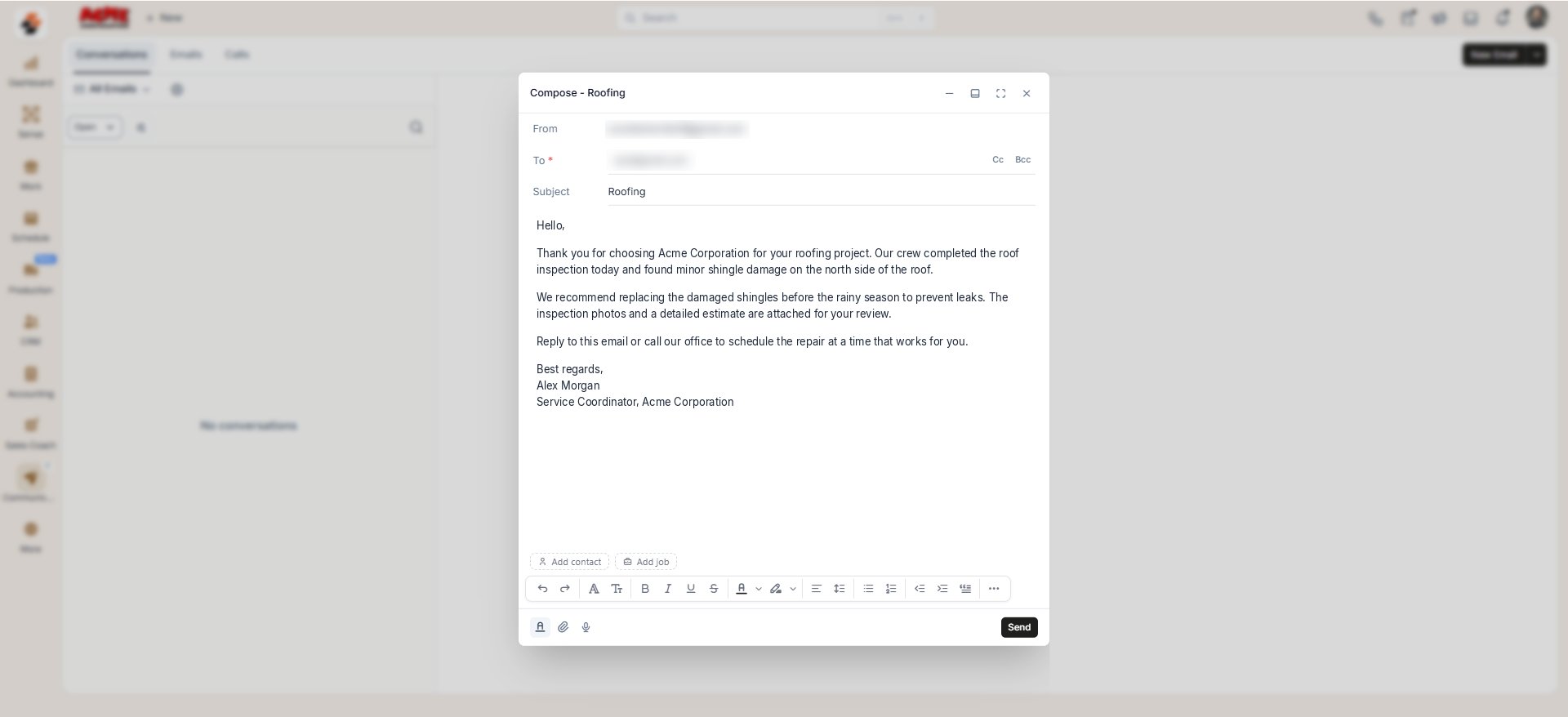 * Filter your list using the **Open** dropdown, or the filter icon for **Needs Attention**, **Unread**, or **Unresponded**.
**Needs Attention** is not applicable for emails.
* Filter your list using the **Open** dropdown, or the filter icon for **Needs Attention**, **Unread**, or **Unresponded**.
**Needs Attention** is not applicable for emails.
.png?fit=max&auto=format&n=VQkK-nUj5I8ecn32&q=85&s=d13b613ce1f02d3eb9281b176776b333) * Bulk select emails to mark them as read or closed.
* Bulk select emails to mark them as read or closed.
 ## Emails tab
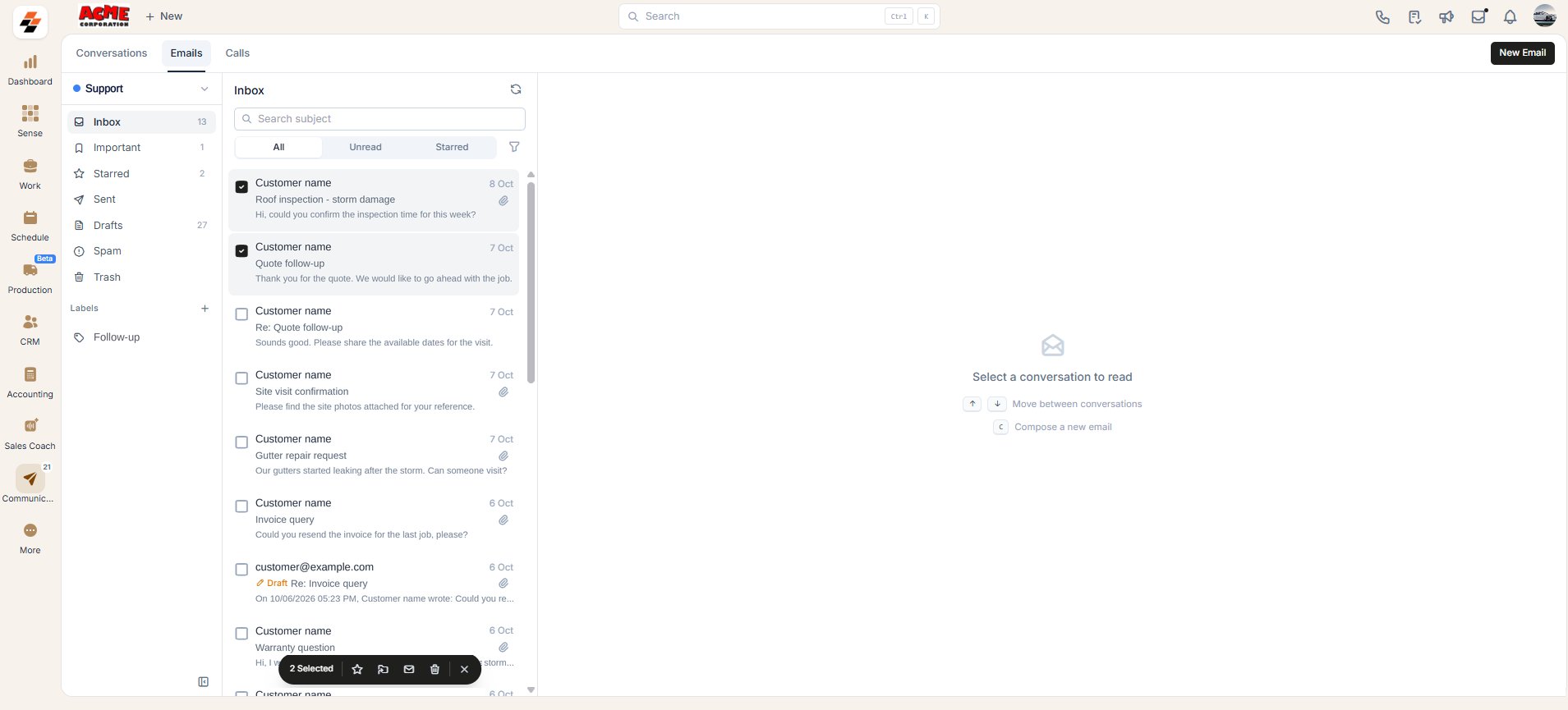
Your **Emails** tab lists all the mailboxes you have access to: **Personal** and **Shared** inboxes. Select one to view its emails in one of two views, depending on how your admin configured that mailbox.
* A **Zuper-only** mailbox shows only the emails linked to a customer/contact or job record. It does not show folders such as **Sent**, **Drafts**, or **Spam**. It also does not support starring, moving emails between folders, or selecting multiple emails at once.
If a new email arrives from an address already saved for a customer/contact, Zuper automatically links the customer/contact. You still add the job yourself.
## Emails tab
Your **Emails** tab lists all the mailboxes you have access to: **Personal** and **Shared** inboxes. Select one to view its emails in one of two views, depending on how your admin configured that mailbox.
* A **Zuper-only** mailbox shows only the emails linked to a customer/contact or job record. It does not show folders such as **Sent**, **Drafts**, or **Spam**. It also does not support starring, moving emails between folders, or selecting multiple emails at once.
If a new email arrives from an address already saved for a customer/contact, Zuper automatically links the customer/contact. You still add the job yourself.
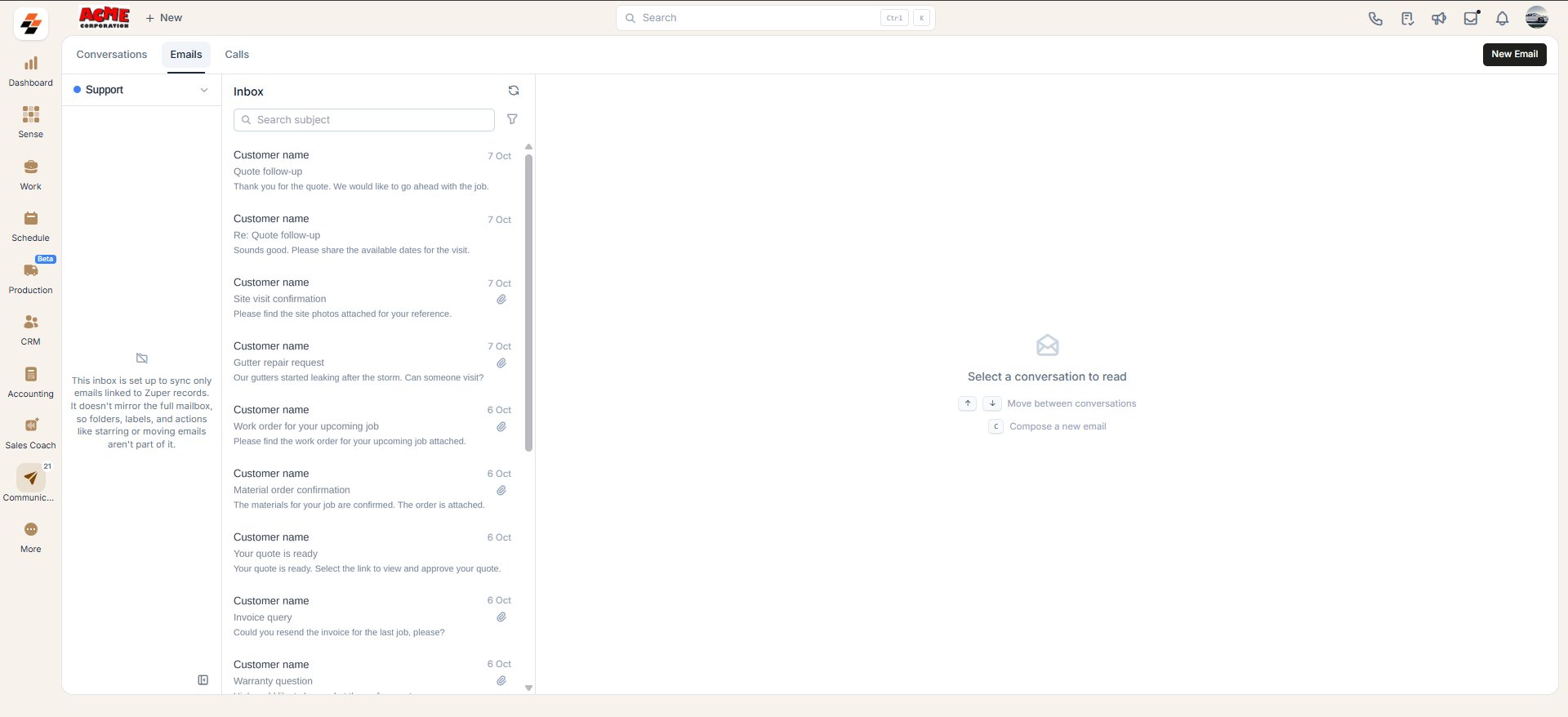 * A **fully synced** mailbox mirrors your entire mailbox. This includes standard folders such as **Sent**, **Drafts**, and **Spam**, as well as any custom folders or labels. If you create a new folder in Zuper, it syncs back to your Gmail or Outlook account.
On a fully synced mailbox, the context menu also offers **Move to Spam**, **Report spam**, and **New label**. These extra actions are not available on a Zuper-only mailbox.
* A **fully synced** mailbox mirrors your entire mailbox. This includes standard folders such as **Sent**, **Drafts**, and **Spam**, as well as any custom folders or labels. If you create a new folder in Zuper, it syncs back to your Gmail or Outlook account.
On a fully synced mailbox, the context menu also offers **Move to Spam**, **Report spam**, and **New label**. These extra actions are not available on a Zuper-only mailbox.
 For steps to set up and switch between these views, see [Configure your inboxes](/Zuper_Connect/Configure_Your_Inboxes).
## Compose a new email
You can start a new email conversation directly from your **Emails** tab.
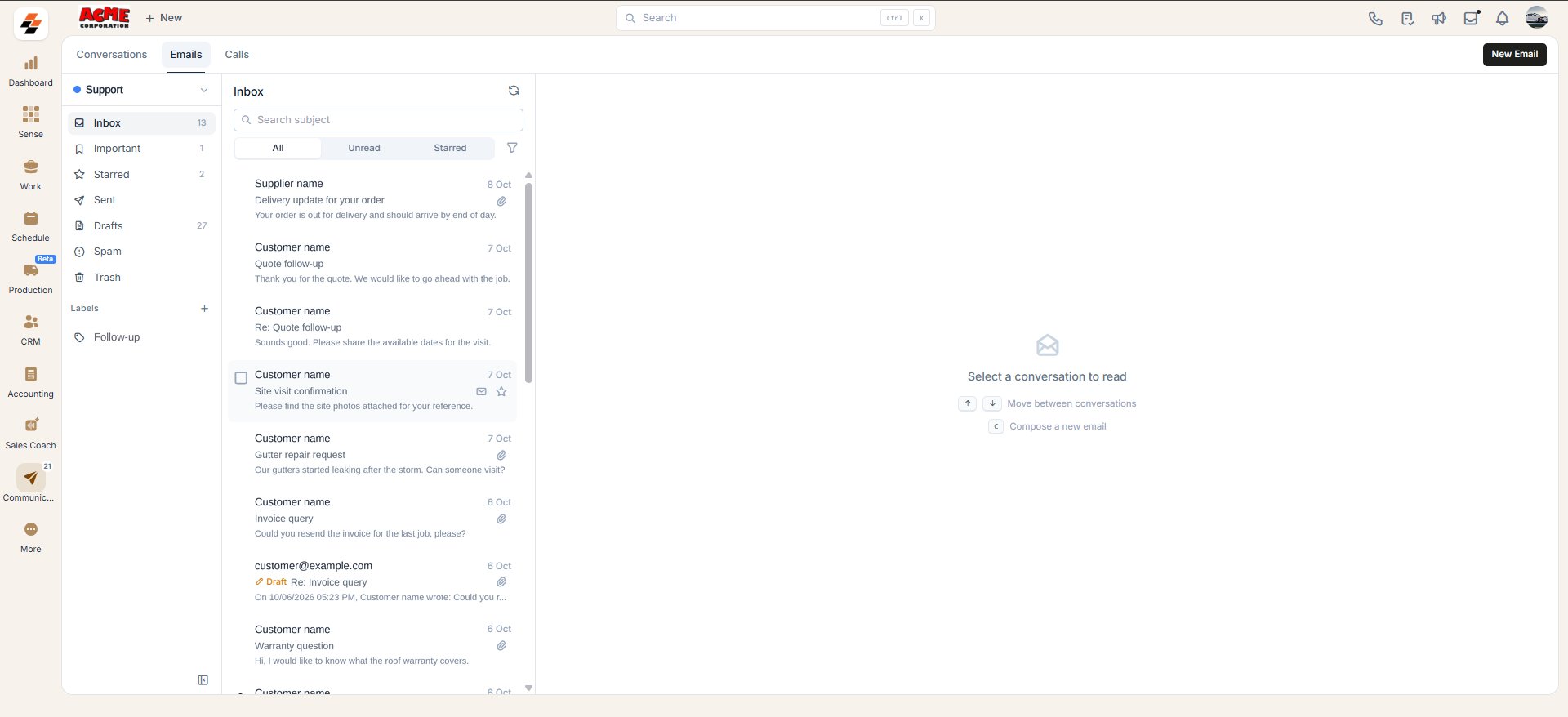
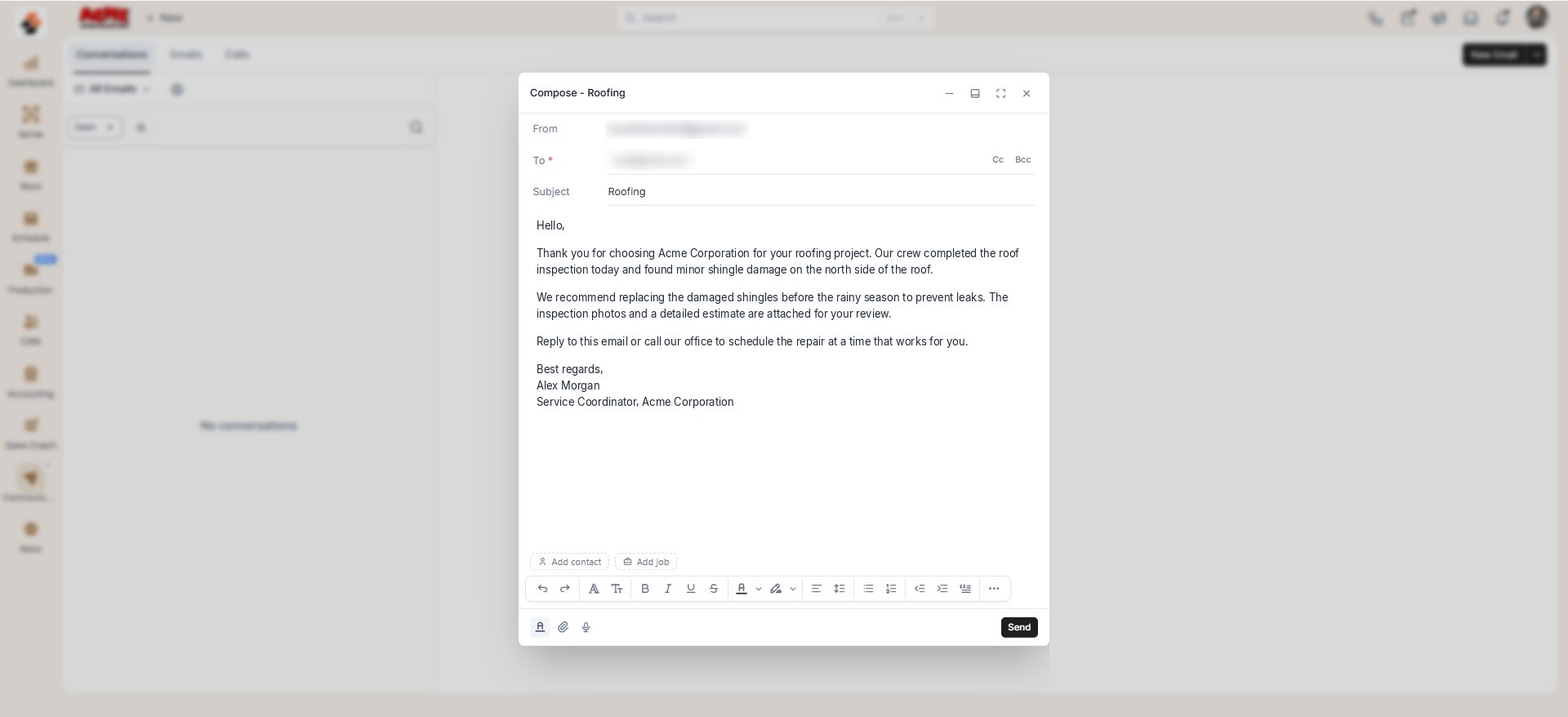
1. Select **New Email** at the top right of the **Emails** tab. The composing window opens.
2. Enter the recipients' email addresses in the **To**, **Cc**, and **Bcc** fields, and enter a **Subject**.
3. Enter your message in the body of the email. Use the formatting toolbar to format your text, or select **Email Template** to use a pre-existing template instead. To learn more, see [Use email templates](#use-email-templates).
4. Select the microphone icon to dictate your message instead of typing it, if needed.
5. Select the dynamic field icon in the composing toolbar to add job or customer-specific fields.
6. Select the attachment icon to attach files from your device or Zuper.
7. Select **Send**.
Dictation is available only on supported browsers.
For steps to set up and switch between these views, see [Configure your inboxes](/Zuper_Connect/Configure_Your_Inboxes).
## Compose a new email
You can start a new email conversation directly from your **Emails** tab.
1. Select **New Email** at the top right of the **Emails** tab. The composing window opens.
2. Enter the recipients' email addresses in the **To**, **Cc**, and **Bcc** fields, and enter a **Subject**.
3. Enter your message in the body of the email. Use the formatting toolbar to format your text, or select **Email Template** to use a pre-existing template instead. To learn more, see [Use email templates](#use-email-templates).
4. Select the microphone icon to dictate your message instead of typing it, if needed.
5. Select the dynamic field icon in the composing toolbar to add job or customer-specific fields.
6. Select the attachment icon to attach files from your device or Zuper.
7. Select **Send**.
Dictation is available only on supported browsers.
 ### Attach a file
What you can attach to an email depends on whether the email is associated with a contact or a job.
* If neither a contact nor a job is associated, you can attach a file only **From device**.
### Attach a file
What you can attach to an email depends on whether the email is associated with a contact or a job.
* If neither a contact nor a job is associated, you can attach a file only **From device**.
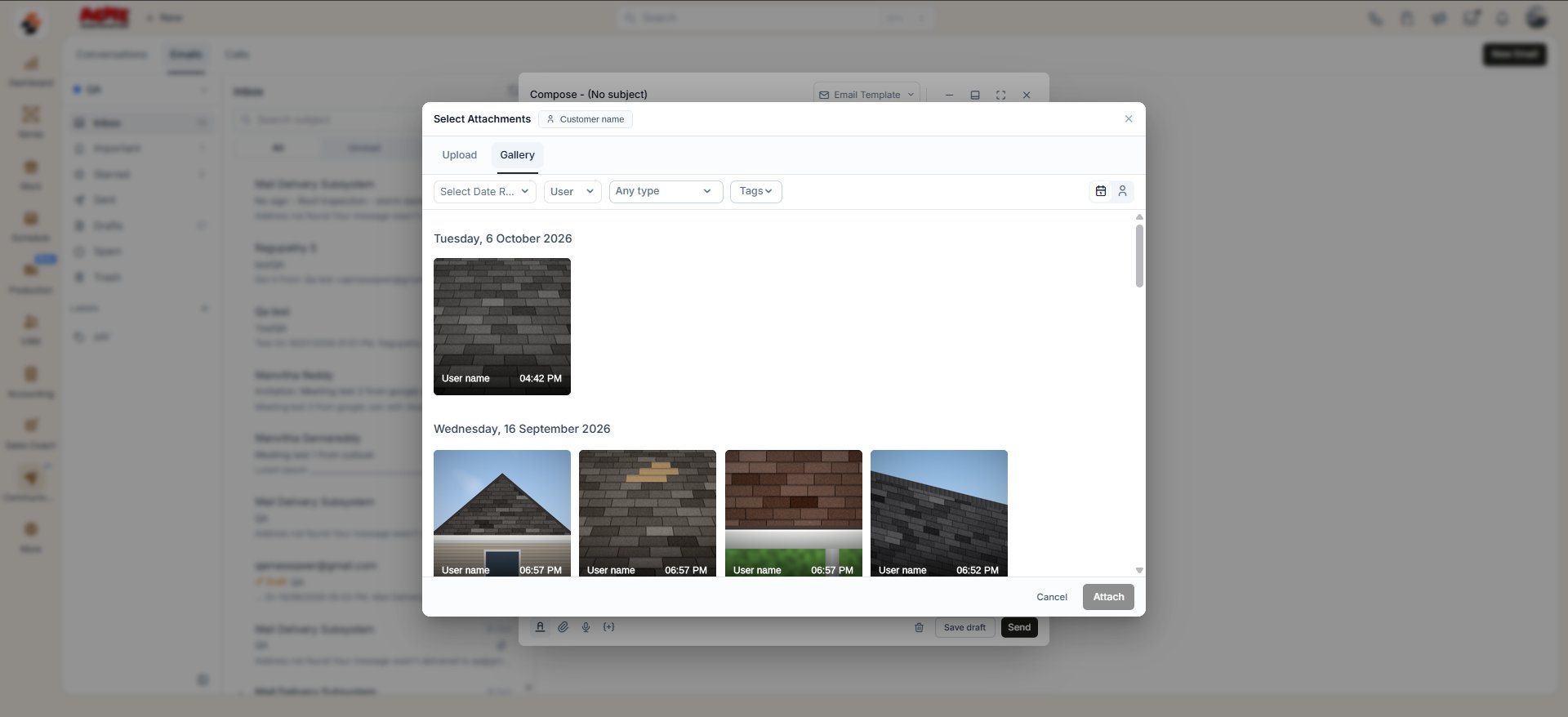
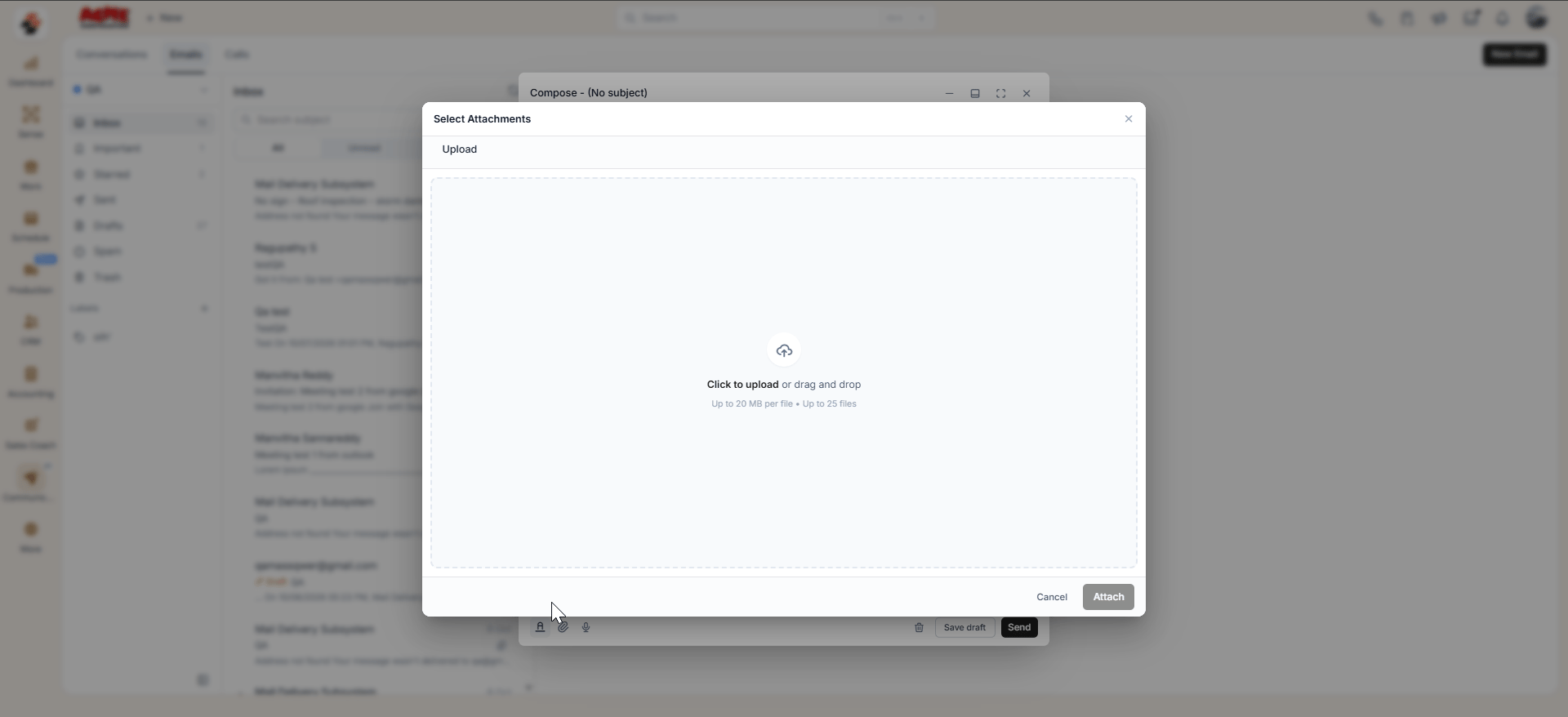 * If a job or contact is associated, you can also attach a file **From gallery**, along with adding from a device.
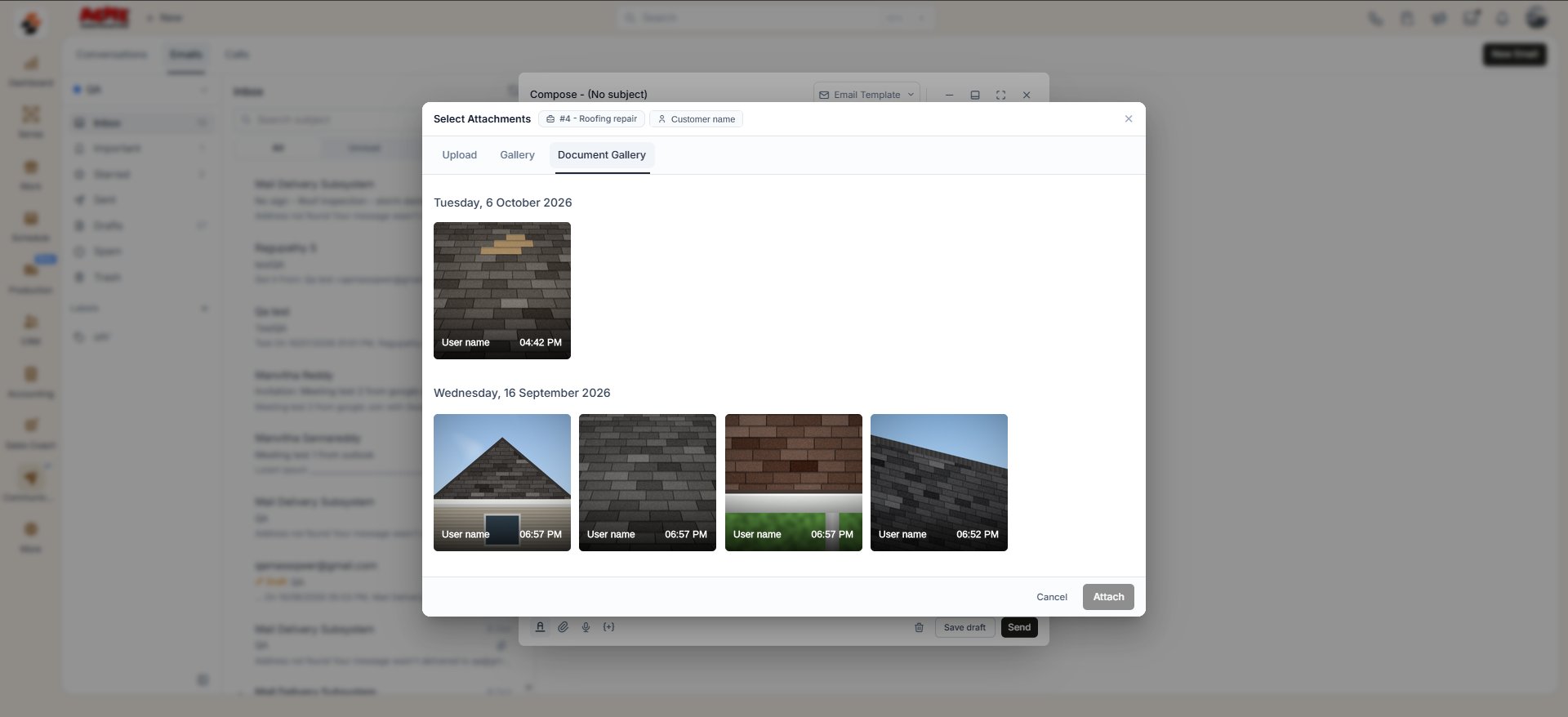
 * If a job is associated, you can also attach a file **From Job document**.
When you attach **From gallery**, use the **Show Related** toggle to control which photos or videos appear. Turn it on to see the customer's entire gallery across all their jobs. Turn it off to see only the photos from the associated job's gallery.
* If a job is associated, you can also attach a file **From Job document**.
When you attach **From gallery**, use the **Show Related** toggle to control which photos or videos appear. Turn it on to see the customer's entire gallery across all their jobs. Turn it off to see only the photos from the associated job's gallery.
 ## Associate a customer/contact or a job with an email
This section covers three cases: associating while composing a new email, associating with an email you already sent or received, and changing or removing an existing association. When you associate a customer/contact or job with an email, you can access that email from **Jobs** and **Customers**.
### Associate while composing
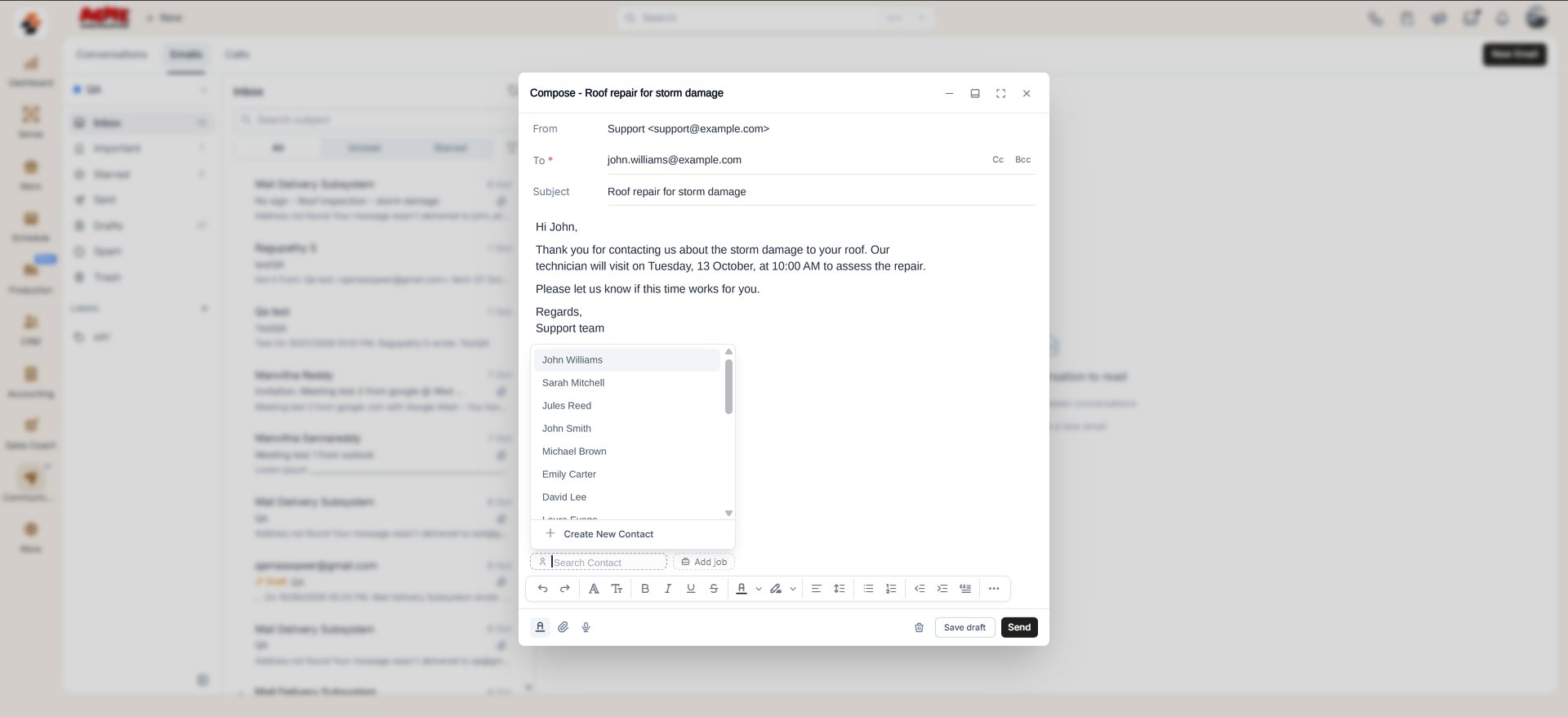
1. In the composing window, select **Add contact** below the message fields, then choose the customer/contact from the list.
2. Select **Add job** to associate a job in the same way. If a contact is already associated, Zuper lists only that contact's jobs.
3. Finish composing your email and select **Send**.
## Associate a customer/contact or a job with an email
This section covers three cases: associating while composing a new email, associating with an email you already sent or received, and changing or removing an existing association. When you associate a customer/contact or job with an email, you can access that email from **Jobs** and **Customers**.
### Associate while composing
1. In the composing window, select **Add contact** below the message fields, then choose the customer/contact from the list.
2. Select **Add job** to associate a job in the same way. If a contact is already associated, Zuper lists only that contact's jobs.
3. Finish composing your email and select **Send**.
 ### Associate a sent or received email
1. Open the email you want to update.
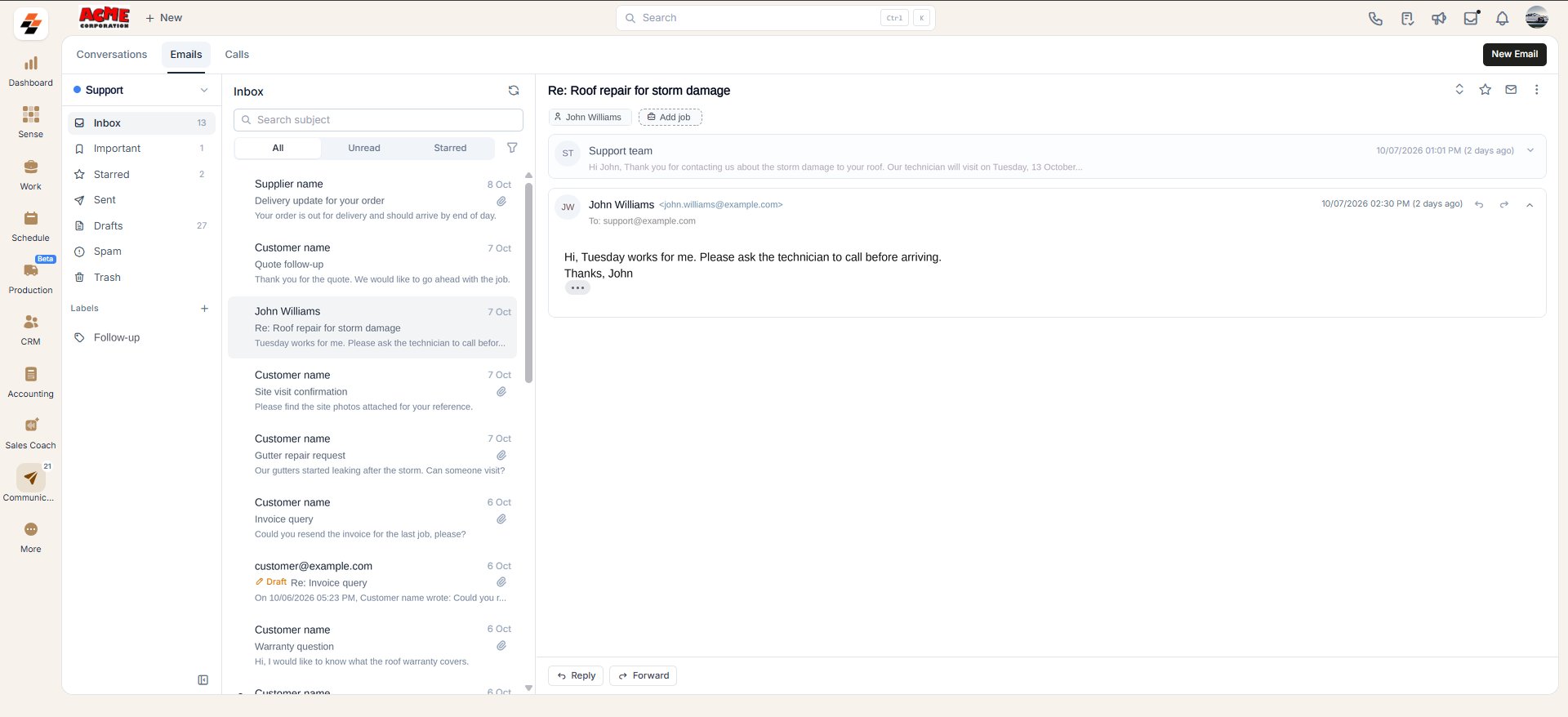
2. Select **Add contact** or **Add Job** at the top of the email, then choose the customer/contact or job from the list.
### Associate a sent or received email
1. Open the email you want to update.
2. Select **Add contact** or **Add Job** at the top of the email, then choose the customer/contact or job from the list.
 ### Change or remove an association
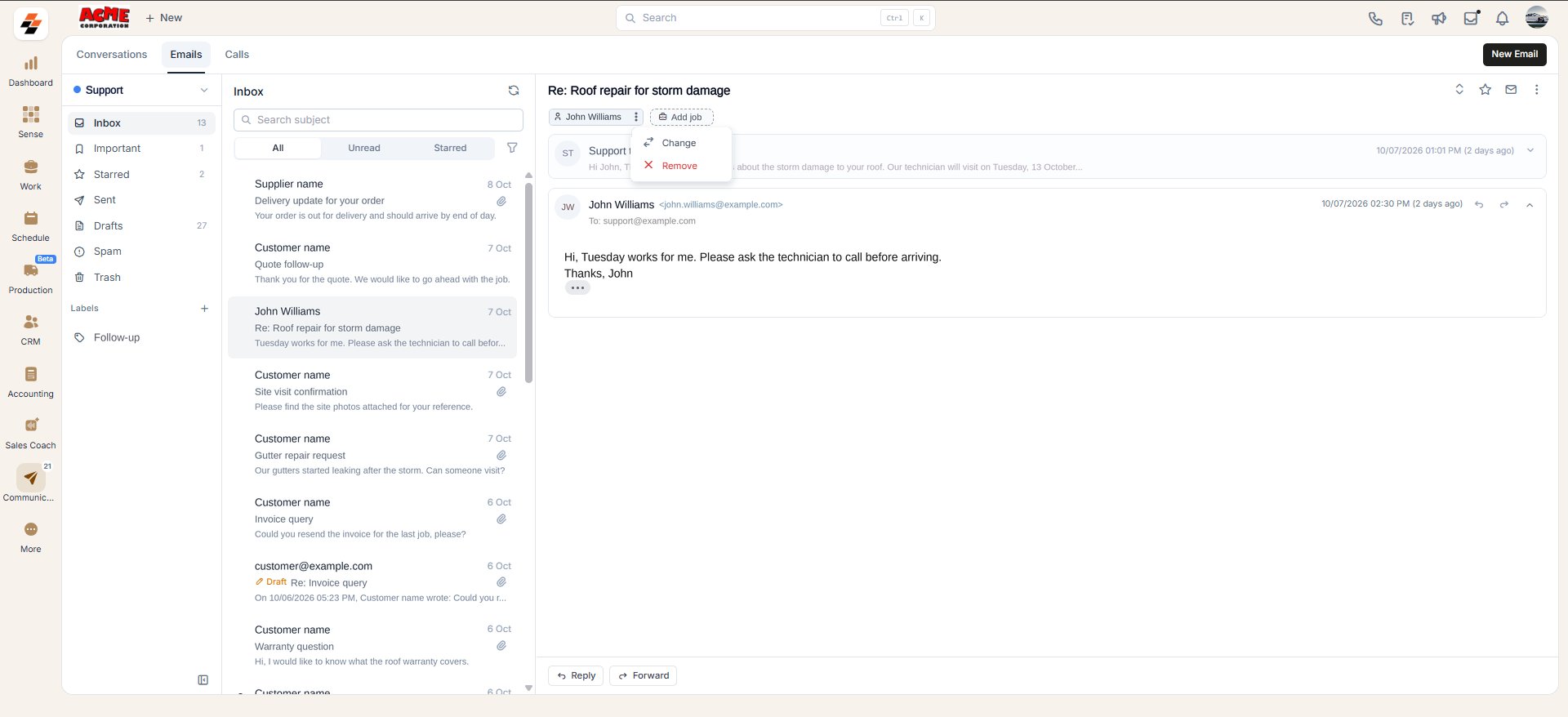
1. Select the context menu next to the customer/contact or job chip.
2. Select **Change** to replace the association, or select **Remove** to remove it entirely.
### Change or remove an association
1. Select the context menu next to the customer/contact or job chip.
2. Select **Change** to replace the association, or select **Remove** to remove it entirely.
 ## Use email templates
Templates save you from writing the same update every time. Zuper shows the **Email Template** option only once you associate a customer/contact or a job with the email.
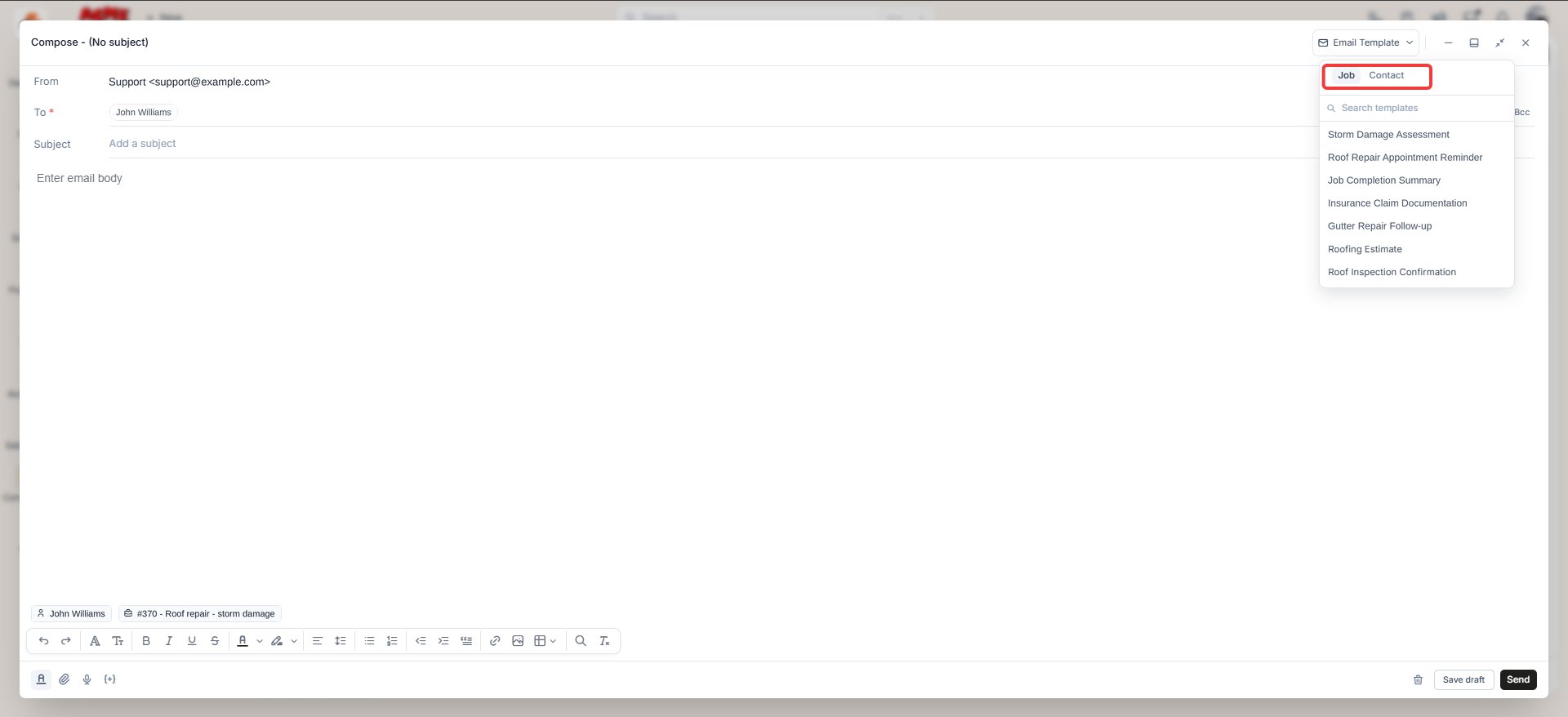
1. Select **Email Template** at the top of the composing window.
2. Select the **Job** tab for job-related templates, or select the **Customer/contact** tab for customer-related templates.
To learn more, see [Email templates](/Settings/Email_Templates).
## Use email templates
Templates save you from writing the same update every time. Zuper shows the **Email Template** option only once you associate a customer/contact or a job with the email.
1. Select **Email Template** at the top of the composing window.
2. Select the **Job** tab for job-related templates, or select the **Customer/contact** tab for customer-related templates.
To learn more, see [Email templates](/Settings/Email_Templates).
 ## Email actions
1. Open the email you want to respond to.
2. Select **Reply** to respond to the sender, or select **Forward** to send it to a new recipient.
3. Enter your message and select **Send**.
## Email actions
1. Open the email you want to respond to.
2. Select **Reply** to respond to the sender, or select **Forward** to send it to a new recipient.
3. Enter your message and select **Send**.
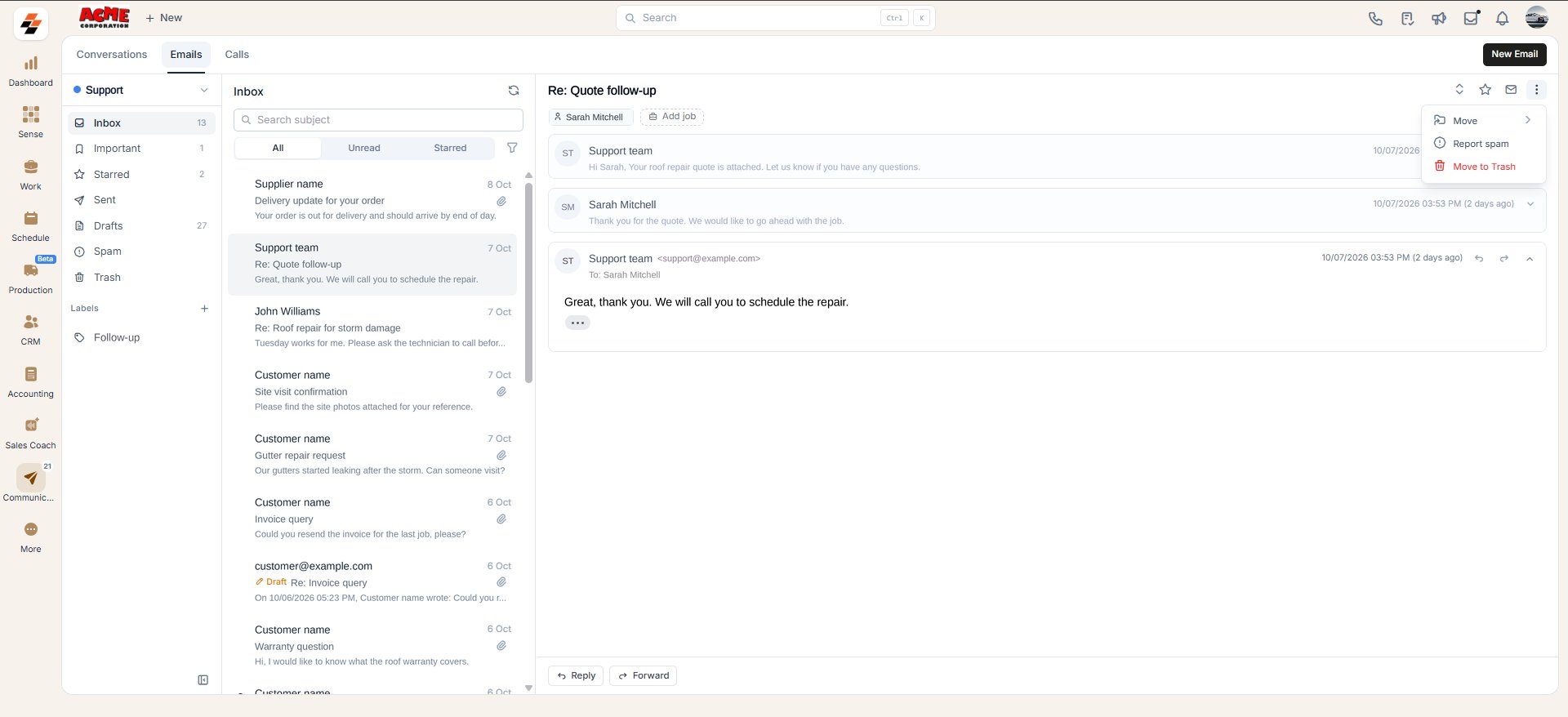 ### Move an email to trash
1. Open the email you want to remove from your inbox.
2. Select the context menu (three-dot icon) at the top right of the email.
3. Select **Move to trash**.
On a fully synced mailbox, you can select multiple emails using the checkboxes. Use the bar that appears to move them to trash or mark them as spam. Neither bulk option is available on a Zuper-only mailbox.
## FAQs
Yes. You can search emails only by subject.
Yes. Admins can connect more inboxes. Other users can connect one personal inbox and access any number of shared inboxes that the admin gives them access to.
No. Closing only changes its status. Select the dropdown and choose **Closed** to find it again.
New replies to a closed email thread automatically reopen it.
No. You can send an email without either, then associate one anytime afterward.
No. This module is built for one-to-one conversations, and emails are sent from your own mailbox, so your provider's sending limits apply.
Sending bulk email from a connected mailbox risks your domain's deliverability and can result in Google or Microsoft suspending your account.
If the issue continues, contact [Support](mailto:support@zuper.co).
## Related articles
* [Getting started with email in Zuper](/communication/getting-started-with-email-in-zuper): connect Gmail or Outlook and work customer email against the right job or customer.
* [Configuring inboxes](/untitled-page-2): set up a Zuper-only or fully synced mailbox for your team.
* [Emails in jobs and contacts](/communication/emails-in-jobs-and-contacts): see and send email from inside a job or customer/contact record.
* [Email from the field](/communication/email-from-the-field): read, reply to, and send customer email from the Zuper mobile app.
* [Inbox and conversations](/Zuper_Connect/View_Manage_Web_Conversations): manage calls and text conversations on the web.
* [Email templates](/Settings/Miscellaneous/Email_Templates): create the templates you insert while composing.
## Related topics
- [Emails in the Communications Module](/communication/emails-in-the-communication-module.md)
- [Email from the Field](/communication/email-from-the-field.md)
This documentation is built and hosted on [Mintlify](https://mintlify.com), a developer documentation platform.
### Move an email to trash
1. Open the email you want to remove from your inbox.
2. Select the context menu (three-dot icon) at the top right of the email.
3. Select **Move to trash**.
On a fully synced mailbox, you can select multiple emails using the checkboxes. Use the bar that appears to move them to trash or mark them as spam. Neither bulk option is available on a Zuper-only mailbox.
## FAQs
Yes. You can search emails only by subject.
Yes. Admins can connect more inboxes. Other users can connect one personal inbox and access any number of shared inboxes that the admin gives them access to.
No. Closing only changes its status. Select the dropdown and choose **Closed** to find it again.
New replies to a closed email thread automatically reopen it.
No. You can send an email without either, then associate one anytime afterward.
No. This module is built for one-to-one conversations, and emails are sent from your own mailbox, so your provider's sending limits apply.
Sending bulk email from a connected mailbox risks your domain's deliverability and can result in Google or Microsoft suspending your account.
If the issue continues, contact [Support](mailto:support@zuper.co).
## Related articles
* [Getting started with email in Zuper](/communication/getting-started-with-email-in-zuper): connect Gmail or Outlook and work customer email against the right job or customer.
* [Configuring inboxes](/untitled-page-2): set up a Zuper-only or fully synced mailbox for your team.
* [Emails in jobs and contacts](/communication/emails-in-jobs-and-contacts): see and send email from inside a job or customer/contact record.
* [Email from the field](/communication/email-from-the-field): read, reply to, and send customer email from the Zuper mobile app.
* [Inbox and conversations](/Zuper_Connect/View_Manage_Web_Conversations): manage calls and text conversations on the web.
* [Email templates](/Settings/Miscellaneous/Email_Templates): create the templates you insert while composing.
## Related topics
- [Emails in the Communications Module](/communication/emails-in-the-communication-module.md)
- [Email from the Field](/communication/email-from-the-field.md)
This documentation is built and hosted on [Mintlify](https://mintlify.com), a developer documentation platform.