> ## Documentation Index
> Fetch the complete documentation index at: https://docs.zuper.co/llms.txt
> Use this file to discover all available pages before exploring further.
# Getting Started with Email in Zuper
> Connect Gmail or Outlook to Zuper, and work customer email against the job or customer it belongs to.
Every job and every customer conversation eventually needs an email. Zuper connects the Gmail or Outlook mailbox your team already uses. Email then becomes part of the same record as calls, texts, and job details. It no longer lives in a separate inbox.
You start by creating an inbox. An inbox can be personal, for one user, or shared, for a whole team. Either kind can bring in only Zuper-related mail, or your entire mailbox. Once you connect a mailbox, emails link to the right customer. Your team then replies without leaving Zuper.
You see and manage this email everywhere your team already works. Use the **Communication** module for a unified inbox across your business. Use the **Communication** tab on a job or customer record for that record's own history. This article helps you get started. For the full set of steps once you are up and running, see the related articles at the end of this page.
Learn more about how connected emails appear on jobs and customer records in **Emails in jobs and contacts**.
## Creating inboxes
There are two kinds of inbox, and different people create each one.
* **Personal inbox**: Each user connects their own mailbox. It appears only for that user, unless someone shares it.
* **Shared inbox**: An admin creates this inbox, and grants access to the roles or users who need it. Sharing happens inside Zuper, not with the mailbox provider, so the account type does not restrict it. A Microsoft shared mailbox, a Google Workspace account, or a personal Gmail or Outlook address can all become a shared inbox.
### Setup steps
You authenticate a personal inbox from your own user account in the **Communication** module. Only an admin can create a shared inbox.
1. Select **Personal** or **Shared** as the inbox type.
2. Enter a name for the inbox. This name is a label inside Zuper, separate from the email address. Choose a name your team recognizes at a glance, since it appears in the inbox list.
3. Select **Zuper-only** or **Fully synced** as the setup option. See the table below for what each option syncs. This choice affects everything a user sees, so confirm it before you grant access.
4. Select the roles or users who get access to the inbox. A personal inbox that stays private needs no action here.
5. Set permissions for each role or user you added to a shared inbox. See the permissions table below.
6. Select **Save and Connect** to connect the mailbox through Google or Microsoft. Whoever completes this step must be able to sign in to the mailbox. For a shared mailbox, this is usually the admin who owns it or has delegated access. Sync begins once you complete this step.
### Setup options
| Option | What syncs | Use for |
| ---------------- | --------------------------------------------------------------------------------------------------------------------------------------------------------------------------------------------------- | ------------------------------------------------------------------------ |
| **Zuper-only** | Only emails linked to a job or customer. Zuper does not sync Sent, Drafts, Spam, or other folders and labels. | Personal mailboxes, and mailboxes where most mail is unrelated to Zuper. |
| **Fully synced** | Your entire mailbox, including standard folders such as Sent, Drafts, and Spam, plus any custom folders or labels. If you create a folder in Zuper, it syncs back to your Gmail or Outlook account. | A dedicated shared inbox for customer work. |
A fully synced inbox also allows **Move to Spam**, **Report spam**, and **New label** actions, along with bulk trash and spam actions. A Zuper-only inbox does not support these actions.
Select **Zuper-only** when you share a personal mailbox. A fully synced inbox would let colleagues read everything in it.
### Permissions
Set permissions per inbox, for roles or for individual users. Settings on an individual user override the settings from their role.
| Control | What it does |
| ----------------- | --------------------------------------------------------------------------------- |
| **View** | See the inbox, and read its emails, within the setup option chosen in step three. |
| **Send** | Send email from the inbox. Since View is required, you cannot grant Send alone. |
| **Notifications** | Get alerts for incoming email in the inbox. |
A user can have no access, View only, or View and Send access. You can turn on Notifications alongside either access level.
Provider permissions do not carry over. Granting someone access to a shared mailbox in Microsoft or Google grants them nothing in Zuper, until you set View here. Removing their access at the provider does not remove their Zuper access either. Manage access in both places independently.
 ## The communication module
**Path:** **Communication**
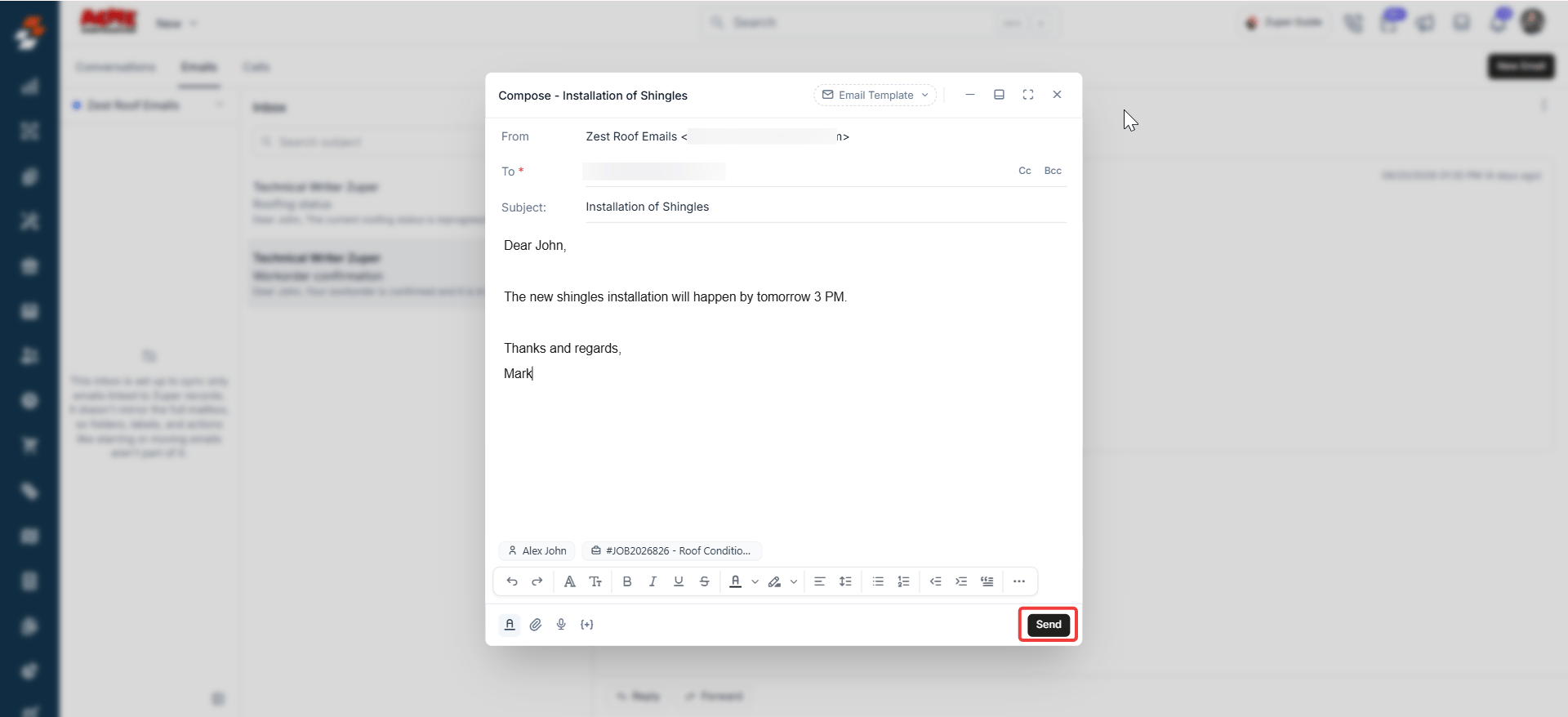
**Conversations** is one queue across all your customers. It lists text messages and emails from everyone, together. If Zuper Connect is enabled, email sits alongside texts and calls. A new email then arrives as a conversation, and you reply to it the same way you reply to a text.
Use **Conversations** to see what needs a response right now. Use a job's or customer's own **Communication** tab, covered next, when you want the history for one record.
Select **Mark as Closed** on a conversation once it is handled. The conversation reopens automatically if the customer replies. Select the checkboxes on several conversations to use the bulk **Mark as read** and **Mark as closed** actions.
Select the **Open** dropdown, or the filter icon, to filter by **Needs Attention**, **Unread**, or **Unresponded**.
The **Emails** tab gives you the same context, focused on email only. It lists every inbox you have access to, personal and shared, and you view one at a time. Use this tab when texts and calls would be noise.
Search works on the subject line only.
## Linking emails to contacts and jobs
Linking is what makes an email appear on the job or customer record. Without it, the email exists only in the inbox.
* **Automatic linking**: An incoming email from an address already saved on a customer links to that customer as soon as it arrives. Zuper does not link the job automatically.
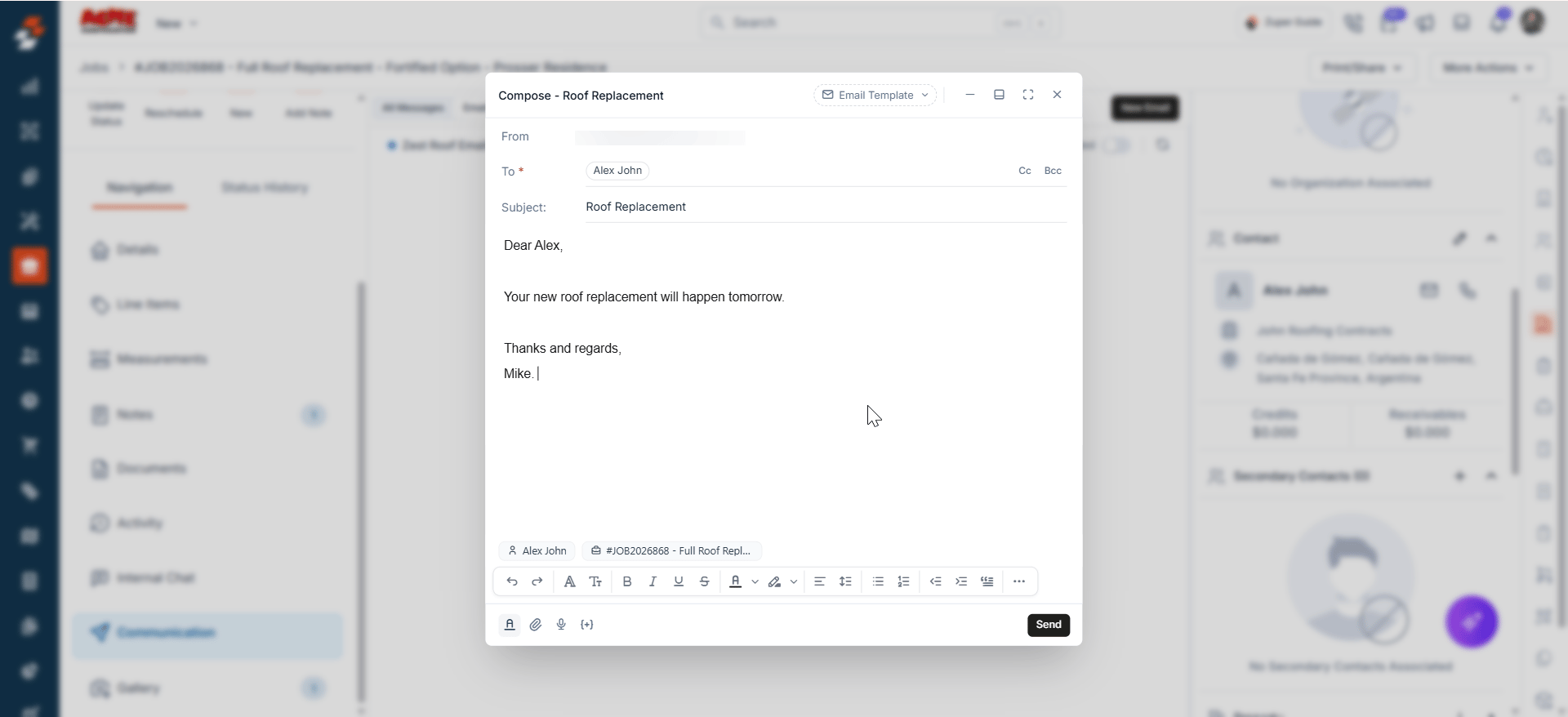
* **Manual linking**: Select **Add contact** and **Add job** below the message body while composing. You can also do this at the top of an email you already sent or received. If you link a contact first, Zuper offers only that contact's jobs.
* **Changing a link**: Select the three-dot menu on a chip, then select **Change** or **Remove**.
Linking a contact or job also unlocks email templates and job or customer custom fields in the composer.
## Communication within jobs and contacts
**Path:** **Jobs** > a job > **Communication**, or **Contacts** > a customer > **Communication**
Every job and customer record has its own **Communication** tab, alongside **Details**, **Notes**, and **Gallery**. Three views sit inside this tab.
**All Messages** is the unified console for that record. With Zuper Connect enabled, emails and texts appear together, so you never check two places for one conversation. Select **All Inboxes** to combine every number and mailbox, or filter to just one.
**Emails** narrows the view to email for that record only. On a job, the **Show Related** toggle switches between this job's email and everything linked to the customer.
**Activity** logs every email sent from the record. This differs from the other two views in an important way: **Emails** and **All Messages** show only the inboxes you have access to, while **Activity** shows every email sent from the record. Anyone with access to the record can open the full thread from **Activity**, even without access to the inbox it came from.
**Activity** shows every email sent from the record, even from inboxes you do not have access to. **Emails** and **All Messages** show only the inboxes you can see.
## The communication module
**Path:** **Communication**
**Conversations** is one queue across all your customers. It lists text messages and emails from everyone, together. If Zuper Connect is enabled, email sits alongside texts and calls. A new email then arrives as a conversation, and you reply to it the same way you reply to a text.
Use **Conversations** to see what needs a response right now. Use a job's or customer's own **Communication** tab, covered next, when you want the history for one record.
Select **Mark as Closed** on a conversation once it is handled. The conversation reopens automatically if the customer replies. Select the checkboxes on several conversations to use the bulk **Mark as read** and **Mark as closed** actions.
Select the **Open** dropdown, or the filter icon, to filter by **Needs Attention**, **Unread**, or **Unresponded**.
The **Emails** tab gives you the same context, focused on email only. It lists every inbox you have access to, personal and shared, and you view one at a time. Use this tab when texts and calls would be noise.
Search works on the subject line only.
## Linking emails to contacts and jobs
Linking is what makes an email appear on the job or customer record. Without it, the email exists only in the inbox.
* **Automatic linking**: An incoming email from an address already saved on a customer links to that customer as soon as it arrives. Zuper does not link the job automatically.
* **Manual linking**: Select **Add contact** and **Add job** below the message body while composing. You can also do this at the top of an email you already sent or received. If you link a contact first, Zuper offers only that contact's jobs.
* **Changing a link**: Select the three-dot menu on a chip, then select **Change** or **Remove**.
Linking a contact or job also unlocks email templates and job or customer custom fields in the composer.
## Communication within jobs and contacts
**Path:** **Jobs** > a job > **Communication**, or **Contacts** > a customer > **Communication**
Every job and customer record has its own **Communication** tab, alongside **Details**, **Notes**, and **Gallery**. Three views sit inside this tab.
**All Messages** is the unified console for that record. With Zuper Connect enabled, emails and texts appear together, so you never check two places for one conversation. Select **All Inboxes** to combine every number and mailbox, or filter to just one.
**Emails** narrows the view to email for that record only. On a job, the **Show Related** toggle switches between this job's email and everything linked to the customer.
**Activity** logs every email sent from the record. This differs from the other two views in an important way: **Emails** and **All Messages** show only the inboxes you have access to, while **Activity** shows every email sent from the record. Anyone with access to the record can open the full thread from **Activity**, even without access to the inbox it came from.
**Activity** shows every email sent from the record, even from inboxes you do not have access to. **Emails** and **All Messages** show only the inboxes you can see.
 ## Attachments in emails
You can attach a file to an email from your device, from a gallery, or from job documents. What you can attach depends on what the email is linked to.
| Source | Requires |
| ----------------- | ----------------------- |
| From device | Nothing |
| From gallery | A linked contact or job |
| From job document | A linked job |
## FAQs
The email stays in the inbox, but does not appear anywhere else. Linking is what makes an email show up on a job or customer record.
Only through a record's **Activity** view. **Activity** shows every email sent from a job or customer, even from inboxes you cannot see. **Emails** and **All Messages** show only the inboxes you have access to.
No. Zuper permissions and mailbox provider permissions work independently. Set **View** for that person in Zuper as well, or they will not see the inbox.
Only emails linked to a job or customer. Standard folders such as Sent, Drafts, and Spam, and any custom folders or labels, do not sync.
No. View is required before you can grant Send, since a user needs to see the inbox to send from it.
## Attachments in emails
You can attach a file to an email from your device, from a gallery, or from job documents. What you can attach depends on what the email is linked to.
| Source | Requires |
| ----------------- | ----------------------- |
| From device | Nothing |
| From gallery | A linked contact or job |
| From job document | A linked job |
## FAQs
The email stays in the inbox, but does not appear anywhere else. Linking is what makes an email show up on a job or customer record.
Only through a record's **Activity** view. **Activity** shows every email sent from a job or customer, even from inboxes you cannot see. **Emails** and **All Messages** show only the inboxes you have access to.
No. Zuper permissions and mailbox provider permissions work independently. Set **View** for that person in Zuper as well, or they will not see the inbox.
Only emails linked to a job or customer. Standard folders such as Sent, Drafts, and Spam, and any custom folders or labels, do not sync.
No. View is required before you can grant Send, since a user needs to see the inbox to send from it.