> ## Documentation Index
> Fetch the complete documentation index at: https://docs.zuper.co/llms.txt
> Use this file to discover all available pages before exploring further.
# Sharing and embedding your widget
Your widget doesn't have to live in one place. Add it to your website, share it in a text message, put it on a yard sign, or send it directly to a homeowner.
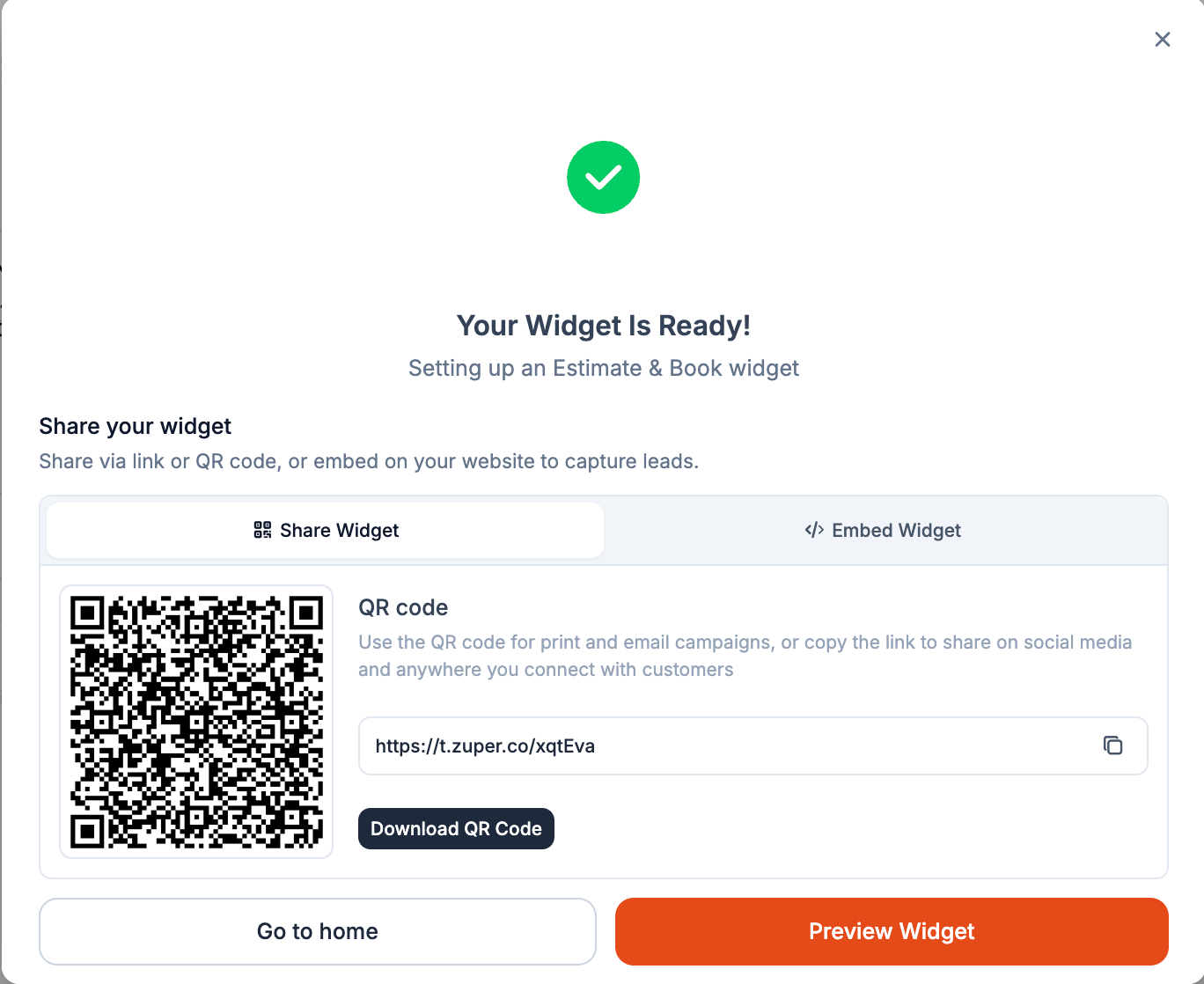
Zuper gives every active widget a direct link, QR code, and embed code. They all point to the same widget, so you can update your questions, pricing, services, or branding without creating a new link or replacing every QR code you've already shared.
 ## Before you begin
Activate your widget before sharing it. Sharing options are available only for Active widgets.
See the setup article for your widget type: \[Setting up an Online Booking widget] or \[Setting up an Estimate & Book widget].
## Find your sharing options
1. Go to **Settings** → **Customer Experience** → **Website Widge**t.
2. Select the widget you want to share.
3. From the widget's detail page, you can copy the link, download the QR code, get the embed code, or preview the widget.
## Before you begin
Activate your widget before sharing it. Sharing options are available only for Active widgets.
See the setup article for your widget type: \[Setting up an Online Booking widget] or \[Setting up an Estimate & Book widget].
## Find your sharing options
1. Go to **Settings** → **Customer Experience** → **Website Widge**t.
2. Select the widget you want to share.
3. From the widget's detail page, you can copy the link, download the QR code, get the embed code, or preview the widget.
 ## Put your widget where homeowners find you
Choose the sharing method that fits where you want to reach homeowners.
A direct link works anywhere you can share a URL.
1. On the widget's detail page, copy the Link.
2. Share it through email, text messages, social media, online ads, or other digital channels.
For example, send an Instant Estimate link when a homeowner asks how much a new roof might cost. They can start the estimate right away instead of waiting for your team to respond.
Use a QR code to connect physical marketing materials to your online experience.
1. On the widget's detail page, download the QR Code.
2. Add it to yard signs, door hangers, business cards, truck decals, direct mail, or other printed materials.
3. Scan the printed code yourself to make sure it opens the correct widget.
A homeowner who sees your truck or yard sign can scan the code and go directly to your estimate, booking form, or lead form.
You don't need to replace the QR code when you update the widget. It continues to point to the same widget.
Embed the widget when you want homeowners to complete the experience without leaving your website.
1. Select Embed Code on the widget's detail page.
2. Choose the method that works with your website:
* **Modal**: Copy the snippet and paste it before the closing `` tag on the page where you want the widget to appear.
* **iFrame**: Copy the snippet and paste it into the page body.
3. Publish your website changes and open the page to verify that the widget loads correctly.
You can use the same widget on multiple pages, such as your homepage, services page, or campaign landing page.
If someone else manages your website, send them the embed code and the page where you want the widget added.
## Preview before you share
Select **Preview** from the widget's detail page to experience it as a homeowner would.
## Put your widget where homeowners find you
Choose the sharing method that fits where you want to reach homeowners.
A direct link works anywhere you can share a URL.
1. On the widget's detail page, copy the Link.
2. Share it through email, text messages, social media, online ads, or other digital channels.
For example, send an Instant Estimate link when a homeowner asks how much a new roof might cost. They can start the estimate right away instead of waiting for your team to respond.
Use a QR code to connect physical marketing materials to your online experience.
1. On the widget's detail page, download the QR Code.
2. Add it to yard signs, door hangers, business cards, truck decals, direct mail, or other printed materials.
3. Scan the printed code yourself to make sure it opens the correct widget.
A homeowner who sees your truck or yard sign can scan the code and go directly to your estimate, booking form, or lead form.
You don't need to replace the QR code when you update the widget. It continues to point to the same widget.
Embed the widget when you want homeowners to complete the experience without leaving your website.
1. Select Embed Code on the widget's detail page.
2. Choose the method that works with your website:
* **Modal**: Copy the snippet and paste it before the closing `` tag on the page where you want the widget to appear.
* **iFrame**: Copy the snippet and paste it into the page body.
3. Publish your website changes and open the page to verify that the widget loads correctly.
You can use the same widget on multiple pages, such as your homepage, services page, or campaign landing page.
If someone else manages your website, send them the embed code and the page where you want the widget added.
## Preview before you share
Select **Preview** from the widget's detail page to experience it as a homeowner would.