> ## Documentation Index
> Fetch the complete documentation index at: https://docs.zuper.co/llms.txt
> Use this file to discover all available pages before exploring further.
# Sharing
> Choose who can see a Zuper Sense Radar, and who can change it.
A Radar can remain private to you, be published company-wide, or be shared with specific individuals and teams. Because shared Radars read directly from live Zuper data, all users view identical real-time figures without having to manage duplicate reports.
**Navigation**: *Sense -> Radar -> Share*
**Note:** Only the board owner can modify sharing permissions, and editing capabilities are restricted to Administrators.
## Share a Radar
1. Open the Radar you want to share.
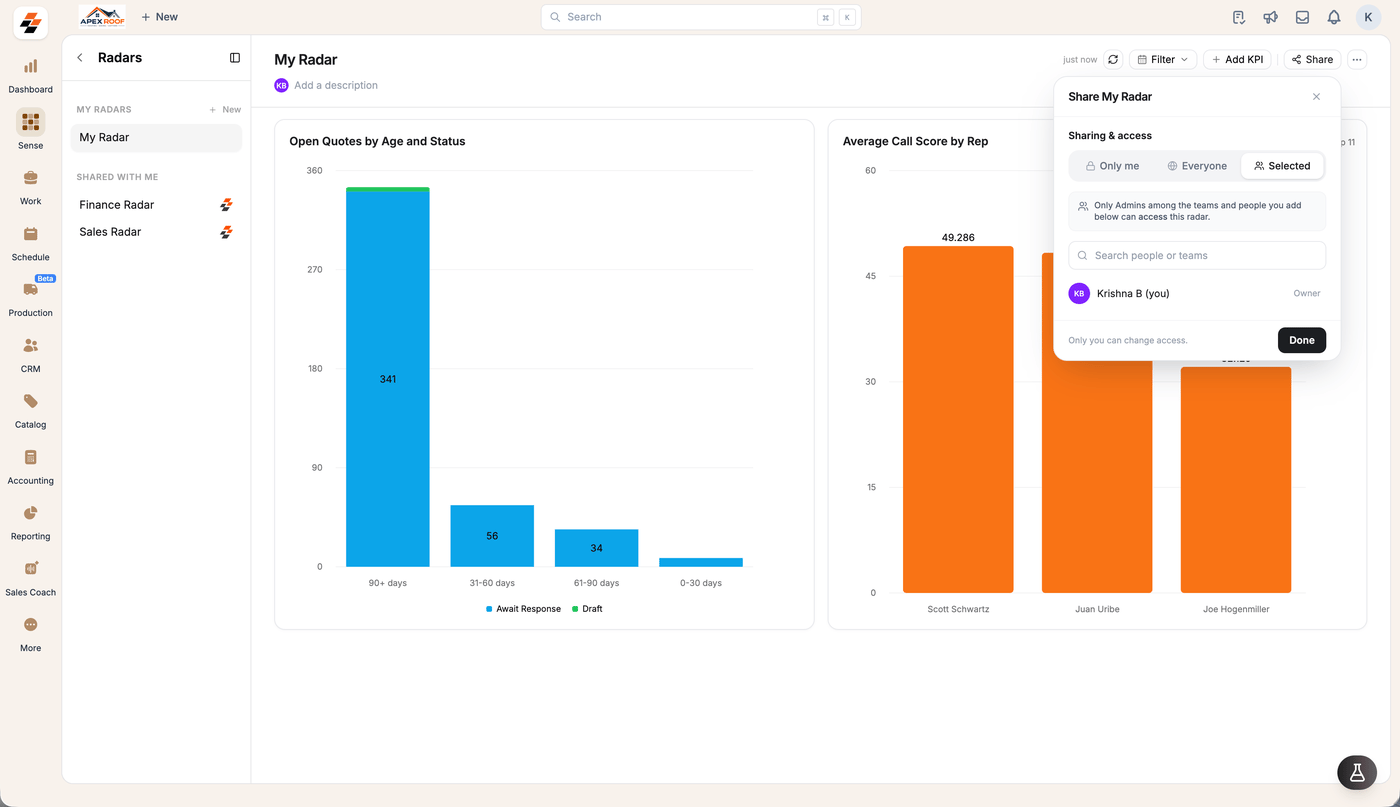
2. Select **Share** in the header.
3. Choose your visibility scope: **Only me**, **Everyone**, or **Selected**.
4. If choosing **Selected**, search for and select individual users or teams.
5. Assign access permissions (**Editor** or **View only**) for each user or team.
6. Click **Done** to apply your changes.
 ## Sharing options
| Option | Who can open it | Who can change it |
| - | - | - |
| **Only me** | Owner only | Owner only |
| **Everyone** | Everyone in your company | Owner, plus Administrators, explicitly assigned the **Editor** role |
| **Selected** | Designated people and teams | Administrators within the selected group who are granted the **Editor** role |
**Notes:** Setting visibility to **Everyone** defaults to read-only access for all company members.
## Sharing options
| Option | Who can open it | Who can change it |
| - | - | - |
| **Only me** | Owner only | Owner only |
| **Everyone** | Everyone in your company | Owner, plus Administrators, explicitly assigned the **Editor** role |
| **Selected** | Designated people and teams | Administrators within the selected group who are granted the **Editor** role |
**Notes:** Setting visibility to **Everyone** defaults to read-only access for all company members.
You must explicitly assign the **Editor** role to permit specific Administrators to modify the board.
Default system dashboards (**Sales Radar** and **Finance Radar**) are editable by all Administrators and cannot be deleted or re-shared.
## Access roles & permissions
Users assigned to a board operate under one of two access tiers:
* **Editor:** Can add, remove, and rearrange cards, as well as rename the Radar. *(Note: Non-admin users assigned as Editors can still only view cards; administrative privileges are required to perform edits).*
* **View only:** Can open and view live metrics on the Radar without making changes.
**Note:** On boards you do not own, a role badge (**Editor** or **View only**) displays next to the Radar title in the header. Owners do not see a role badge.
## Unpublish or leave a Radar
Manage board access and personal sidebar lists using the header options menu:
* **Unpublish a Radar:** Open the **Radar options (**`...`**)** menu in the header and select **Unpublish** to revoke company-wide access and make it private again.
* **Leave a Shared Radar:** Open the **Radar options (**`...`**)** menu in the header and select **Leave radar** to remove the board from your personal sidebar.
**Leaving a Radar** instantly removes it from your dashboard list. This action cannot be self-reverted; an Administrator or the Radar owner must re-add you to restore access.