> ## Documentation Index
> Fetch the complete documentation index at: https://docs.zuper.co/llms.txt
> Use this file to discover all available pages before exploring further.
# Set up Radars
> Create a Radar in Zuper Sense, add cards to it, arrange the board and drill into a number.
Build customized KPI dashboards in Zuper Sense by creating Radars, adding live metric cards, arranging layout views, and drilling into underlying data points.
**Navigation**: *Sense -> Radar*
**Note:** Creating and editing Radars is restricted to account Administrators.
## Create a Radar
1. Navigate to **Sense** in the left menu and select **Radar**.
2. Click **+ New** next to **MY RADARS** in the side panel.
3. Enter a title for your Radar.
4. *(Optional)* Click the Radar title in the header to rename it at any time, or click **Add a description** to document the dashboard's purpose.
A newly created Radar opens as an empty board with a quick-start prompt to build cards using Sense.
**Note:** Your account can host up to 20 individual Radars.
## Add cards to a Radar
Cards are created by [**pinning**](/Zuper_Sense/Ask_Sense/How_Answers_Work#pin-an-answer-to-a-radar) Zuper Sense insights to a board. If an answer already exists in a chat thread, simply pin it to your target Radar.
To generate and pin a new card directly from a Radar:
1. Open the Radar you want to add to.
2. Click **+ Add KPI** in the toolbar (or click **Ask Sense to build your Radar** on an empty board).
3. Describe the KPI or metric in the dedicated thread that opens.
4. Click **Add to Radar** on the generated response.
**Note:** Each Radar supports up to 50 cards. Remove unused cards before exceeding the limit.
## Arrange and manage the board
Customize your dashboard layout and keep metrics current for your entire team:
* **Reposition & Resize:** Click and drag a card's handle to move it, or drag its borders to adjust its size.
* **Update Data:** Select **Refresh** to fetch the latest metrics across all cards simultaneously (*"Refreshed just now"* will appear upon completion).
* **Global Date Filter:** Select **Filter** to apply a unified date range across supported metrics.
* **Card Metadata:** Add custom labels to any card using **the Add title and Add description options**.
**Note:** Layout changes are saved globally and apply to all users who have access to the Radar.
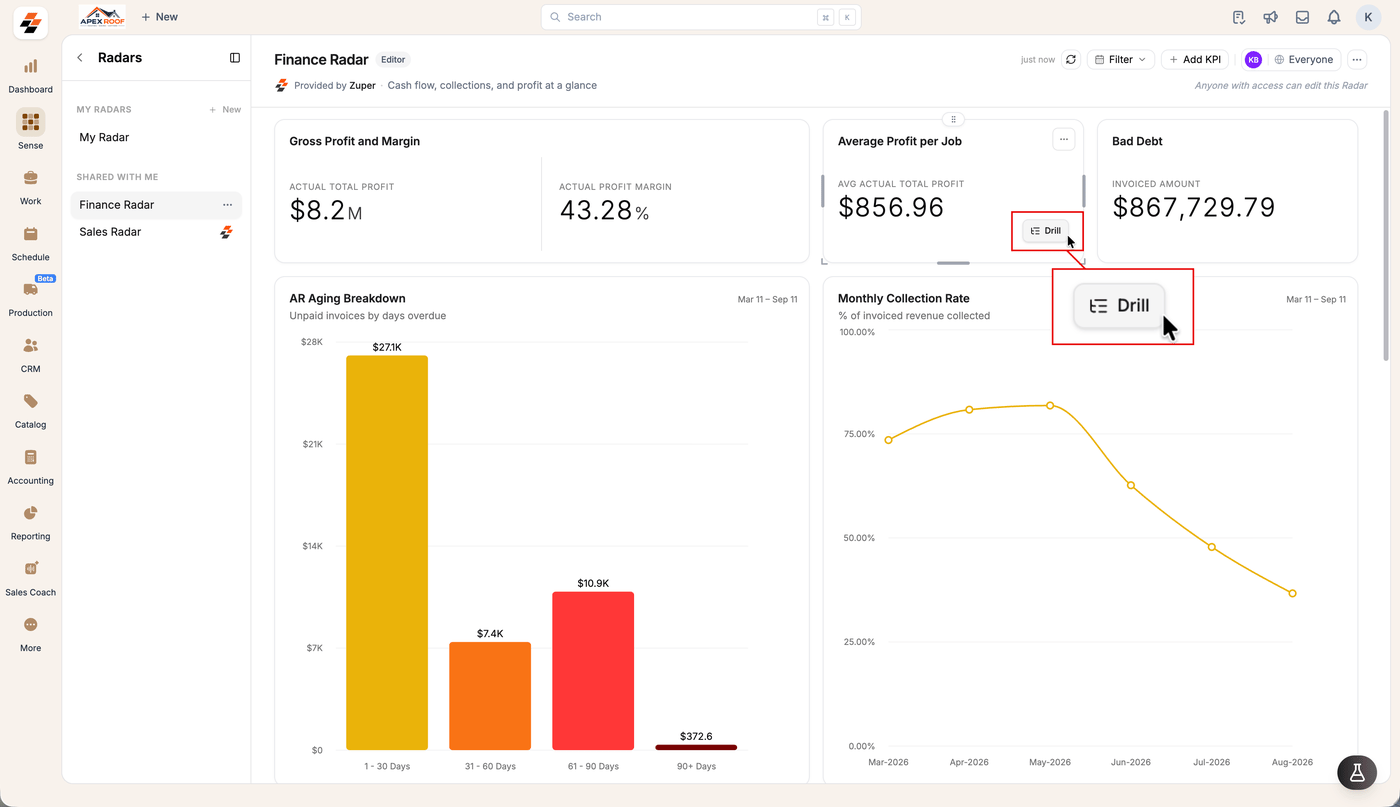
## Drill into a card
Explore detailed line items behind any metric without needing to write new prompts:
1. Hover over the target card.
2. Select **Drill**.
3. View the underlying transactional details pulled by Sense.
**Note:** The **Drill** action is supported across all card formats, including single-number KPI cards, tables, and charts.
 ## Remove a card or a Radar
* To remove a card, select **More options** on the card, select **Delete**, then confirm **Remove from Radar?**.
* To ask a follow-up about a card, select **More options** and then **Open in chat**.
* To delete a whole Radar, open the three-dot **Radar options** menu in the header and select **Delete radar**.
* To take a Radar off your own list without affecting anyone else, open the same menu and select **Leave radar**.
Deleting a Radar removes it for everyone it is shared with, and it cannot be undone. Leaving a Radar only affects you, and only its owner can add you back.
## Remove a card or a Radar
* To remove a card, select **More options** on the card, select **Delete**, then confirm **Remove from Radar?**.
* To ask a follow-up about a card, select **More options** and then **Open in chat**.
* To delete a whole Radar, open the three-dot **Radar options** menu in the header and select **Delete radar**.
* To take a Radar off your own list without affecting anyone else, open the same menu and select **Leave radar**.
Deleting a Radar removes it for everyone it is shared with, and it cannot be undone. Leaving a Radar only affects you, and only its owner can add you back.