> ## Documentation Index
> Fetch the complete documentation index at: https://docs.zuper.co/llms.txt
> Use this file to discover all available pages before exploring further.
# Radar on mobile
> Learn how to access, view, and filter Zuper Sense Radars on iOS and Android devices.
With the Zuper mobile app, you can monitor live business metrics from the field. Mobile Radar provides the same real-time cards and insights available in Zuper Sense on the web.
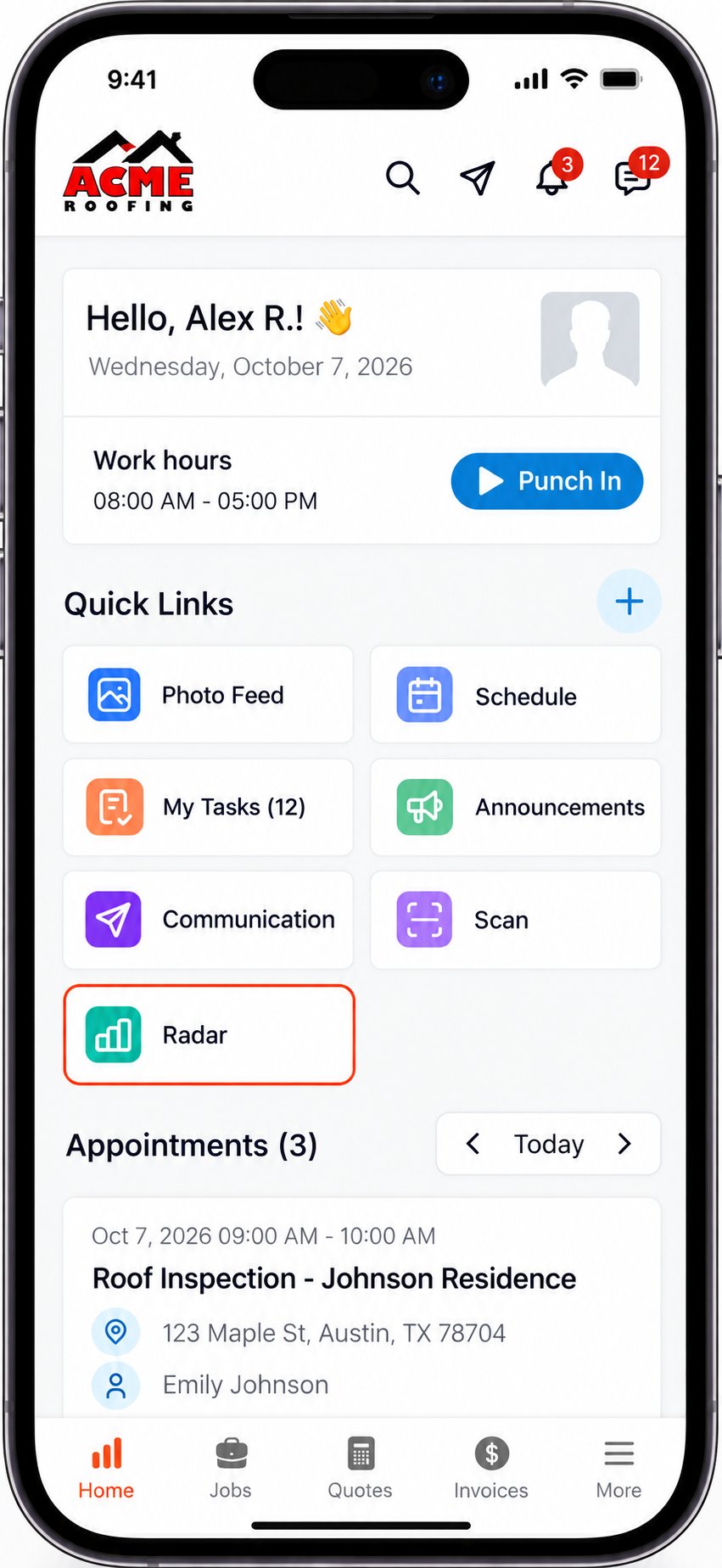
**Navigation**: *Home -> Quick Links -> Radar*
**Prerequisites:**
* Zuper Sense must be enabled for your organization.
* Mobile Radar access is currently available to **Admin** roles only.
## Open Radar on Mobile
1. Open the Zuper mobile app and navigate to the **Home** tab.
2. Under **Quick Links**, tap **Radar**.
 ## Locate your radars
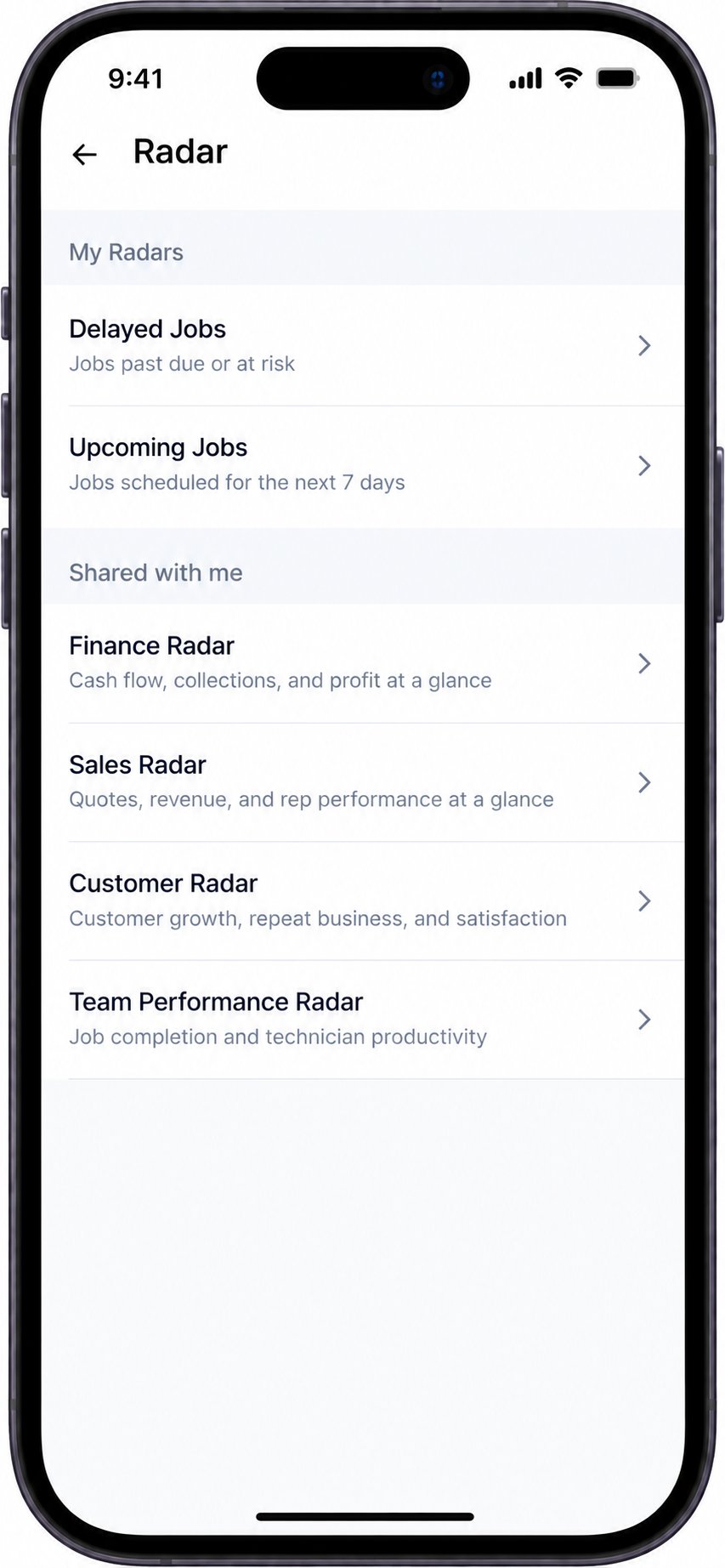
The **Radar** screen organizes available dashboards into two tabs:
* **My Radars**: Dashboards you created or own.
* **Shared with me**: Dashboards shared by teammates, along with default Zuper dashboards such as **Finance Radar** and **Sales Radar**.
If a tab has no assigned dashboards, it is hidden automatically.
If no Radars are assigned to your account, the screen displays **No radars yet**. To create a Radar, use Zuper Sense on the web.
## Locate your radars
The **Radar** screen organizes available dashboards into two tabs:
* **My Radars**: Dashboards you created or own.
* **Shared with me**: Dashboards shared by teammates, along with default Zuper dashboards such as **Finance Radar** and **Sales Radar**.
If a tab has no assigned dashboards, it is hidden automatically.
If no Radars are assigned to your account, the screen displays **No radars yet**. To create a Radar, use Zuper Sense on the web.
 ## View cards and metrics
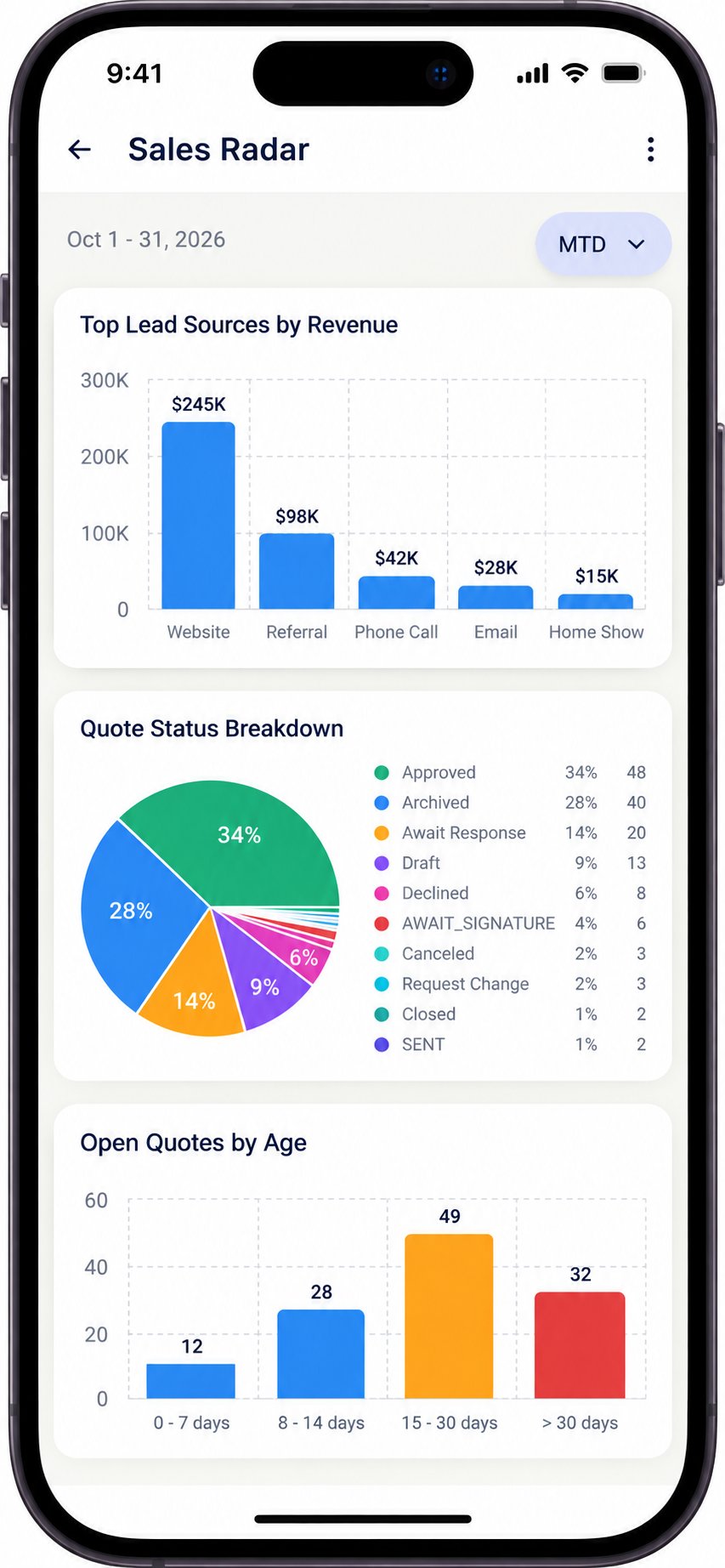
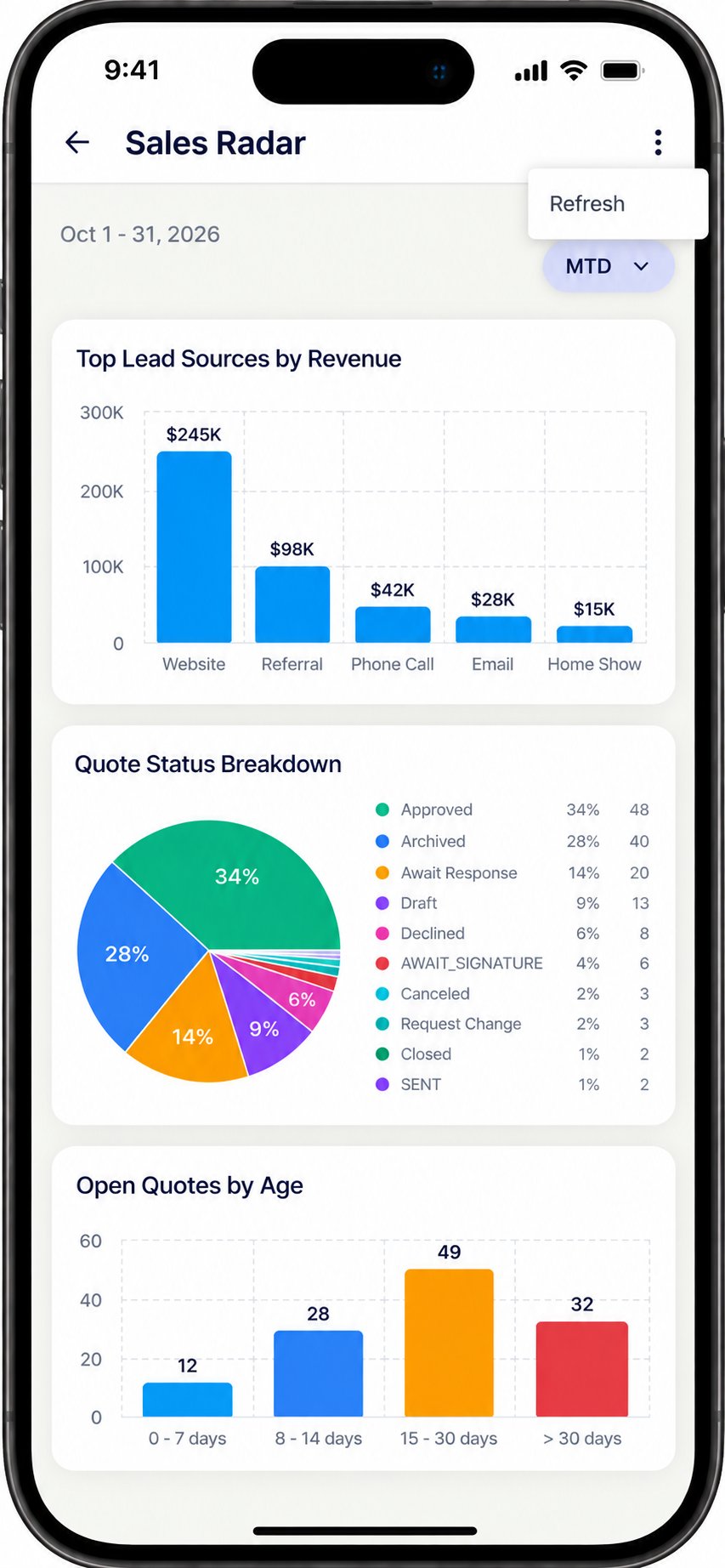
Tap any **Radar** to open it. Cards are displayed in a vertical layout optimized for mobile screens, making it easy to scroll through metrics and insights.
## View cards and metrics
Tap any **Radar** to open it. Cards are displayed in a vertical layout optimized for mobile screens, making it easy to scroll through metrics and insights.
 ## Change the date range
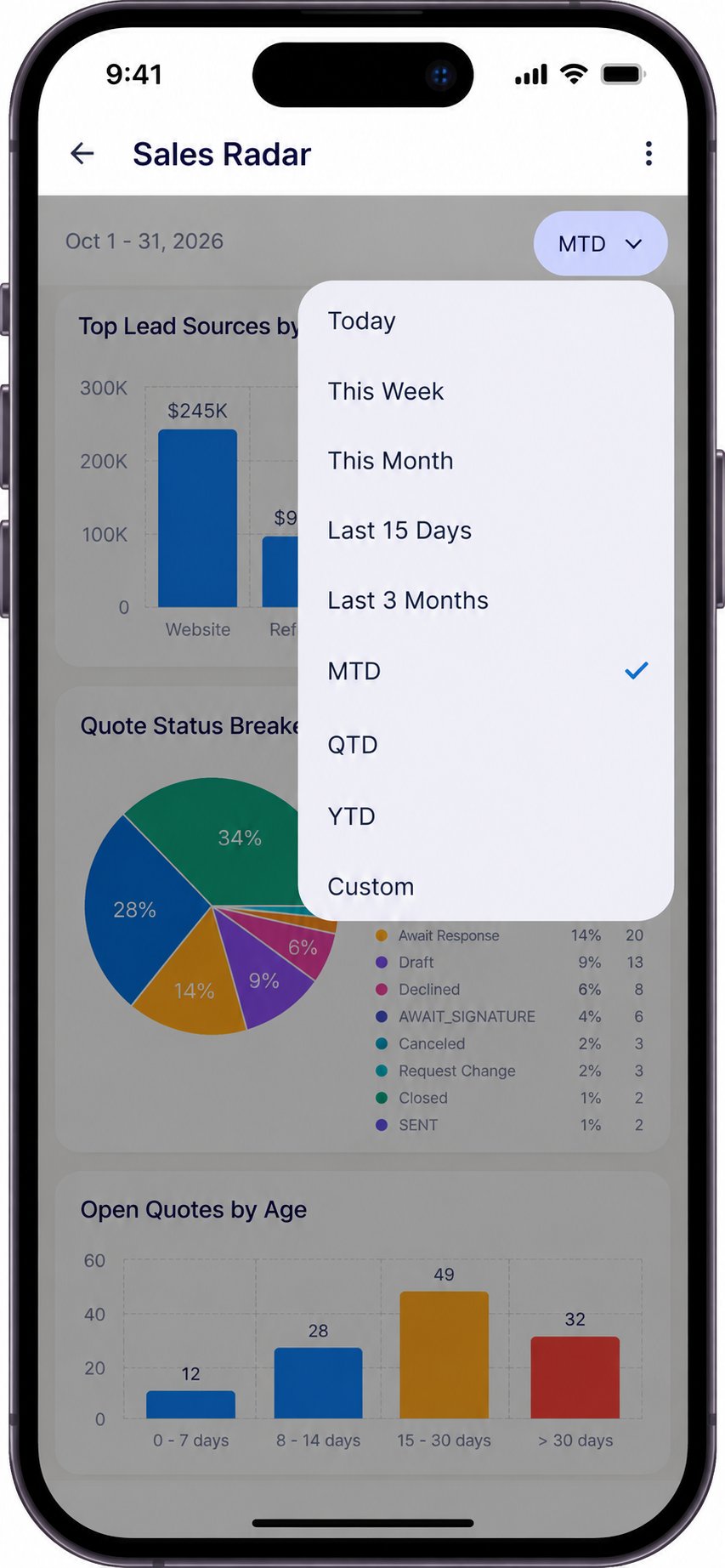
1. Tap the date range at the top of the Radar. By default, it displays **MTD**.
2. Choose **Today**, **This Week**, **This Month**, **Last 15 Days**, **Last 3 Months**, **MTD**, **QTD**, **YTD** or **Custom**.
The Radar updates automatically to reflect the selected period.
## Change the date range
1. Tap the date range at the top of the Radar. By default, it displays **MTD**.
2. Choose **Today**, **This Week**, **This Month**, **Last 15 Days**, **Last 3 Months**, **MTD**, **QTD**, **YTD** or **Custom**.
The Radar updates automatically to reflect the selected period.
 The app remembers the date range selected for each Radar. The next time you open the same Radar on the same device, it opens using your last selected range.
**Note:** The saved date range is stored only on your device. It does not affect the date range configured in Zuper Sense on the web and resets to **MTD** when you sign out of the app.
## Refresh a radar
Radar data updates in real time. If a card appears outdated, tap the **More options (⋮)** icon in the upper-right corner and select **Refresh** to retrieve the latest data.
The app remembers the date range selected for each Radar. The next time you open the same Radar on the same device, it opens using your last selected range.
**Note:** The saved date range is stored only on your device. It does not affect the date range configured in Zuper Sense on the web and resets to **MTD** when you sign out of the app.
## Refresh a radar
Radar data updates in real time. If a card appears outdated, tap the **More options (⋮)** icon in the upper-right corner and select **Refresh** to retrieve the latest data.
 ## What to do on the web
Radar on mobile is designed for viewing dashboards and metrics. To create a Radar, manage cards, share dashboards, or delete a Radar, use Zuper Sense on the web.
* [**Set up Radars**](/Zuper_Sense/Radar/Setup_Radars): Create Radars and add, arrange, or remove cards.
* [**Sharing**](/Zuper_Sense/Radar/Sharing): Control who can view or edit a Radar.
## Things to know
* Radar requires an internet connection to load and refresh data.
* If a Radar cannot load, reconnect to the internet and tap **Retry**.
* Radar automatically follows the light or dark mode setting configured on your device.
* If a Radar does not contain any cards, add them from Zuper Sense on the web.
This documentation is built and hosted on [Mintlify](https://mintlify.com), a developer documentation platform.
## What to do on the web
Radar on mobile is designed for viewing dashboards and metrics. To create a Radar, manage cards, share dashboards, or delete a Radar, use Zuper Sense on the web.
* [**Set up Radars**](/Zuper_Sense/Radar/Setup_Radars): Create Radars and add, arrange, or remove cards.
* [**Sharing**](/Zuper_Sense/Radar/Sharing): Control who can view or edit a Radar.
## Things to know
* Radar requires an internet connection to load and refresh data.
* If a Radar cannot load, reconnect to the internet and tap **Retry**.
* Radar automatically follows the light or dark mode setting configured on your device.
* If a Radar does not contain any cards, add them from Zuper Sense on the web.
This documentation is built and hosted on [Mintlify](https://mintlify.com), a developer documentation platform.