> ## Documentation Index
> Fetch the complete documentation index at: https://docs.zuper.co/llms.txt
> Use this file to discover all available pages before exploring further.
# Weather Agent
> A weather digest for every city your crews work in, delivered to Zuper Chat or email.
The Weather Agent sends your field crews a weather update for the cities they work in based on the schedule - daily, weekly etc. It assesses conditions, flags safety concerns and work impact, and delivers a structured digest without anyone checking a forecast by hand.
**Navigation**: *Sense -> Agent Studio -> Marketplace*
**Note**: Only admins can set up an agent.
## Set up the Weather Agent
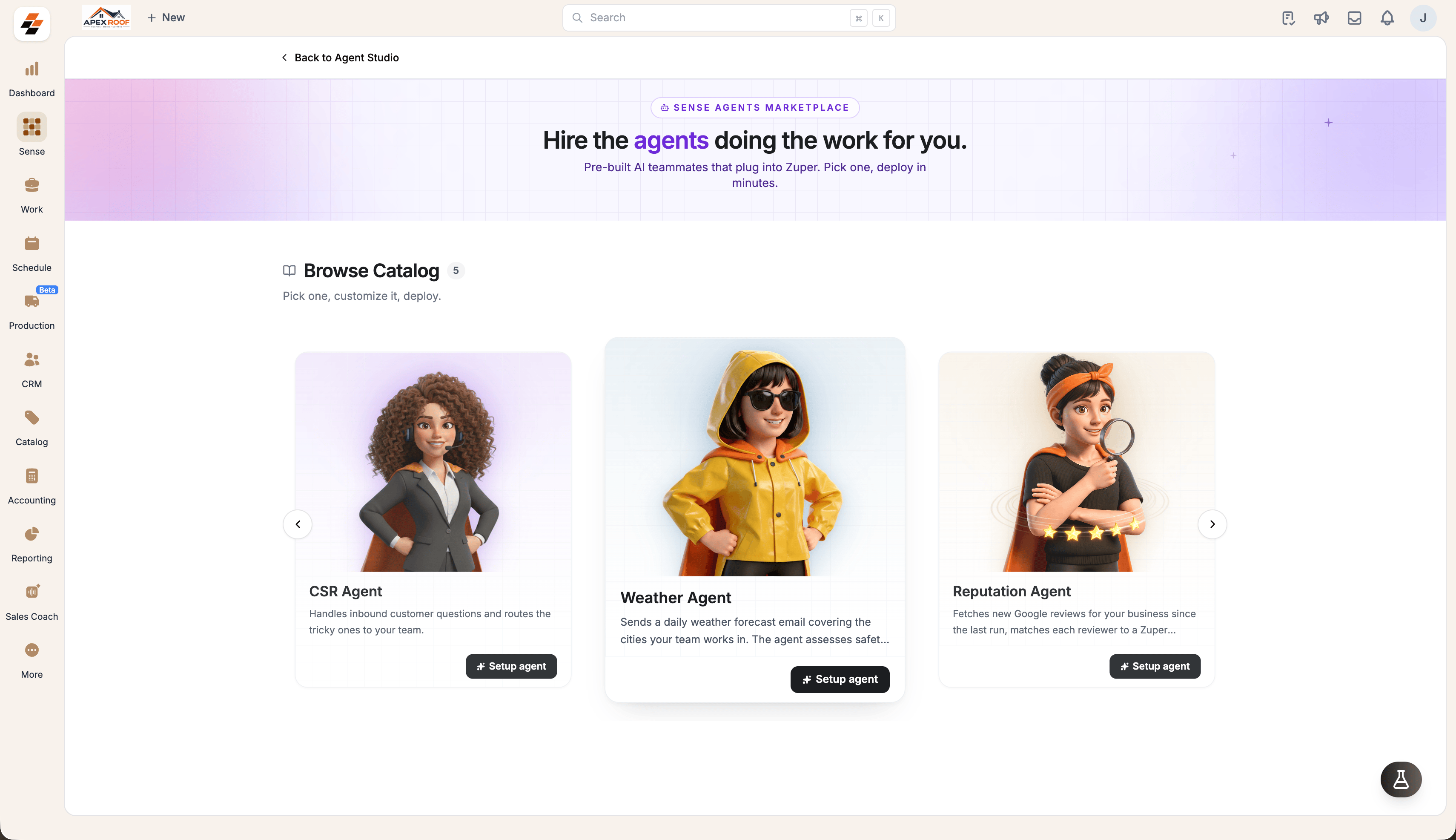
1. Open **Sense** from the left navigation, then select **Agent Studio**.
2. Select **Marketplace** and find **Weather Agent**.
3. Select **Setup agent**.
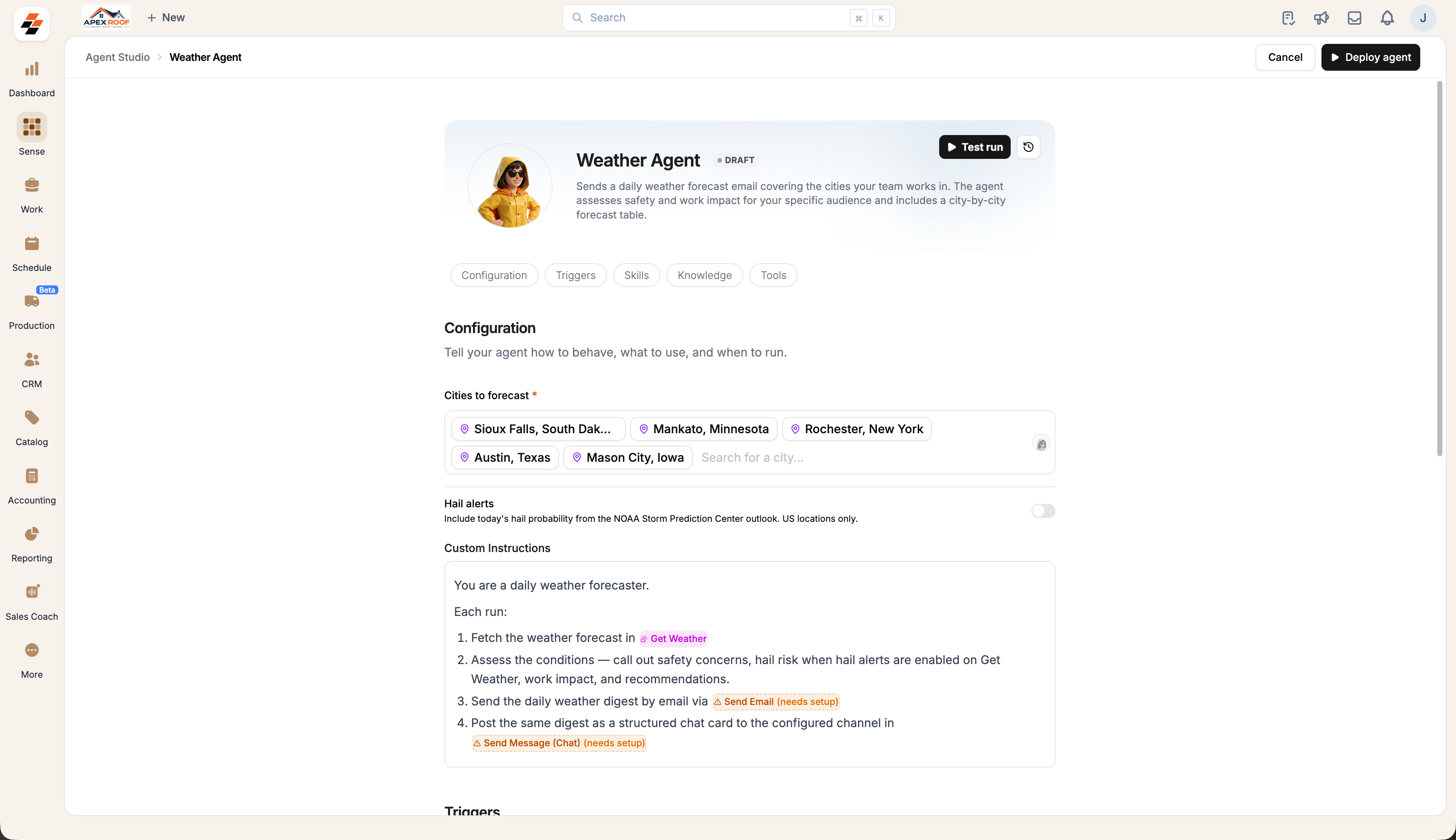
 4. Add every city your crews work in under **Cities to forecast**.
5. Turn on **Hail alerts** if you want today's hail probability included.
6. Add anything you want to change about the digest under **Custom Instructions**, or leave it as it is.
4. Add every city your crews work in under **Cities to forecast**.
5. Turn on **Hail alerts** if you want today's hail probability included.
6. Add anything you want to change about the digest under **Custom Instructions**, or leave it as it is.
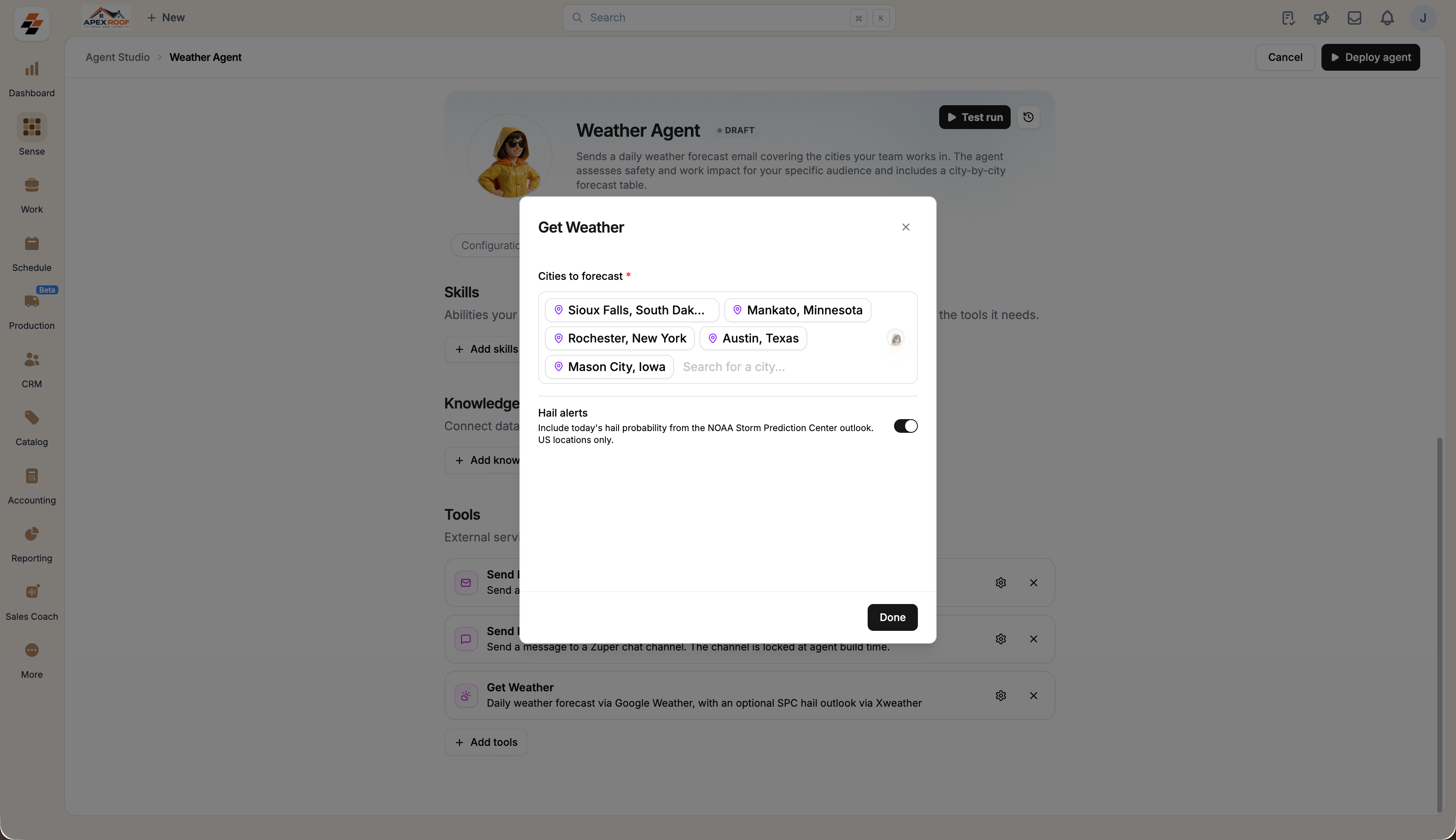
 New **Hail alerts** adds hail probability from the NOAA Storm Prediction Center outlook. US locations only.
## Choose where the digest goes
Under **Tools**, set one route or both:
* **Send Email**: Select **Configure** and enter the address the digest goes to.
* **Send Message (Chat)**: Select **Configure** and name the [Zuper Chat](/Chat/Channels)channel the digest is posted to.
* **Get Weather**: Select **Configure** to change the cities or the **Hail alerts** setting later.
New **Hail alerts** adds hail probability from the NOAA Storm Prediction Center outlook. US locations only.
## Choose where the digest goes
Under **Tools**, set one route or both:
* **Send Email**: Select **Configure** and enter the address the digest goes to.
* **Send Message (Chat)**: Select **Configure** and name the [Zuper Chat](/Chat/Channels)channel the digest is posted to.
* **Get Weather**: Select **Configure** to change the cities or the **Hail alerts** setting later.
 The digest in Zuper Chat is available on the web app only.
## Set the daily time
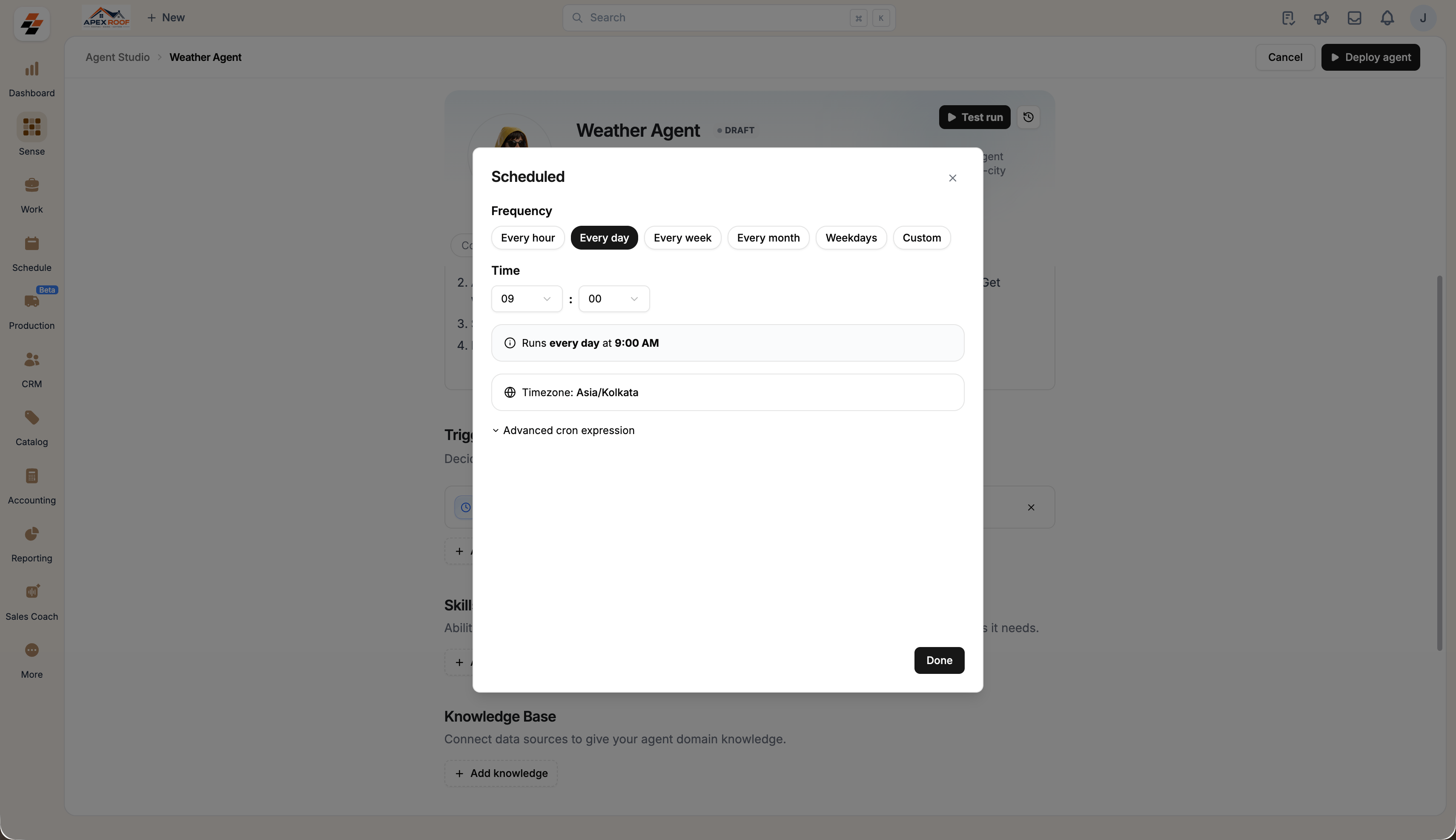
1. Open the **Triggers** section and select the **Scheduled** trigger.
2. Choose **Every day** and set the time the digest should go out.
3. Check the timezone shown below the time, then select **Done**.
4. Select **Deploy agent**.
The digest in Zuper Chat is available on the web app only.
## Set the daily time
1. Open the **Triggers** section and select the **Scheduled** trigger.
2. Choose **Every day** and set the time the digest should go out.
3. Check the timezone shown below the time, then select **Done**.
4. Select **Deploy agent**.
 Once the agent is deployed, select **Run now** to see the digest immediately and check it reads the way you want, rather than waiting for the first scheduled run.
## What your team receives
Each run fetches the forecast for every configured city and produces one digest containing:
* An overall safety and work impact assessment is flagged when conditions need attention.
* Recommendations for the day, written for crews working outdoors.
* A city-by-city outlook, with hail probability where **Hail alerts** are on.
Once the agent is deployed, select **Run now** to see the digest immediately and check it reads the way you want, rather than waiting for the first scheduled run.
## What your team receives
Each run fetches the forecast for every configured city and produces one digest containing:
* An overall safety and work impact assessment is flagged when conditions need attention.
* Recommendations for the day, written for crews working outdoors.
* A city-by-city outlook, with hail probability where **Hail alerts** are on.
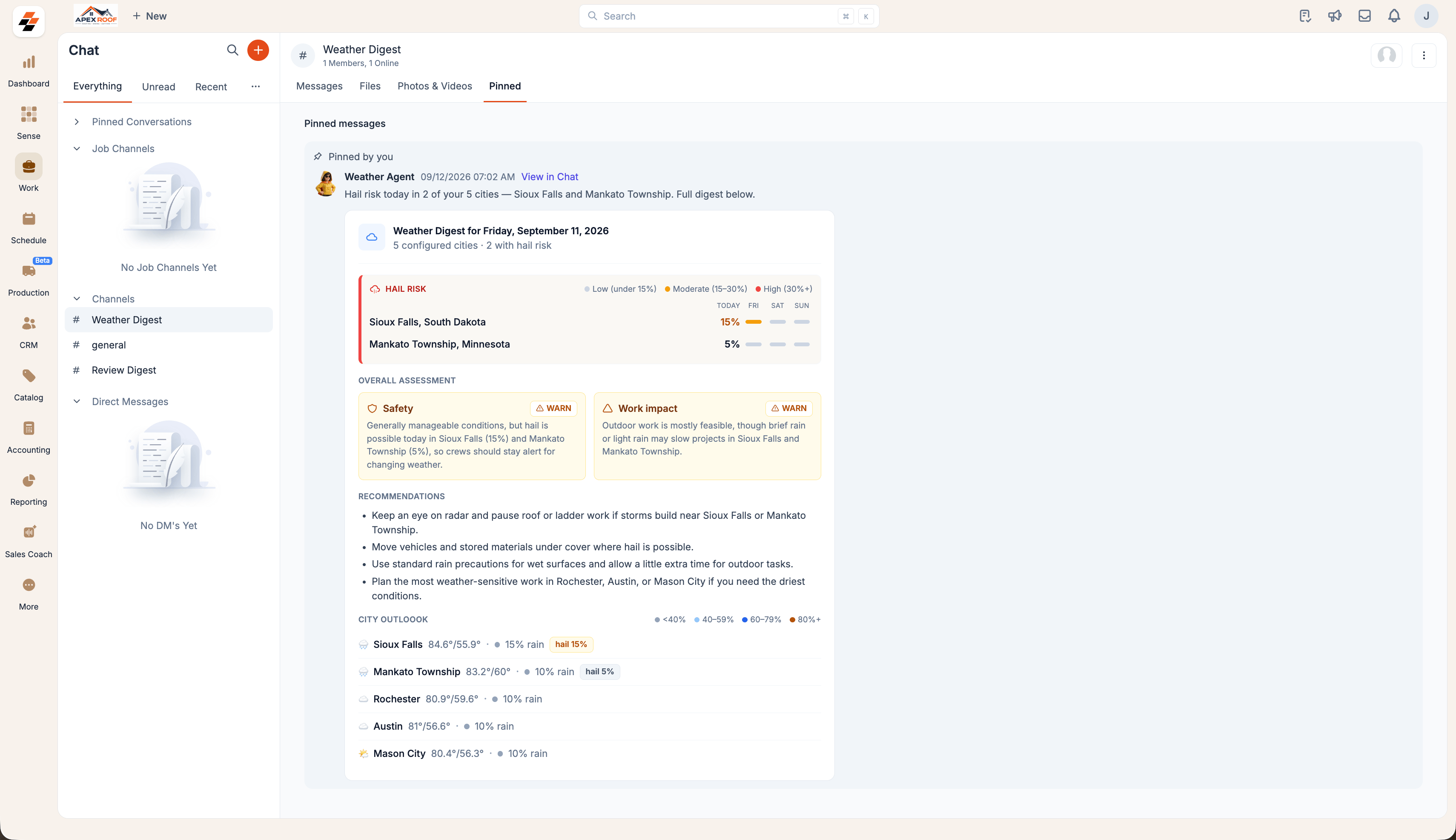 Open the **Chat** module and the channel you configured to read the update, or check the email address you set.
## Change the agent later
Open **Agent Studio -> My agents**, select **Weather Agent**, edit the cities, instructions, tools or schedule, and select **Save changes**.
Removing the **Send Message (Chat)** or **Send Email** tool stops the digest from reaching your team by that route, even though the instructions still describe it.
Open the **Chat** module and the channel you configured to read the update, or check the email address you set.
## Change the agent later
Open **Agent Studio -> My agents**, select **Weather Agent**, edit the cities, instructions, tools or schedule, and select **Save changes**.
Removing the **Send Message (Chat)** or **Send Email** tool stops the digest from reaching your team by that route, even though the instructions still describe it.