> ## Documentation Index
> Fetch the complete documentation index at: https://docs.zuper.co/llms.txt
> Use this file to discover all available pages before exploring further.
# Customer/Contact Gallery on Mobile
> Store, view, and manage all photos and videos linked to a customer or contact from the Zuper mobile app.
The customer/contact gallery gives you one place to view every photo and video linked to a customer or contact. You no longer need to search through notes or job records for a specific image.
Use the gallery to document site conditions, capture visit photos, or store reference images for a customer or contact. Filters for media type, date, and uploader help you find files quickly, even in a large gallery.
Removing a photo or video from this gallery permanently deletes it. There is no restore option, and this action cannot be undone.
## Access the gallery
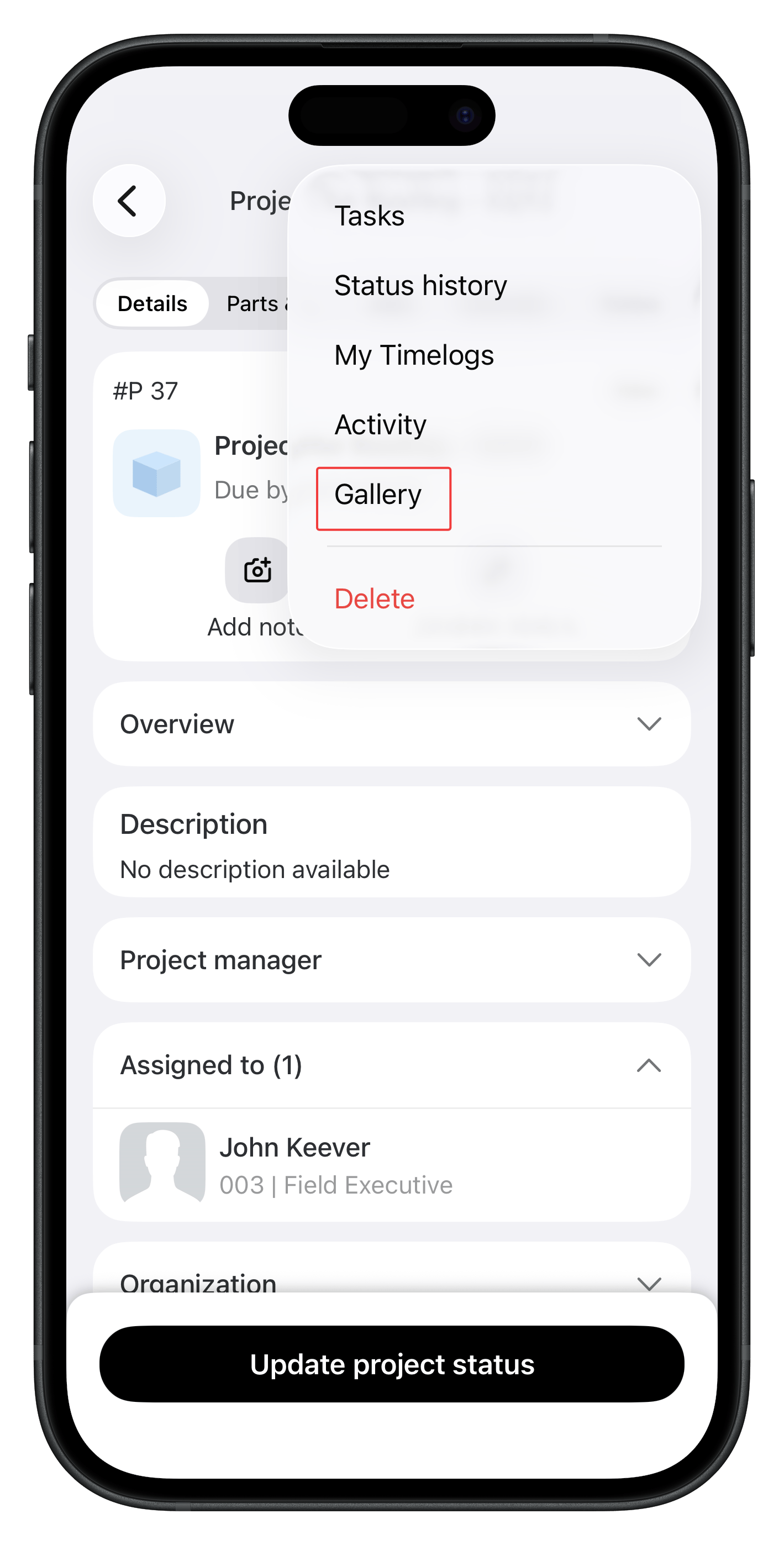
**Navigation:** *Zuper Mobile App → More → Customers → \[customer or contact name] → overflow icon → Gallery*
1. Open the **Zuper Field Service App** on your mobile device.
2. Tap **More** from the bottom navigation bar.
3. Tap **Customers** from the list.
4. Type the customer or contact's name in the **Search customers** bar, or scroll to find the record.
5. Tap the customer or contact to open the details page.
6. Tap the overflow icon at the top right of the screen.
7. Tap **Gallery** from the menu. The gallery opens, showing all media uploaded for this customer or contact.
 ## View media
The gallery displays all photos and videos grouped by upload date. Each item shows a thumbnail, with a date label above each group.
**Open a file in full-screen view**
1. Tap any photo or video thumbnail. The file opens in full-screen view.
2. Review the file details in the header: the uploader's name, the file name, and the upload date and time.
3. Tap an action icon at the bottom of the screen to edit, tag, remove, or comment on the file.
**Rename a file**
1. Open the file in full-screen view.
2. Press and hold the file name shown in the header.
3. Tap **Rename** from the menu that appears.
4. Type the new file name, then confirm.
## Add media
You can add media two ways: choose an existing file from your device, or capture a new one with your camera.
1. Tap the **+** icon at the bottom right of the gallery. A menu opens with two options.
2. Tap **Gallery** to choose an existing photo or video, or tap **Camera** to capture a new one.
3. Select or capture the file. The media appears in the gallery immediately after upload.
Photos or videos captured or uploaded while offline are queued. They sync to the gallery once your device reconnects to the internet.
## Filter media
Use the filter chips at the top of the gallery to narrow down the media displayed. You can apply the following filters:
| Filter | What it shows |
| :-------------- | :-------------------------------------------------------------- |
| **Media type** | Only photos, only videos, or all media |
| **Date** | Media uploaded on a specific date or within a custom date range |
| **Uploaded by** | Media uploaded by a specific team member |
Tap a filter chip to open its options, then tap the option you want. The gallery updates immediately. Tap the chip again to clear the filter.
## Select multiple items
1. Tap **Select** at the top right of the gallery.
2. Tap each item you want to select. A checkmark appears on each selected item.
3. Use the bottom action bar to apply a bulk action to the selected items.
## Remove media
Removing media from this gallery permanently deletes it. There is no Deleted items album and no restore option. This action cannot be undone.
**Remove a single item**
1. Tap the photo or video to open it in full-screen view.
2. Tap the **Remove** icon at the bottom of the screen.
3. Confirm the deletion when prompted.
**Remove multiple items**
1. Tap **Select** at the top right of the gallery.
2. Tap each item you want to remove.
3. Tap **Delete** from the bottom action bar.
4. Confirm the deletion when prompted.
## FAQs
Yes. You can upload both photos and videos from your device. You can also capture a new photo directly using the **Camera** option.
Removing a photo from the customer or contact gallery permanently deletes it. Unlike the job gallery, there is no Deleted items album and no restore option.
Yes. Tap the **Uploaded by** filter chip at the top of the gallery and choose a team member's name to view only their uploads.
Yes. Open the photo in full-screen view, press and hold the file name in the header, then tap **Rename**.
Photos uploaded offline are queued on your device. They sync automatically once your device reconnects to the internet.
If the issue continues, contact [Support](mailto:support@zuper.co).
No. The customer or contact gallery stores media linked directly to a customer or contact record, while the job gallery stores media linked to a specific job. Photos removed from the customer or contact gallery are permanently deleted, but photos removed from the job gallery move to a Deleted items album and can be restored.
If the issue continues, contact [Support](mailto:support@zuper.co).
## Related articles
* [Jobs gallery](https://docs.zuper.co/Work_Order_Management/Jobs/Jobs_gallery)
* [Mobile image annotations](https://docs.zuper.co/Zuper_Mobile_Apps/Mobile-Image-Annotations)
* [Mobile Photofeed](https://docs.zuper.co/Zuper_Mobile_Apps/Mobile-Photofeed)
## View media
The gallery displays all photos and videos grouped by upload date. Each item shows a thumbnail, with a date label above each group.
**Open a file in full-screen view**
1. Tap any photo or video thumbnail. The file opens in full-screen view.
2. Review the file details in the header: the uploader's name, the file name, and the upload date and time.
3. Tap an action icon at the bottom of the screen to edit, tag, remove, or comment on the file.
**Rename a file**
1. Open the file in full-screen view.
2. Press and hold the file name shown in the header.
3. Tap **Rename** from the menu that appears.
4. Type the new file name, then confirm.
## Add media
You can add media two ways: choose an existing file from your device, or capture a new one with your camera.
1. Tap the **+** icon at the bottom right of the gallery. A menu opens with two options.
2. Tap **Gallery** to choose an existing photo or video, or tap **Camera** to capture a new one.
3. Select or capture the file. The media appears in the gallery immediately after upload.
Photos or videos captured or uploaded while offline are queued. They sync to the gallery once your device reconnects to the internet.
## Filter media
Use the filter chips at the top of the gallery to narrow down the media displayed. You can apply the following filters:
| Filter | What it shows |
| :-------------- | :-------------------------------------------------------------- |
| **Media type** | Only photos, only videos, or all media |
| **Date** | Media uploaded on a specific date or within a custom date range |
| **Uploaded by** | Media uploaded by a specific team member |
Tap a filter chip to open its options, then tap the option you want. The gallery updates immediately. Tap the chip again to clear the filter.
## Select multiple items
1. Tap **Select** at the top right of the gallery.
2. Tap each item you want to select. A checkmark appears on each selected item.
3. Use the bottom action bar to apply a bulk action to the selected items.
## Remove media
Removing media from this gallery permanently deletes it. There is no Deleted items album and no restore option. This action cannot be undone.
**Remove a single item**
1. Tap the photo or video to open it in full-screen view.
2. Tap the **Remove** icon at the bottom of the screen.
3. Confirm the deletion when prompted.
**Remove multiple items**
1. Tap **Select** at the top right of the gallery.
2. Tap each item you want to remove.
3. Tap **Delete** from the bottom action bar.
4. Confirm the deletion when prompted.
## FAQs
Yes. You can upload both photos and videos from your device. You can also capture a new photo directly using the **Camera** option.
Removing a photo from the customer or contact gallery permanently deletes it. Unlike the job gallery, there is no Deleted items album and no restore option.
Yes. Tap the **Uploaded by** filter chip at the top of the gallery and choose a team member's name to view only their uploads.
Yes. Open the photo in full-screen view, press and hold the file name in the header, then tap **Rename**.
Photos uploaded offline are queued on your device. They sync automatically once your device reconnects to the internet.
If the issue continues, contact [Support](mailto:support@zuper.co).
No. The customer or contact gallery stores media linked directly to a customer or contact record, while the job gallery stores media linked to a specific job. Photos removed from the customer or contact gallery are permanently deleted, but photos removed from the job gallery move to a Deleted items album and can be restored.
If the issue continues, contact [Support](mailto:support@zuper.co).
## Related articles
* [Jobs gallery](https://docs.zuper.co/Work_Order_Management/Jobs/Jobs_gallery)
* [Mobile image annotations](https://docs.zuper.co/Zuper_Mobile_Apps/Mobile-Image-Annotations)
* [Mobile Photofeed](https://docs.zuper.co/Zuper_Mobile_Apps/Mobile-Photofeed)