> ## Documentation Index
> Fetch the complete documentation index at: https://docs.zuper.co/llms.txt
> Use this file to discover all available pages before exploring further.
# Login Logs
The **Login Logs** feature in Zuper provides a detailed record of user login and logout activities within your account. This feature s essential for monitoring account security, tracking user activity, and troubleshooting login issues.
**Navigation**: *Settings -> Security - > Login Logs*
## **Accessing the Login Logs**
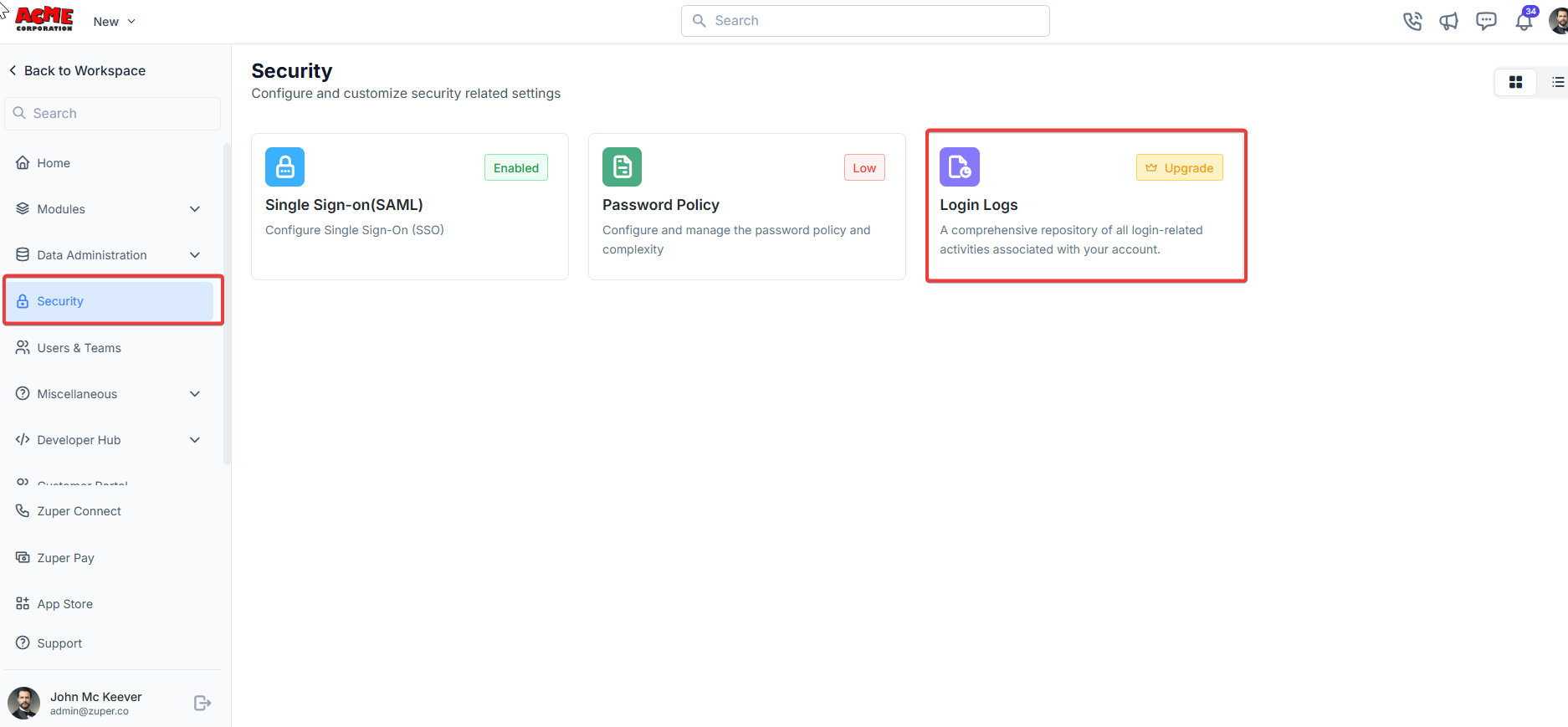
Log in to your Zuper account. Select the “**Security**” module from the settings. Click **Login Logs** from the tiles.
**View the Logs**: You’ll be directed to the Login Logs page, which displays a table of login and logout activities.
 ## **Understanding the Login Logs Interface**
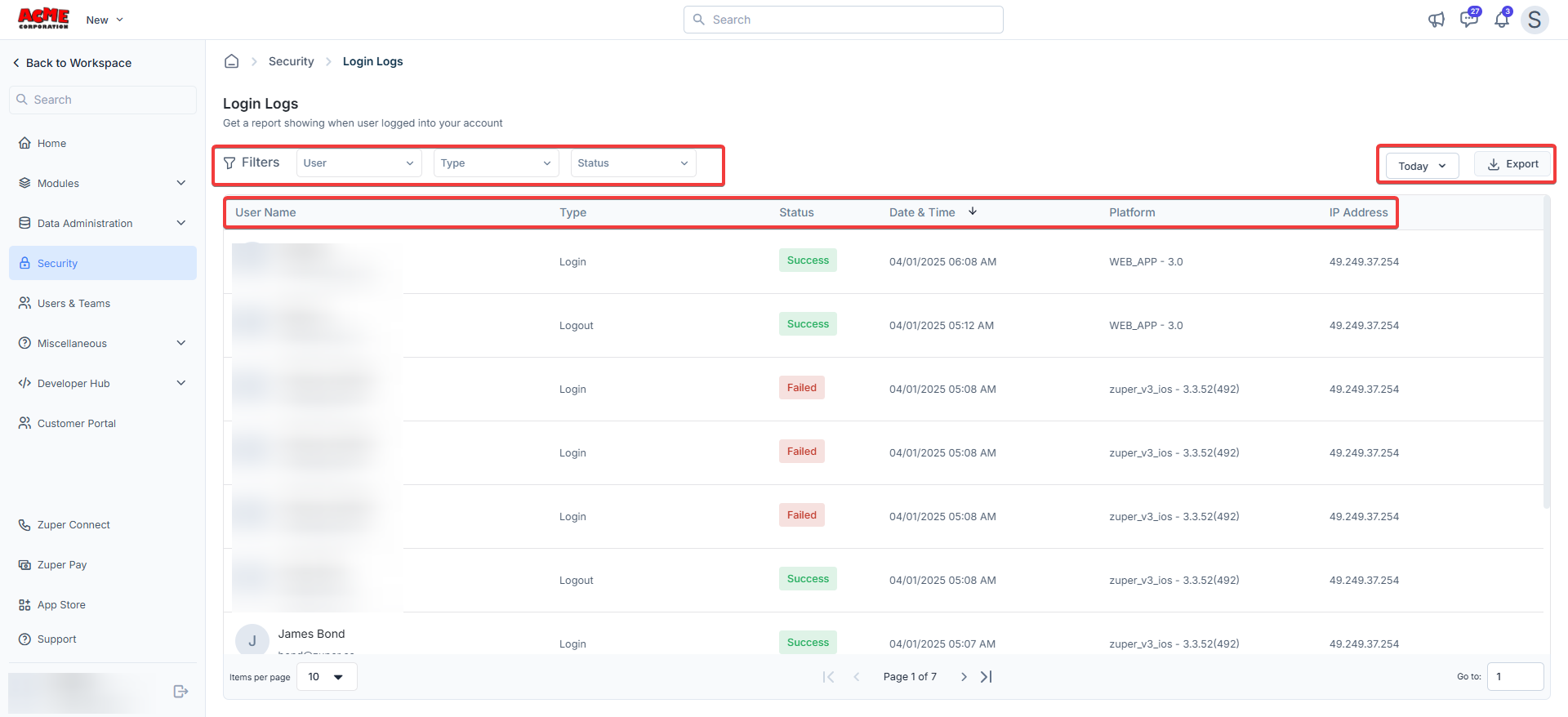
The Login Logs page provides a clear and organized view of user activity. Here’s a breakdown of the key elements:
We have a calendar picker to filter the custom date ranges used to view the list of login logs. In that dropdown, users can view the logs today and other options.
**1. Header and Filters**
* **Title**: The page is labeled "Login Logs" and has a brief description: "Get a report showing when a user logged into your account."
* **Filters**:
* **User**: Filter logs by a specific user.
* **Type**: Filter by the type of activity (e.g., Login, Logout).
* **Status**: Filter by the activity status (e.g., Success, Failed).
* **Date Range**: Select a period (e.g., Today, Last 7 Days, Custom Range).
* **Export Button**: Download the logs as a file for further analysis.
* **Search Bar**: Search for specific entries using keywords.
**2. Log Table**
The table displays the following columns:
* **User Name**: The name and email of the user
* **Type**: Indicates whether the activity was a "Login" or "Logout."
* **Status**: Shows if the attempt was "Success" (green) or "Failed" (red).
* **Date & Time**: The activity timestamp (e.g., 04/01/2025 06:08 AM).
* **Platform**: The platform and version used (e.g., WEB-APP - 3.0, zuper\_v3\_ios - 3.3.52\[492]).
* **IP Address**: The IP address from which the activity originated (e.g., 49.249.37.254).
## **Interpreting Login Logs**
The Login Logs provide valuable insights into user activity and potential security issues. Here’s how to interpret the data:
* **Successful Logins/Logouts**:
* A "Success" status in green indicates that the user successfully logged in or out.
* Example: User logged in successfully on 04/01/2025 at 06:08 AM via WEB-APP - 3.0 from IP 49.249.37.254.
* **Failed Login Attempts**:
* A "Failed" status in red indicates an unsuccessful login attempt, possibly due to incorrect credentials, account lockout, or other issues.
* Example: User had three failed login attempts on 04/01/2025 at 05:08 AM via zuper\_v3\_ios - 3.3.52\[492] from IP.
* **IP Address Tracking**:
* The IP address helps identify the location or device used for the activity. Multiple failed attempts from an unfamiliar IP may indicate a security concern.
* **Platform Information**:
* The platform column shows whether the user accessed Zuper via the web app, iOS app, or another platform, along with the version number.
## **Understanding the Login Logs Interface**
The Login Logs page provides a clear and organized view of user activity. Here’s a breakdown of the key elements:
We have a calendar picker to filter the custom date ranges used to view the list of login logs. In that dropdown, users can view the logs today and other options.
**1. Header and Filters**
* **Title**: The page is labeled "Login Logs" and has a brief description: "Get a report showing when a user logged into your account."
* **Filters**:
* **User**: Filter logs by a specific user.
* **Type**: Filter by the type of activity (e.g., Login, Logout).
* **Status**: Filter by the activity status (e.g., Success, Failed).
* **Date Range**: Select a period (e.g., Today, Last 7 Days, Custom Range).
* **Export Button**: Download the logs as a file for further analysis.
* **Search Bar**: Search for specific entries using keywords.
**2. Log Table**
The table displays the following columns:
* **User Name**: The name and email of the user
* **Type**: Indicates whether the activity was a "Login" or "Logout."
* **Status**: Shows if the attempt was "Success" (green) or "Failed" (red).
* **Date & Time**: The activity timestamp (e.g., 04/01/2025 06:08 AM).
* **Platform**: The platform and version used (e.g., WEB-APP - 3.0, zuper\_v3\_ios - 3.3.52\[492]).
* **IP Address**: The IP address from which the activity originated (e.g., 49.249.37.254).
## **Interpreting Login Logs**
The Login Logs provide valuable insights into user activity and potential security issues. Here’s how to interpret the data:
* **Successful Logins/Logouts**:
* A "Success" status in green indicates that the user successfully logged in or out.
* Example: User logged in successfully on 04/01/2025 at 06:08 AM via WEB-APP - 3.0 from IP 49.249.37.254.
* **Failed Login Attempts**:
* A "Failed" status in red indicates an unsuccessful login attempt, possibly due to incorrect credentials, account lockout, or other issues.
* Example: User had three failed login attempts on 04/01/2025 at 05:08 AM via zuper\_v3\_ios - 3.3.52\[492] from IP.
* **IP Address Tracking**:
* The IP address helps identify the location or device used for the activity. Multiple failed attempts from an unfamiliar IP may indicate a security concern.
* **Platform Information**:
* The platform column shows whether the user accessed Zuper via the web app, iOS app, or another platform, along with the version number.
 **Common Use Cases for Login Logs**
1. **Security Monitoring**:
* Identify unauthorized access attempts by reviewing failed login attempts.
* Check for logins from unfamiliar IP addresses or devices.
2. **Troubleshooting**:
* If users report login issues, check the logs to see if their attempts fail and why.
* Verify the platform and version they are using to ensure compatibility.
3. **User Activity Tracking**:
* Monitor when team members log in and out to ensure work schedules or policy compliance.
4. **Audit and Reporting**:
* Export the logs for audits or to share them with your IT/security team for further analysis.
**Best Practices for Using Login Logs**
* **Regular Monitoring**: Check the Login Logs periodically to spot any unusual activity, such as repeated failed login attempts.
* **Educate Users**: If you notice frequent failed logins, remind users to double-check their credentials or reset their passwords if needed.
* **Update Platforms**: Ensure all users are using the latest version of the Zuper app to avoid compatibility issues.
* **Secure IP Addresses**: If you notice logins from unfamiliar IPs, consider implementing IP whitelisting or multi-factor authentication (MFA) for added security.
**Exporting Login Logs**
To export the logs for further analysis:
1. Click the **Export** button at the top right of the Login Logs page.
2. Choose your preferred format (e.g., CSV, Excel).
3. Download the file and review it using your preferred spreadsheet software.
**Common Use Cases for Login Logs**
1. **Security Monitoring**:
* Identify unauthorized access attempts by reviewing failed login attempts.
* Check for logins from unfamiliar IP addresses or devices.
2. **Troubleshooting**:
* If users report login issues, check the logs to see if their attempts fail and why.
* Verify the platform and version they are using to ensure compatibility.
3. **User Activity Tracking**:
* Monitor when team members log in and out to ensure work schedules or policy compliance.
4. **Audit and Reporting**:
* Export the logs for audits or to share them with your IT/security team for further analysis.
**Best Practices for Using Login Logs**
* **Regular Monitoring**: Check the Login Logs periodically to spot any unusual activity, such as repeated failed login attempts.
* **Educate Users**: If you notice frequent failed logins, remind users to double-check their credentials or reset their passwords if needed.
* **Update Platforms**: Ensure all users are using the latest version of the Zuper app to avoid compatibility issues.
* **Secure IP Addresses**: If you notice logins from unfamiliar IPs, consider implementing IP whitelisting or multi-factor authentication (MFA) for added security.
**Exporting Login Logs**
To export the logs for further analysis:
1. Click the **Export** button at the top right of the Login Logs page.
2. Choose your preferred format (e.g., CSV, Excel).
3. Download the file and review it using your preferred spreadsheet software.