> ## Documentation Index
> Fetch the complete documentation index at: https://docs.zuper.co/llms.txt
> Use this file to discover all available pages before exploring further.
# Configuring organization settings
The Organization settings section allows you to configure and manage organization-related preferences, including general settings and custom fields.
**Navigation**: *Settings -> Modules -> Organization -> Organization General Fields*
## Organization general settings
Select the “**Settings**” module from the left panel. Under the “**Modules**,” choose the “**Organizations**.” Select the “**Customer/Contact General Settings**.”
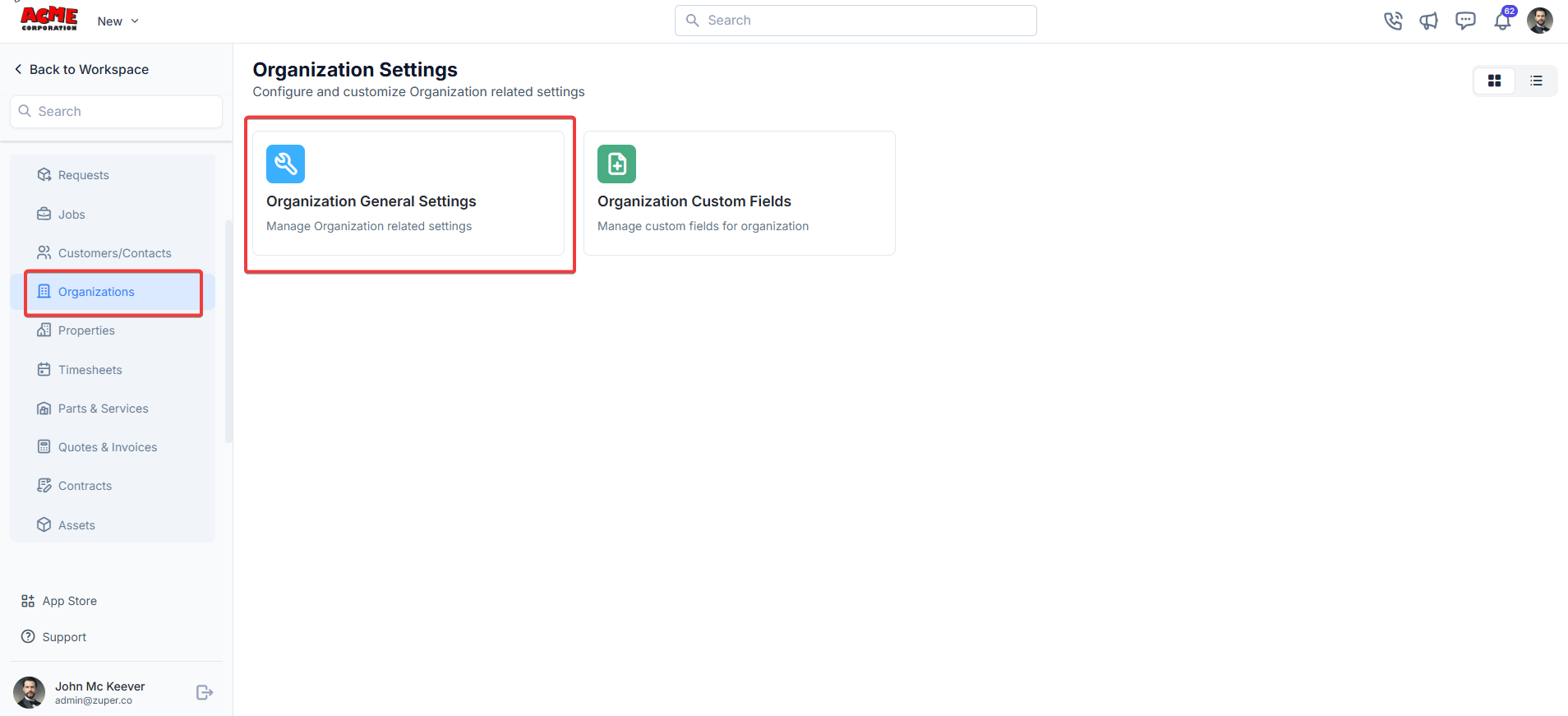 * Allow Field Executive to view all Organization?
Yes: Toggle to Yes will enable viewing all organization access for field executives.
No: Toggle to No will disable viewing all organization access for field executives.
* Allow Team Leader to view all Organization?
Yes: Toggle to Yes will enable viewing all organization access for Team Leaders.
No: Toggle to No will disable viewing all organization access for Team Leaders.
* Allow Field Executive to view all Organization?
Yes: Toggle to Yes will enable viewing all organization access for field executives.
No: Toggle to No will disable viewing all organization access for field executives.
* Allow Team Leader to view all Organization?
Yes: Toggle to Yes will enable viewing all organization access for Team Leaders.
No: Toggle to No will disable viewing all organization access for Team Leaders.
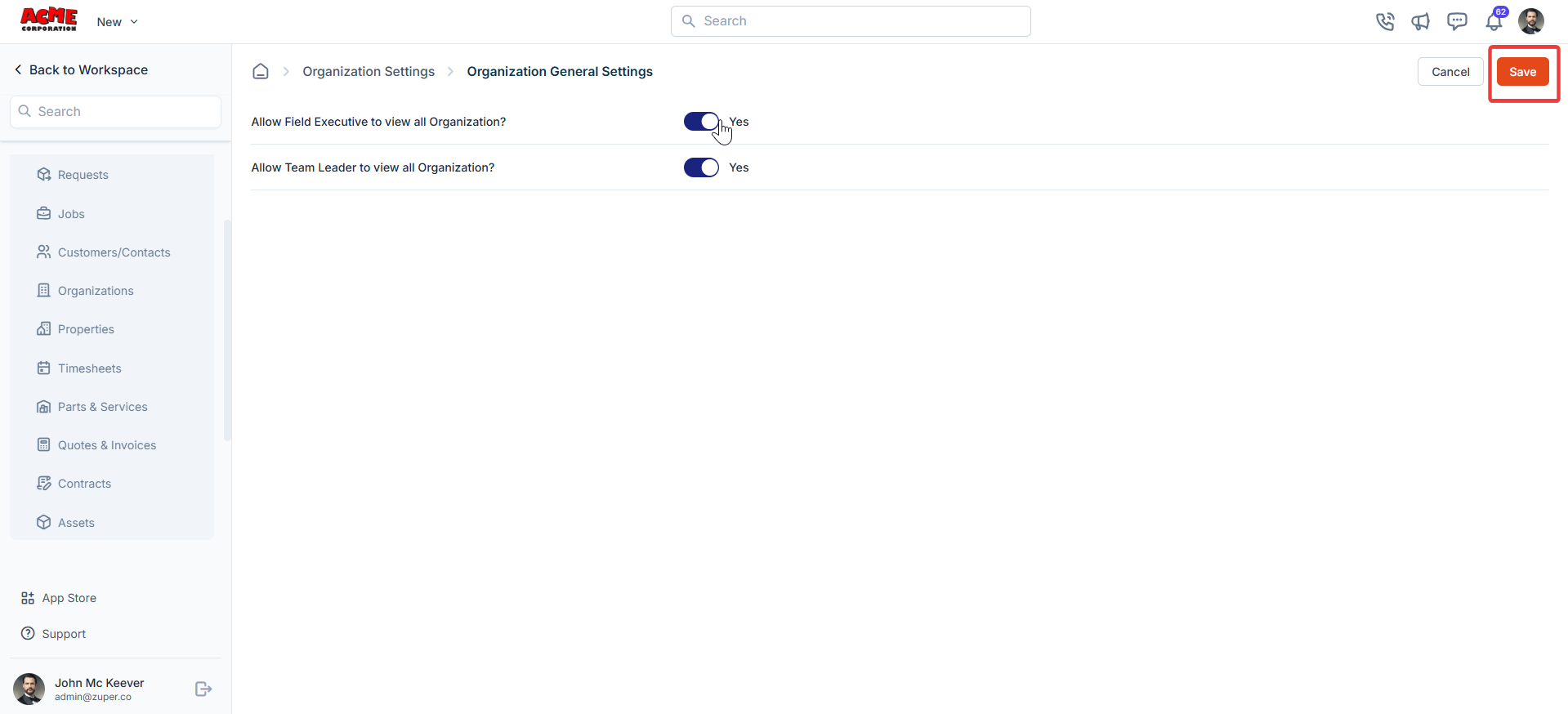 To save changes, click the **Save** button at the top right.
## Organization custom fields
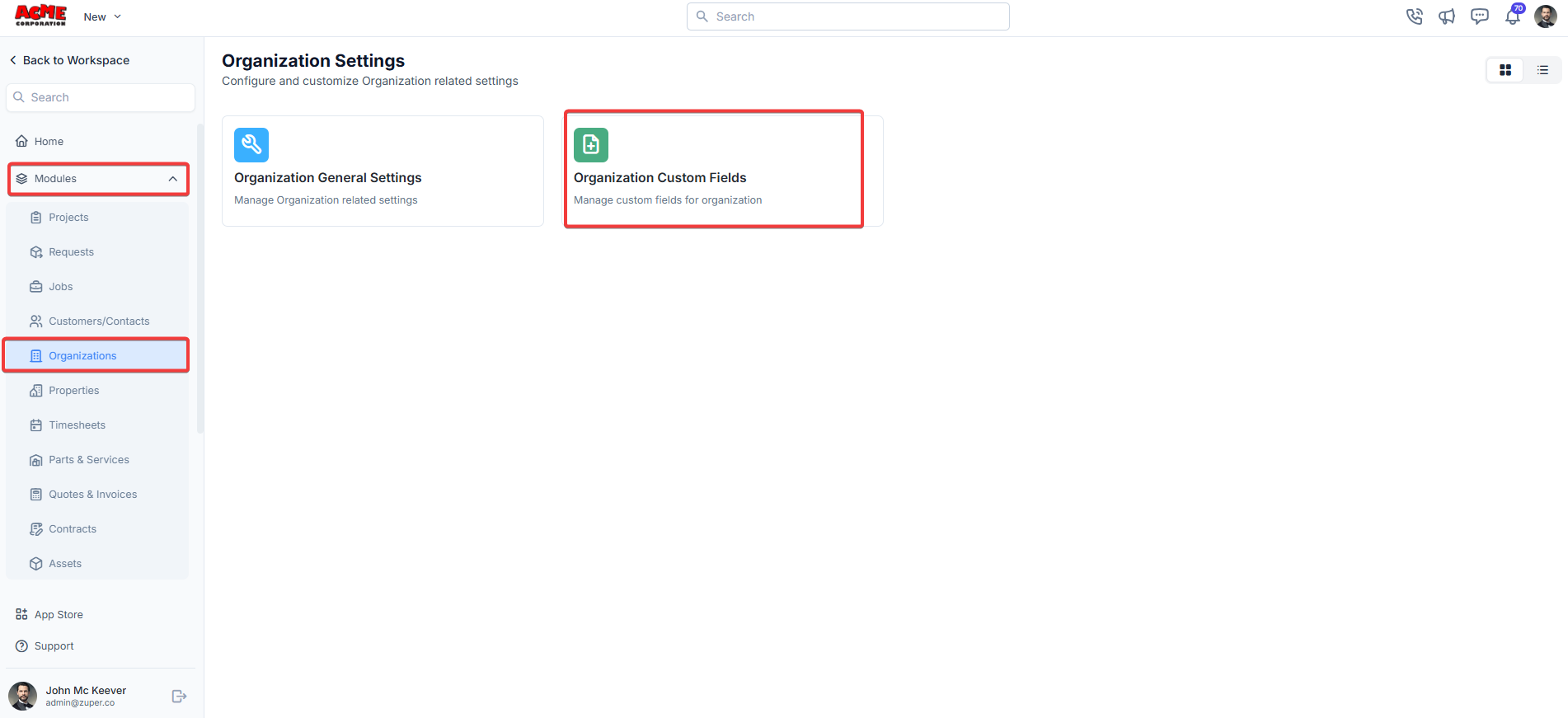
Select the “**Settings**” module from the left panel. Under the “**Modules**,” choose the “**Organizations**.” Select the “**Organization custom fields**.”
To save changes, click the **Save** button at the top right.
## Organization custom fields
Select the “**Settings**” module from the left panel. Under the “**Modules**,” choose the “**Organizations**.” Select the “**Organization custom fields**.”
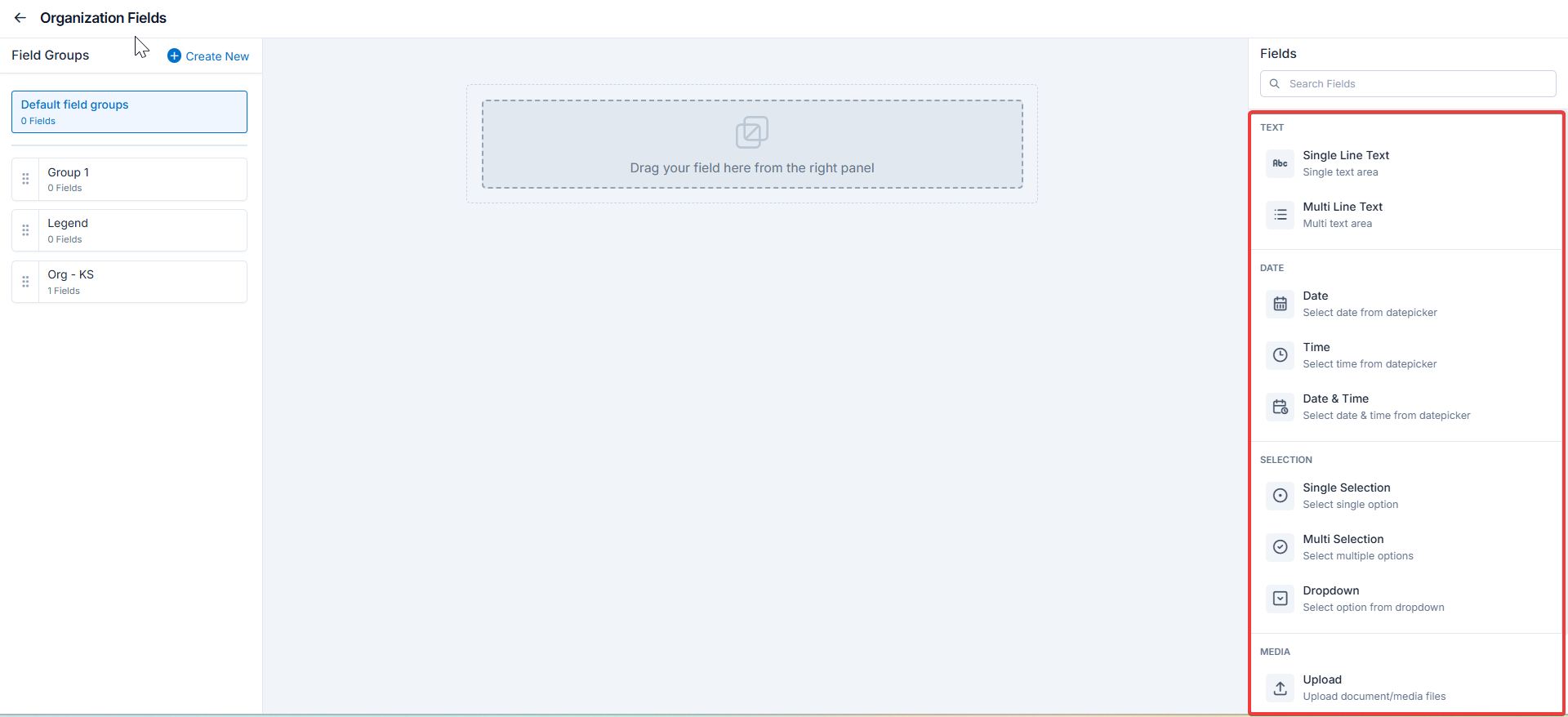
 Drag and drop the fields from the right panel.
Text
* Single-Line Input: This allows you to create a field to enter a single line of free text.
* Multi-Line Input: This allows you to create a field to enter multiple lines of free text.
Date
* Date Input: This allows you to create a field to select a specific date from a calendar.
* Time Input: This allows you to create a field where you can select a specific time.
* Date Time Input: This allows you to create a field where both date and time can be selected.
Selection
* Single-Selection: This allows you to create a radio input Field where one of the provided options can be selected.
* Multi-Selection: This allows you to create check boxes where the provided options can be checked.
* Drop-Down: This allows you to create a drop-down field with the required list of options.
Media
* Upload: This allows you to create a file input field to upload files.
Misc
* Look up : This allows you to create a file input field to look up the products from the parts and services module.
Note: You can also control the behavior and visibility of each field using the following options:
* Mark as Required Field - Makes the field mandatory to fill out before submitting the form.
* Mark as Read Only—This option makes the field non-editable; users can view the value but cannot modify it.
* Mark as hidden field- This hides the field from all users; it will not appear in the form interface.
* Hide to FE/Technician- This option makes the field invisible to technicians or front-end users during form access.
Drag and drop the fields from the right panel.
Text
* Single-Line Input: This allows you to create a field to enter a single line of free text.
* Multi-Line Input: This allows you to create a field to enter multiple lines of free text.
Date
* Date Input: This allows you to create a field to select a specific date from a calendar.
* Time Input: This allows you to create a field where you can select a specific time.
* Date Time Input: This allows you to create a field where both date and time can be selected.
Selection
* Single-Selection: This allows you to create a radio input Field where one of the provided options can be selected.
* Multi-Selection: This allows you to create check boxes where the provided options can be checked.
* Drop-Down: This allows you to create a drop-down field with the required list of options.
Media
* Upload: This allows you to create a file input field to upload files.
Misc
* Look up : This allows you to create a file input field to look up the products from the parts and services module.
Note: You can also control the behavior and visibility of each field using the following options:
* Mark as Required Field - Makes the field mandatory to fill out before submitting the form.
* Mark as Read Only—This option makes the field non-editable; users can view the value but cannot modify it.
* Mark as hidden field- This hides the field from all users; it will not appear in the form interface.
* Hide to FE/Technician- This option makes the field invisible to technicians or front-end users during form access.
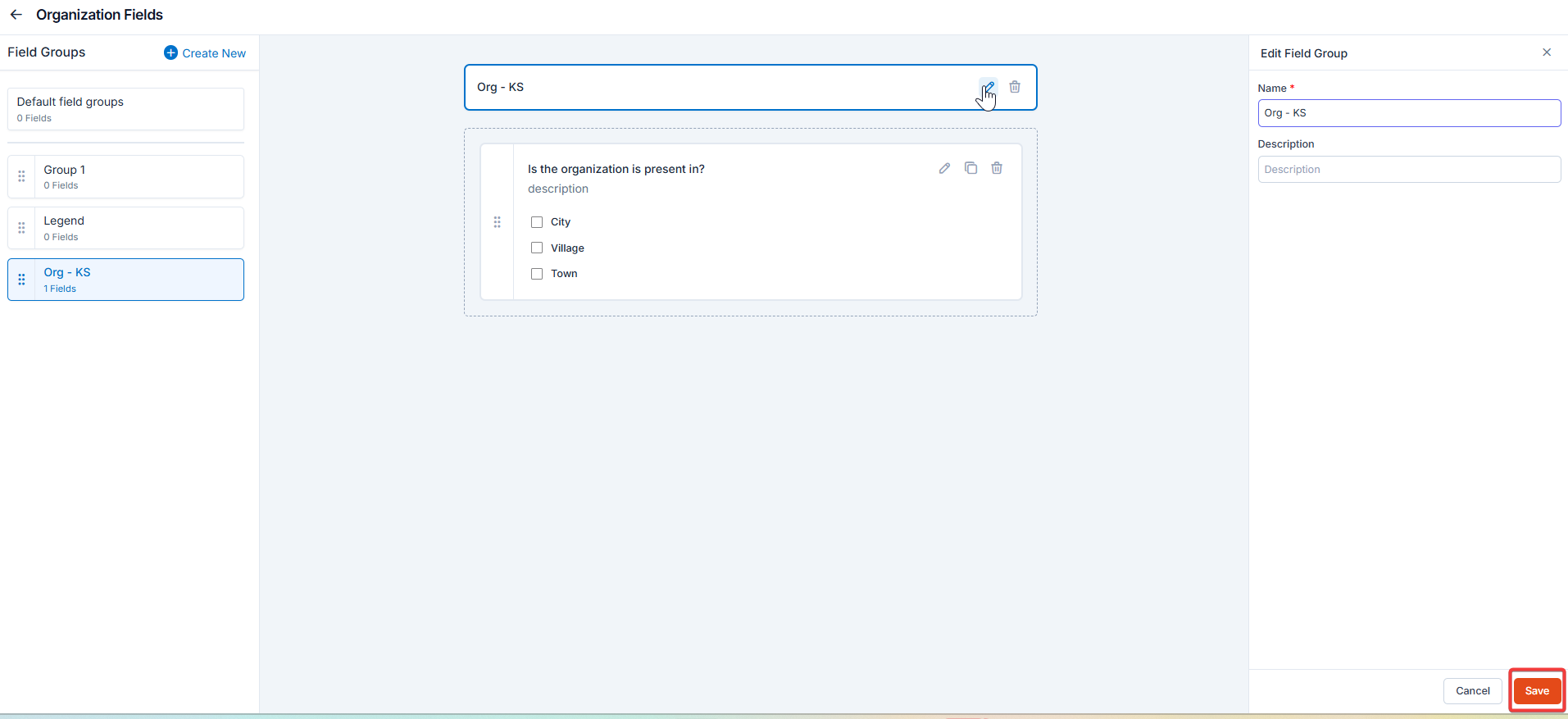 Click “**Create New**” to create the “**Custom Field**” group.
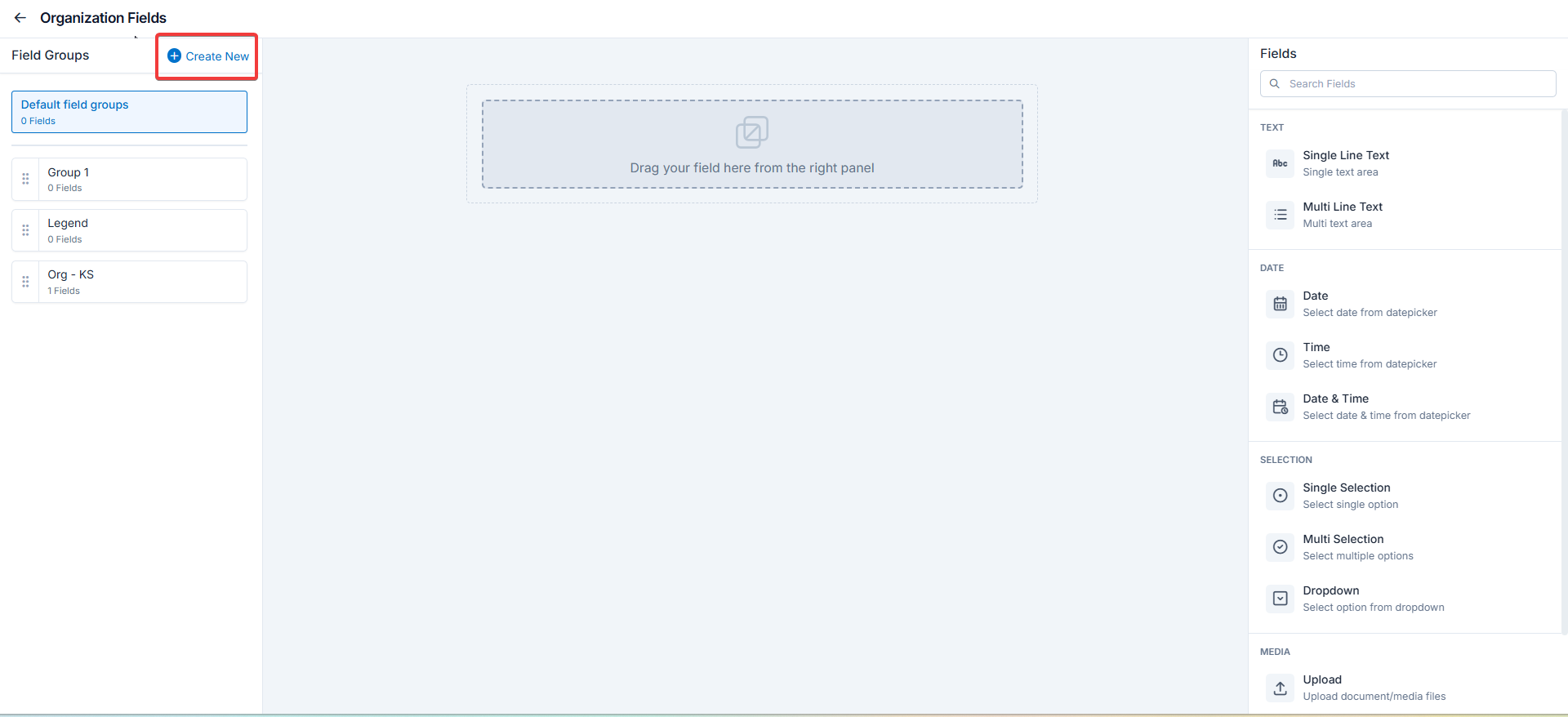 By following the outlined steps, you can easily organize the organization settings.