> ## Documentation Index
> Fetch the complete documentation index at: https://docs.zuper.co/llms.txt
> Use this file to discover all available pages before exploring further.
# Purchase Tax on parts and products
> Record the tax you pay on parts and products separately from their base cost, and keep cost and tax values in sync automatically when you add stock.
Purchase tax tracking lets you record the tax you pay on a part or product separately from its base cost. Whenever you add stock, whether by receiving a purchase order or recording a manual inward transaction, Zuper automatically keeps your part's cost and tax values accurate and in sync.
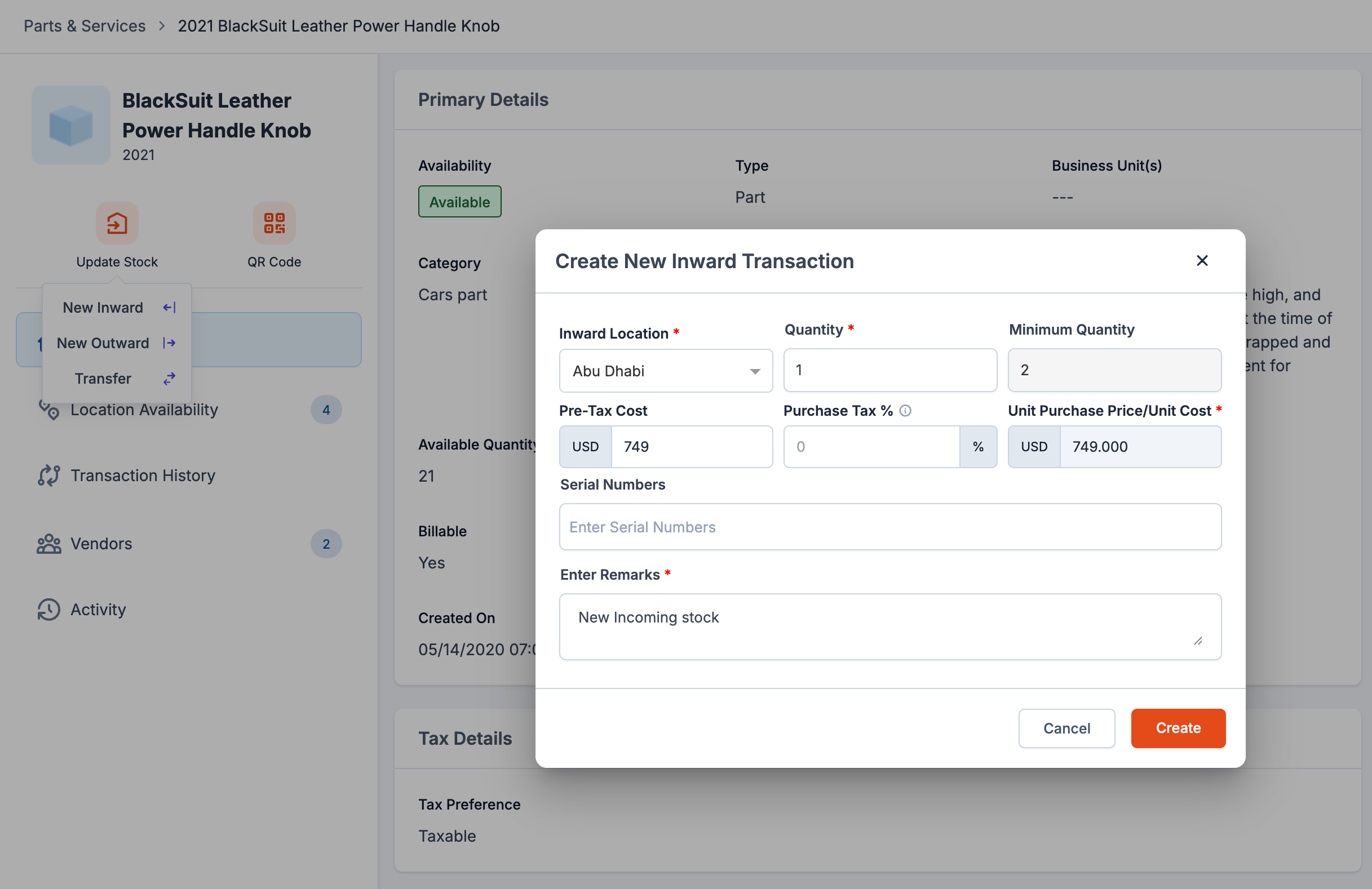 **Prerequisite**: The **Enable Purchase Tax?** setting must be turned on in **Settings > Parts & Services > Parts and Services General Settings**. Purchase tax fields stay hidden until this setting is on.
 ## The cost fields
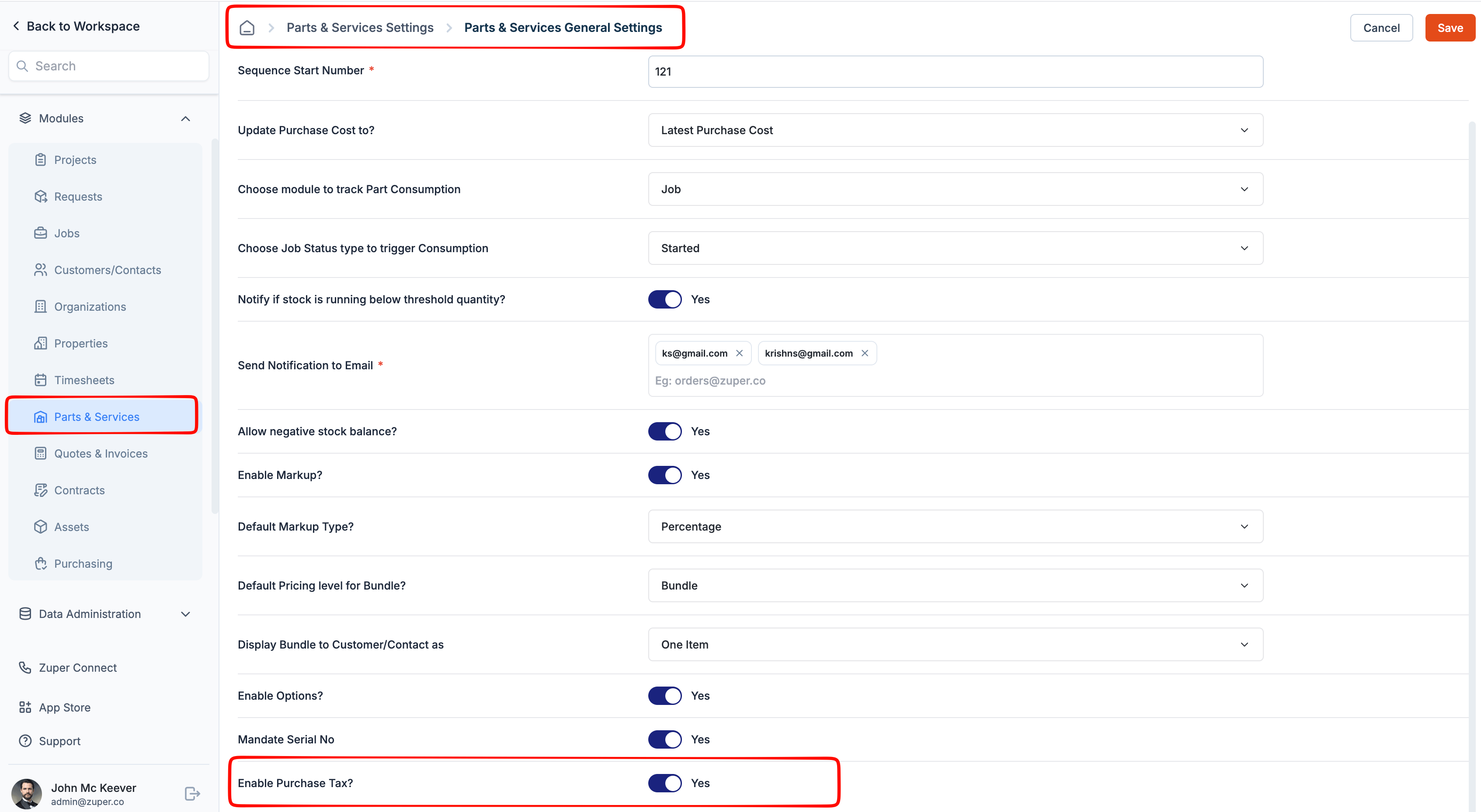
Every item with purchase tax enabled shows three related cost fields:
* **Pre-Tax Cost**: The base cost of the part, before tax.
* **Purchase Tax %**: The tax rate applied to the part's cost. This field is optional and accepts decimal values.
* **Unit Purchase Price/Unit Cost**: Your landed cost, what you actually pay per unit, tax included. This field drives the markup and Unit Selling Price calculations.
## The cost fields
Every item with purchase tax enabled shows three related cost fields:
* **Pre-Tax Cost**: The base cost of the part, before tax.
* **Purchase Tax %**: The tax rate applied to the part's cost. This field is optional and accepts decimal values.
* **Unit Purchase Price/Unit Cost**: Your landed cost, what you actually pay per unit, tax included. This field drives the markup and Unit Selling Price calculations.
 ## How Zuper updates the master when you add stock
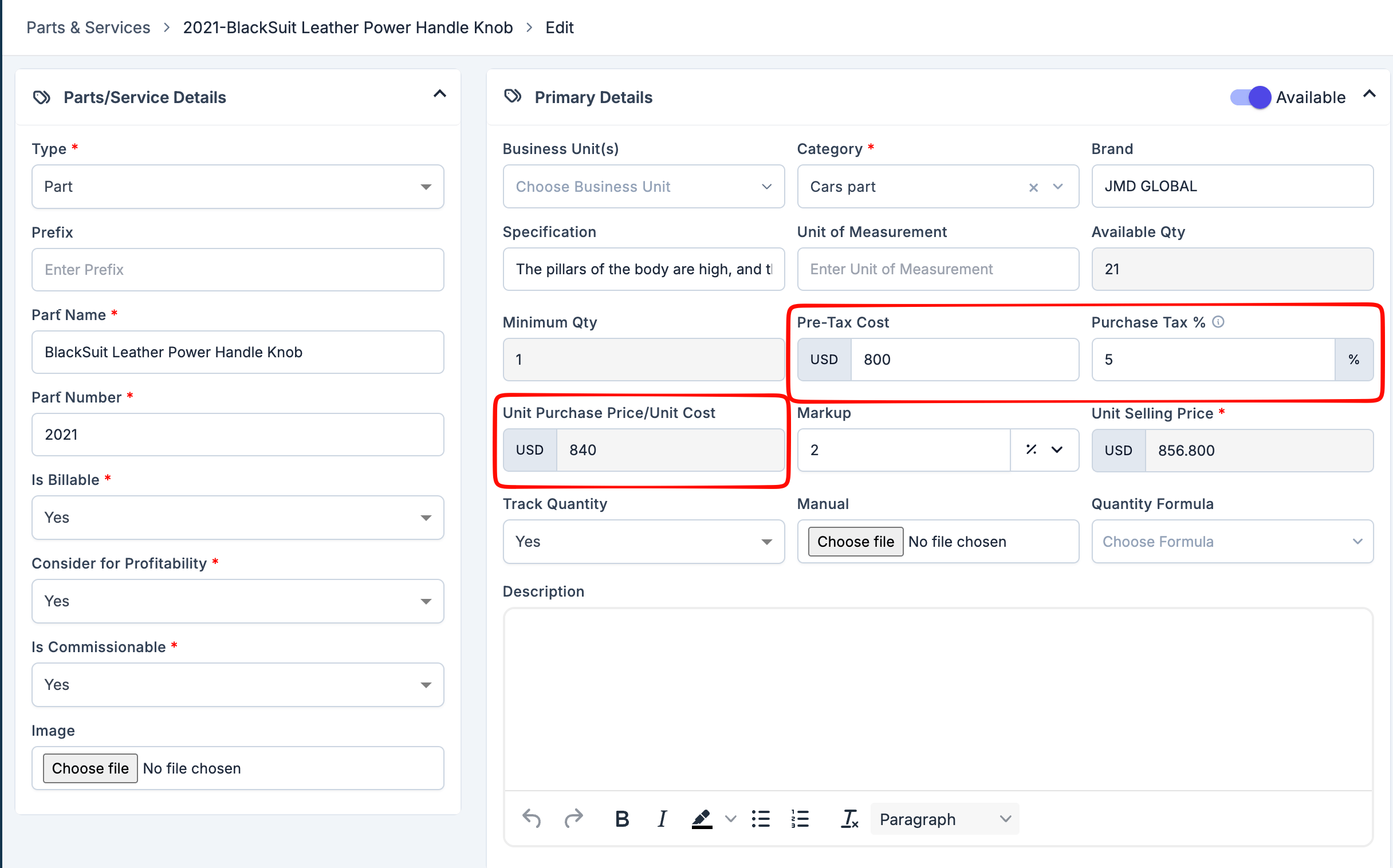
Whenever you receive a purchase order or record a manual inward transaction, Zuper updates the part's cost fields based on the **Update Purchase Cost to?** setting in **Settings > Parts & Services > Parts and Services General Settings**.
## How Zuper updates the master when you add stock
Whenever you receive a purchase order or record a manual inward transaction, Zuper updates the part's cost fields based on the **Update Purchase Cost to?** setting in **Settings > Parts & Services > Parts and Services General Settings**.
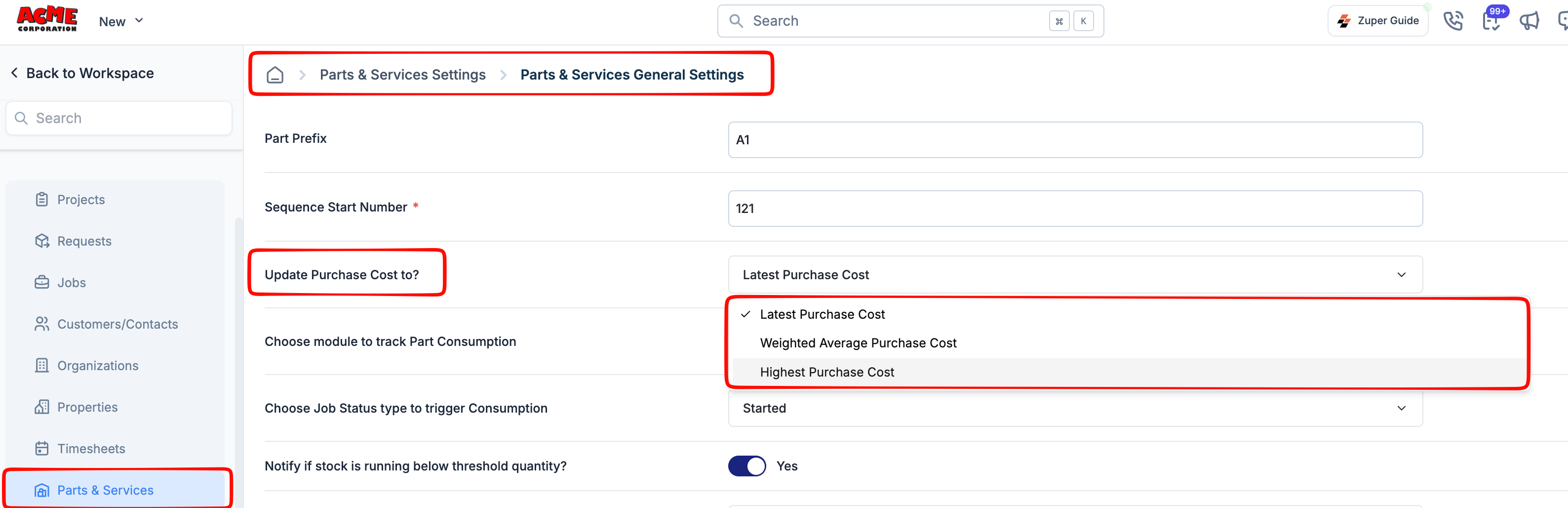 Zuper replaces the master's Pre-Tax Cost and Purchase Tax % outright with the values from the transaction you just recorded.
**Example:** A part has a Pre-Tax Cost of \$500 and a tax rate of 10%, giving a landed cost of \$550. You receive stock with a Pre-Tax Cost of \$600 and a tax rate of 10%. The master updates to a Pre-Tax Cost of \$600, and the landed cost becomes \$660.
With this setting, Zuper blends the cost of your existing stock with the cost of the new stock you're adding, rather than replacing it outright.
Here's what happens, in order:
1. Zuper averages your landed cost (Unit Purchase Price/Unit Cost), weighted by how many units you already have versus how many you're adding.
2. Zuper updates the Purchase Tax % to match this transaction's rate.
3. Zuper works out the new Pre-Tax Cost.
**Example:** You have 44 units in stock at \$750.00 per unit (10% tax built in). You receive 10 more units at \$600.00 pre-tax, taxed at 8%. Zuper updates your part to:
* 54 units in stock
* \$731.11 landed cost per unit
* 8% tax rate (always your most recent purchase)
\$676.96 pre-tax cost, worked out from the new landed cost and new tax rate
Only the landed cost is blended across quantities. The tax rate always comes from your latest purchase, and the pre-tax cost is recalculated from there. Neither is averaged.
With these settings, Zuper compares the landed cost of the stock you are receiving against the landed cost already on the master, and keeps whichever is higher.
For example Your part has a Pre-Tax Cost of \$600 and a tax rate of 10%, giving a landed cost of \$660. You receive stock at a Pre-tax cost of \$500 with a 10% tax rate, a landed cost of \$550. Because \$550 is lower than \$660, the master stays at a Pre-Tax Cost of \$600, a 10% tax rate, and a \$660 landed cost.
## Selling price recalculation
When Zuper updates a part's Unit Purchase Price/Unit Cost, it checks whether to recalculate the Unit Selling Price.
* If the part has a markup configured and its Unit Selling Price is still derived from that markup, Zuper applies the markup to the new landed cost and updates the Unit Selling Price automatically.
* If you have manually changed the Unit Selling Price, Zuper keeps the price you entered. Changing the purchase cost does not overwrite a selling price you set yourself.
* If the part has no markup configured, the Unit Selling Price remains unchanged even if the cost changes.
This recalculation occurs only on the part/product master. It does not change prices on quotes, jobs, or invoices you already created using the old cost.
Zuper replaces the master's Pre-Tax Cost and Purchase Tax % outright with the values from the transaction you just recorded.
**Example:** A part has a Pre-Tax Cost of \$500 and a tax rate of 10%, giving a landed cost of \$550. You receive stock with a Pre-Tax Cost of \$600 and a tax rate of 10%. The master updates to a Pre-Tax Cost of \$600, and the landed cost becomes \$660.
With this setting, Zuper blends the cost of your existing stock with the cost of the new stock you're adding, rather than replacing it outright.
Here's what happens, in order:
1. Zuper averages your landed cost (Unit Purchase Price/Unit Cost), weighted by how many units you already have versus how many you're adding.
2. Zuper updates the Purchase Tax % to match this transaction's rate.
3. Zuper works out the new Pre-Tax Cost.
**Example:** You have 44 units in stock at \$750.00 per unit (10% tax built in). You receive 10 more units at \$600.00 pre-tax, taxed at 8%. Zuper updates your part to:
* 54 units in stock
* \$731.11 landed cost per unit
* 8% tax rate (always your most recent purchase)
\$676.96 pre-tax cost, worked out from the new landed cost and new tax rate
Only the landed cost is blended across quantities. The tax rate always comes from your latest purchase, and the pre-tax cost is recalculated from there. Neither is averaged.
With these settings, Zuper compares the landed cost of the stock you are receiving against the landed cost already on the master, and keeps whichever is higher.
For example Your part has a Pre-Tax Cost of \$600 and a tax rate of 10%, giving a landed cost of \$660. You receive stock at a Pre-tax cost of \$500 with a 10% tax rate, a landed cost of \$550. Because \$550 is lower than \$660, the master stays at a Pre-Tax Cost of \$600, a 10% tax rate, and a \$660 landed cost.
## Selling price recalculation
When Zuper updates a part's Unit Purchase Price/Unit Cost, it checks whether to recalculate the Unit Selling Price.
* If the part has a markup configured and its Unit Selling Price is still derived from that markup, Zuper applies the markup to the new landed cost and updates the Unit Selling Price automatically.
* If you have manually changed the Unit Selling Price, Zuper keeps the price you entered. Changing the purchase cost does not overwrite a selling price you set yourself.
* If the part has no markup configured, the Unit Selling Price remains unchanged even if the cost changes.
This recalculation occurs only on the part/product master. It does not change prices on quotes, jobs, or invoices you already created using the old cost.