> ## Documentation Index
> Fetch the complete documentation index at: https://docs.zuper.co/llms.txt
> Use this file to discover all available pages before exploring further.
# Sales Message
**Sales Message** is a widely used SMS application based in the USA region, trusted by businesses for reliable message delivery, two-way communication, and easy integration with various business tools.
The **Zuper–Sales Message Link SMS integration** enables seamless communication by connecting your **Sales Message** account with **Zuper**. Once integrated, you can automatically send outbound **Email/Text Messages** directly through your **Sales Message** number, ensuring that your contacts stay informed about important updates such as job progress, appointment reminders, and service notifications in real time.
Note:
* This integration is available to all users with an active Sales Message Link plan, regardless of their location.
* You must create a Sales Message developer account and subscribe to any Sales Message SMS pricing plan to enable this integration.
* Ensure that Text Message/Text Notifications are enabled for your contacts.
Navigation: Contacts → Contacts Listing page → Edit (via three-dot icon) → Edit Contact page → Notification Preferences
### A. Connect Sales Message with Zuper
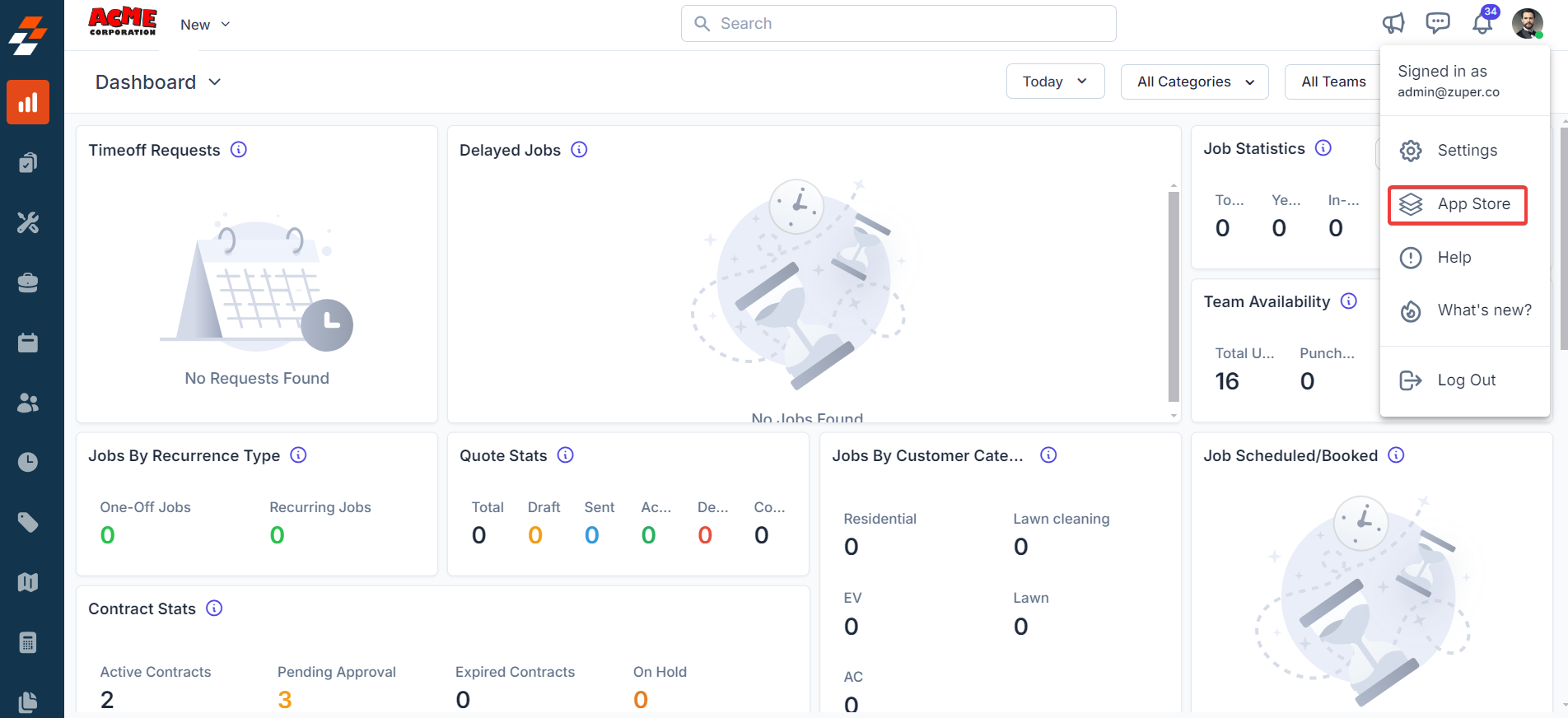
1. Log in to your Zuper account and click your **profile picture in** the top right corner. From the dropdown menu, select **App Store**.
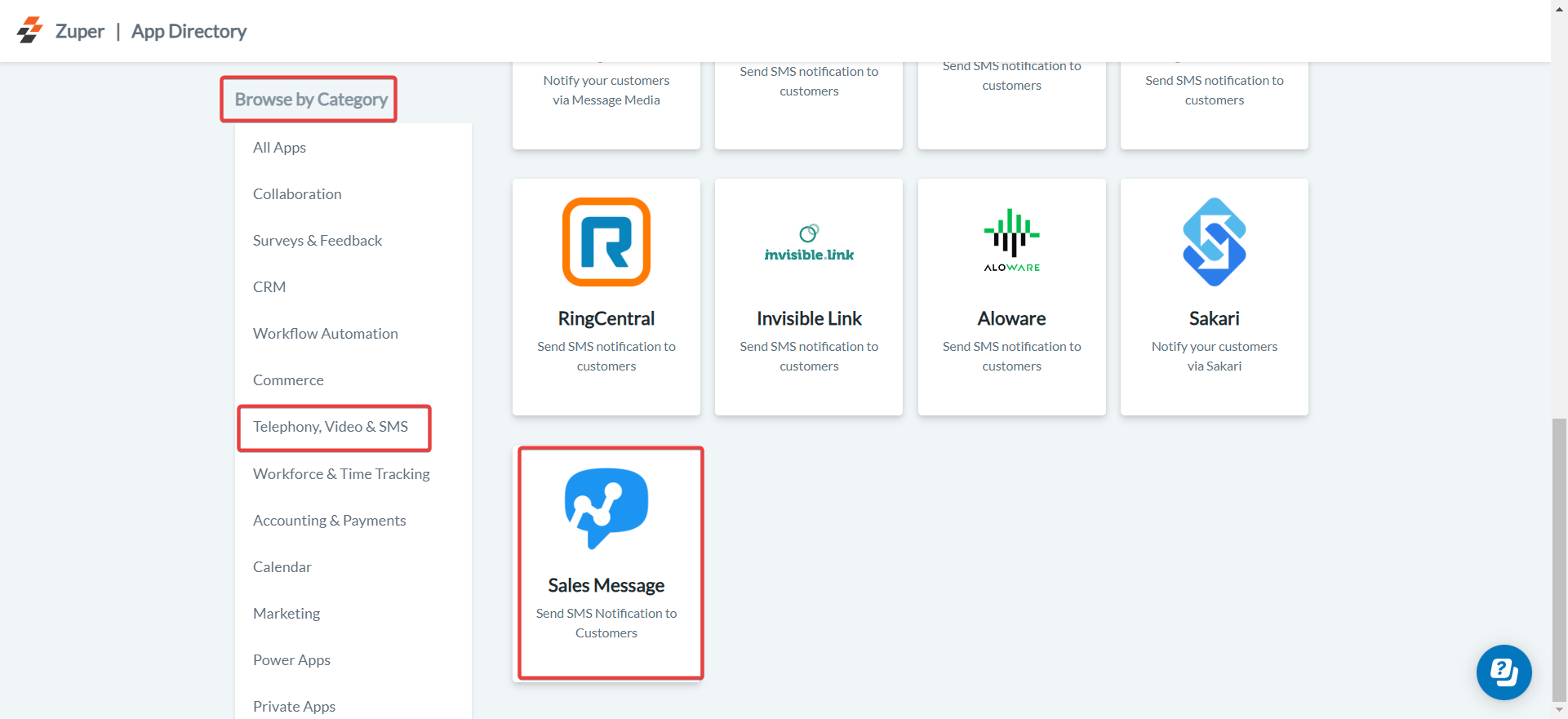
 2. Under **Browse by Category**, choose **Telephony, Video, & SMS** and select **Sales Message**.
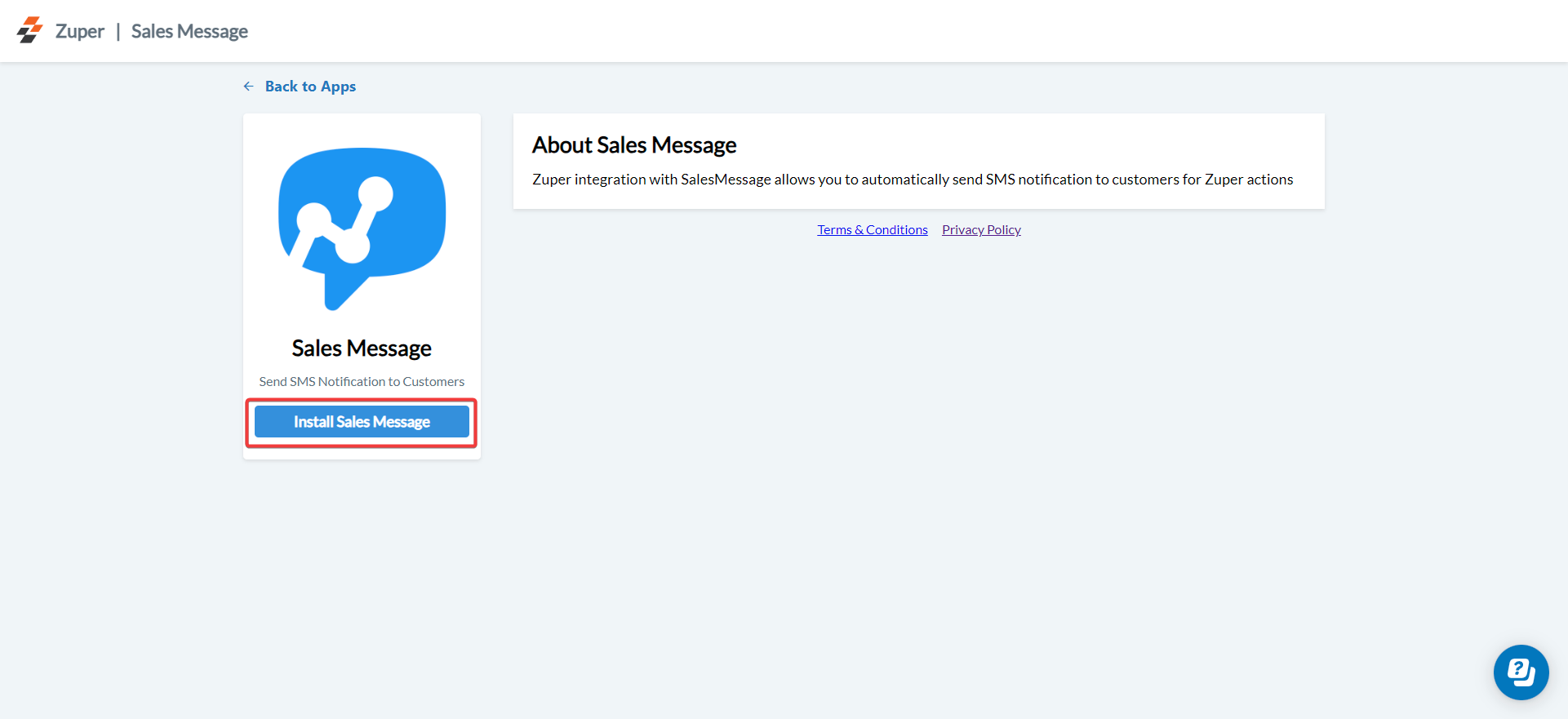
 3. Click **Install Sales Message**.
 Tip: Keep both the Zuper and Sales Message tabs open to switch between them during setup easily.
5. Configure the following fields in the Sales Message integration setup:
| **Field Name** | **Description** |
| :---------------------------------------: | :----------------------------------------------------------------------------------------------------------------------------------------------------: |
| **Zuper API Key** *(Mandatory)* | Enter your Zuper [API](https://docs.zuper.co/Settings/Developer_Hub/API_Keys#api-keys) Key. |
| **Personal Access Token** *(Mandatory)* | Enter your Sales Message Client ID.
Tip: Keep both the Zuper and Sales Message tabs open to switch between them during setup easily.
5. Configure the following fields in the Sales Message integration setup:
| **Field Name** | **Description** |
| :---------------------------------------: | :----------------------------------------------------------------------------------------------------------------------------------------------------: |
| **Zuper API Key** *(Mandatory)* | Enter your Zuper [API](https://docs.zuper.co/Settings/Developer_Hub/API_Keys#api-keys) Key. |
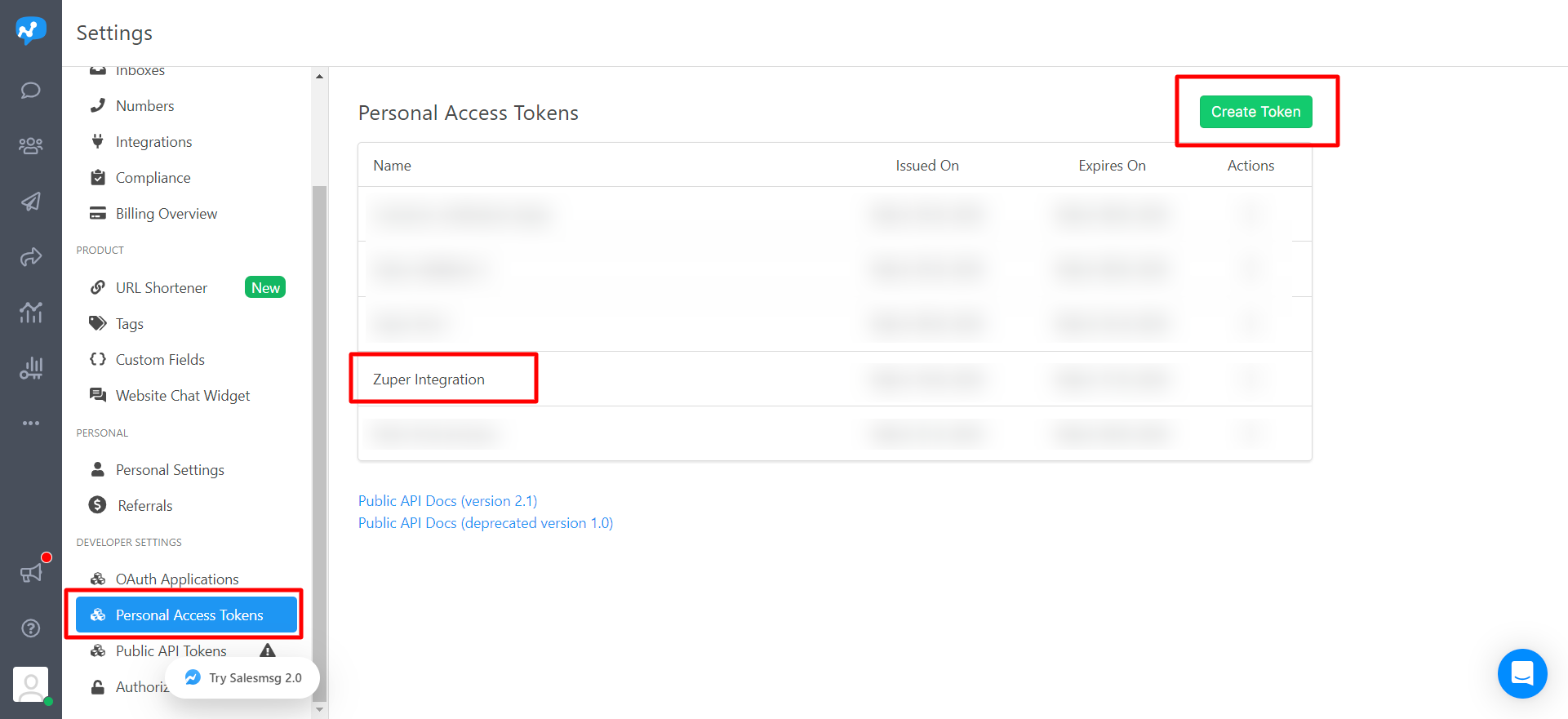
| **Personal Access Token** *(Mandatory)* | Enter your Sales Message Client ID.
To get this, go to **Sales Message → Settings → Developer Settings → Personal Access Tokens → Create Token.** |
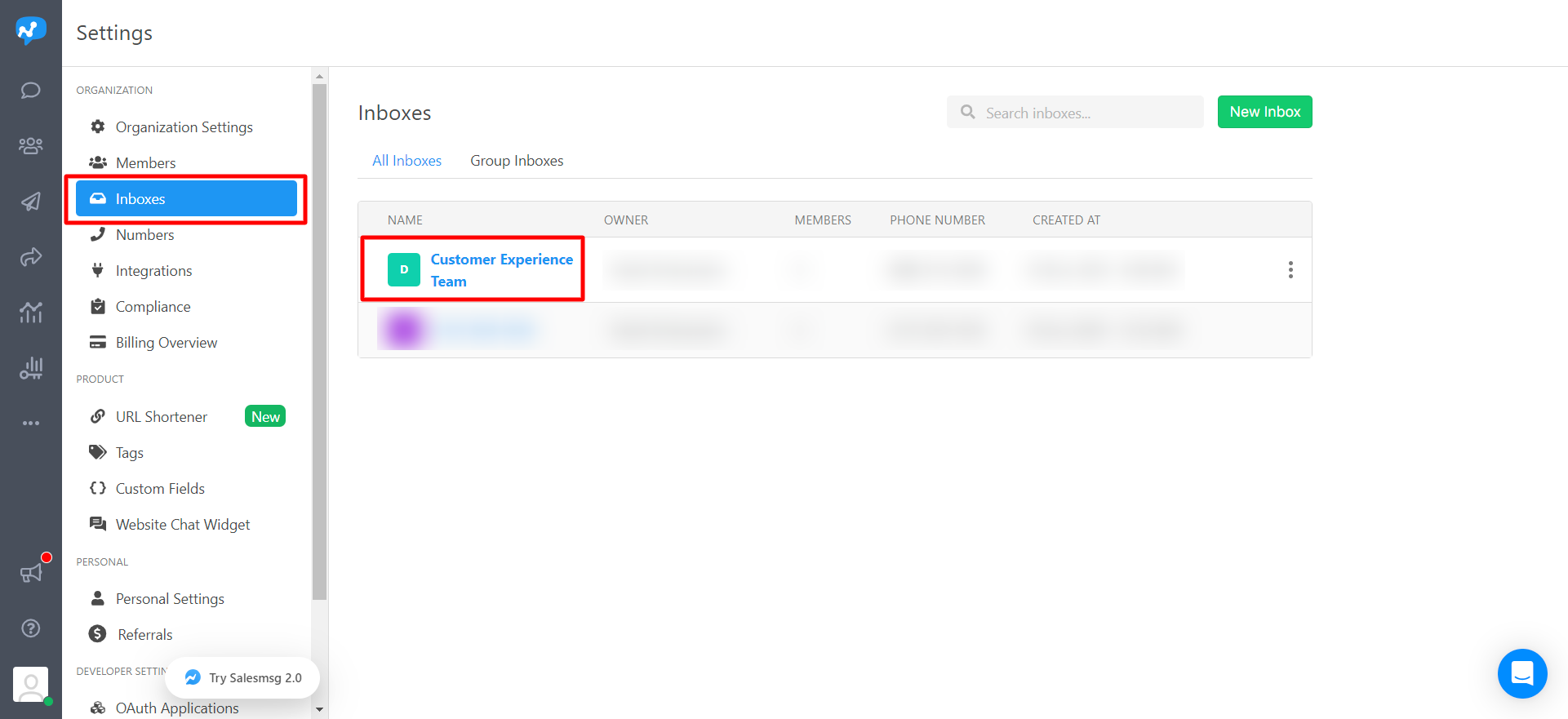
| **Sales Message Team Name** *(Mandatory)* | Enter your Sales Message Team Name.
To find it, go to **Sales Message → Settings → Organization → Inboxes → Name.** |
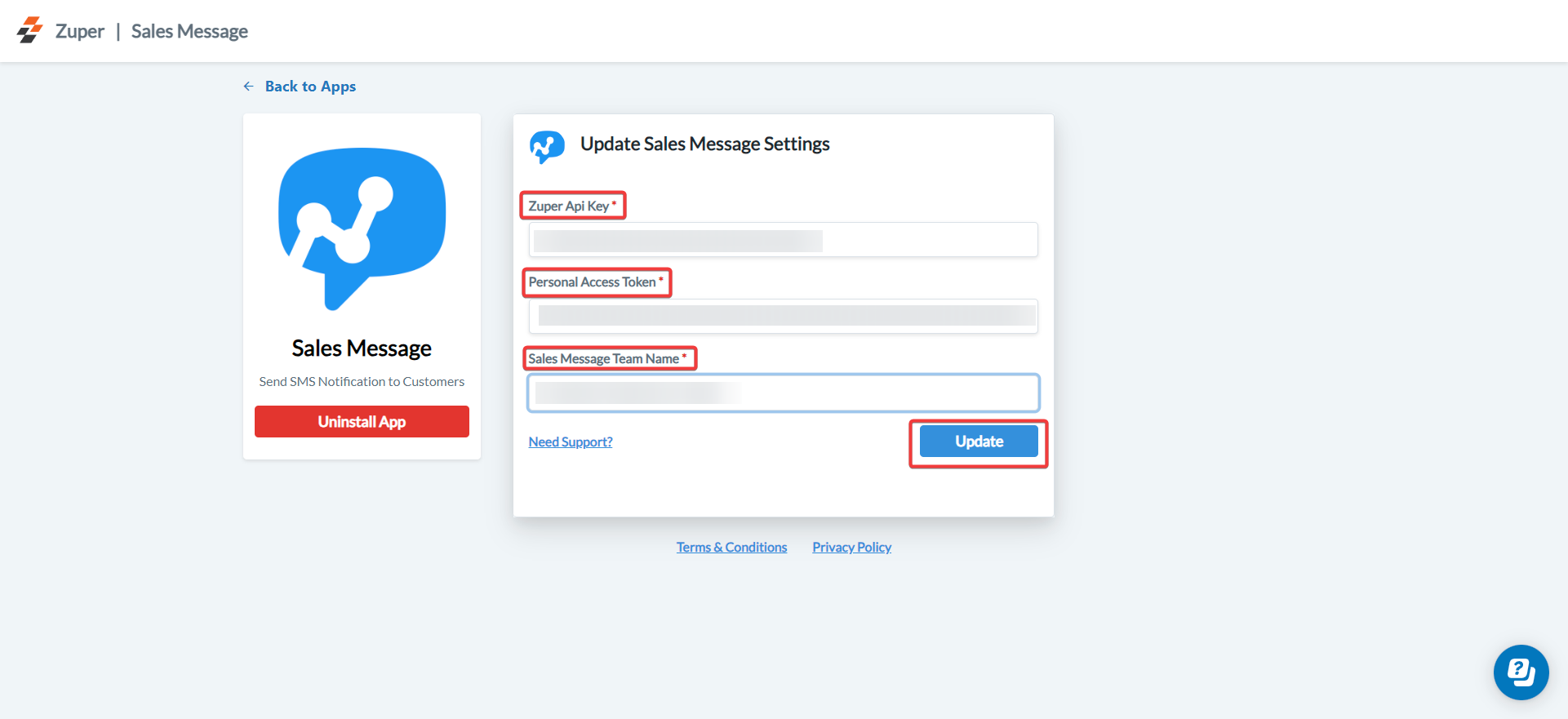
 Click **Update** to complete the integration setup between Zuper and Sales Message.
### B. Send Text Messages via Sales Message Integration
Once connected, Zuper uses the Sales Message integration to send Text Notifications automatically to your contacts.
1. Navigate to the **Contacts** module from the left navigation menu. Select a contact on the listing page to open its details.
Click **Update** to complete the integration setup between Zuper and Sales Message.
### B. Send Text Messages via Sales Message Integration
Once connected, Zuper uses the Sales Message integration to send Text Notifications automatically to your contacts.
1. Navigate to the **Contacts** module from the left navigation menu. Select a contact on the listing page to open its details.
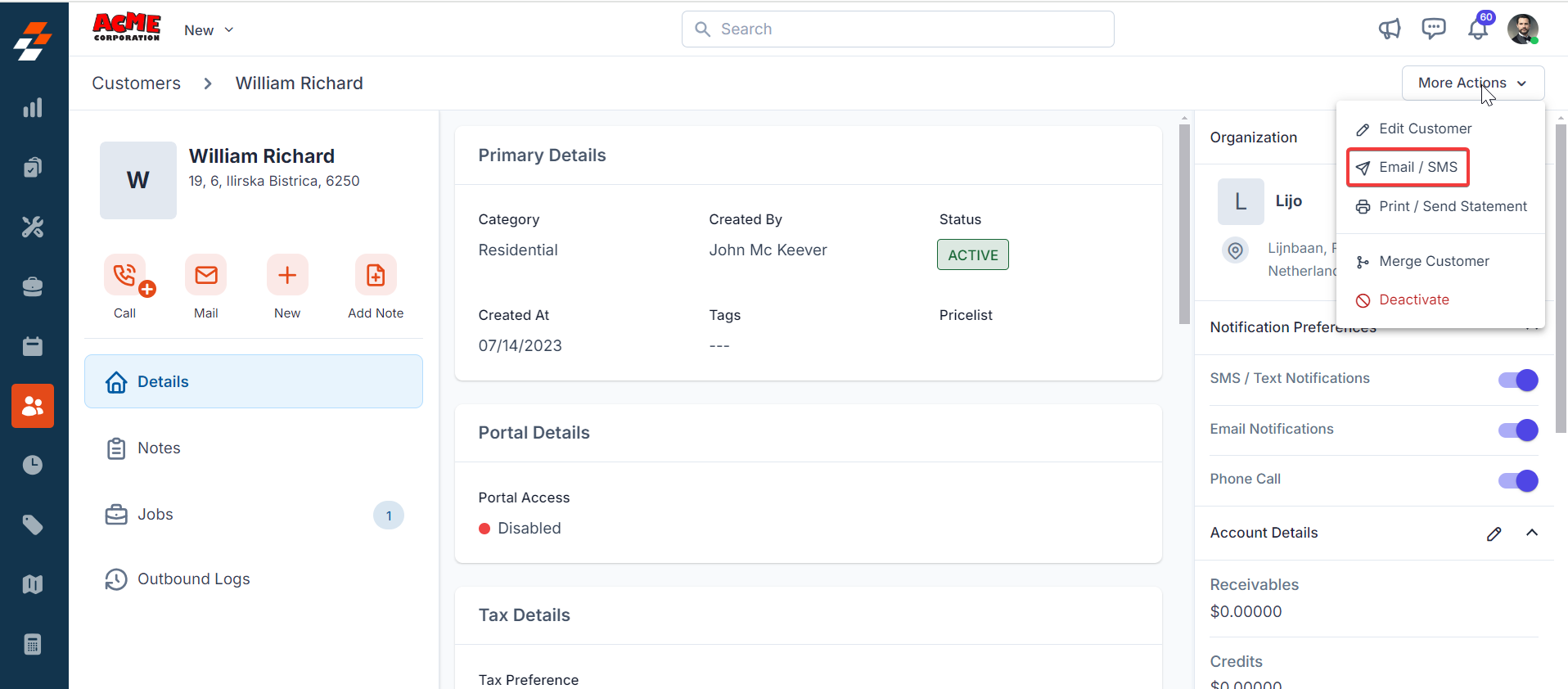 2. On the **Contact Details** page, click **More Actions** (top right corner)**→ Email/Text Message**.
3. In the **Email/Text Message** window, configure the following fields:
* **Contact Via (Mandatory)** – Select **Text Message**.
* **Contact Number (Mandatory)** – Choose the number to send the message to.
* **Message Body (Mandatory)** – Enter your message content.
2. On the **Contact Details** page, click **More Actions** (top right corner)**→ Email/Text Message**.
3. In the **Email/Text Message** window, configure the following fields:
* **Contact Via (Mandatory)** – Select **Text Message**.
* **Contact Number (Mandatory)** – Choose the number to send the message to.
* **Message Body (Mandatory)** – Enter your message content.
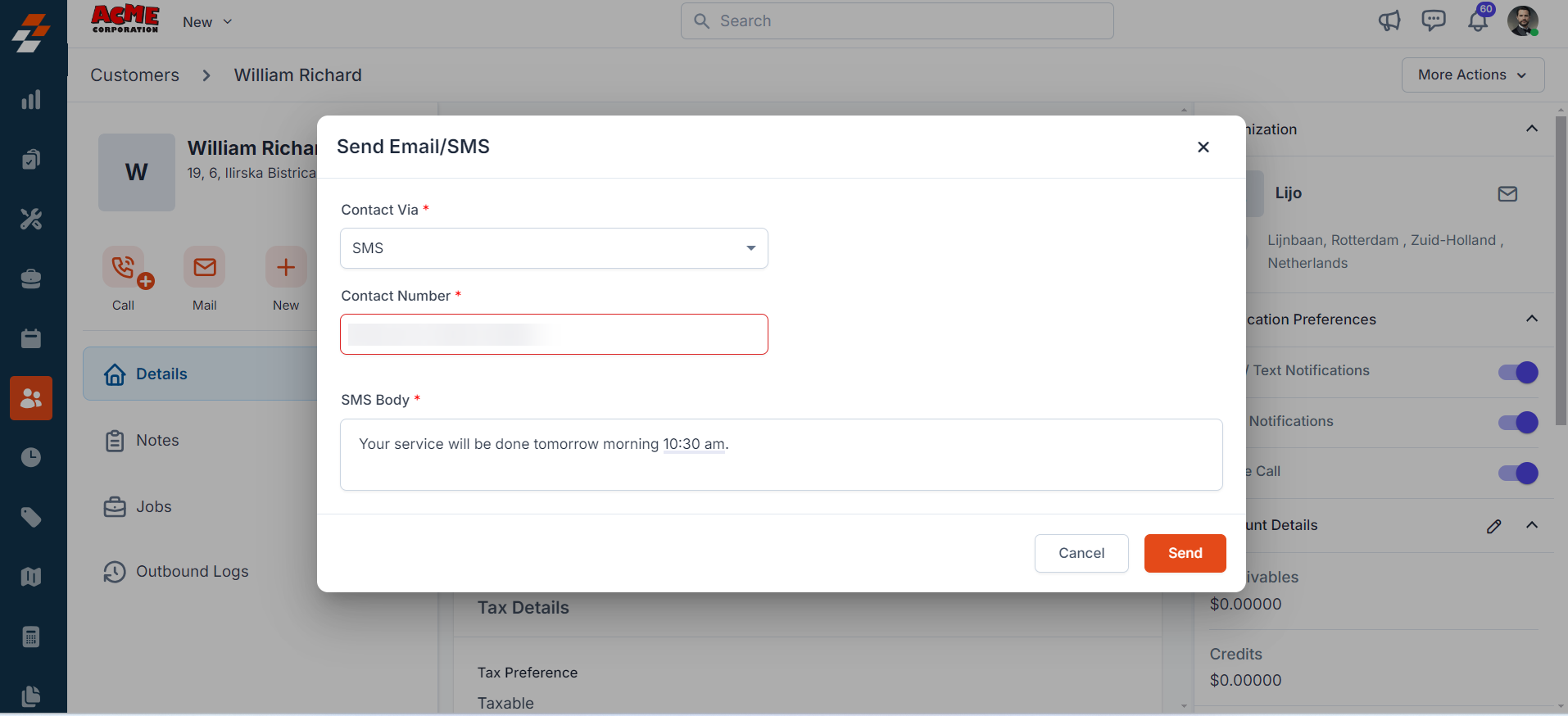 5. Click **Send** to send a Text Message via your connected Sales Message account.
### C. Uninstall Sales Message from Zuper
If you no longer need the integration, follow the steps below to uninstall the Sales Message app.
1. Log in to your **Zuper web app**. Click your **Profile Picture** in the top-right corner. Select **App Store**.
2. Under **Browse by Category**, select **Telephony, Video & SMS**. Choose **Sales Message.** You have the option to Uninstall **Sales Message**.
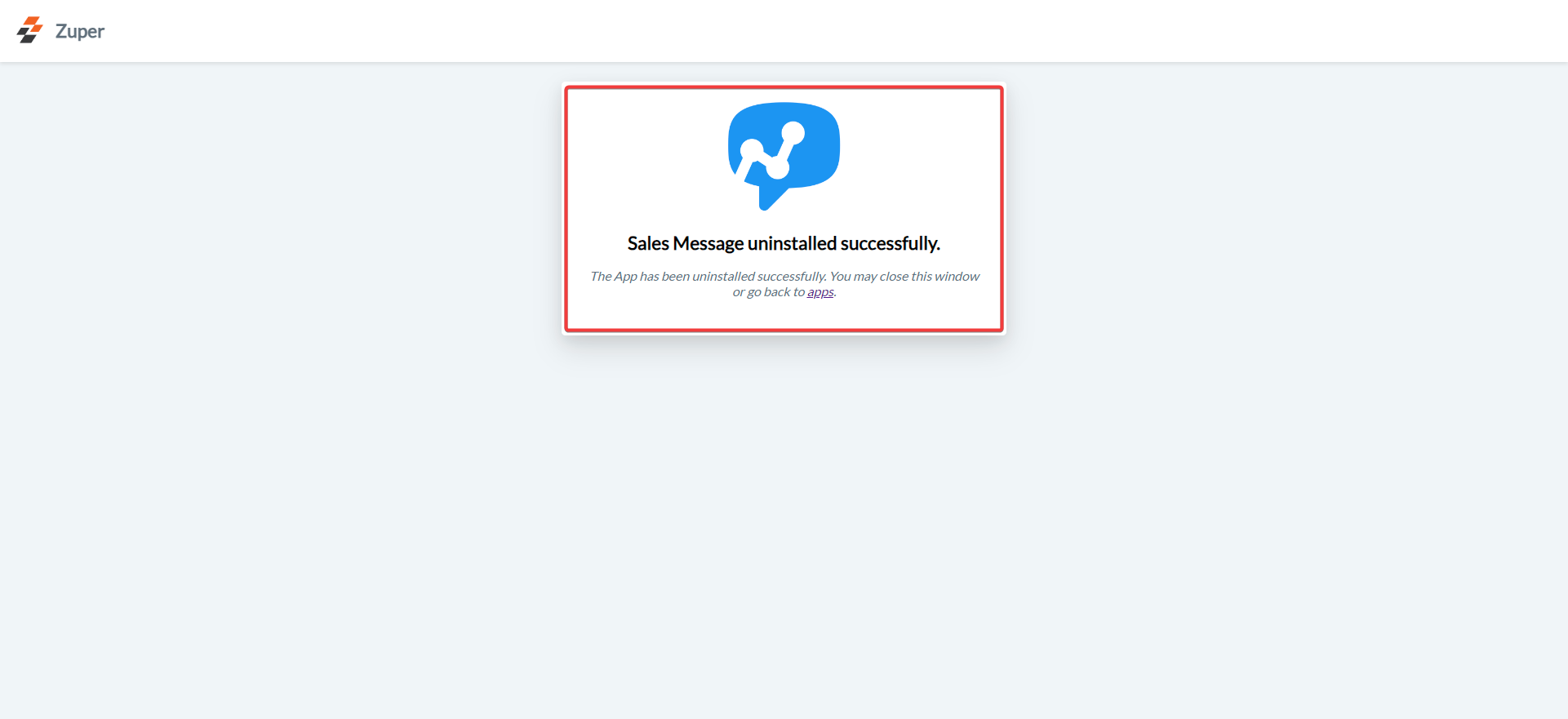
3. The Sales Message is uninstalled successfully.
5. Click **Send** to send a Text Message via your connected Sales Message account.
### C. Uninstall Sales Message from Zuper
If you no longer need the integration, follow the steps below to uninstall the Sales Message app.
1. Log in to your **Zuper web app**. Click your **Profile Picture** in the top-right corner. Select **App Store**.
2. Under **Browse by Category**, select **Telephony, Video & SMS**. Choose **Sales Message.** You have the option to Uninstall **Sales Message**.
3. The Sales Message is uninstalled successfully.