> ## Documentation Index
> Fetch the complete documentation index at: https://docs.zuper.co/llms.txt
> Use this file to discover all available pages before exploring further.
# CloudTalk
CloudTalk is a leading cloud-based phone system based in the European region, trusted by global businesses for efficient communication across more than 160 countries.
The **Zuper–CloudTalk integration** enables seamless outbound communication by connecting your CloudTalk account with Zuper. Once integrated, you can automatically send outbound **Text Messages** directly through your CloudTalk number to keep your contacts informed about job updates, pending items, or service notifications in real time.
Note:
* You must have an active CloudTalk Essentials plan or above to use this integration.
* Ensure that Text Message/Text Notifications are enabled for your contacts.
Navigation: Contacts → Contacts Listing page → Edit (via three-dot icon) → Edit Contact page → Notification Preferences
## A. Connecting CloudTalk with Zuper
Follow the steps below to integrate your CloudTalk account with Zuper.
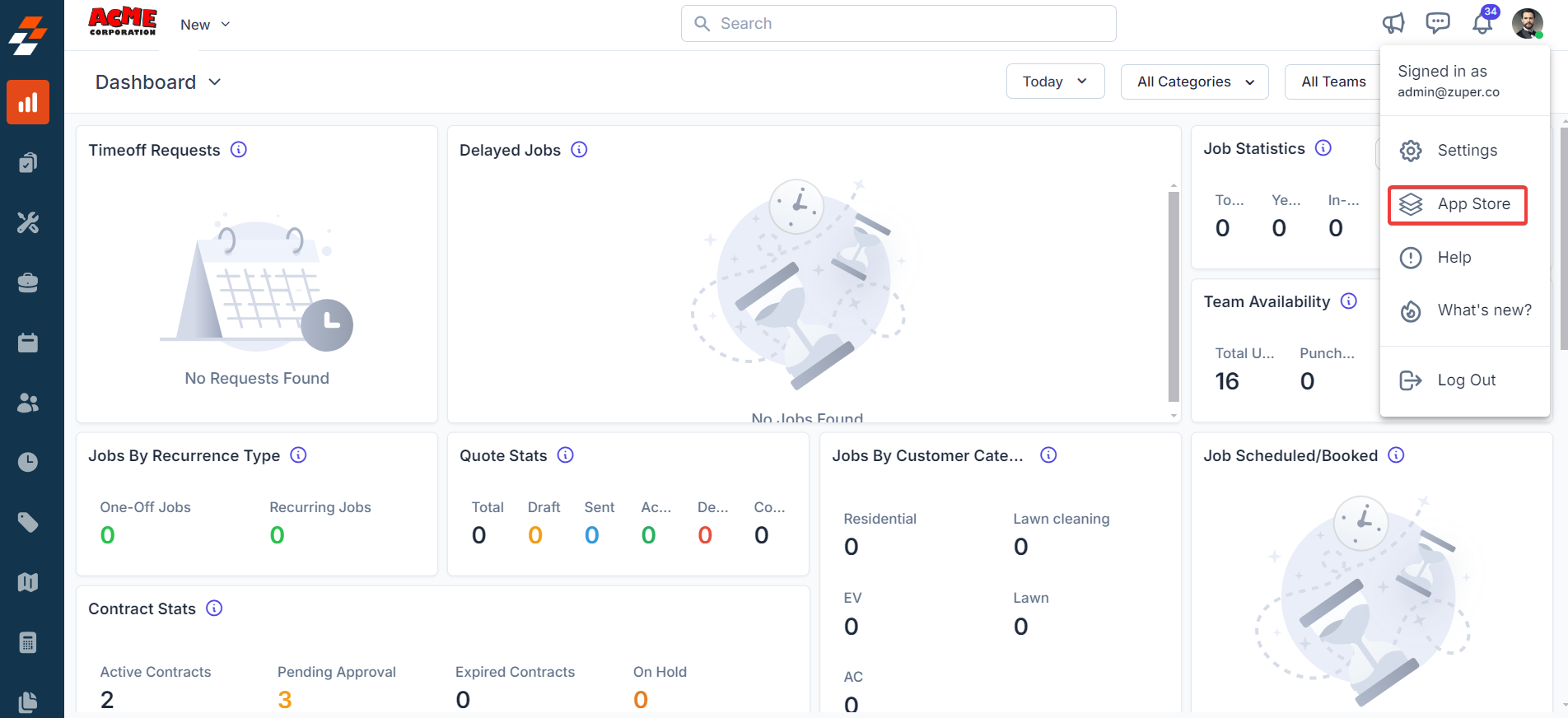
1. Log in to your **Zuper web app**. Click your **Profile Picture** in the top-right corner. Select **App Store** from the dropdown menu.
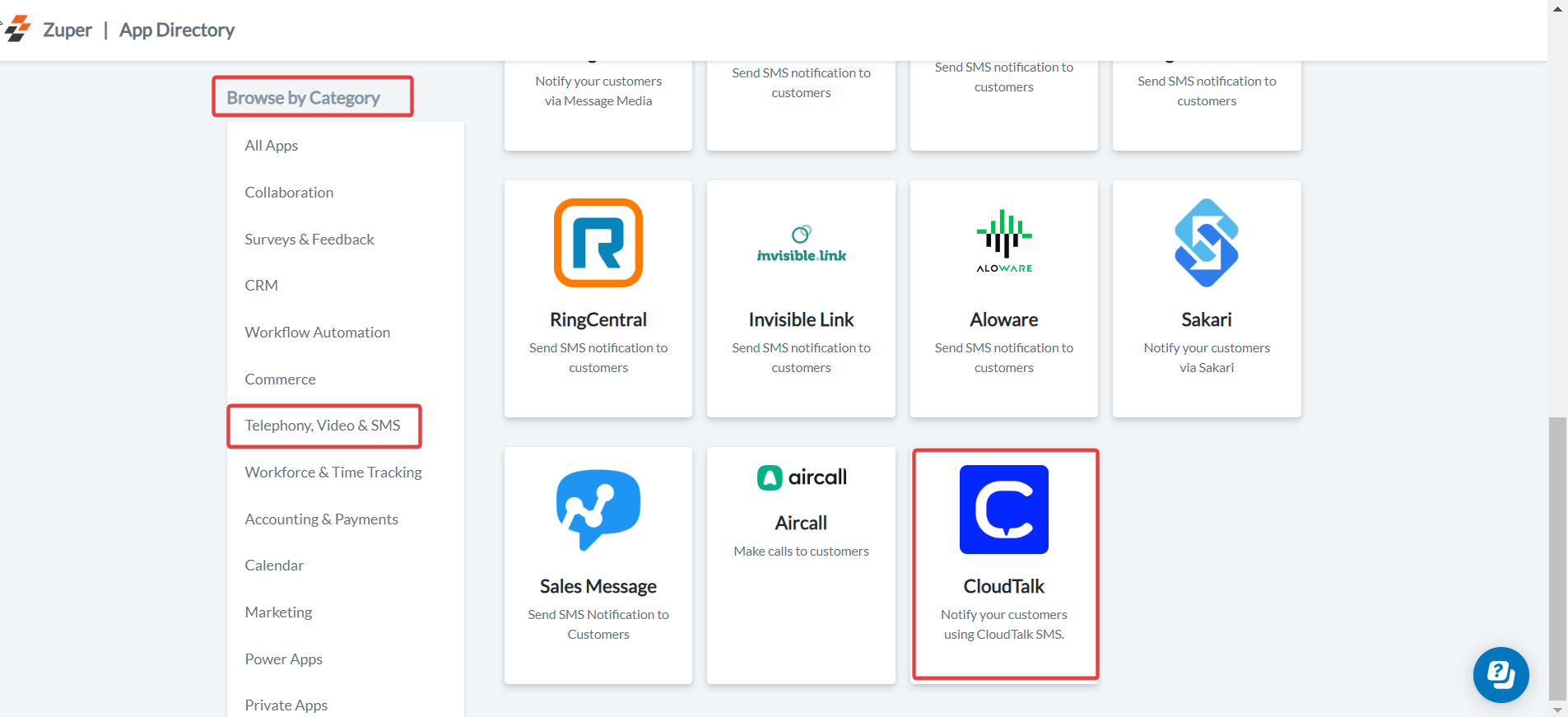
 1. Under **Browse by Category**, select **Telephony, Video & SMS**. Choose **CloudTalk** from the list of available integrations. Click **Install CloudTalk**.
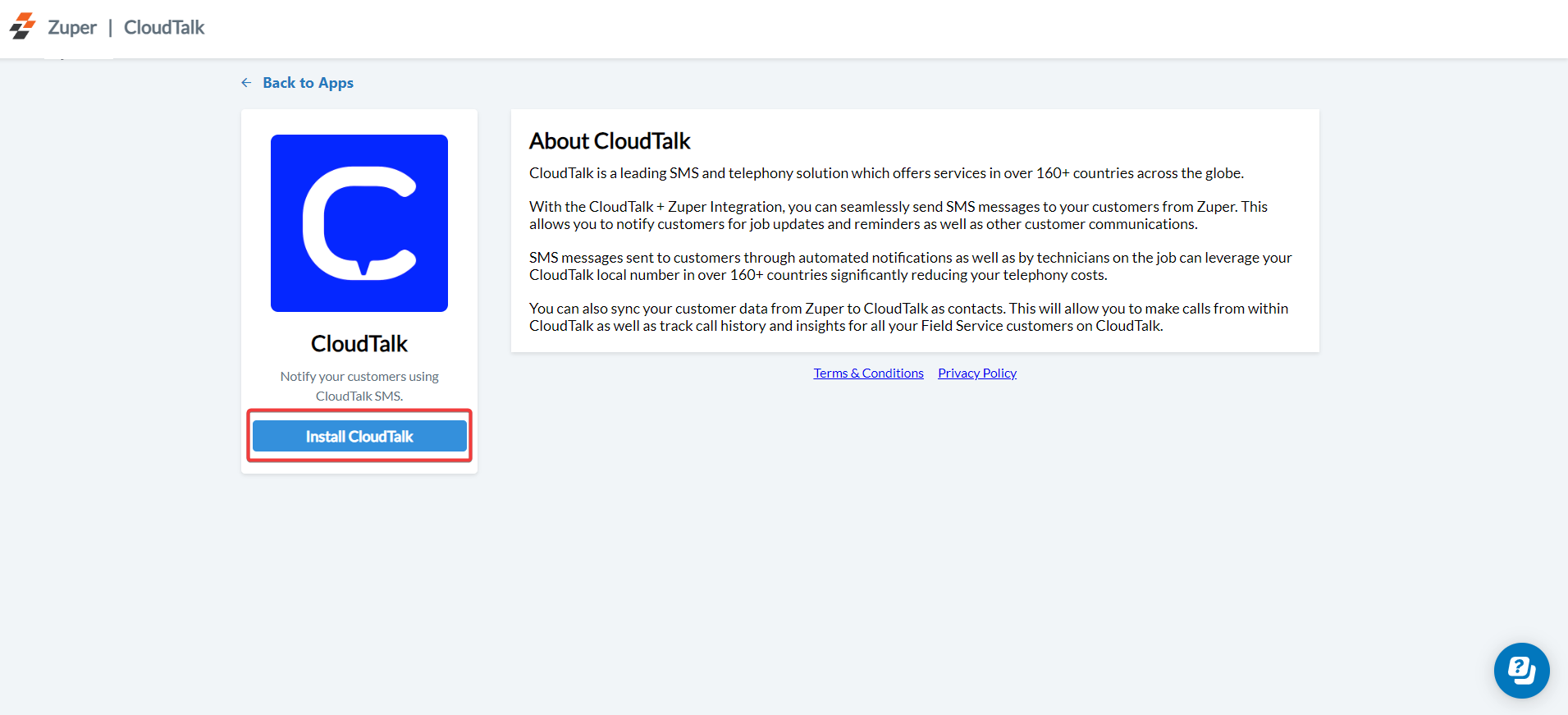 3. Update the following fields with details from your CloudTalk account:
| **Field** | **Description** | **Where to Find** |
| :-----------------------------------------: | :------------------------------------------------------------------------------------------------: | :---------------------------------------------------------------------------------------------------------: |
| **Zuper API Key (Mandatory)** | Enter your Zuper API Key. | \[Refer: [How to generate a Zuper API Key](https://docs.zuper.co/Settings/Developer_Hub/API_Keys#api-keys)] |
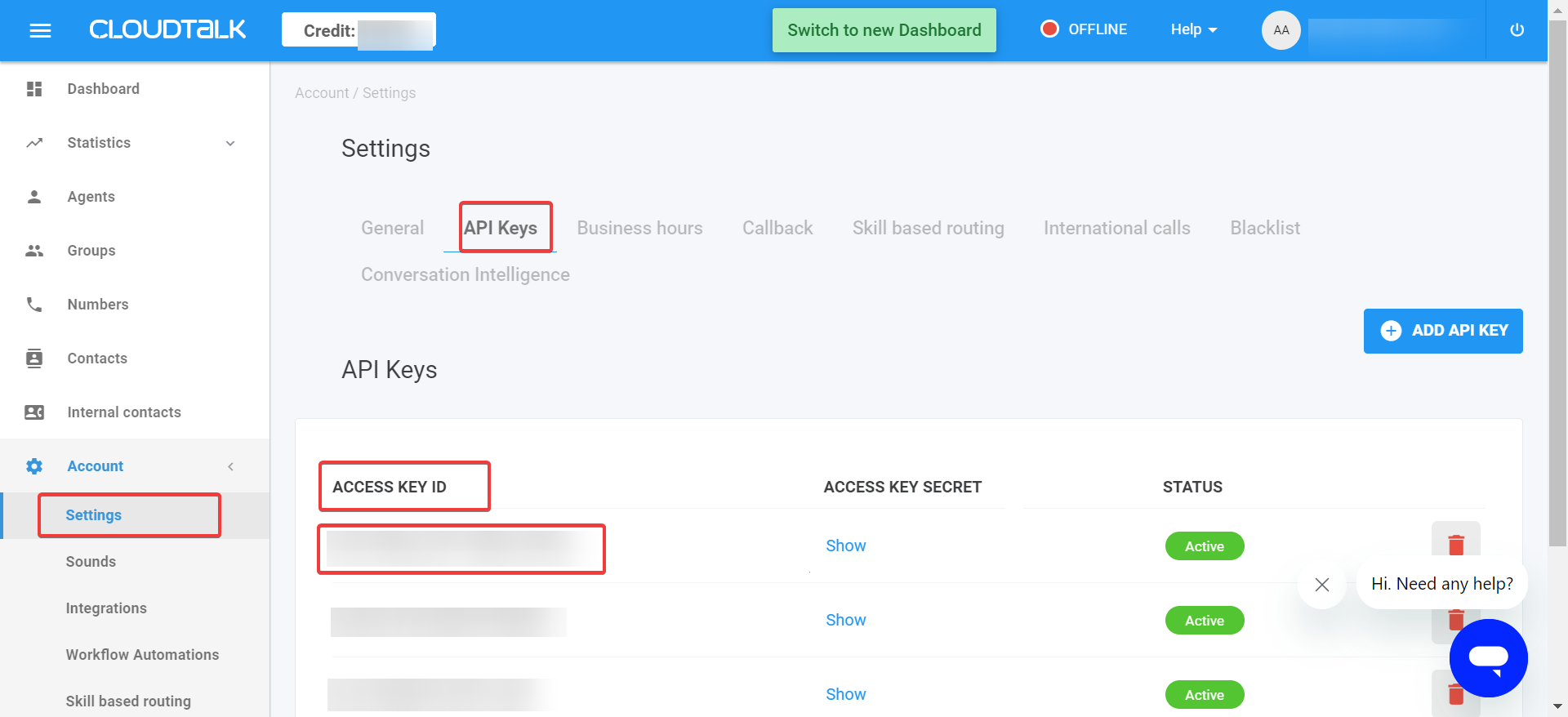
| **CloudTalk Access Key ID (Mandatory)** | Enter your CloudTalk Access Key ID. | Go to *CloudTalk → Settings → API Keys → Access Key ID* |
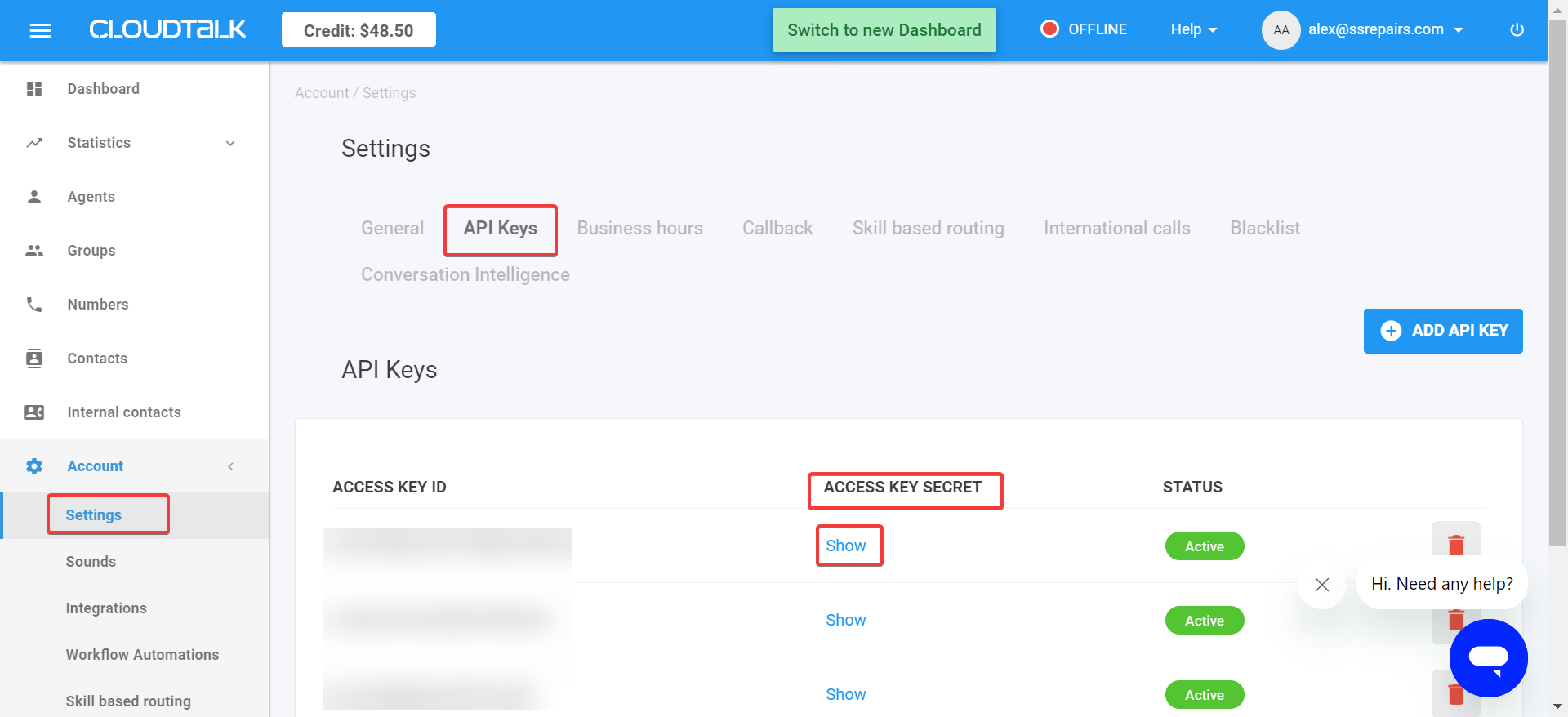
| **CloudTalk Access Key Secret (Mandatory)** | Enter your CloudTalk Access Key Secret. | Go to *CloudTalk → Settings → API Keys → Access Key Secret → Show* |
| **Sender Number (Mandatory)** | Enter the CloudTalk phone number from which text messages will be sent. | Go to *CloudTalk → Settings → Numbers → Active Numbers* |
| **Sync Contacts (Yes/No)** | Choose **Yes** to sync contacts between Zuper and CloudTalk, or **No** to disable synchronization. | Configure within the **CloudTalk Integration Settings** panel in Zuper. |
3. Update the following fields with details from your CloudTalk account:
| **Field** | **Description** | **Where to Find** |
| :-----------------------------------------: | :------------------------------------------------------------------------------------------------: | :---------------------------------------------------------------------------------------------------------: |
| **Zuper API Key (Mandatory)** | Enter your Zuper API Key. | \[Refer: [How to generate a Zuper API Key](https://docs.zuper.co/Settings/Developer_Hub/API_Keys#api-keys)] |
| **CloudTalk Access Key ID (Mandatory)** | Enter your CloudTalk Access Key ID. | Go to *CloudTalk → Settings → API Keys → Access Key ID* |
| **CloudTalk Access Key Secret (Mandatory)** | Enter your CloudTalk Access Key Secret. | Go to *CloudTalk → Settings → API Keys → Access Key Secret → Show* |
| **Sender Number (Mandatory)** | Enter the CloudTalk phone number from which text messages will be sent. | Go to *CloudTalk → Settings → Numbers → Active Numbers* |
| **Sync Contacts (Yes/No)** | Choose **Yes** to sync contacts between Zuper and CloudTalk, or **No** to disable synchronization. | Configure within the **CloudTalk Integration Settings** panel in Zuper. |
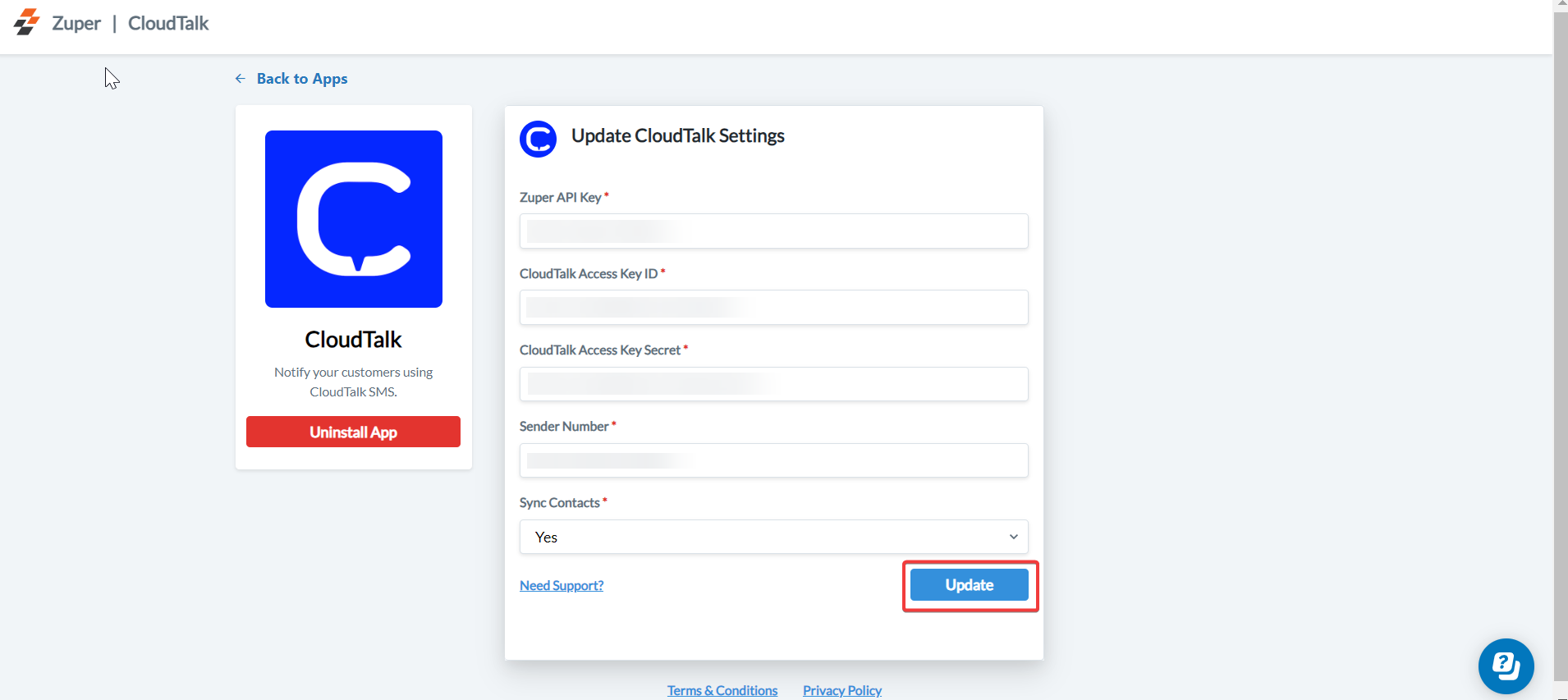
 Click **Update** to complete the integration setup.
## B. Using the Zuper–CloudTalk Integration
Once the integration is configured, you can send **Text Messages** directly from Zuper using your CloudTalk number.
1. Navigate to the **Contacts** module from the left panel.
Click **Update** to complete the integration setup.
## B. Using the Zuper–CloudTalk Integration
Once the integration is configured, you can send **Text Messages** directly from Zuper using your CloudTalk number.
1. Navigate to the **Contacts** module from the left panel.
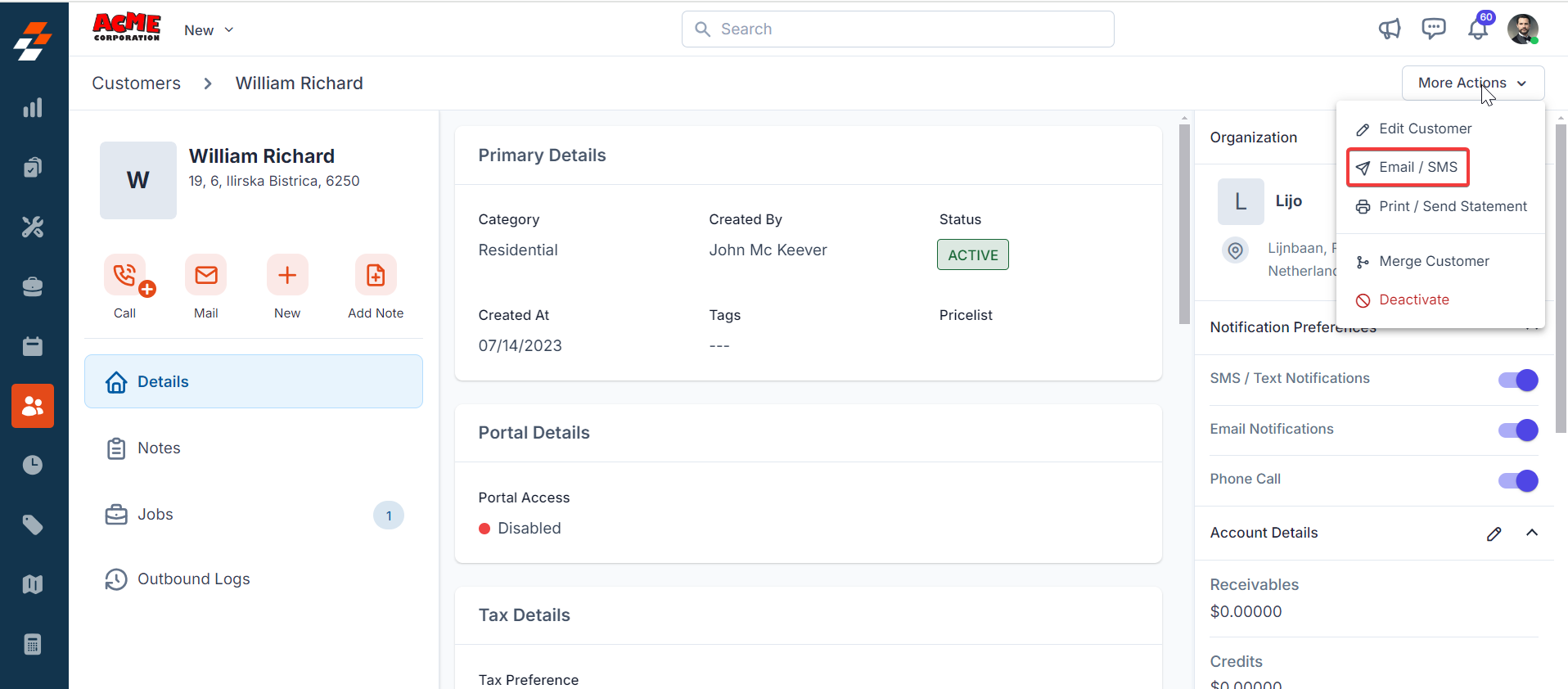
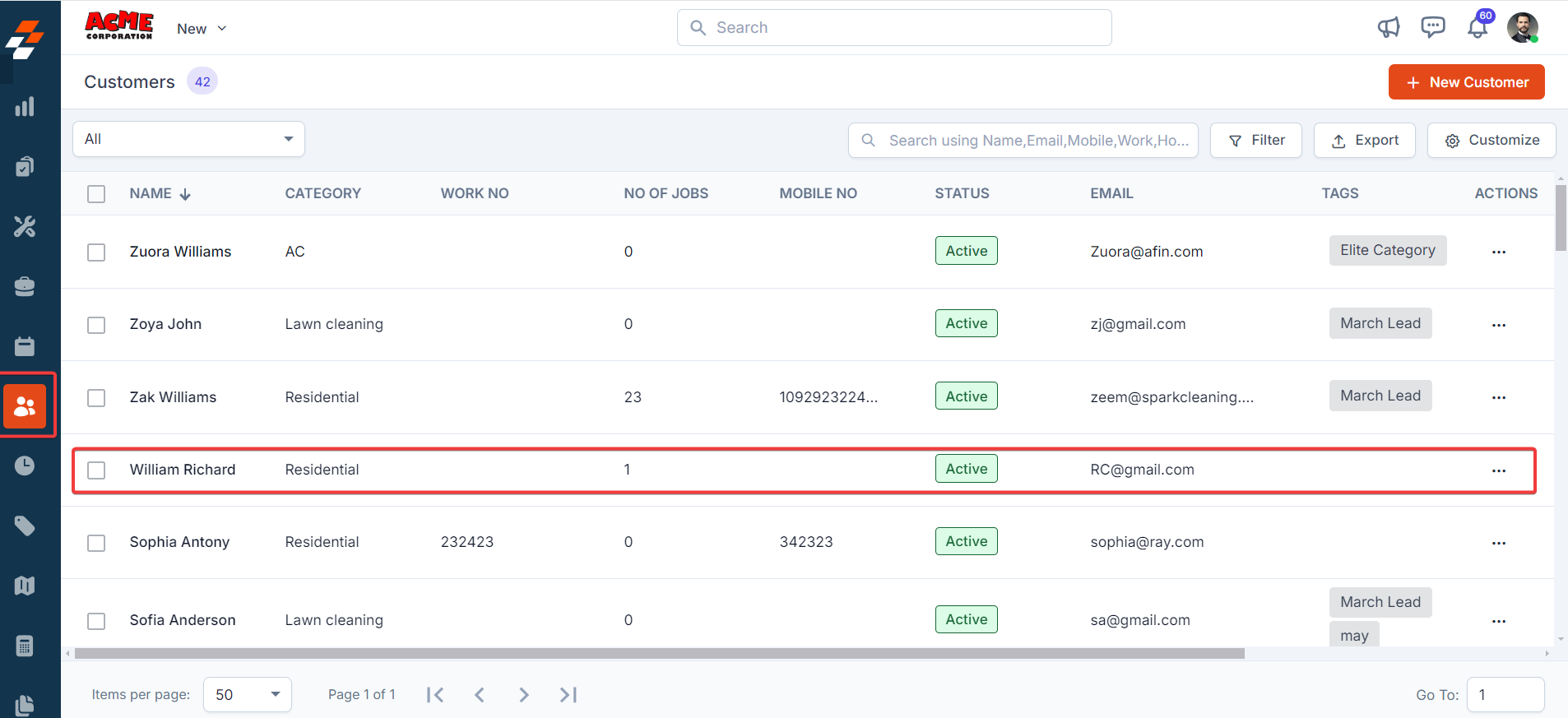 2. Select a contact on the listing page to open its details. On the **Contact Details** page, click **More Actions** (top-right corner) and select **Email/Text Message** from the dropdown menu.
 3. Fill in the following fields:
| **Field** | **Description** |
| :----------------------------: | :--------------------------------: |
| **Contact Via (Mandatory)** | Select SMS to send a notification. |
| **Contact Number (Mandatory)** | Choose the contact’s phone number. |
| **Message Body (Mandatory)** | Enter the message content. |
3. Fill in the following fields:
| **Field** | **Description** |
| :----------------------------: | :--------------------------------: |
| **Contact Via (Mandatory)** | Select SMS to send a notification. |
| **Contact Number (Mandatory)** | Choose the contact’s phone number. |
| **Message Body (Mandatory)** | Enter the message content. |
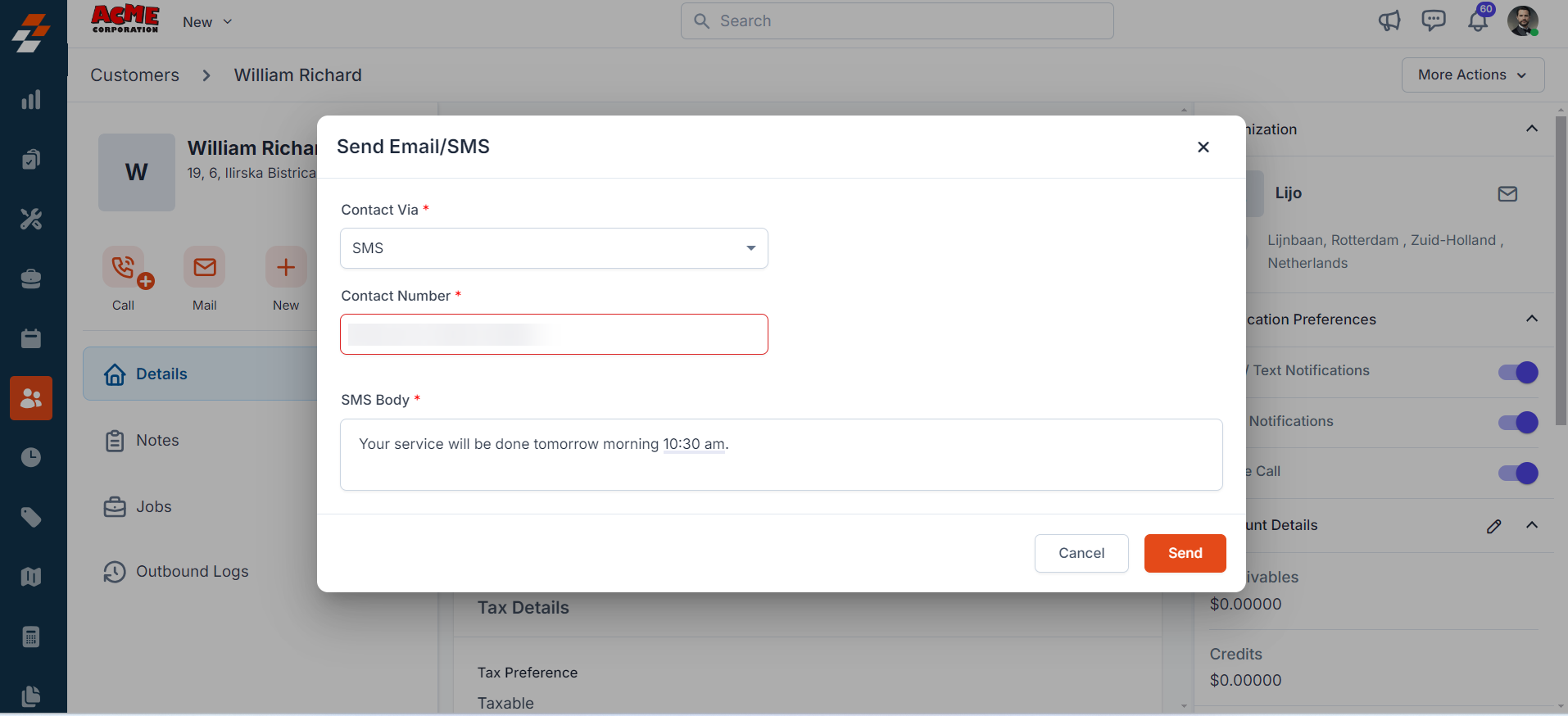 Click **Send** to deliver the text message via CloudTalk.
Note: You can trigger messages via the Contacts module, Bulk Text Message action, or Workflow automation.
## C. Uninstalling CloudTalk from Zuper
If you no longer need the integration, follow the steps below to uninstall the CloudTalk app.
1. Log in to your **Zuper web app**. Click your **Profile Picture** in the top-right corner. Select **App Store**.
2. Under **Browse by Category**, select **Telephony, Video & SMS**. Choose **CloudTalk**.
3. The **CloudTalk** is uninstalled successfully..
Click **Send** to deliver the text message via CloudTalk.
Note: You can trigger messages via the Contacts module, Bulk Text Message action, or Workflow automation.
## C. Uninstalling CloudTalk from Zuper
If you no longer need the integration, follow the steps below to uninstall the CloudTalk app.
1. Log in to your **Zuper web app**. Click your **Profile Picture** in the top-right corner. Select **App Store**.
2. Under **Browse by Category**, select **Telephony, Video & SMS**. Choose **CloudTalk**.
3. The **CloudTalk** is uninstalled successfully..
 With the **Zuper–CloudTalk integration**, businesses can streamline communication and ensure instant notifications for their customers. This one-way integration enables data to flow from Zuper to CloudTalk, automatically sending Text Messages for updates, reminders, and notifications, enhancing efficiency and customer engagement.