> ## Documentation Index
> Fetch the complete documentation index at: https://docs.zuper.co/llms.txt
> Use this file to discover all available pages before exploring further.
# Geo Code
Bring pinpoint accuracy to your customers' addresses with our Geo-Code Power app! When you integrate third-party apps, you may end up fetching the customer’s address without geo-coordinates.
With this new Geo-Code power app, the exact location of your customers can be instantly and accurately captured. Get ready for reliable results every time - say goodbye to complex location tracking forever!
**Pre-Requisites:**\
[Google API Key](https://developers.google.com/maps/documentation/javascript/get-api-key) and [Zuper API Key](https://docs.zuper.co/Settings/Developer_Hub/API_Keys#api-keys)
## **Connect Geo-Code with Zuper**
Listed below are the steps to enable the Geo Code app on Zuper.
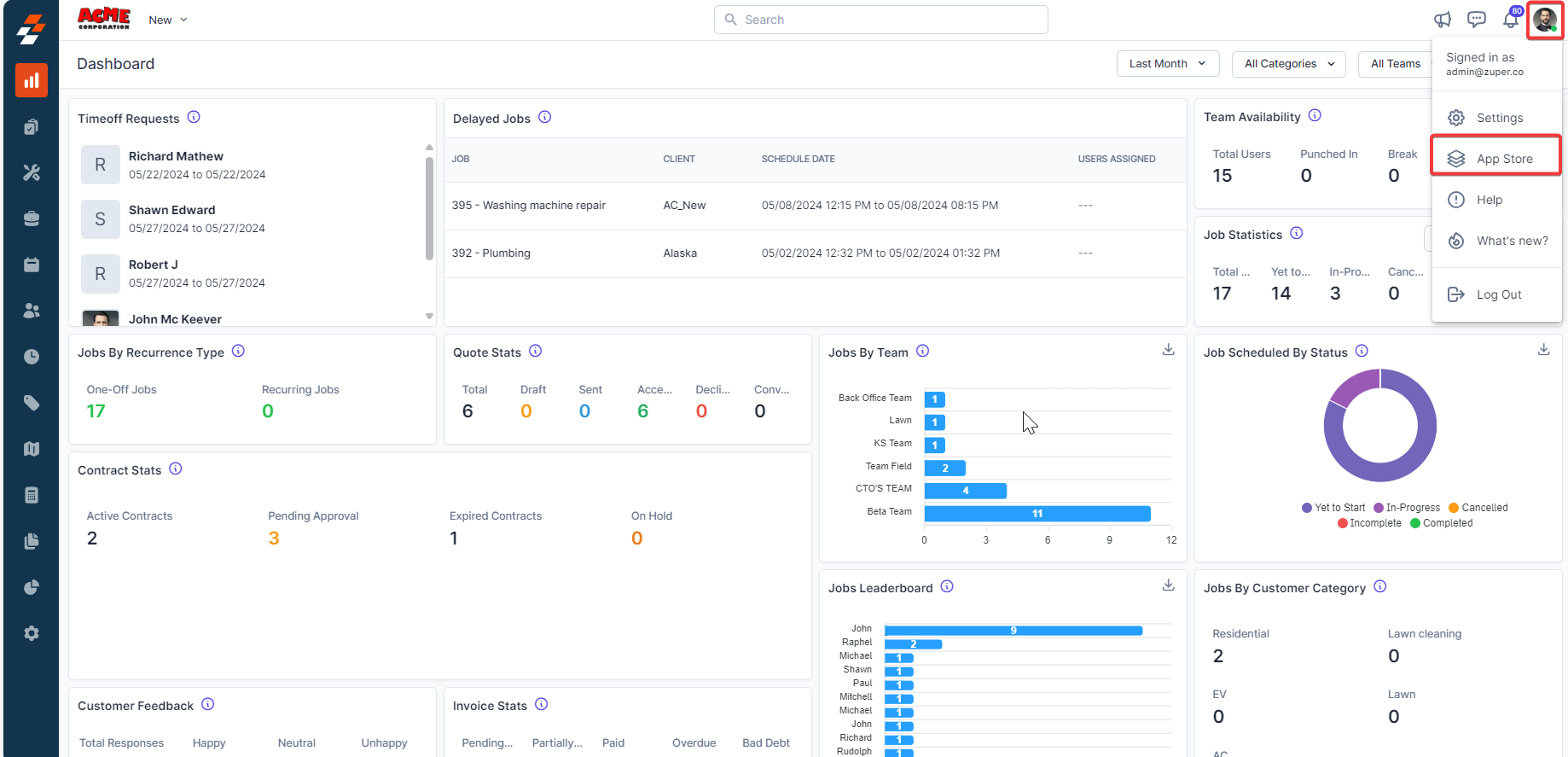
1. Open a new tab in your browser after logging in to your Zuper Account. Click on your Profile Picture in the top right corner of the screen and click on “**App Store**.”
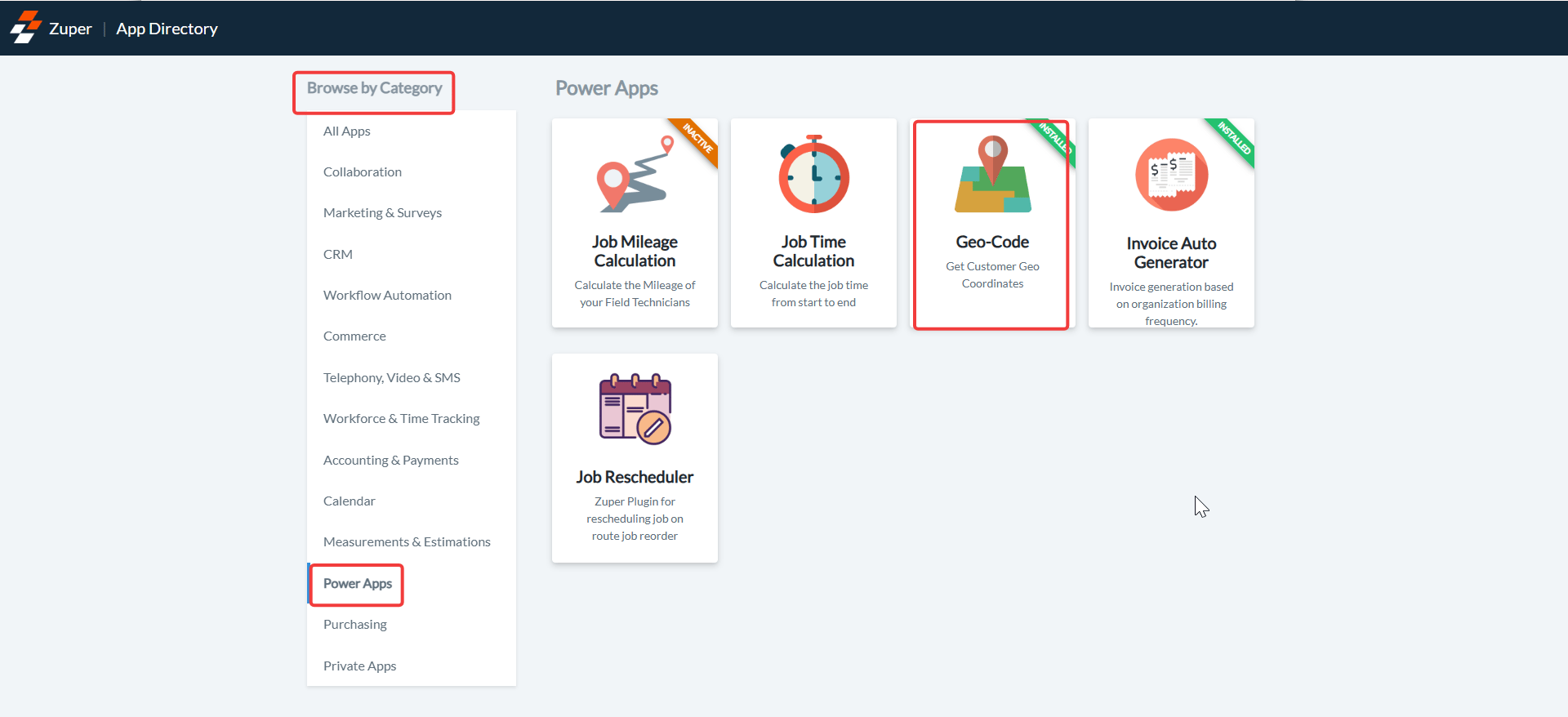
 2. Under the “**Browse by Category**,” select the “**Power Apps**” option and choose “**Geo Code**.”
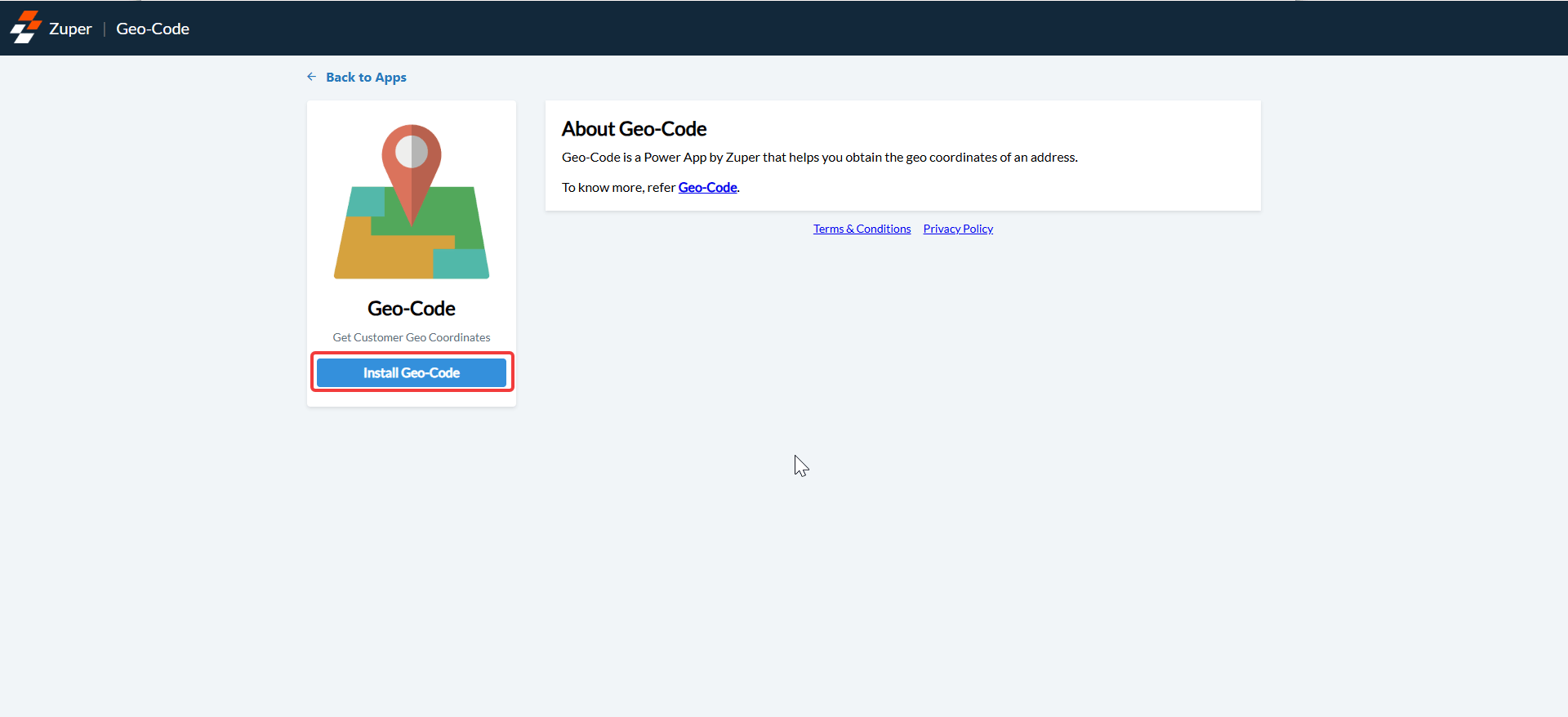
 3. Click on the “**Install Geo Code**” button.
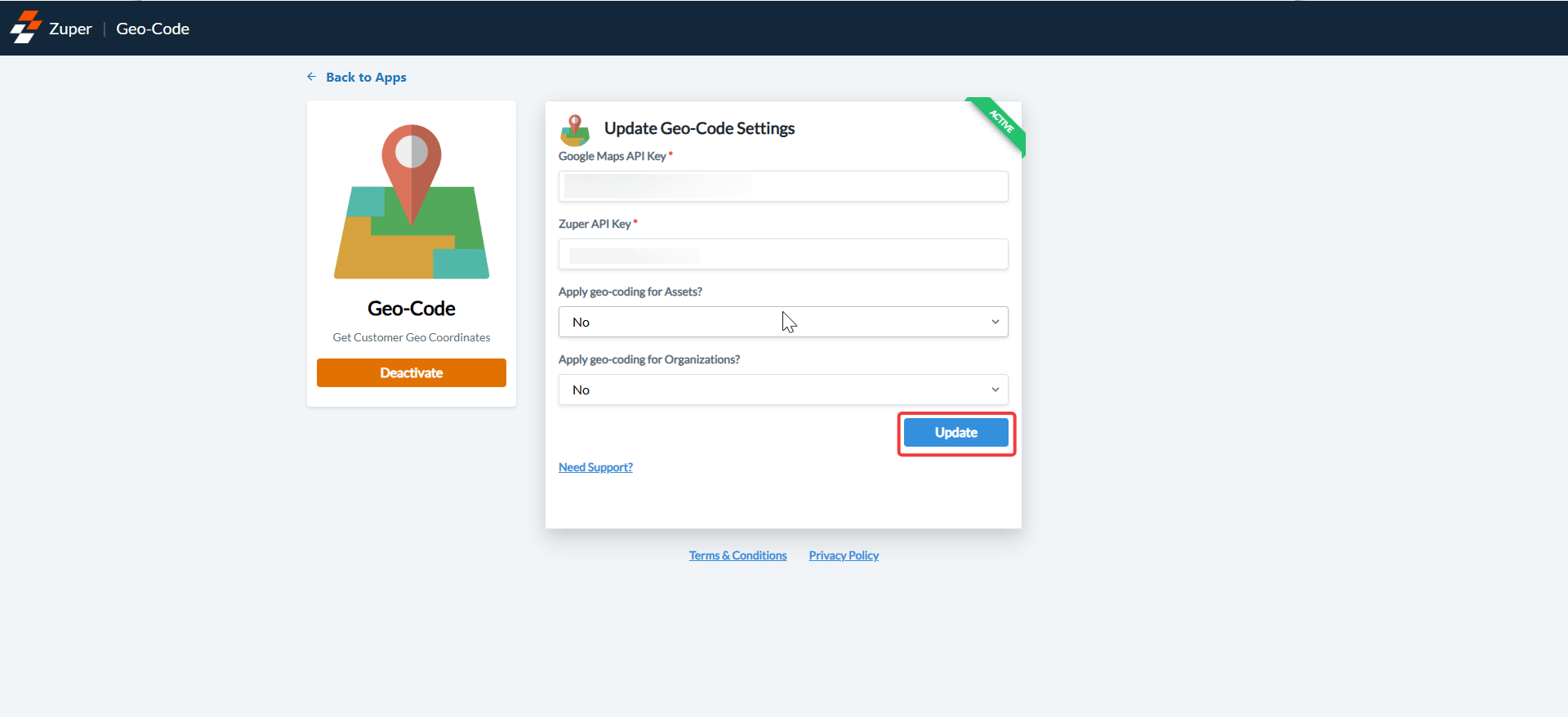
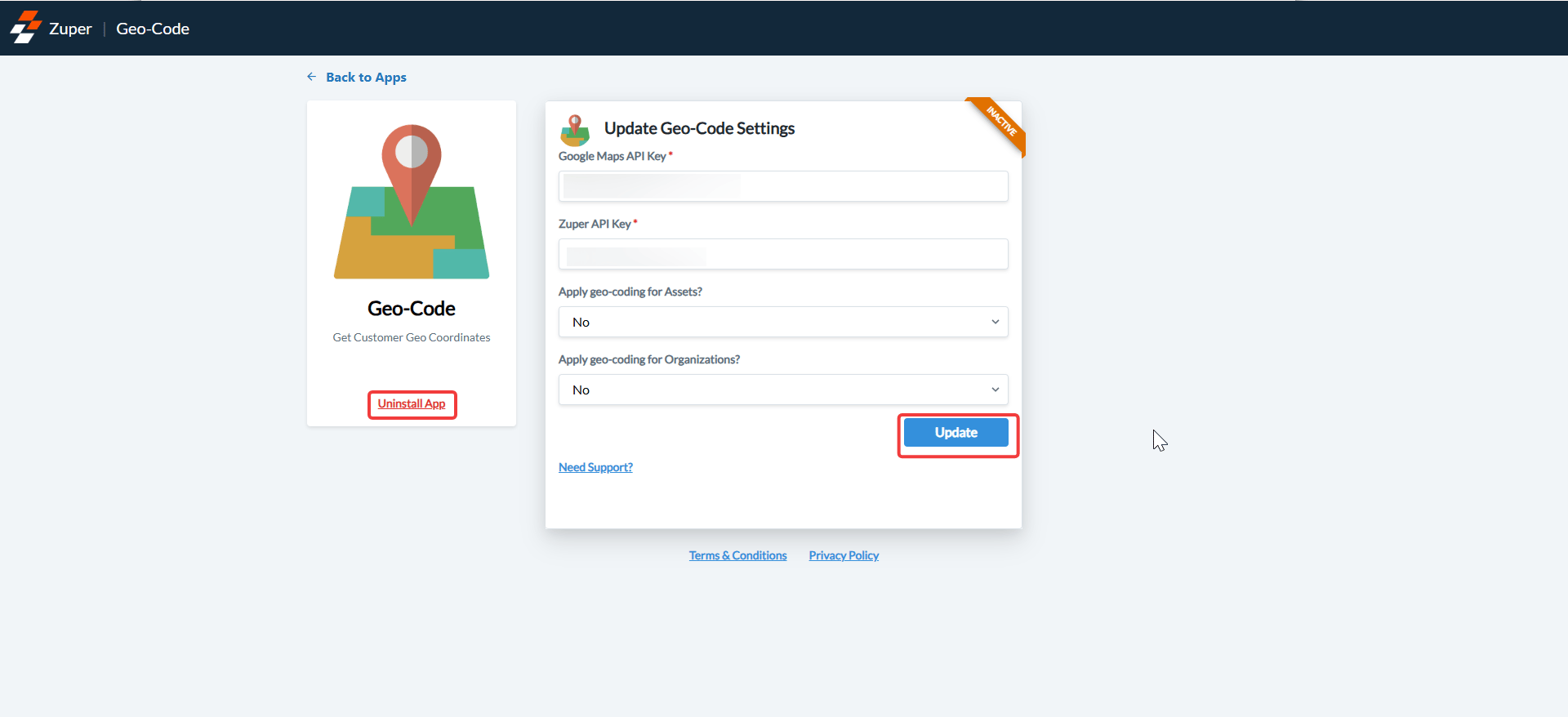
 4. Now, you can enable “**Update Geo Codes Settings**” by entering the following details.
* **Google Maps API Key** (Mandatory Field) – Enter the Application Programming Interface key. (This is fetched from the [Google Maps API ](https://developers.google.com/maps/documentation/javascript/get-api-key)obtained from the Customer).
* **Zuper API Key** (Mandatory Field) - Enter the Zuper API key [(Click here: How to generate Zuper API Key).](https://docs.zuper.co/Settings/Developer_Hub/API_Keys#api-keys)
* **Apply geo-coding for Assets?** – Choose “**Yes**” to enable geo-coding for the assets.
* **Apply geo-coding for Organization?** – Choose “**Yes**” to enable geo-coding for your organization.
* Select the “**Update**” button to connect the **Geo Code** app with **Zuper**.
4. Now, you can enable “**Update Geo Codes Settings**” by entering the following details.
* **Google Maps API Key** (Mandatory Field) – Enter the Application Programming Interface key. (This is fetched from the [Google Maps API ](https://developers.google.com/maps/documentation/javascript/get-api-key)obtained from the Customer).
* **Zuper API Key** (Mandatory Field) - Enter the Zuper API key [(Click here: How to generate Zuper API Key).](https://docs.zuper.co/Settings/Developer_Hub/API_Keys#api-keys)
* **Apply geo-coding for Assets?** – Choose “**Yes**” to enable geo-coding for the assets.
* **Apply geo-coding for Organization?** – Choose “**Yes**” to enable geo-coding for your organization.
* Select the “**Update**” button to connect the **Geo Code** app with **Zuper**.
 4.
**Note**: If you choose “**Yes**” for the above settings, only the exact location of the assets or organization will be captured.
We need to set the significant geo code “**Settings**” up first, and then Next, and we must proceed to create a Job with Geo-codes.
### View Geo Codes on the Zuper
Based on your Zuper settings, whenever Customers, Jobs, Organizations, or Assets are created without specific geo-coordinates, the Google API will fire up and automatically fetch geo-coordinates for the address entered.
1. Select the “**Jobs**” icon from the left panel and choose the “**Job**” for which you want to view the Geo Coordinates of your Customer.
2. Under the “**Job Details**” tab, scroll down so you can view the Geo-Codes fetched by our Power Apps.
**Note:** You need to enable the settings for an organization or asset to capture the Geo-coordinates, whereas Job and Customer addresses are automatically fetched as a part of the in-built settings.
If you want to enable the Geo-coordinates later in time, the update is possible. For this to happen, a user should visit the customer or job module and perform an edit action.
## Uninstall Geo-Code
Listed below are the steps to disable the Geo Code app on Zuper.
1. Open a new tab in your browser after logging in to your Zuper Account. Click on your Profile Picture in the top right corner of the screen and click on “**App Store**.”
2. Under the “**Browse by Category**,” select the “**Power Apps**” option and choose “**Geo Code**.”
3. Click "**Uninstall App**." The Geo-code app will be uninstalled successfully.
4.
**Note**: If you choose “**Yes**” for the above settings, only the exact location of the assets or organization will be captured.
We need to set the significant geo code “**Settings**” up first, and then Next, and we must proceed to create a Job with Geo-codes.
### View Geo Codes on the Zuper
Based on your Zuper settings, whenever Customers, Jobs, Organizations, or Assets are created without specific geo-coordinates, the Google API will fire up and automatically fetch geo-coordinates for the address entered.
1. Select the “**Jobs**” icon from the left panel and choose the “**Job**” for which you want to view the Geo Coordinates of your Customer.
2. Under the “**Job Details**” tab, scroll down so you can view the Geo-Codes fetched by our Power Apps.
**Note:** You need to enable the settings for an organization or asset to capture the Geo-coordinates, whereas Job and Customer addresses are automatically fetched as a part of the in-built settings.
If you want to enable the Geo-coordinates later in time, the update is possible. For this to happen, a user should visit the customer or job module and perform an edit action.
## Uninstall Geo-Code
Listed below are the steps to disable the Geo Code app on Zuper.
1. Open a new tab in your browser after logging in to your Zuper Account. Click on your Profile Picture in the top right corner of the screen and click on “**App Store**.”
2. Under the “**Browse by Category**,” select the “**Power Apps**” option and choose “**Geo Code**.”
3. Click "**Uninstall App**." The Geo-code app will be uninstalled successfully.
 No more worries about finding customer locations: Zuper Geo-Code App's accuracy ensures field technicians can provide speedy service to your customers, keeping up with SLAs, and increasing customer satisfaction.