> ## Documentation Index
> Fetch the complete documentation index at: https://docs.zuper.co/llms.txt
> Use this file to discover all available pages before exploring further.
# Upload Measurements
## **Overview**
The **Measurement Upload** feature allows you to upload CSV measurement files from supported providers and automatically populate measurement values within a job.
Instead of manually entering measurements, Zuper reads the uploaded CSV file and maps the data to predefined measurement tokens using built-in system templates. This helps reduce manual data entry, minimize errors, and accelerate job setup.
## **Access & permissions**
* Measurement upload is available to all users who have access to the **Job Details** page.
* No additional permission or configuration is required.
## **Prerequisites**
Before uploading measurements, ensure that:
* You have a valid **CSV file** from Roofr, RoofSnap, or Bid Engine, or a valid **XML file** from Pitch Gauge.
## **Access Measurement Upload**
Measurement upload is available within the **Measurements** section of a job.
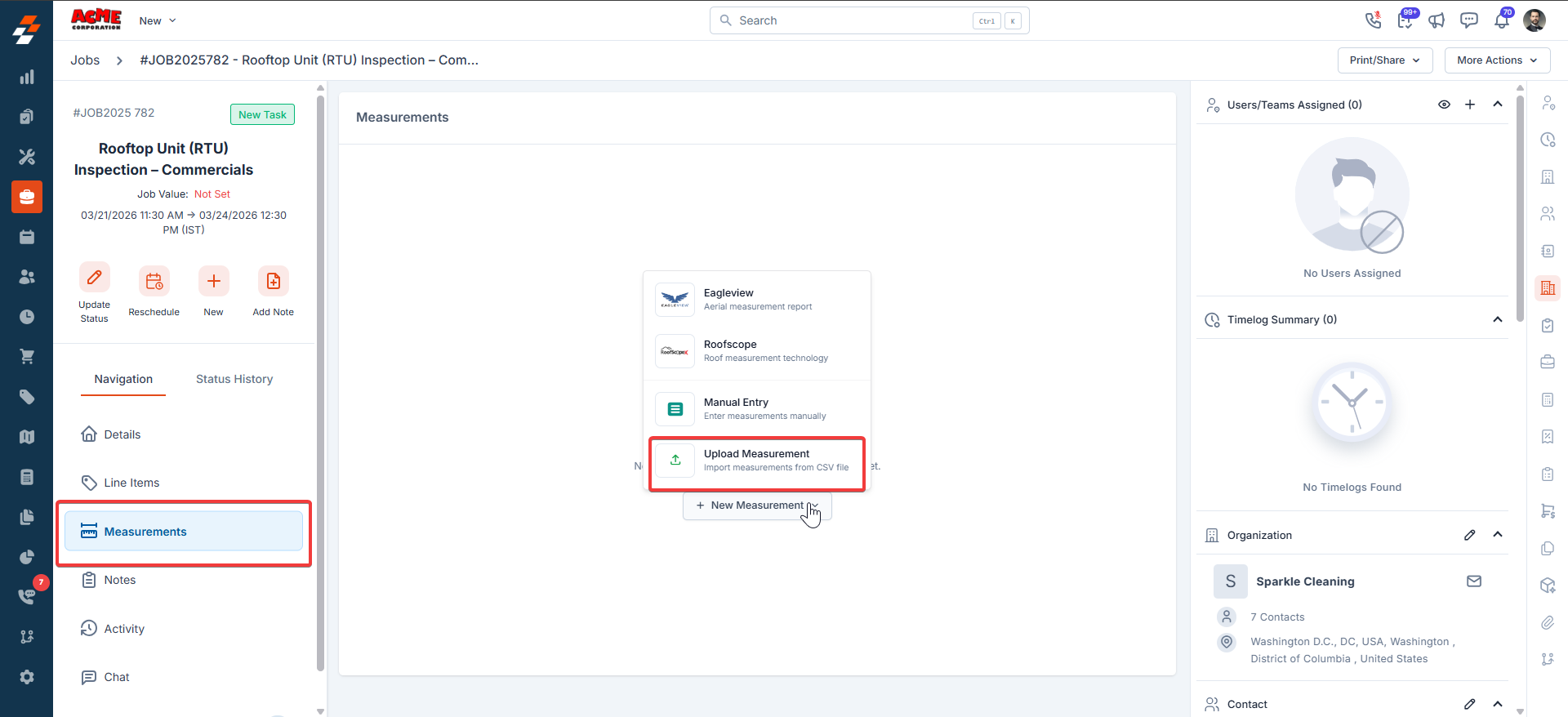
1. Go to the Job details page and open the **Measurements** section. Click **+ New Measurement**, then select **Upload Measurement**.
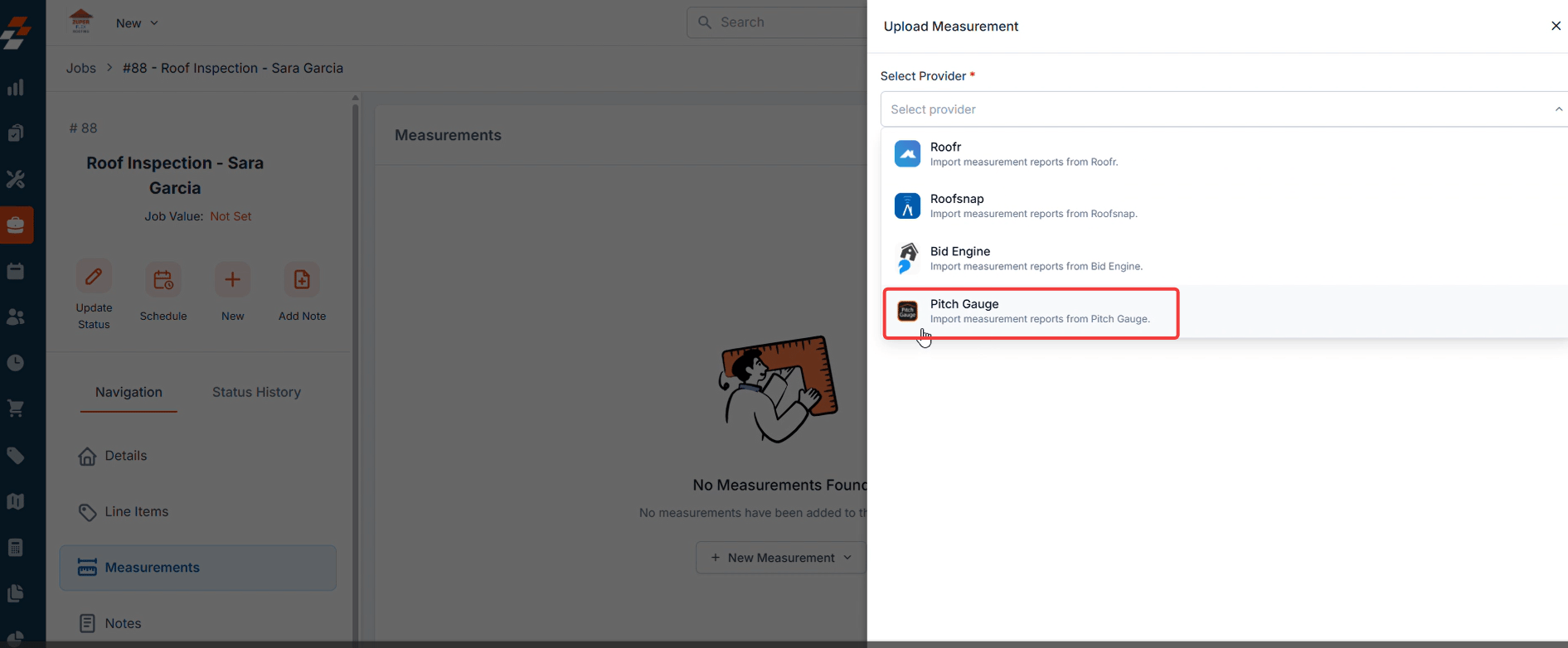
 2. When the upload panel opens, you must select a **provider** before uploading the file. These templates contain predefined mappings between the provider’s measurement tokens and Zuper measurement tokens. After selecting a template, proceed to upload the CSV file
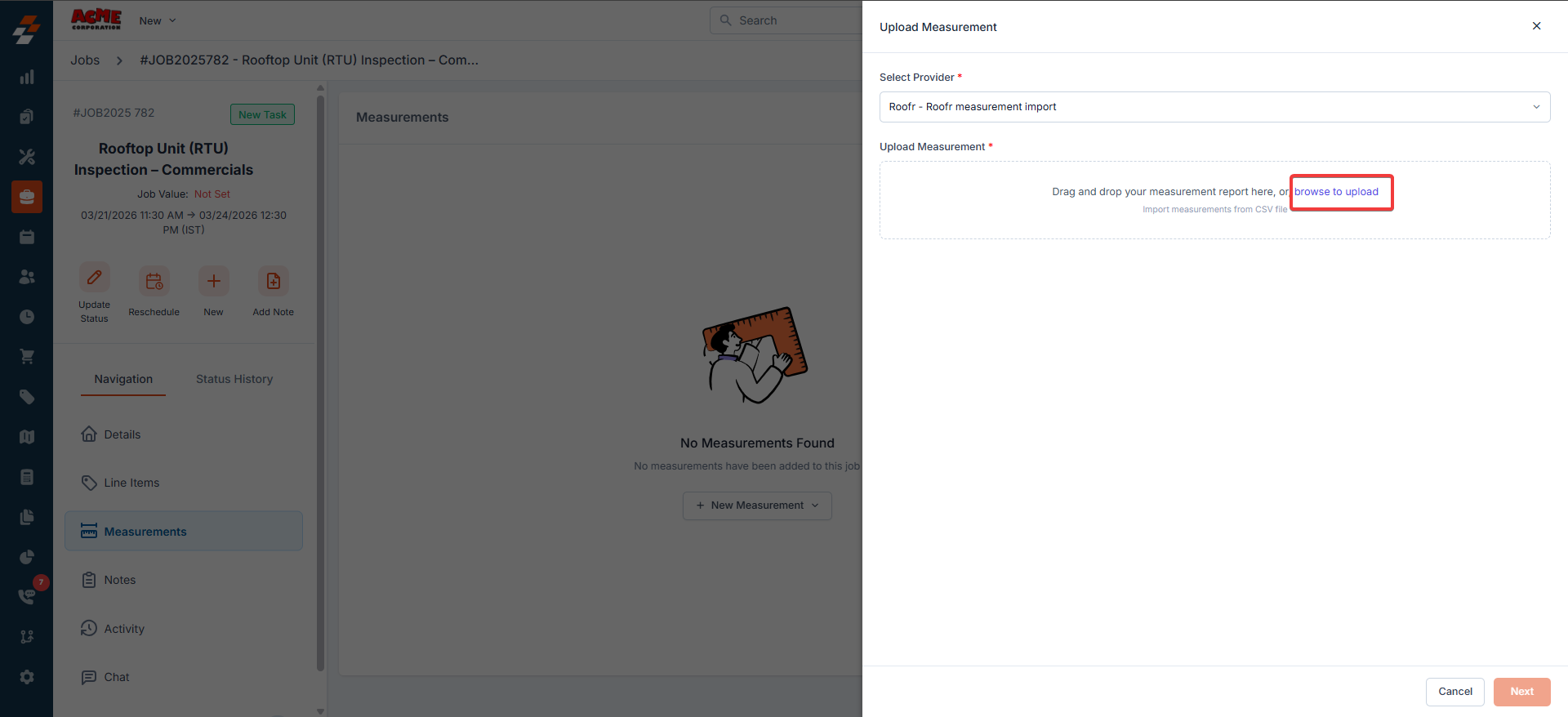
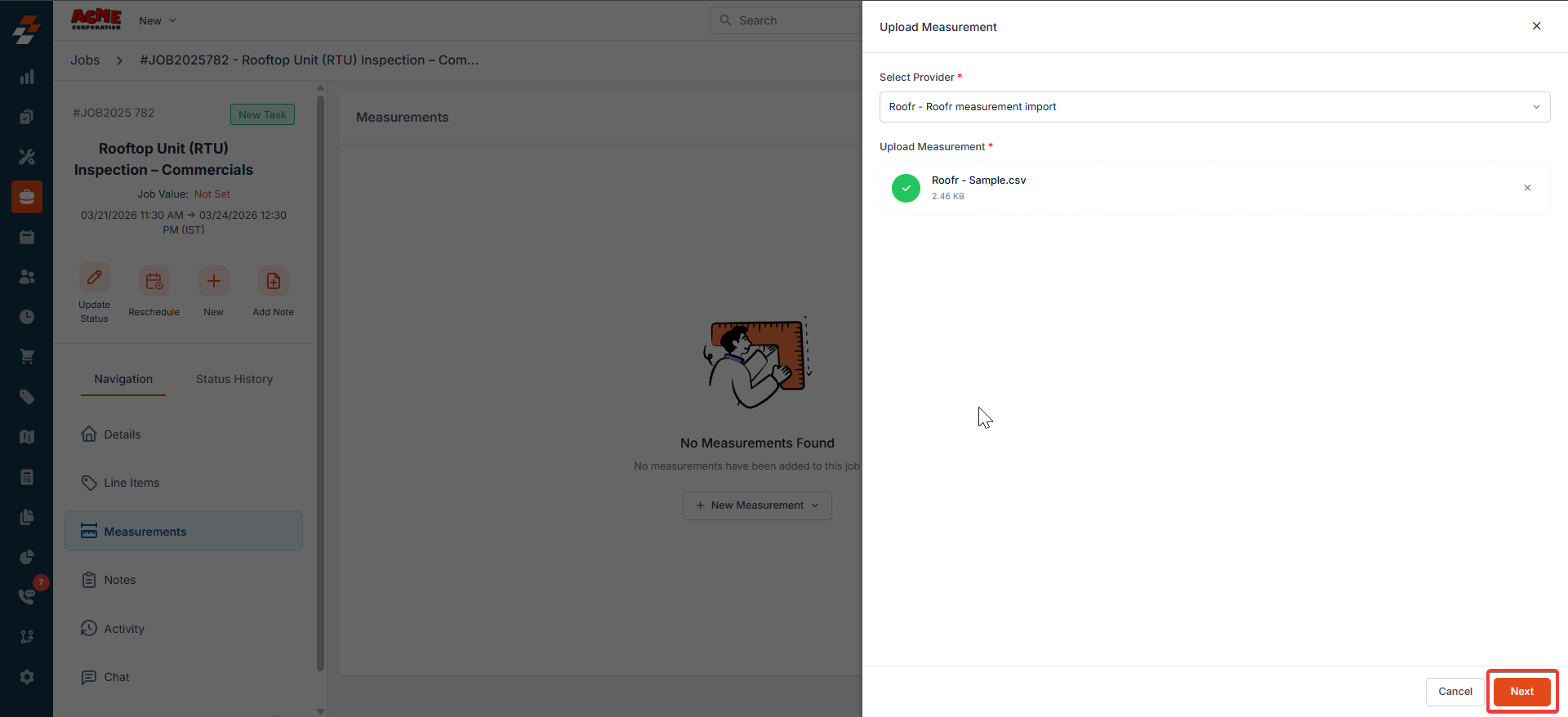
 3. Upload or drag and drop your CSV file. It will be validated automatically. Then click **Next**.
 4. Use the attachments tab to upload the measurement PDF.
**Note:** Only PDF files are supported.
4. Use the attachments tab to upload the measurement PDF.
**Note:** Only PDF files are supported.
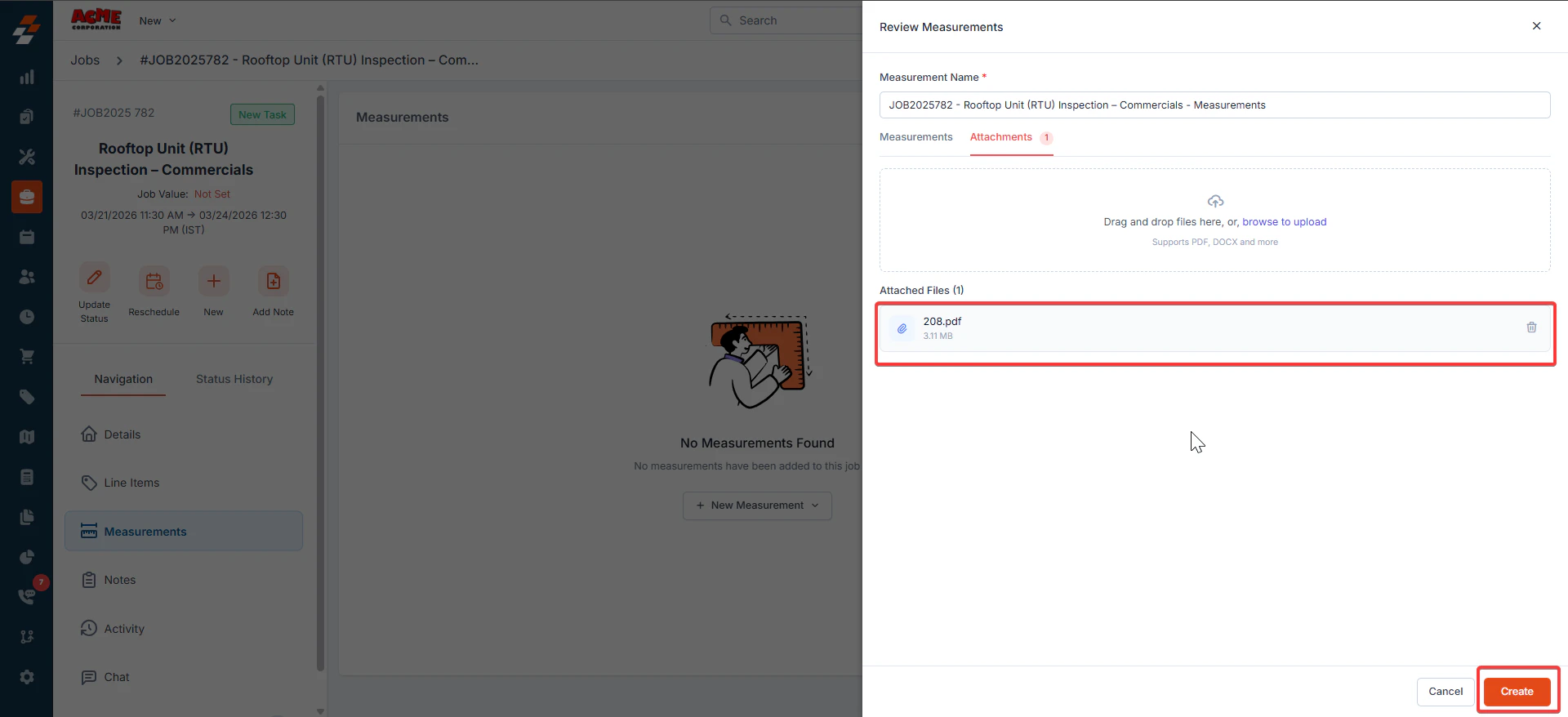 5. After reviewing the values, click **Create**.
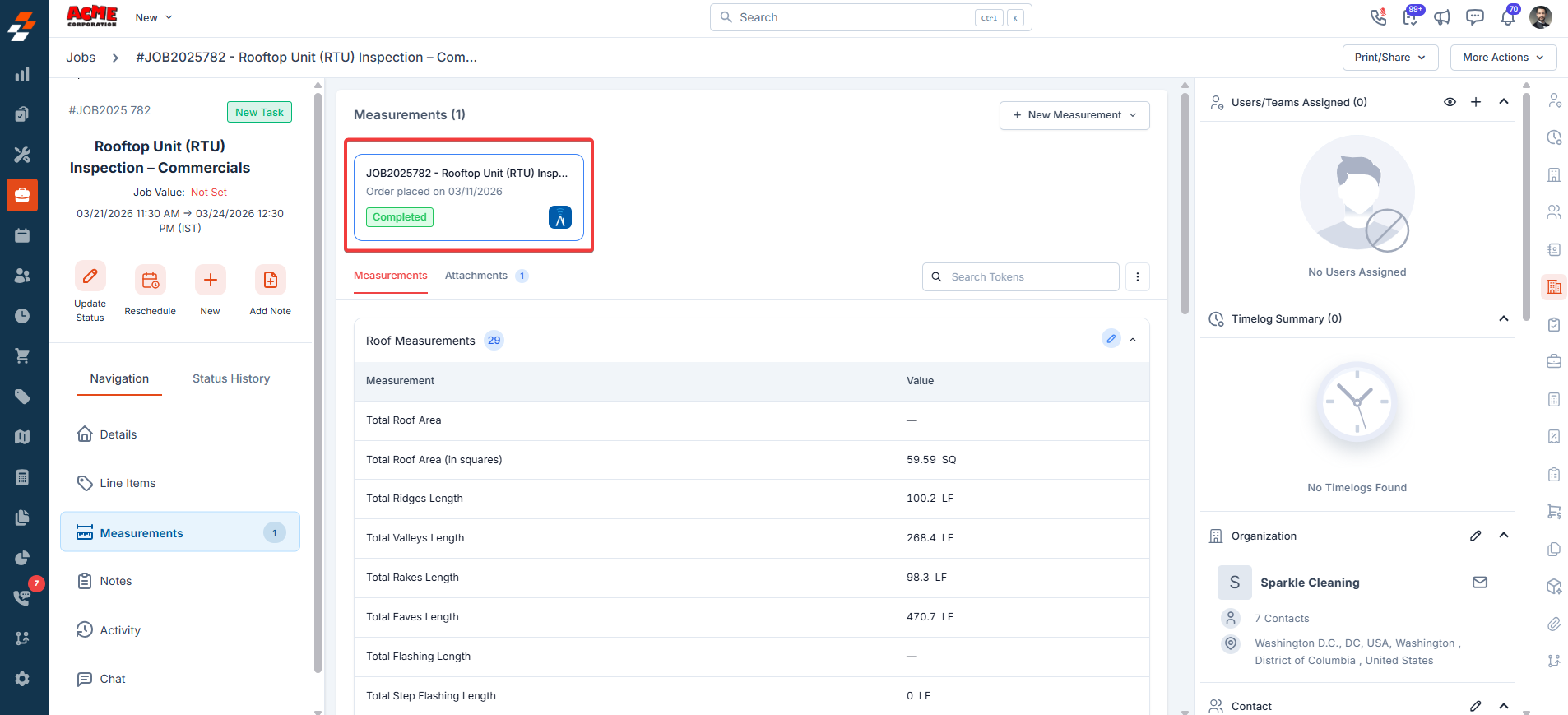
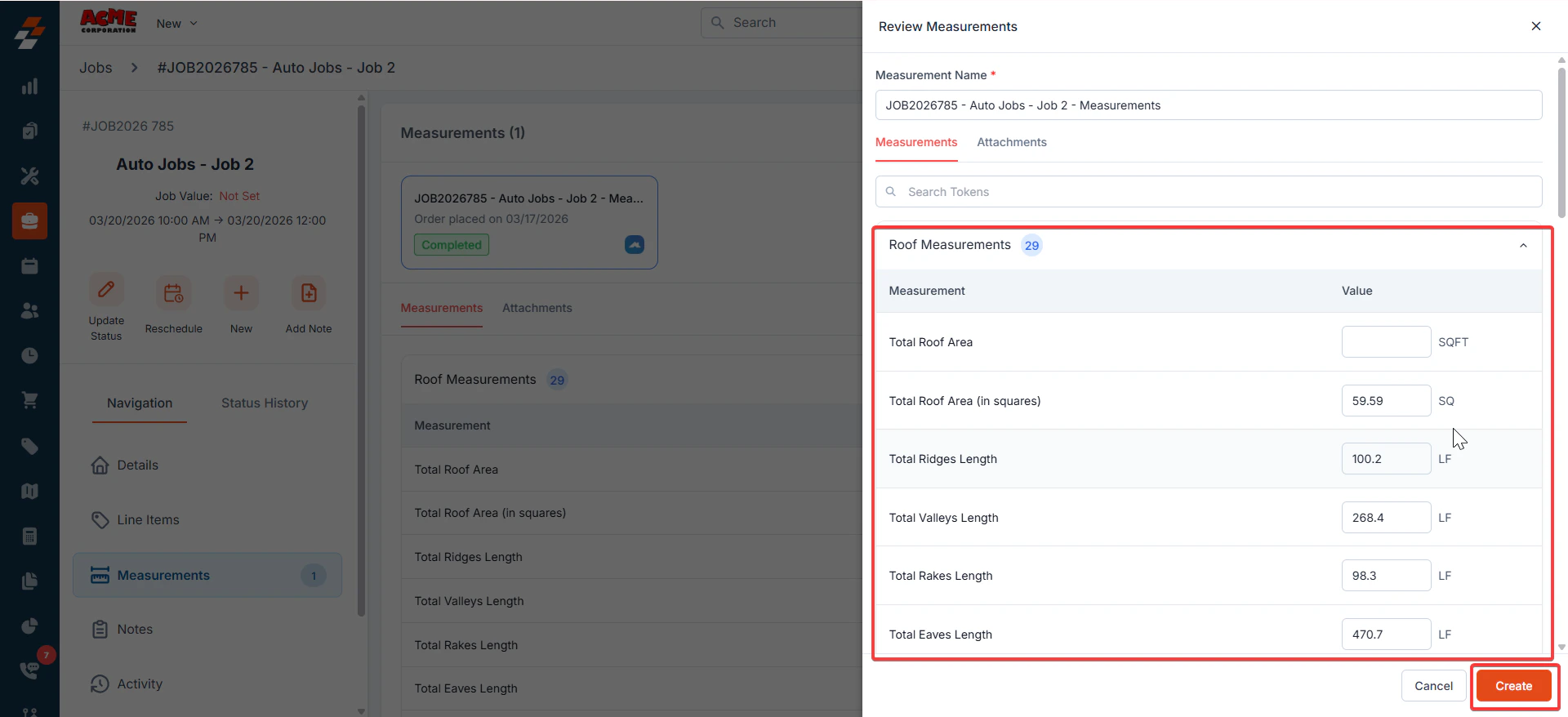 Zuper generates measurement records within the Job using the values from the uploaded CSV file.
The first measurement card is active by default.
Zuper generates measurement records within the Job using the values from the uploaded CSV file.
The first measurement card is active by default.
 ## **Edit Measurement Values**
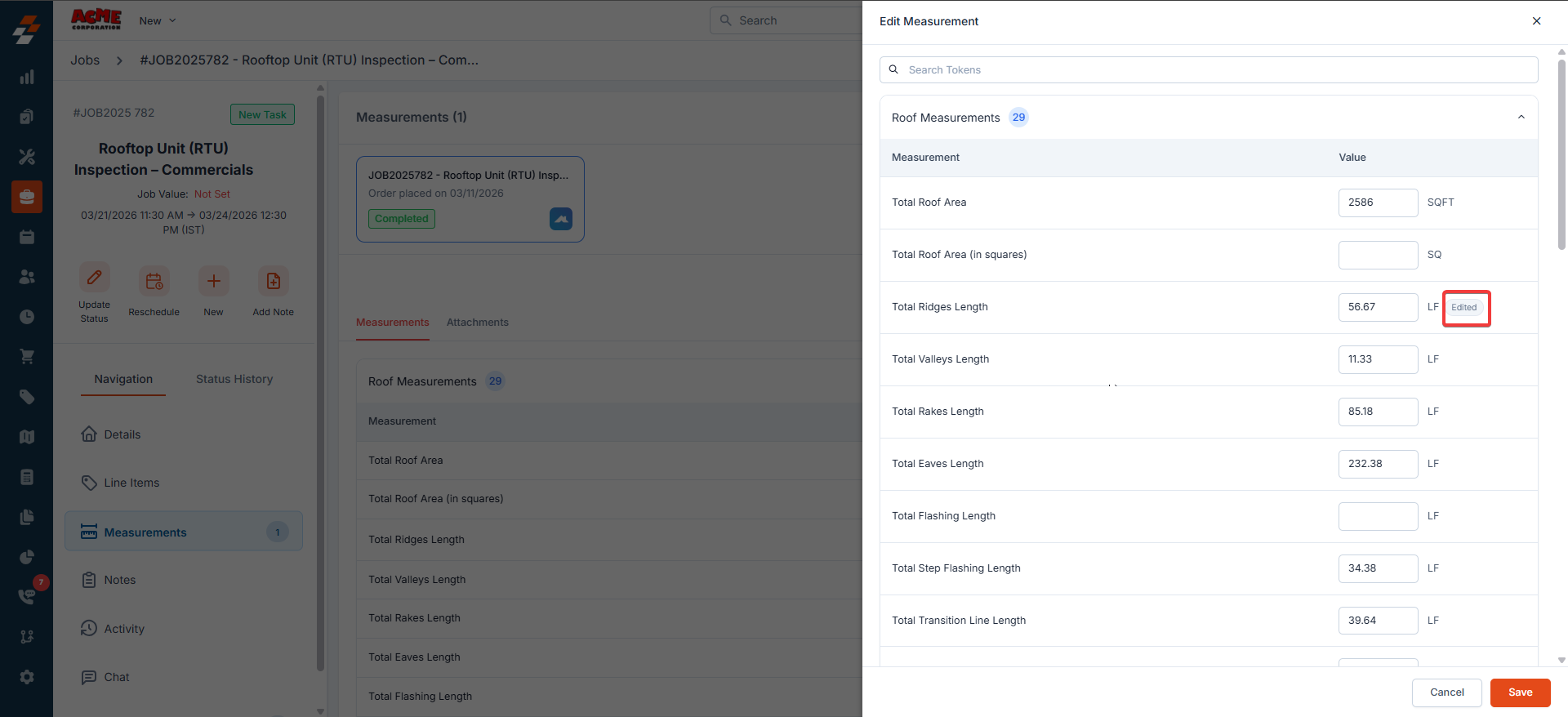
1. If you modify a value during the preview step, the system displays an **Edited** label on the measurement after creation.
## **Edit Measurement Values**
1. If you modify a value during the preview step, the system displays an **Edited** label on the measurement after creation.
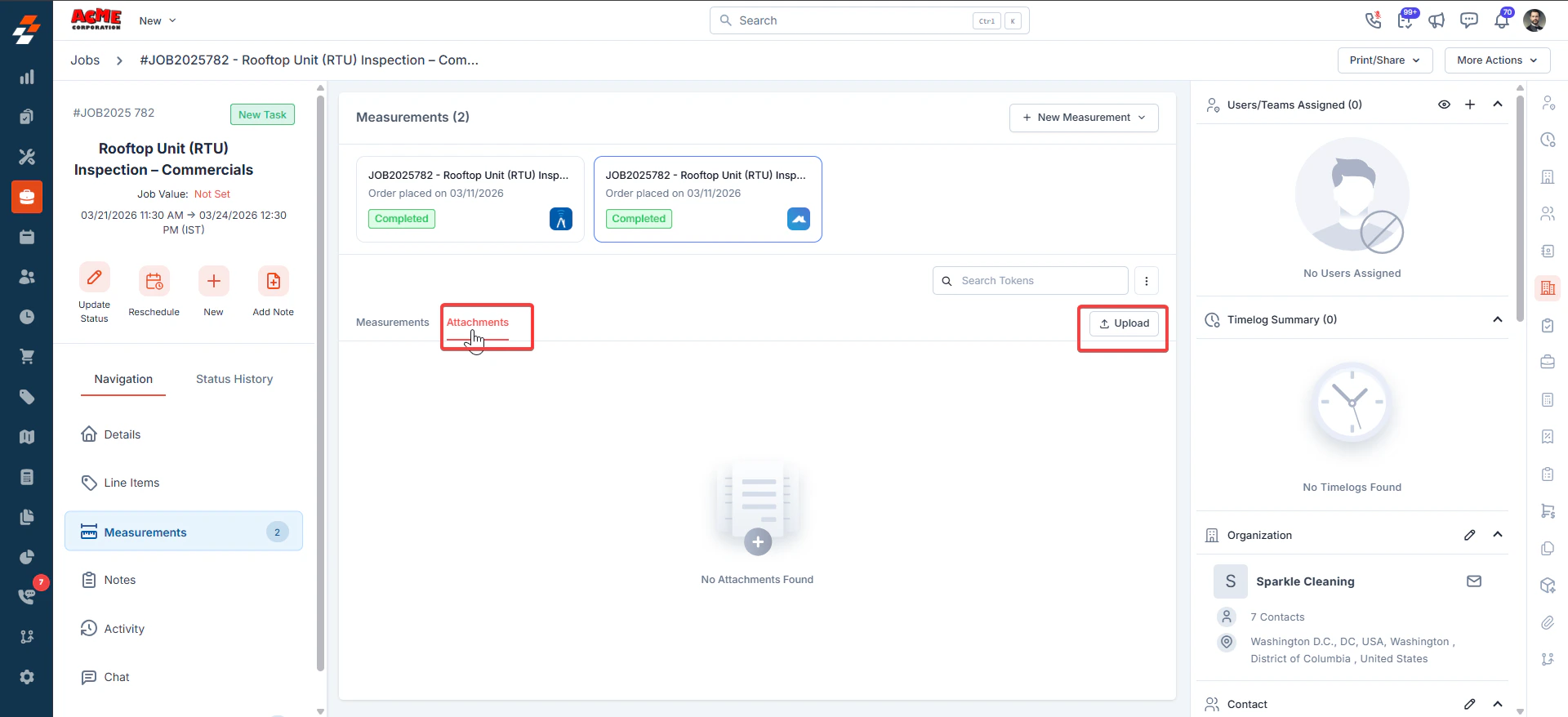
 2. Upload measurement files by clicking the **Attachments** tab, then **Upload**.
## **Activity Tracking**
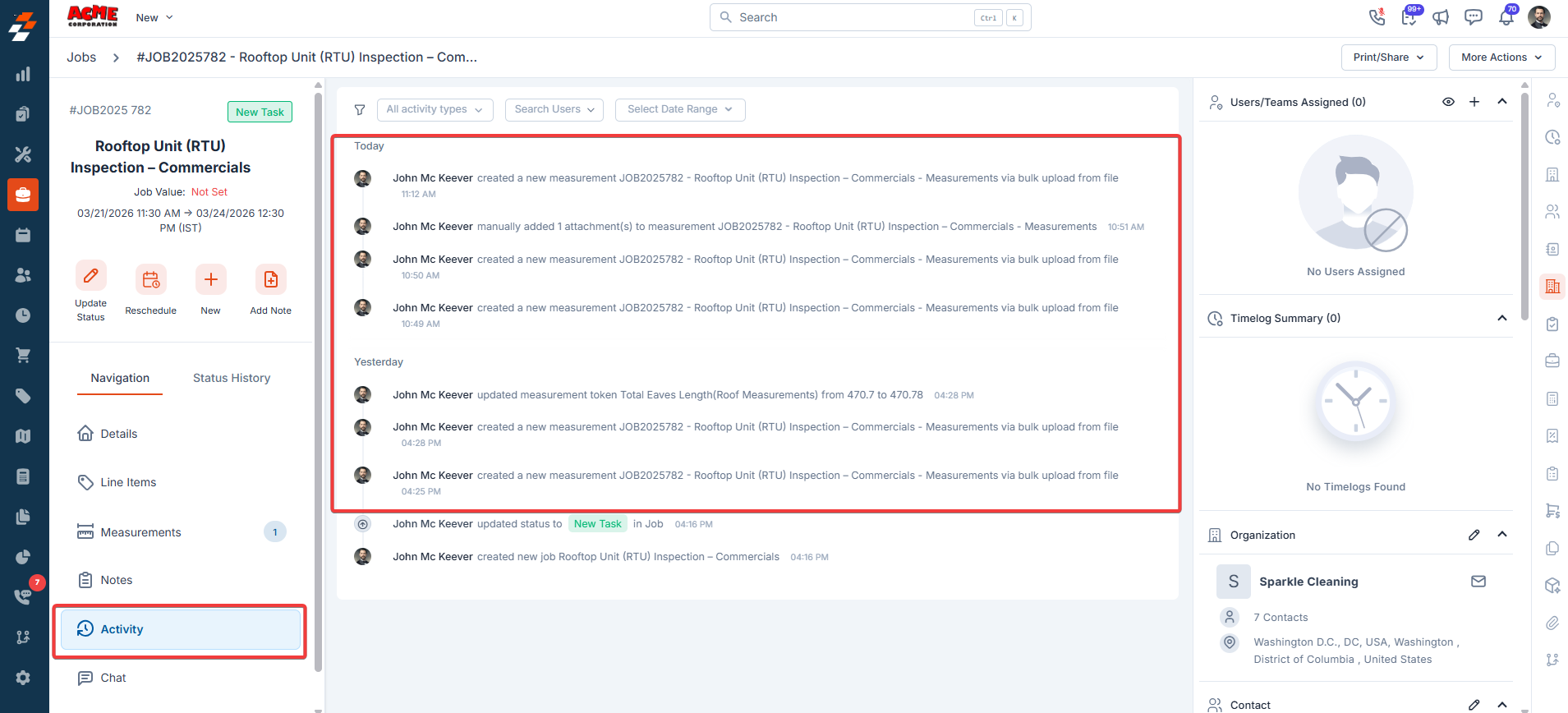
* Every measurement upload automatically generates an **activity log** entry within the Job.
2. Upload measurement files by clicking the **Attachments** tab, then **Upload**.
## **Activity Tracking**
* Every measurement upload automatically generates an **activity log** entry within the Job.
 ## **Disabled Measurement Tokens**
In some cases, the customer configuration may turn off certain measurement tokens.
If the uploaded CSV contains values for those tokens:
* The tokens will still appear within the Job
* Their values remain visible
This ensures that measurement data from the uploaded file is not lost.
## **Best Practices**
* Always choose the template that matches the CSV file's source to ensure accurate data mapping.
* Verify all measurement values in the preview screen before creating measurements.
## FAQs
No. Zuper automatically manages system templates and field mappings. No setup is required.
If the uploaded CSV contains values for disabled tokens, those tokens still appear in the job and their values remain visible. This ensures that no imported data is lost.
Each provider: Roofr, RoofSnap, Bid Engine, and Pitch Gauge, uses a different file format. If the file does not match the structure Zuper expects for the selected provider, the system cannot read it, and the upload fails.
## **Disabled Measurement Tokens**
In some cases, the customer configuration may turn off certain measurement tokens.
If the uploaded CSV contains values for those tokens:
* The tokens will still appear within the Job
* Their values remain visible
This ensures that measurement data from the uploaded file is not lost.
## **Best Practices**
* Always choose the template that matches the CSV file's source to ensure accurate data mapping.
* Verify all measurement values in the preview screen before creating measurements.
## FAQs
No. Zuper automatically manages system templates and field mappings. No setup is required.
If the uploaded CSV contains values for disabled tokens, those tokens still appear in the job and their values remain visible. This ensures that no imported data is lost.
Each provider: Roofr, RoofSnap, Bid Engine, and Pitch Gauge, uses a different file format. If the file does not match the structure Zuper expects for the selected provider, the system cannot read it, and the upload fails.
To resolve this, confirm that the CSV file is from the provider you selected and that it has not been modified.
The **Pitch Gauge** XML file does not match the structure Zuper expects, or it is not a valid XML file.
To resolve this, confirm that the file was exported directly from Pitch Gauge and has not been modified or renamed.
If the issue continues, contact [Support](mailto:support@zuper.co).