> ## Documentation Index
> Fetch the complete documentation index at: https://docs.zuper.co/llms.txt
> Use this file to discover all available pages before exploring further.
# Xero
**Xero** is a cloud-based accounting software platform designed to help businesses manage invoicing, bank reconciliation, bookkeeping, and reporting.
The **Zuper–Xero Integration** is a **uni-directional** connection that pushes **estimates and invoices** from Zuper to Xero—streamlining financial operations between your service and accounting teams.
The following sections explain how to:
A. Connect Xero with Zuper\
B. Zuper–Xero Integration Works\
C. Uninstall Xero from Zuper
### **Pre-requisites**
Before you begin, ensure you have the following:
* **Zuper API Key**
* **Xero OAuth Access**
> When you click **Install** in the App Store, a permission screen will appear to authorize your Xero account. This process is known as **OAuth**.
### A. How to Connect Xero with Zuper
1. **Log in** to your Zuper account.
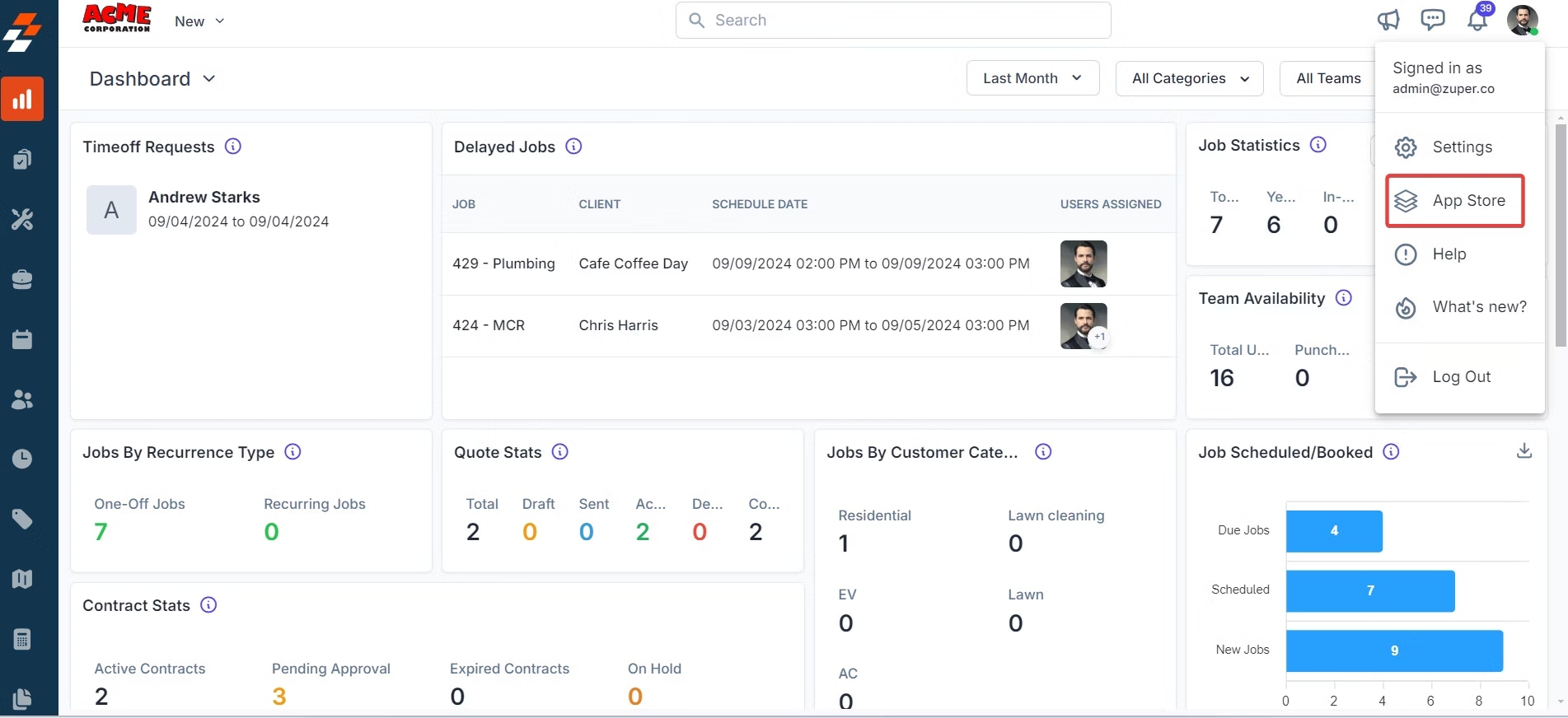
2. Click your **Profile Picture** (top-right corner) → select **App Store**.
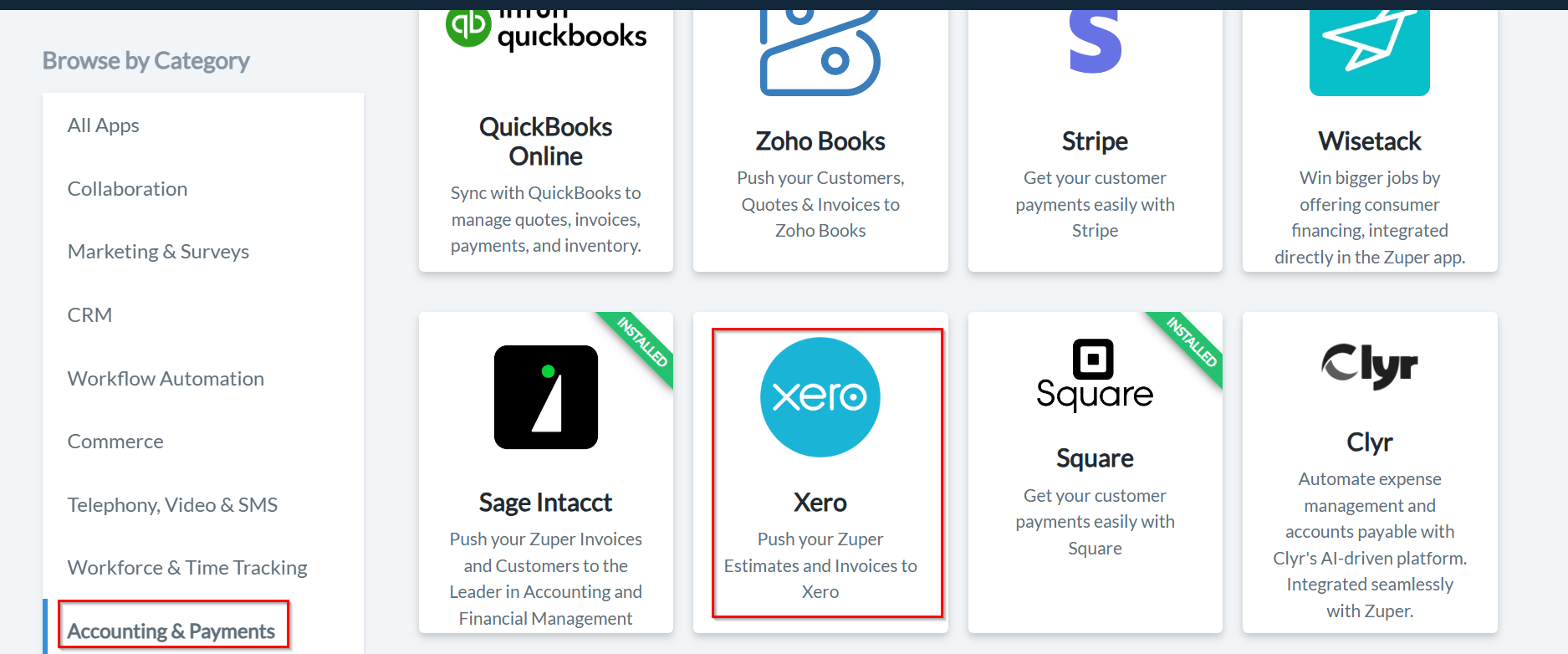
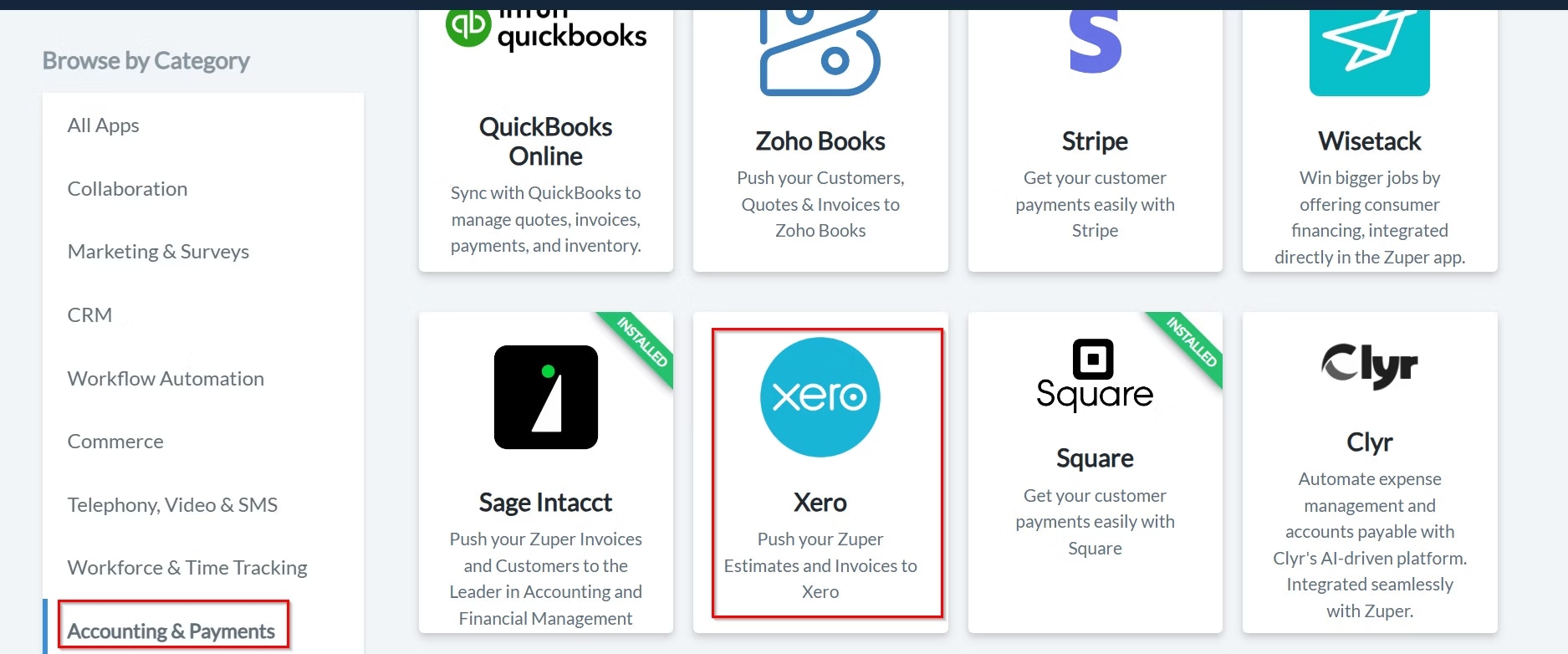
 3. Under **Browse by Category**, select **Accounting and Payments**, and choose **Xero**.
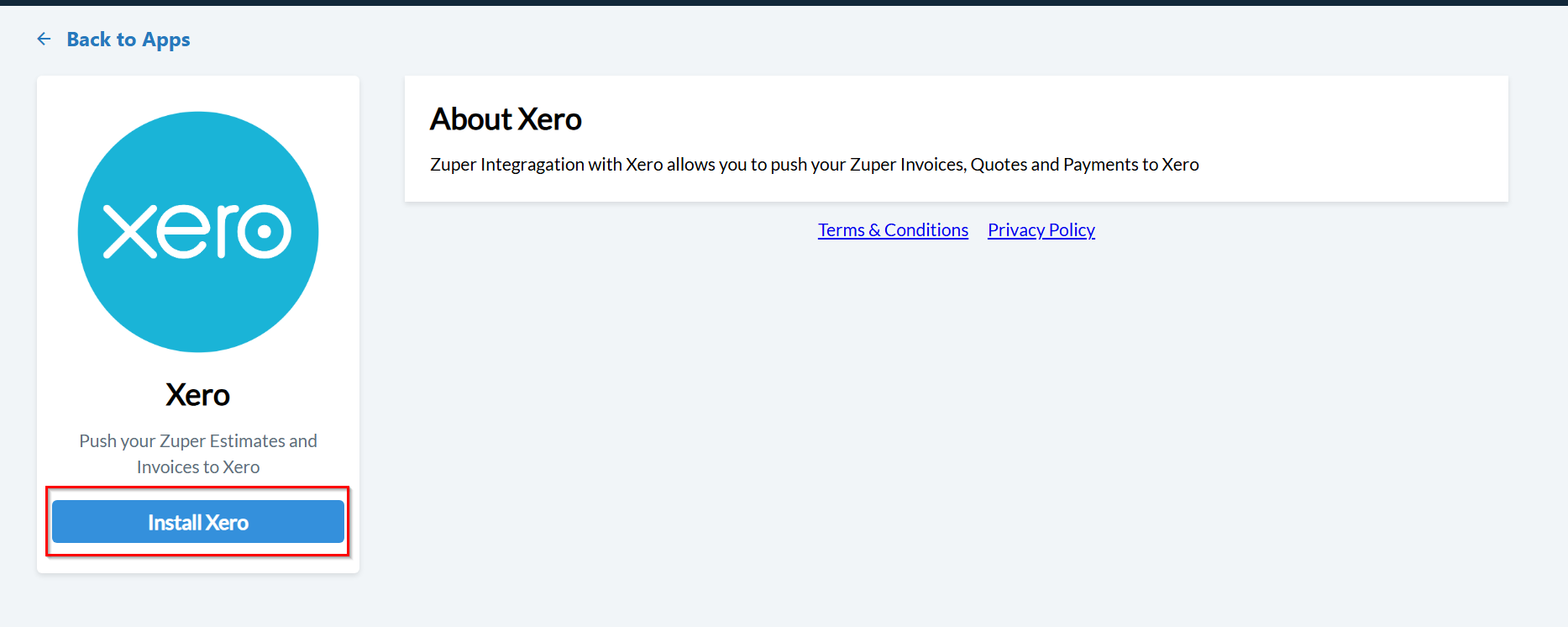
 4. Click **Install Xero**.
 Note: Keep both the Zuper and Xero tabs open for a smooth setup process.
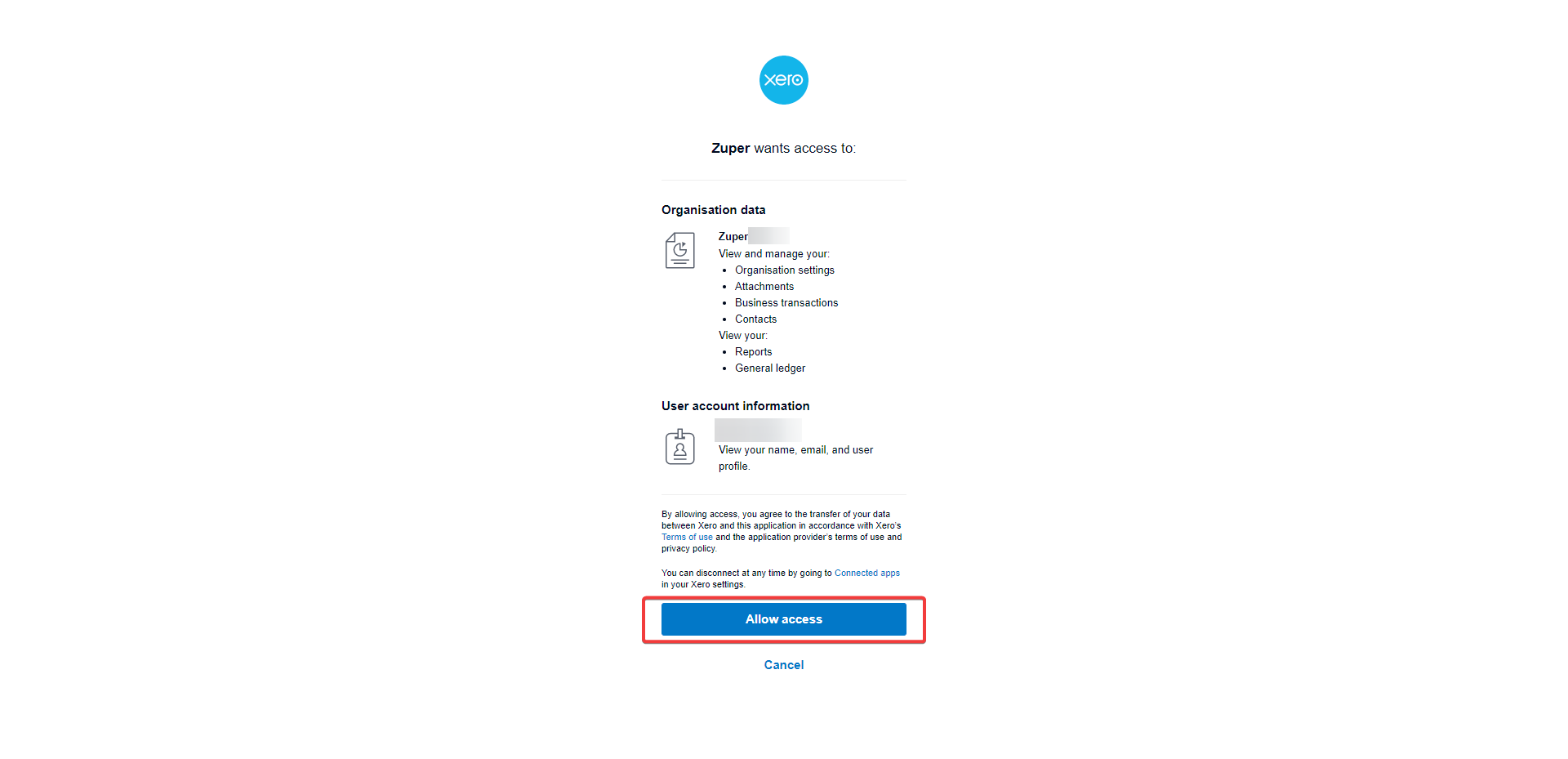
5. A pop-up will appear. Review the data access permissions and click **Allow Access**.
Note: Keep both the Zuper and Xero tabs open for a smooth setup process.
5. A pop-up will appear. Review the data access permissions and click **Allow Access**.
 6. Update **Xero Settings** by configuring the following fields:
| **Field** | **Description** |
| :-----------------------------------------------: | :-----------------------------------------------------------------------------------: |
| **Zuper API Key (Mandatory)** | Enter your Zuper API key. [Learn how to generate it.](#) |
| **Tenant Name (Mandatory)** | Enter the instance name of your Xero account (visible in the top-left corner). |
| **Estimate Sync (Mandatory)** | Select **Yes** or **No** to push quotations from Zuper to Xero. |
| **Invoice Sync (Mandatory)** | Select **Yes** or **No** to push invoices from Zuper to Xero. |
| **Use Zuper Estimate Number (Mandatory)** | Select **Yes** or **No** to use Zuper’s prefix quote number in Xero. |
| **Use Zuper Invoice Number (Mandatory)** | Select **Yes** or **No** to use Zuper’s prefix invoice number in Xero. |
| **Delete Cancelled Invoice/Estimate (Mandatory)** | Select **Yes** or **No** to automatically delete canceled invoices or quotes in Xero. |
| **Sync Tax Master (Mandatory)** | Select **Yes** or **No** to sync tax master data from Zuper to Xero. |
| **Line-Item Account Code (Mandatory)** | Enter the account code from Xero’s **Chart of Accounts** for product syncing. |
| **Payment Account Code (Mandatory)** | Enter the account code from Xero’s **Chart of Accounts** for payment syncing. |
Note: If the same account code is used for both product and payment, ensure the Enable Payments on this account checkbox is selected in Xero.
6. Update **Xero Settings** by configuring the following fields:
| **Field** | **Description** |
| :-----------------------------------------------: | :-----------------------------------------------------------------------------------: |
| **Zuper API Key (Mandatory)** | Enter your Zuper API key. [Learn how to generate it.](#) |
| **Tenant Name (Mandatory)** | Enter the instance name of your Xero account (visible in the top-left corner). |
| **Estimate Sync (Mandatory)** | Select **Yes** or **No** to push quotations from Zuper to Xero. |
| **Invoice Sync (Mandatory)** | Select **Yes** or **No** to push invoices from Zuper to Xero. |
| **Use Zuper Estimate Number (Mandatory)** | Select **Yes** or **No** to use Zuper’s prefix quote number in Xero. |
| **Use Zuper Invoice Number (Mandatory)** | Select **Yes** or **No** to use Zuper’s prefix invoice number in Xero. |
| **Delete Cancelled Invoice/Estimate (Mandatory)** | Select **Yes** or **No** to automatically delete canceled invoices or quotes in Xero. |
| **Sync Tax Master (Mandatory)** | Select **Yes** or **No** to sync tax master data from Zuper to Xero. |
| **Line-Item Account Code (Mandatory)** | Enter the account code from Xero’s **Chart of Accounts** for product syncing. |
| **Payment Account Code (Mandatory)** | Enter the account code from Xero’s **Chart of Accounts** for payment syncing. |
Note: If the same account code is used for both product and payment, ensure the Enable Payments on this account checkbox is selected in Xero.
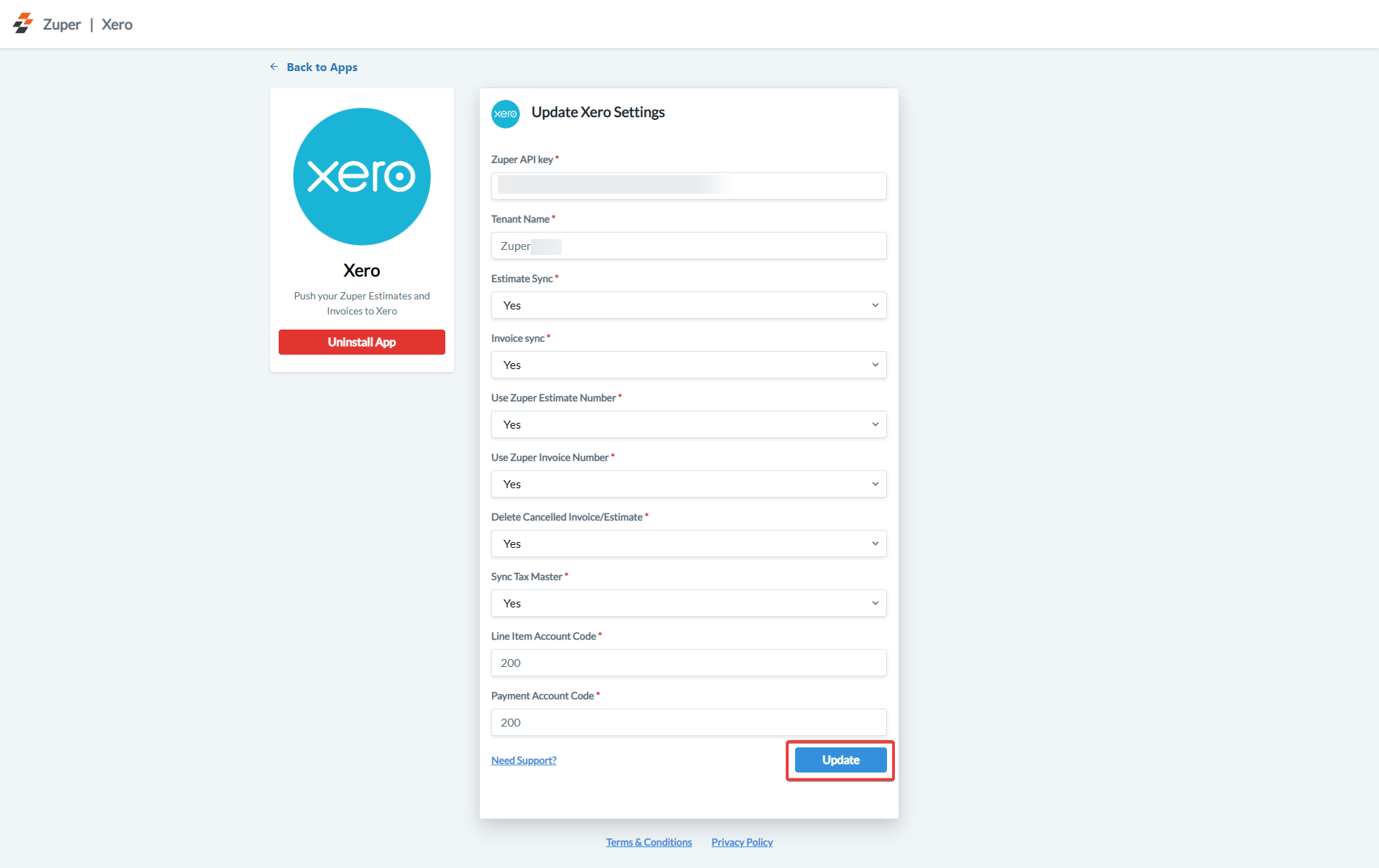 7. Click **Update** to complete the integration setup.
Important: Use a dedicated account with a valid Zuper API Key to ensure smooth synchronization between Zuper and Xero.
### B. How the Zuper–Xero Integration Works
Once connected, Zuper automatically pushes data from your **Estimates** and **Invoices** modules to Xero, based on your configuration.
#### 1. Estimate Sync
* When a **Quotation** is created in Zuper, it automatically syncs to Xero.
* Any changes or deletions in Zuper will be reflected in Xero based on integration settings.
**Example:**
* **Zuper:** New quotation created
* **Xero:** Quote reflected under the same customer account
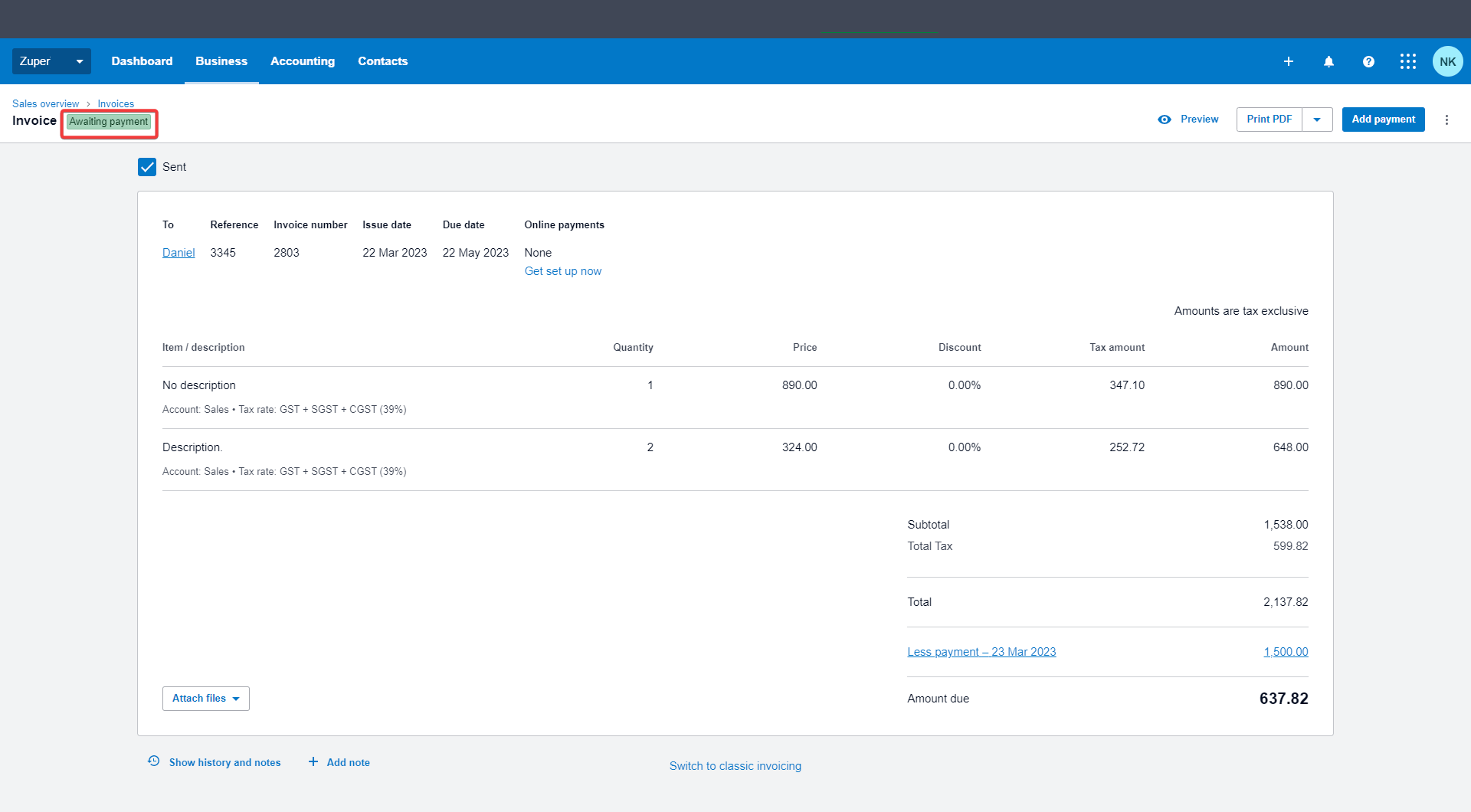
#### 2. Invoice Sync (Partial Payment)
* A partially paid invoice in Zuper will appear in Xero as **Awaiting Payment**.
**Example:**
* **Zuper:** Invoice status = *Partially Paid*
* **Xero:** Invoice status = *Awaiting Payment*
7. Click **Update** to complete the integration setup.
Important: Use a dedicated account with a valid Zuper API Key to ensure smooth synchronization between Zuper and Xero.
### B. How the Zuper–Xero Integration Works
Once connected, Zuper automatically pushes data from your **Estimates** and **Invoices** modules to Xero, based on your configuration.
#### 1. Estimate Sync
* When a **Quotation** is created in Zuper, it automatically syncs to Xero.
* Any changes or deletions in Zuper will be reflected in Xero based on integration settings.
**Example:**
* **Zuper:** New quotation created
* **Xero:** Quote reflected under the same customer account
#### 2. Invoice Sync (Partial Payment)
* A partially paid invoice in Zuper will appear in Xero as **Awaiting Payment**.
**Example:**
* **Zuper:** Invoice status = *Partially Paid*
* **Xero:** Invoice status = *Awaiting Payment*
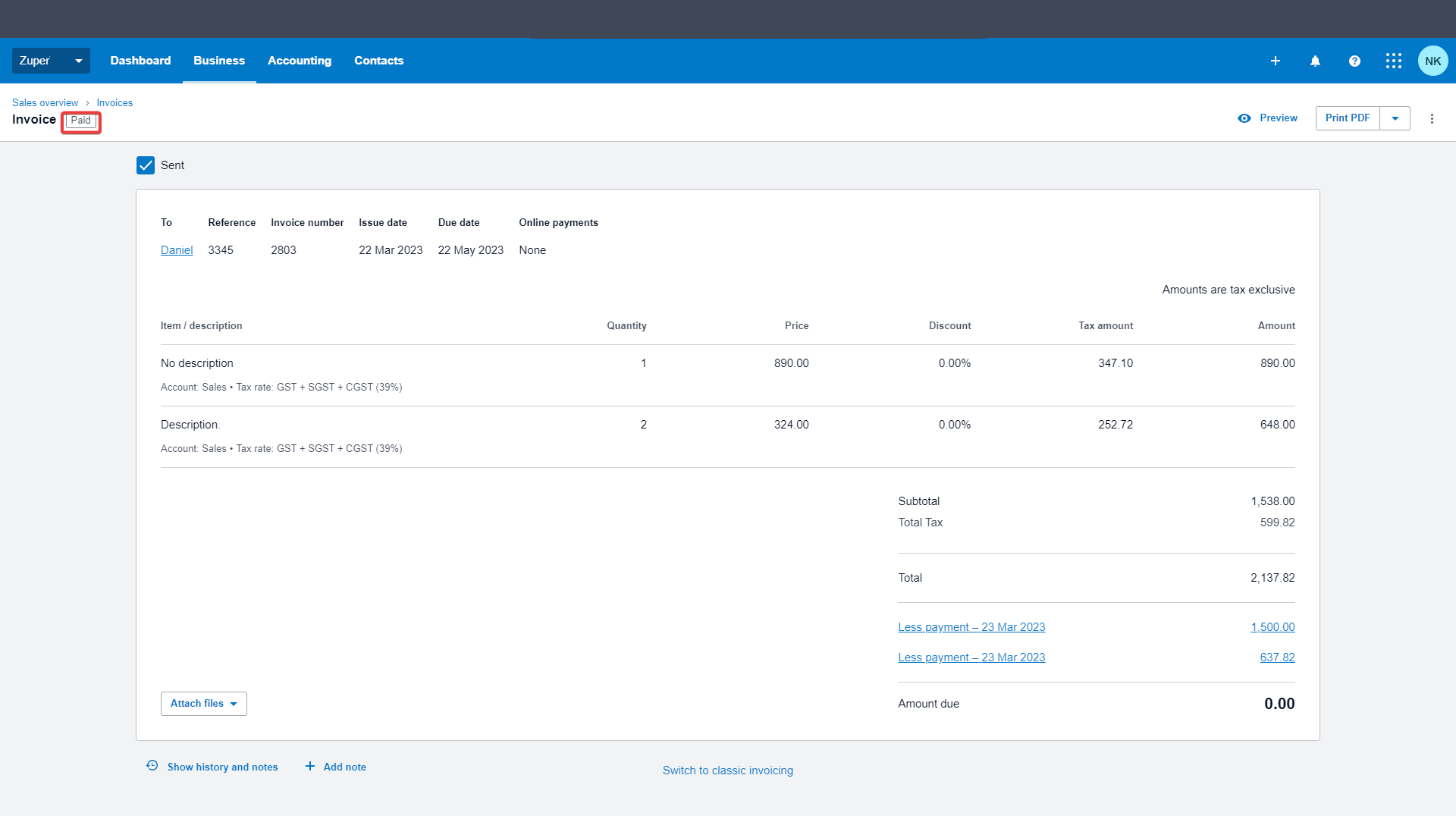
 #### 3. Invoice Sync (Full Payment)
* A fully paid invoice in Zuper will appear in Xero as **Paid**.
**Example:**
* **Zuper:** Invoice status = *Paid*
* **Xero:** Invoice status = *Paid*
#### 3. Invoice Sync (Full Payment)
* A fully paid invoice in Zuper will appear in Xero as **Paid**.
**Example:**
* **Zuper:** Invoice status = *Paid*
* **Xero:** Invoice status = *Paid*
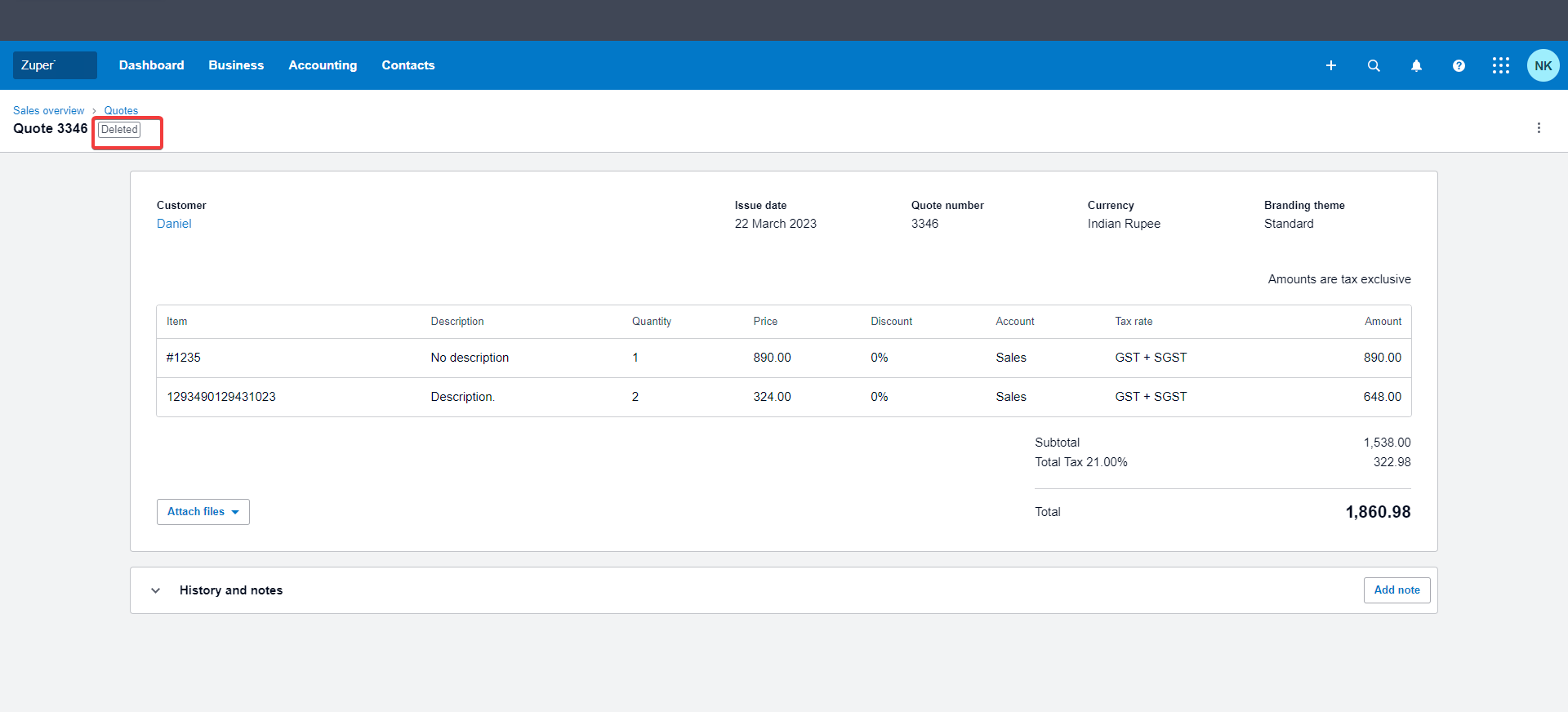
 #### 4. Cancelled Quotations
* When a quotation is cancelled in Zuper, it will automatically appear as **Deleted** in Xero.
**Example:**
* **Zuper:** Quote status = *Cancelled*
* **Xero:** Quote status = *Deleted*
#### 4. Cancelled Quotations
* When a quotation is cancelled in Zuper, it will automatically appear as **Deleted** in Xero.
**Example:**
* **Zuper:** Quote status = *Cancelled*
* **Xero:** Quote status = *Deleted*
 #### 5. Declined Quotations
* Declined quotations in Zuper will reflect as **Declined** in Xero, maintaining consistency across both systems.
#### 5. Declined Quotations
* Declined quotations in Zuper will reflect as **Declined** in Xero, maintaining consistency across both systems.
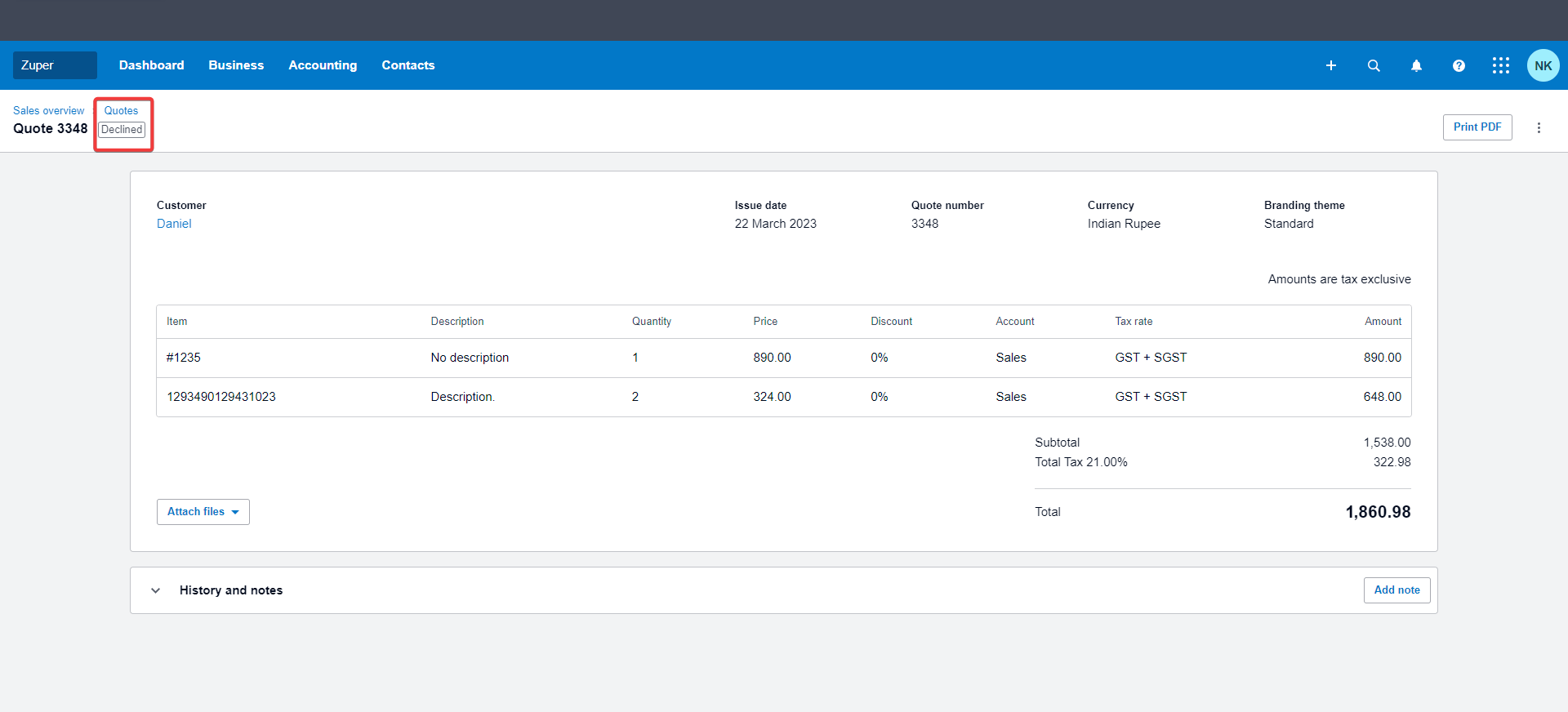 #### 6. Status Mapping Between Zuper and Xero
Field Equivalent Table- Quotation
| **Zuper Status** | **Xero Status** |
| :--------------: | :-------------: |
| Draft | Draft |
| Sent | Sent |
| Accepted | Approved |
| Declined | Declined |
| Converted | Converted |
Field Equivalent Table- Invoice
| **Zuper Status** | **Xero Status** |
| :--------------: | :---------------: |
| Draft | Draft |
| Sent | Awaiting Approval |
| Partially Paid | Awaiting Payment |
| Paid | Paid |
This mapping ensures real-time data consistency between both platforms.
### C. How to Uninstall Xero from Zuper
1. Log in to your **Zuper account**. Click your **Profile Picture** (top-right corner) → select **App Store**.
2. Under **Browse by Category**, select **Accounting and Payments**, then choose **Xero**. Click **Uninstall**.
#### 6. Status Mapping Between Zuper and Xero
Field Equivalent Table- Quotation
| **Zuper Status** | **Xero Status** |
| :--------------: | :-------------: |
| Draft | Draft |
| Sent | Sent |
| Accepted | Approved |
| Declined | Declined |
| Converted | Converted |
Field Equivalent Table- Invoice
| **Zuper Status** | **Xero Status** |
| :--------------: | :---------------: |
| Draft | Draft |
| Sent | Awaiting Approval |
| Partially Paid | Awaiting Payment |
| Paid | Paid |
This mapping ensures real-time data consistency between both platforms.
### C. How to Uninstall Xero from Zuper
1. Log in to your **Zuper account**. Click your **Profile Picture** (top-right corner) → select **App Store**.
2. Under **Browse by Category**, select **Accounting and Payments**, then choose **Xero**. Click **Uninstall**.
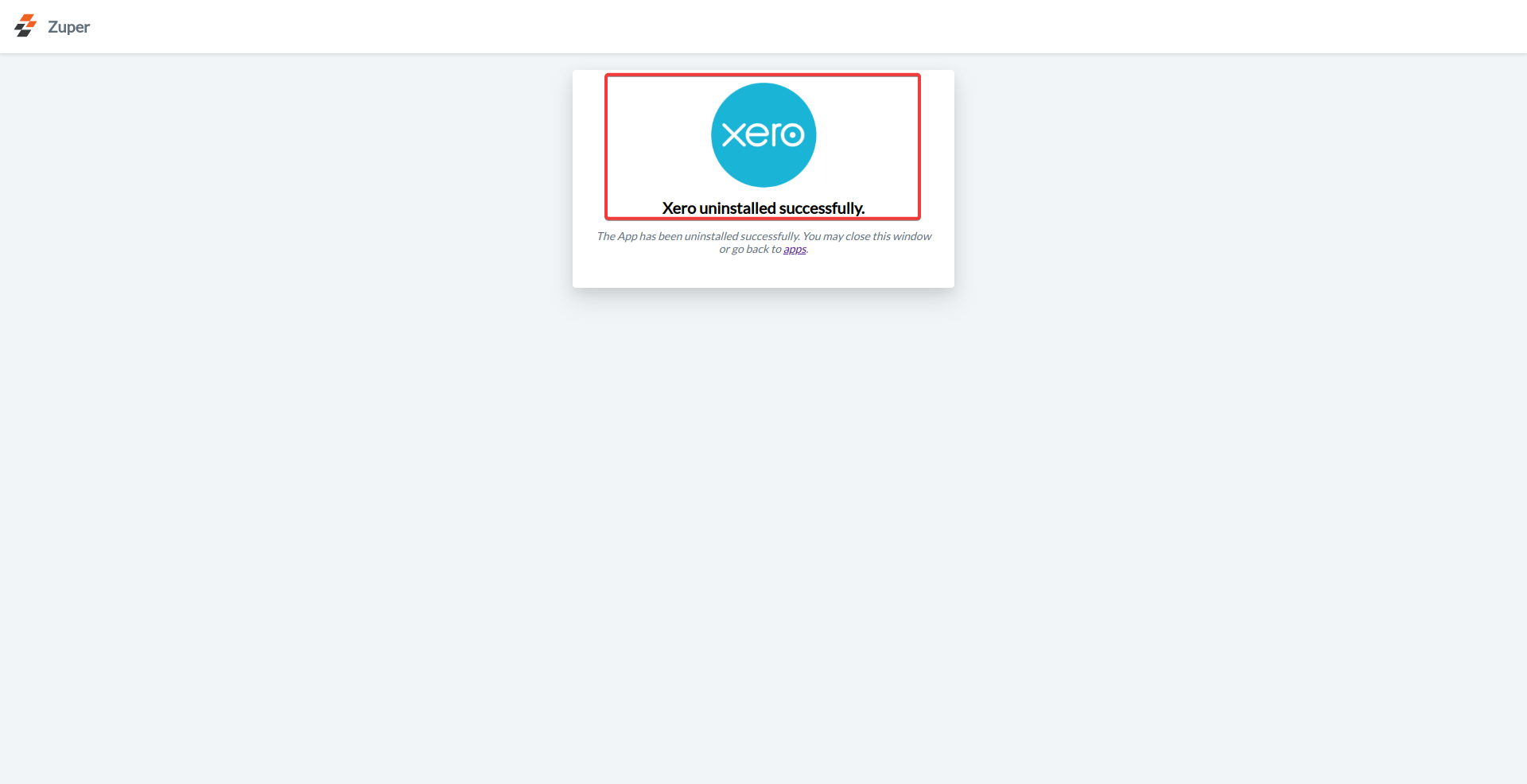
 3. The Xero integration will be successfully uninstalled from your account.
 The **Zuper–Xero Integration** enables seamless data flow between your field service operations and accounting platform by:
* Automatically syncing estimates and invoices from Zuper to Xero.
* Maintaining real-time payment status updates.
* Reducing manual data entry and financial errors.
This integration simplifies your financial management workflow, allowing your back-office team to work more efficiently within Zuper.
## Frequently Asked Questions
No. Mapping product descriptions to product names or SKUs automatically via Xero is not supported. The integration does not perform this mapping, and descriptions will not auto-populate based on SKU changes made in the accounting system.
The Xero integration pushes Zuper records (such as invoices and customer data) to the accounting system. This is a **one-way sync** for most record types. Changes made in Xero do not automatically reflect back into Zuper's Parts & Services catalog or line item descriptions.
No. SKU or product name changes made in Xero are not pushed back into Zuper. You will need to manually update the relevant items in Zuper's **Parts & Services** master list, or contact your onboarding team or support team for bulk update assistance.
Yes. The **Description field** on each line item in the Quote/Invoice screen remains fully editable within Zuper at the transaction level. The integration sync does not overwrite this field. You can manually update the description for each line item as needed directly on the quote or invoice.
For bulk updates to product names, SKUs, or descriptions in Zuper, contact [Zuper Support](mailto:support@zuper.co) or reach out to your onboarding team for assistance with a bulk import or catalog update.
The **Zuper–Xero Integration** enables seamless data flow between your field service operations and accounting platform by:
* Automatically syncing estimates and invoices from Zuper to Xero.
* Maintaining real-time payment status updates.
* Reducing manual data entry and financial errors.
This integration simplifies your financial management workflow, allowing your back-office team to work more efficiently within Zuper.
## Frequently Asked Questions
No. Mapping product descriptions to product names or SKUs automatically via Xero is not supported. The integration does not perform this mapping, and descriptions will not auto-populate based on SKU changes made in the accounting system.
The Xero integration pushes Zuper records (such as invoices and customer data) to the accounting system. This is a **one-way sync** for most record types. Changes made in Xero do not automatically reflect back into Zuper's Parts & Services catalog or line item descriptions.
No. SKU or product name changes made in Xero are not pushed back into Zuper. You will need to manually update the relevant items in Zuper's **Parts & Services** master list, or contact your onboarding team or support team for bulk update assistance.
Yes. The **Description field** on each line item in the Quote/Invoice screen remains fully editable within Zuper at the transaction level. The integration sync does not overwrite this field. You can manually update the description for each line item as needed directly on the quote or invoice.
For bulk updates to product names, SKUs, or descriptions in Zuper, contact [Zuper Support](mailto:support@zuper.co) or reach out to your onboarding team for assistance with a bulk import or catalog update.