> ## Documentation Index
> Fetch the complete documentation index at: https://docs.zuper.co/llms.txt
> Use this file to discover all available pages before exploring further.
# Rebates
A rebate is an incentive offered to your customer by a manufacturer, utility provider, or another third-party organization.
In Zuper, your team can add rebate amounts directly to quotes and proposals to show customers their potential savings. Zuper displays each rebate separately and calculates the customer's estimated cost after rebates.
This helps your team communicate available incentives during the sales process while giving customers a clearer understanding of their potential out-of-pocket cost.
**Info**: Rebates are for informational purposes only. They do not reduce the quote or proposal total, taxes, deposit, amount due, or the amount your business charges or collects from the customer.
## How rebates work
When a rebate is added to a quote or proposal option, Zuper displays the rebate separately below the **Total** and calculates the value shown as **Net Investment**.
```nushell theme={null}
Net Investment = Total − Total rebate amount
```
For example, if the Total is \$10,000 and the customer receives a \$1,000 manufacturer rebate, Zuper displays:
**Total**: \$10,000.00
**Manufacturer Rebate**: \$1,000.00
**Net Investment:** \$9,000.00
You can also add more than one rebate when multiple incentives apply. Zuper combines all rebate amounts and subtracts the total from the quote or proposal Total.
**Note**: Rebates are available as fixed amounts only, and the combined value of all rebates cannot exceed the Total.
Before you start using rebates, keep these points in mind:
* Rebates are available as fixed amounts only. Percentage-based rebates are not supported.
* You can add up to 10 rebates to a quote or proposal option.
* The combined rebate amount cannot exceed the Total.
* Rebates affect only the Net Investment value. They do not change the Total, taxes, deposit, Amount Due, or the amount your business collects.
* Rebates are available only on quotes and proposals. They are not supported on invoices.
* Rebates on a quote apply to the entire quote. Each proposal option can have its own rebates and Net Investment.
* When you convert a quote containing rebates to a proposal, Zuper adds those rebates to the first proposal option.
* Updating a rebate template does not change rebates that have already been added to existing quotes or proposals.
* You can select a saved rebate template or add a one-time rebate directly to a quote or proposal option.
## Enable rebates
**Navigation**: Settings → Modules → Quotes and Invoices → Quotes and Invoices General Settings
1. Open the **Quote** tab.
2. Turn on **Enable Rebates?**.
3. *(Optional)* In **Show Total After Rebates As**, enter a custom label for the net investment value. If you leave blank, Zuper displays **Net Investment** by default.
4. Click **Save**.
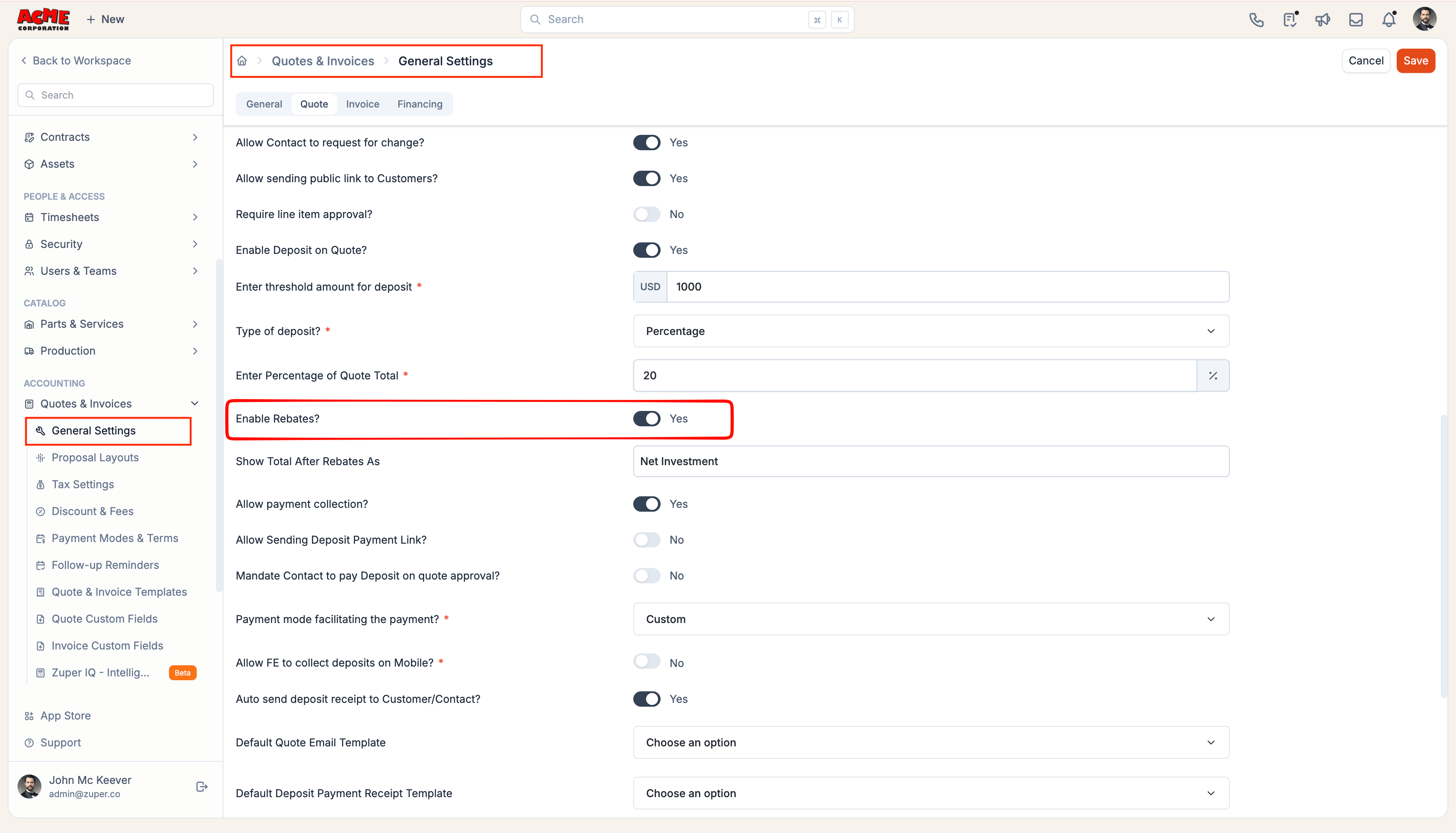 When **Enable Rebates?** is turned off, users cannot add or manage rebates. Any existing rebates are retained and become available again if you re-enable the setting.
**Tips:** You can choose to hide rebates from customer-facing proposals. To do this, first turn off the "**Show Rebates**" option in the applicable Proposal Layout before disabling "Enable Rebates."
## Create a rebate template
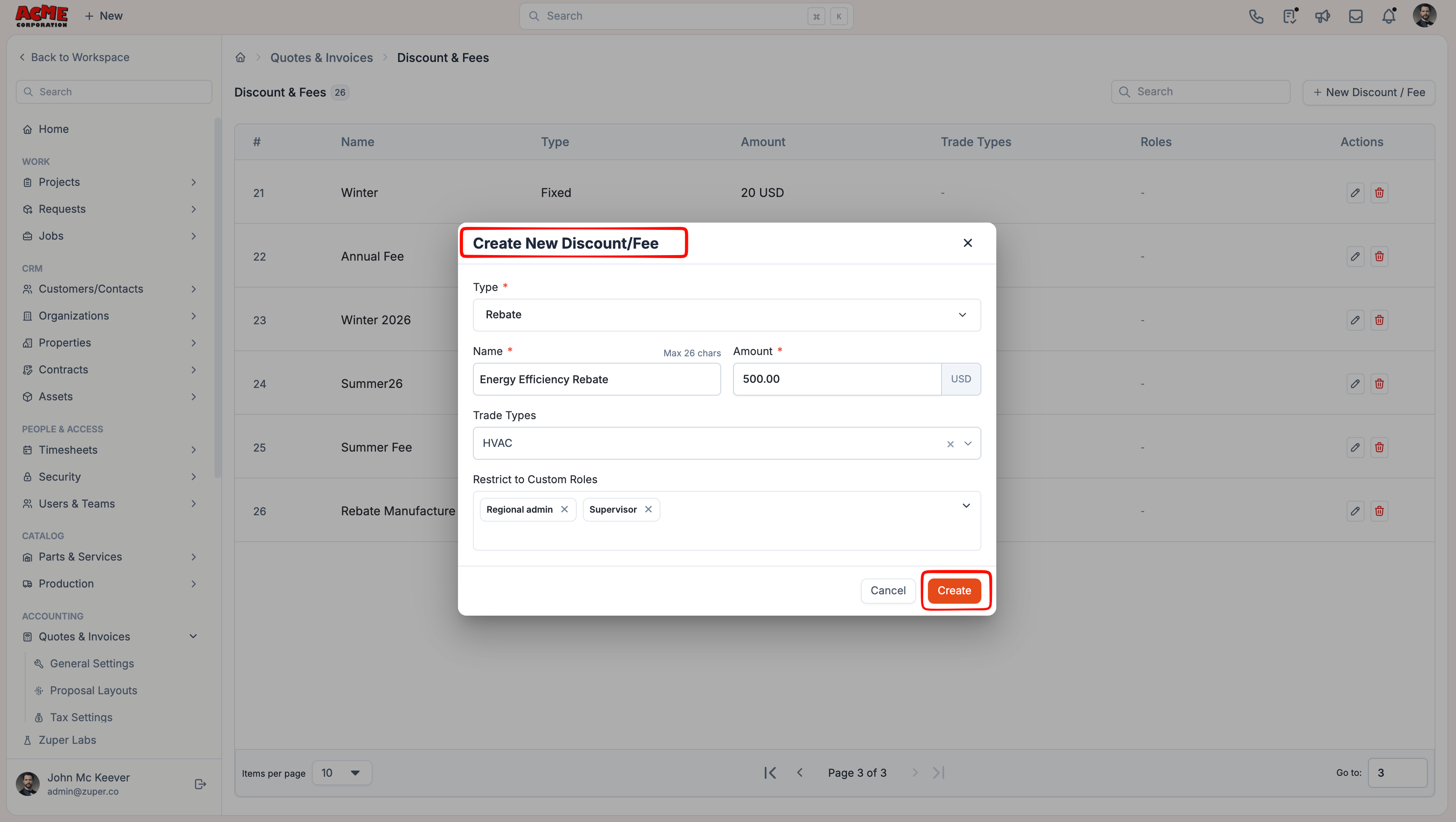
Create rebate templates for rebates your team applies frequently. Templates help users quickly apply a predefined rebate name and default amount when creating quotes or proposal options.
**Navigation**: Settings → Modules → Quotes and Invoices → Discount & Fees
1. Click **+ New Discount/Fee**.
2. In **Type**, select **Rebate**.
3. Enter a **Name** (up to 26 characters). This name appears on the quote or proposal.
4. Enter the **Amount**.
5. *(Optional)* In **Restrict to Custom Roles**, select the custom roles that can use the rebate. If your company uses business units, you can also limit the rebate to specific business units.
6. Click **Create**.
When **Enable Rebates?** is turned off, users cannot add or manage rebates. Any existing rebates are retained and become available again if you re-enable the setting.
**Tips:** You can choose to hide rebates from customer-facing proposals. To do this, first turn off the "**Show Rebates**" option in the applicable Proposal Layout before disabling "Enable Rebates."
## Create a rebate template
Create rebate templates for rebates your team applies frequently. Templates help users quickly apply a predefined rebate name and default amount when creating quotes or proposal options.
**Navigation**: Settings → Modules → Quotes and Invoices → Discount & Fees
1. Click **+ New Discount/Fee**.
2. In **Type**, select **Rebate**.
3. Enter a **Name** (up to 26 characters). This name appears on the quote or proposal.
4. Enter the **Amount**.
5. *(Optional)* In **Restrict to Custom Roles**, select the custom roles that can use the rebate. If your company uses business units, you can also limit the rebate to specific business units.
6. Click **Create**.
 ## Add rebates to a quote or proposal
Once rebates are enabled, your team can add them from the pricing summary of a quote or proposal option.
1. Open or create the quote or proposal.
2. For a proposal, open the option you want to update.
3. Below **Total**, click **Add rebate?**.
4. Click **Add rebate?**.
5. Select an existing rebate template or enter a name for a one-time rebate.
6. Enter or update the rebate amount.
7. To add another rebate, click **Add rebate?** again and repeat the steps.
## Add rebates to a quote or proposal
Once rebates are enabled, your team can add them from the pricing summary of a quote or proposal option.
1. Open or create the quote or proposal.
2. For a proposal, open the option you want to update.
3. Below **Total**, click **Add rebate?**.
4. Click **Add rebate?**.
5. Select an existing rebate template or enter a name for a one-time rebate.
6. Enter or update the rebate amount.
7. To add another rebate, click **Add rebate?** again and repeat the steps.
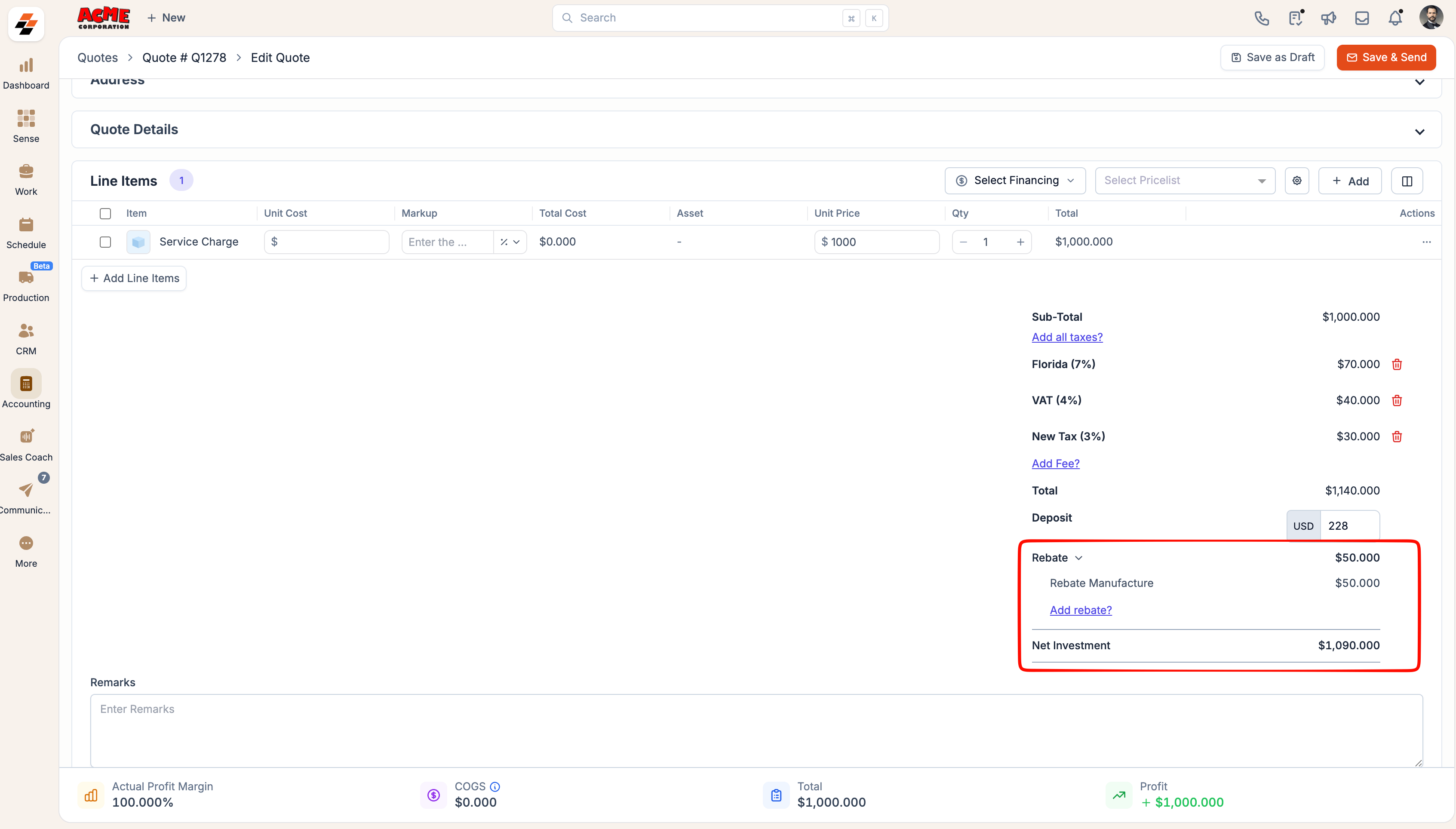 8. Save the quote or update the proposal option.
**Info**: To edit a rebate, hover over it and click the pencil icon. To remove a rebate, click the trash icon and confirm **Delete**.
You can also add and manage rebates from the Zuper mobile app.
1. Open the quote or proposal.
2. Go to the pricing summary.
3. Next to **Rebate**, tap Add.
4. Select a rebate template or add a custom rebate with a name and amount.
5. Tap **Add**.
6. Save your changes.
8. Save the quote or update the proposal option.
**Info**: To edit a rebate, hover over it and click the pencil icon. To remove a rebate, click the trash icon and confirm **Delete**.
You can also add and manage rebates from the Zuper mobile app.
1. Open the quote or proposal.
2. Go to the pricing summary.
3. Next to **Rebate**, tap Add.
4. Select a rebate template or add a custom rebate with a name and amount.
5. Tap **Add**.
6. Save your changes.
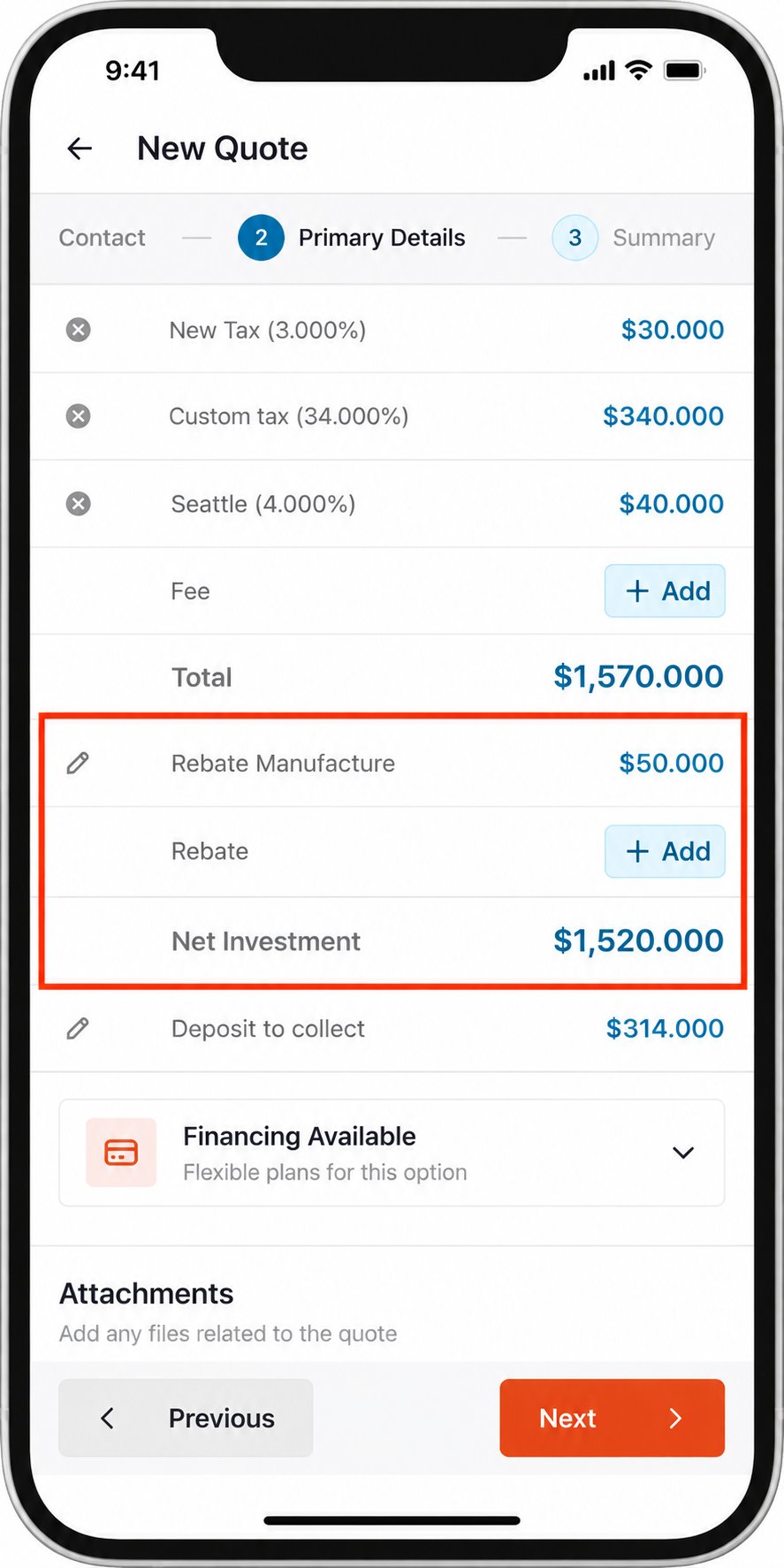 **Info**: To edit or remove a rebate: → On **Android**, tap the rebate or its pencil icon. → On **iPhone**, press and hold the rebate, or swipe it in the line item editor.
Zuper displays each rebate separately and automatically recalculates the **Net Investment**.
**Note**: On a quote, rebates apply to the entire document. On a proposal, each option can have its own rebates and Net Investment.
## Frequently asked questions
No. Rebates affect only the customer's **Net Investment**. They do not reduce the **Total**, taxes, deposit, **Amount Due**, or the amount your business collects.
Yes. You can add up to 10 rebates to a quote or proposal option. Zuper combines all rebate amounts when calculating **Net Investment**.
No. The combined value of all rebates cannot exceed the **Total**.
No. Rebates support fixed amounts only.
Yes. You can change the amount after adding the template to a quote or proposal option. The change applies only to that document and does not update the original template.
No. Each quote and proposal keeps its own copy of the rebate after it is added.
Yes. In **Quotes and Invoices General Settings**, enter a custom label in **Show Total After Rebates As**. Leave the field blank to use **Net Investment**.
Customer-facing visibility is controlled separately. Turn on **Show Rebates** in the applicable Proposal Layout to display rebates and **Net Investment** on the customer proposal page and PDF.
## Related topics
- [Create a new proposal](/Accounting/Proposal.md)
- [Create a new quotation](/Accounting/Create_New_Quote.md)
This documentation is built and hosted on [Mintlify](https://mintlify.com), a developer documentation platform.
**Info**: To edit or remove a rebate: → On **Android**, tap the rebate or its pencil icon. → On **iPhone**, press and hold the rebate, or swipe it in the line item editor.
Zuper displays each rebate separately and automatically recalculates the **Net Investment**.
**Note**: On a quote, rebates apply to the entire document. On a proposal, each option can have its own rebates and Net Investment.
## Frequently asked questions
No. Rebates affect only the customer's **Net Investment**. They do not reduce the **Total**, taxes, deposit, **Amount Due**, or the amount your business collects.
Yes. You can add up to 10 rebates to a quote or proposal option. Zuper combines all rebate amounts when calculating **Net Investment**.
No. The combined value of all rebates cannot exceed the **Total**.
No. Rebates support fixed amounts only.
Yes. You can change the amount after adding the template to a quote or proposal option. The change applies only to that document and does not update the original template.
No. Each quote and proposal keeps its own copy of the rebate after it is added.
Yes. In **Quotes and Invoices General Settings**, enter a custom label in **Show Total After Rebates As**. Leave the field blank to use **Net Investment**.
Customer-facing visibility is controlled separately. Turn on **Show Rebates** in the applicable Proposal Layout to display rebates and **Net Investment** on the customer proposal page and PDF.
## Related topics
- [Create a new proposal](/Accounting/Proposal.md)
- [Create a new quotation](/Accounting/Create_New_Quote.md)
This documentation is built and hosted on [Mintlify](https://mintlify.com), a developer documentation platform.