> ## Documentation Index
> Fetch the complete documentation index at: https://docs.zuper.co/llms.txt
> Use this file to discover all available pages before exploring further.
# Edit Paid & Partially Paid Invoices
## Overview
Once you record a payment against an invoice, Zuper locks it to protect your financial records. That protection creates one specific situation to plan for. For example, if a technician collects 80 instead of 80.50 due, the invoice remains in **Partially Paid** status. You then need to resolve that small mismatch. Until now, resolving it meant refunding the payment, canceling the invoice, and recreating it from scratch adding extra steps to your accounting records every time.
The edit flow closes that gap. Admins can now edit a paid or partially paid invoice directly, without a refund or cancellation standing in the way. Think of it like adjusting a receipt after checkout: the payment already collected stays exactly where it is, while Zuper calculates what the customer still owes or what they overpaid once you save your changes.
That recalculation works the same way across all invoice types, including standalone invoices and those generated from jobs, quotes, contracts, and projects.
**Navigation:** *Accounting → Invoices → Invoice Details → Edit invoice*
***
## Before you begin
This capability is admin-gated. The following conditions must be met before you can use it.
* **Setting:** The **Enable Edit Invoices** setting must be turned on at the organization level (**Allow editing paid and partially paid invoices)**. Only then does the edit flow become available to anyone, regardless of role.
* **Role:** You need the **Admin** role, or a custom role with the **Edit Paid Invoices** permission enabled. This permission controls the **Edit invoice** button on the **Invoice Details** page and on the **Invoices** listing page. To enable this permission, go to **Settings**, select **Users & Teams**, select the custom role, then enable **Edit Paid Invoices** under **Payments**.
* **Invoice status:** The invoice must already be in **Paid** or **Partially Paid** status.
***
## Edit a paid or partially paid invoice
With the right permissions in place, here is how to reopen a locked invoice for editing.
1. Select the **Accounting** module from the left navigation menu, then select **Invoices**.
2. Select the invoice you want to edit.
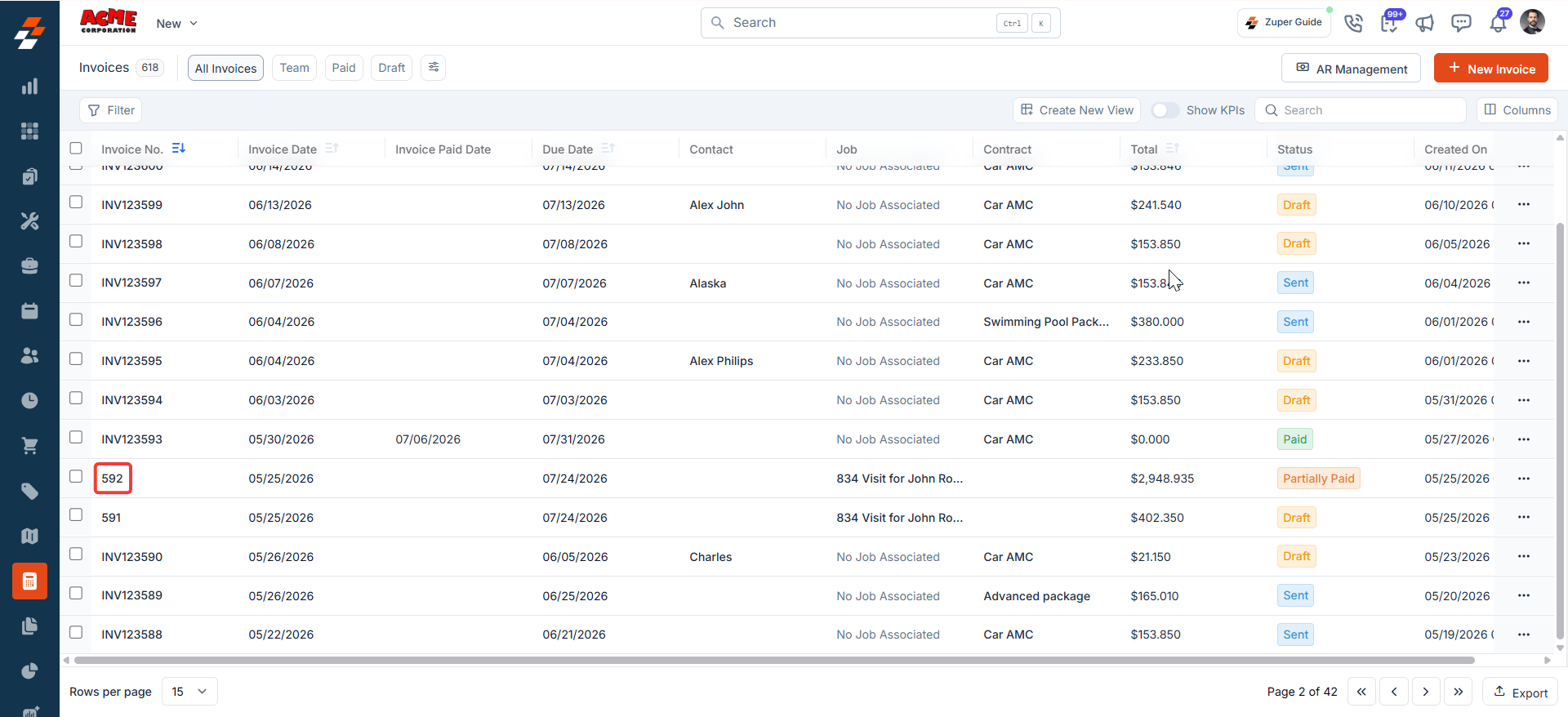 3. The **Invoice Details** page opens. Select **Edit invoice**. The invoice enters edit mode.
Zuper does not save any changes until you select **Save**.
***
## Make your changes
Once you are in edit mode, the invoice behaves much like a draft again.
1. Add, remove, or update line items as needed.
2. Update tax and discount fields if the revised amount requires it.
3. Review the running total at the top of the page as you go. It updates with every change, so you always know where the invoice stands before you commit.
4. Select **Save & Send** to apply your changes.
Payments already recorded on the invoice stay read-only during edit mode. The edit flow is meant to correct the invoice, not the payment. To change a recorded payment amount, void or refund the payment instead. See [Recording Payments](https://docs.zuper.co/Accounting/Invoices/Recording_payments#recording-payments) or [Issuing Refunds](https://docs.zuper.co/Zuper-pay/Refunds#issuing-refunds).
Edit mode does not offer a **Save as Draft** option, and you cannot set the invoice status to **Sent** while editing. Because the invoice already has a payment recorded against it, Zuper keeps it out of the draft and unsent states.
***
## What happens after you save
Zuper compares the revised invoice total to the amount already paid, then walks you through one of three outcomes based on how the two numbers compare.
**New total matches the amount paid**
Zuper suggests marking the invoice as **Paid**. Select **Confirm** to apply this status.
**New total is higher than the amount paid**
The customer now owes more than they already paid. A previously **Partially Paid** invoice stays in that status, with Zuper updating the outstanding balance automatically. A previously **Paid** invoice moves to **Partially Paid**, since the payment on file no longer covers the full amount. Select **Request Payment** to collect the new **Balance Due** from the customer.
3. The **Invoice Details** page opens. Select **Edit invoice**. The invoice enters edit mode.
Zuper does not save any changes until you select **Save**.
***
## Make your changes
Once you are in edit mode, the invoice behaves much like a draft again.
1. Add, remove, or update line items as needed.
2. Update tax and discount fields if the revised amount requires it.
3. Review the running total at the top of the page as you go. It updates with every change, so you always know where the invoice stands before you commit.
4. Select **Save & Send** to apply your changes.
Payments already recorded on the invoice stay read-only during edit mode. The edit flow is meant to correct the invoice, not the payment. To change a recorded payment amount, void or refund the payment instead. See [Recording Payments](https://docs.zuper.co/Accounting/Invoices/Recording_payments#recording-payments) or [Issuing Refunds](https://docs.zuper.co/Zuper-pay/Refunds#issuing-refunds).
Edit mode does not offer a **Save as Draft** option, and you cannot set the invoice status to **Sent** while editing. Because the invoice already has a payment recorded against it, Zuper keeps it out of the draft and unsent states.
***
## What happens after you save
Zuper compares the revised invoice total to the amount already paid, then walks you through one of three outcomes based on how the two numbers compare.
**New total matches the amount paid**
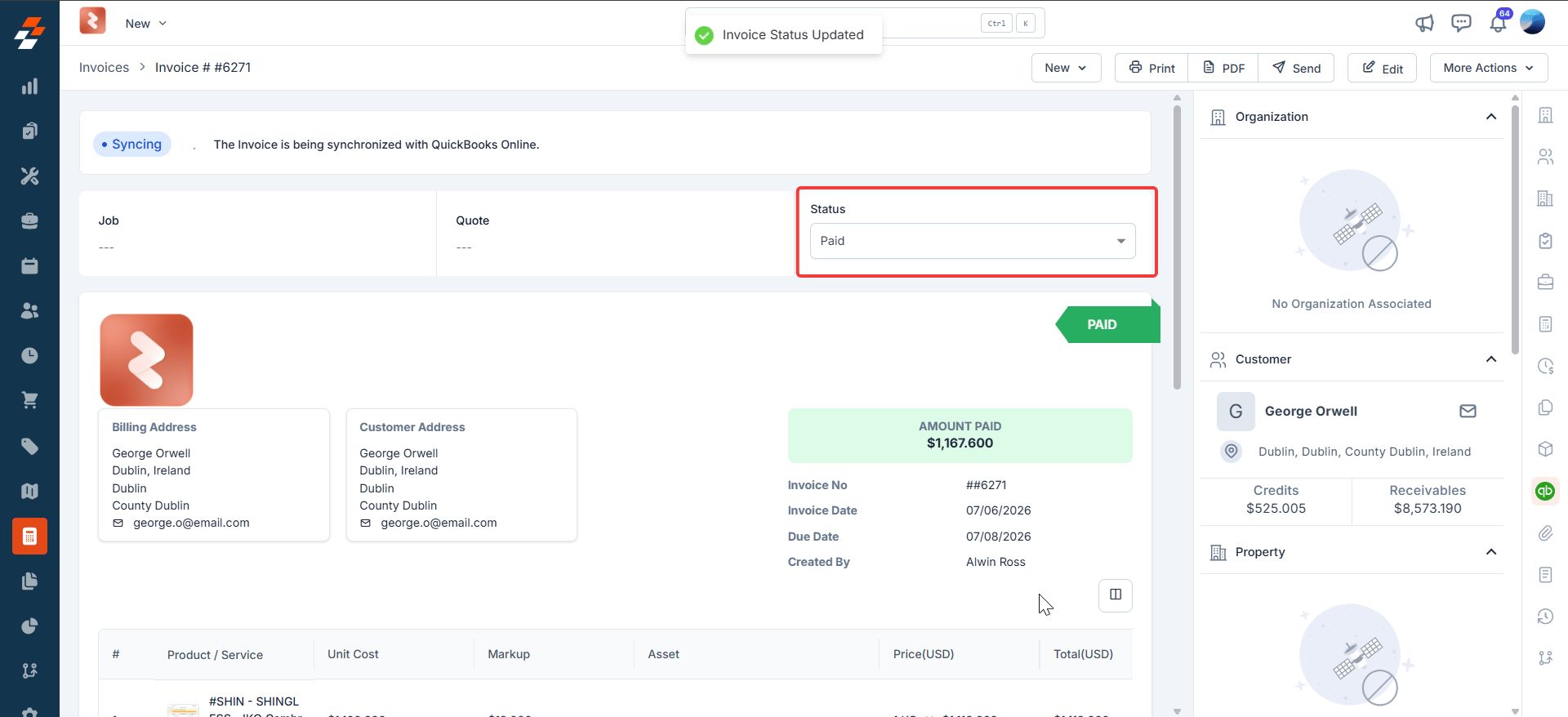
Zuper suggests marking the invoice as **Paid**. Select **Confirm** to apply this status.
**New total is higher than the amount paid**
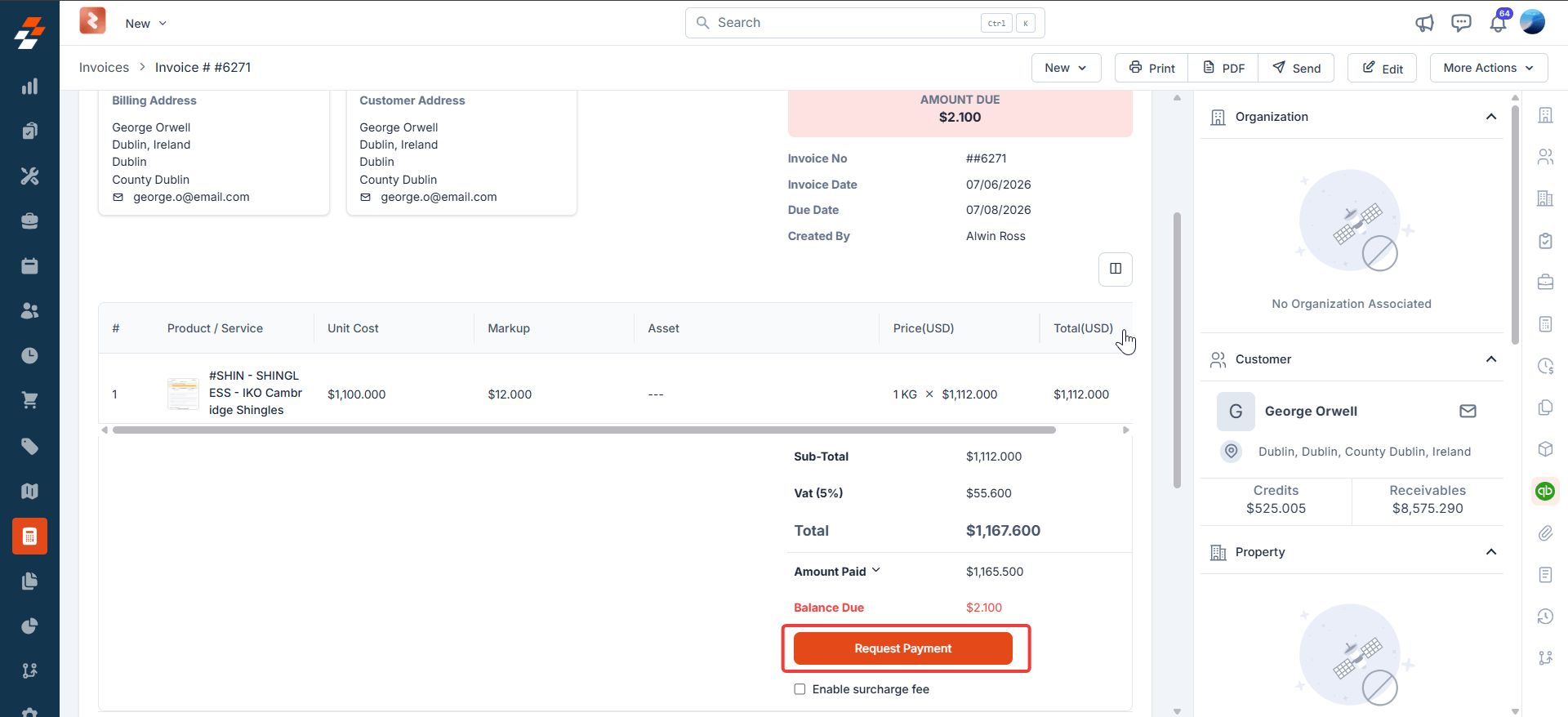
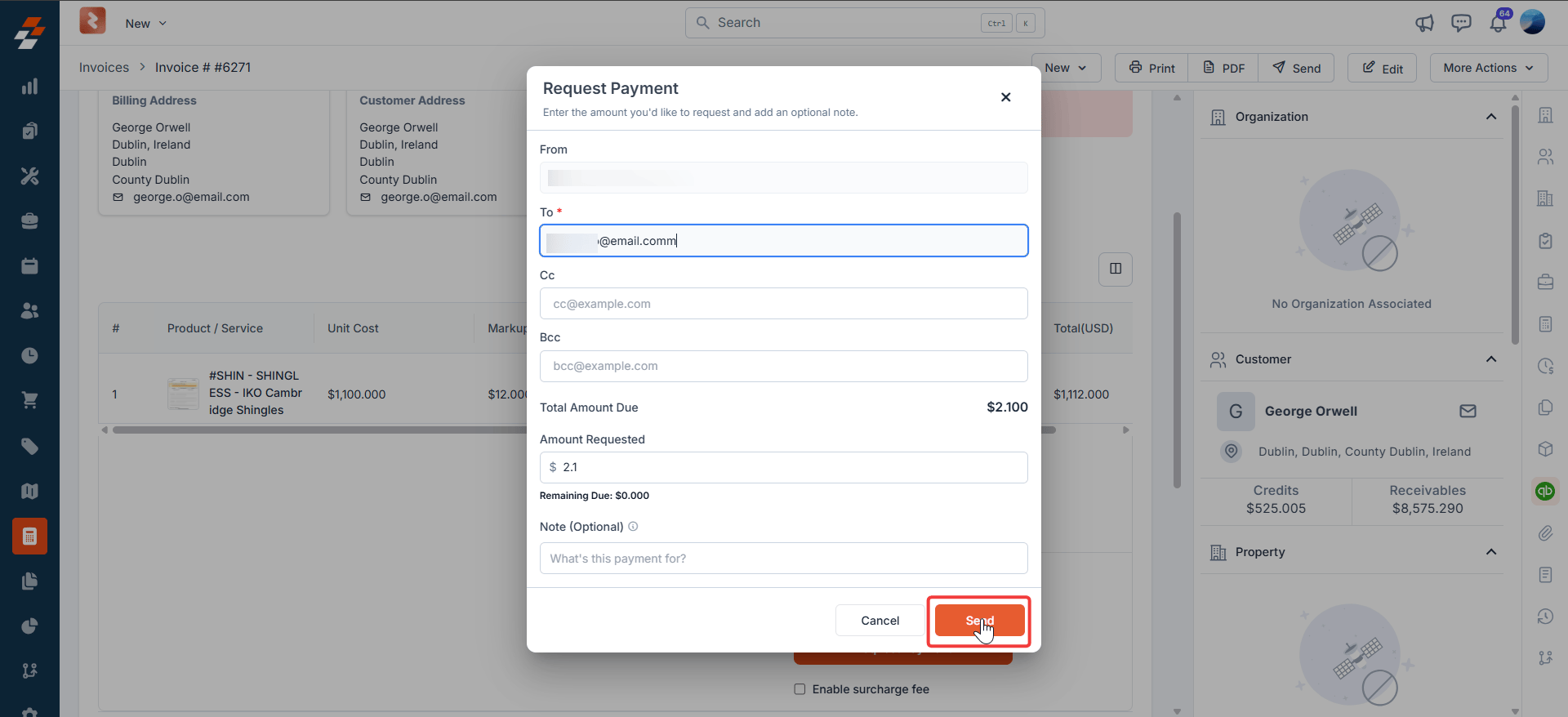
The customer now owes more than they already paid. A previously **Partially Paid** invoice stays in that status, with Zuper updating the outstanding balance automatically. A previously **Paid** invoice moves to **Partially Paid**, since the payment on file no longer covers the full amount. Select **Request Payment** to collect the new **Balance Due** from the customer.
 **New total is lower than the amount paid**
The customer has effectively overpaid. Zuper issues a credit note for the extra amount. The credit note stays attached to the customer's profile and can be reused. The same amount also appears in the **Credits** section of the customer's profile, where you can apply it to another open invoice or issue a refund.
**New total is lower than the amount paid**
The customer has effectively overpaid. Zuper issues a credit note for the extra amount. The credit note stays attached to the customer's profile and can be reused. The same amount also appears in the **Credits** section of the customer's profile, where you can apply it to another open invoice or issue a refund.
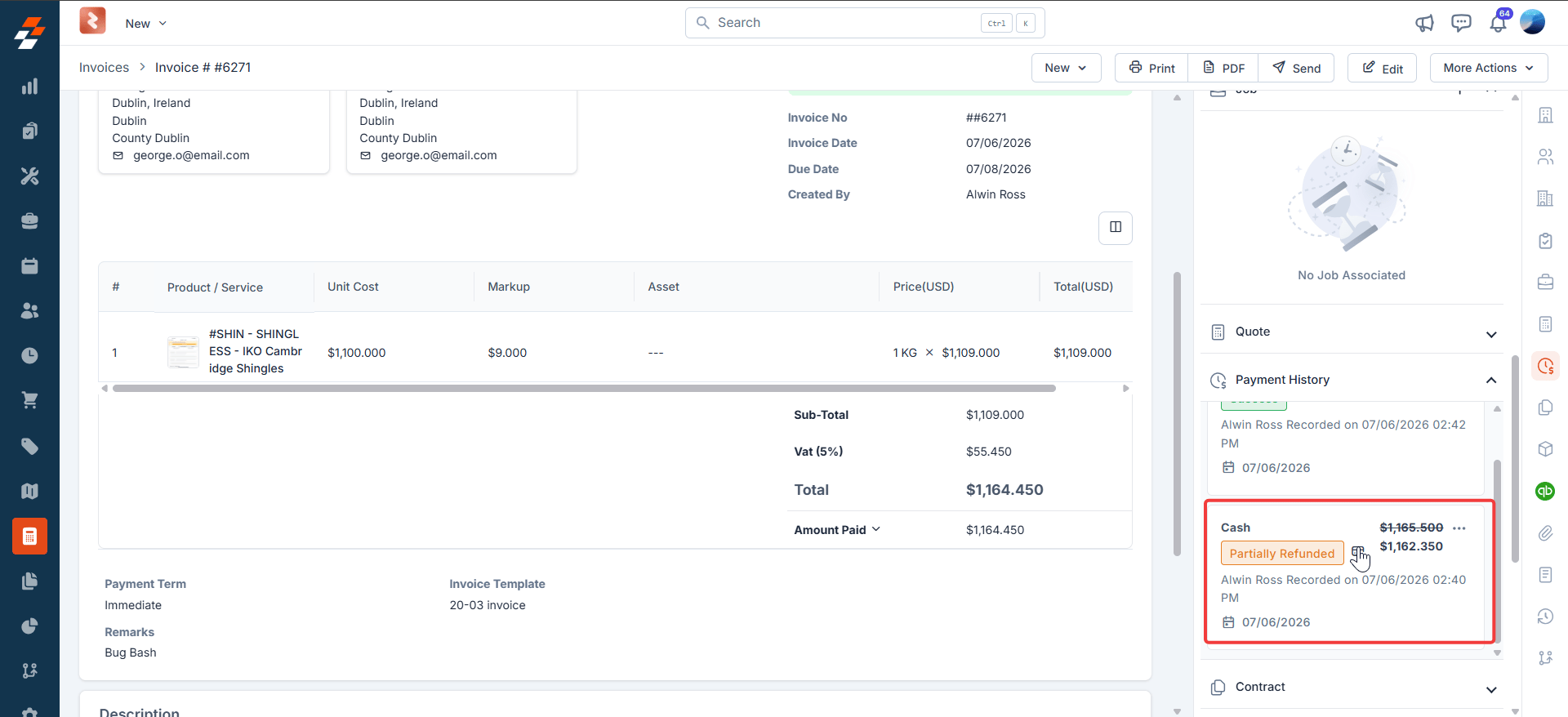 Zuper never changes invoice status on its own. Whatever the outcome, you confirm the change before it takes effect.
Saving your changes also updates the invoice amount in QuickBooks Online (QBO), if your organization uses the two-way sync. Your accounting records stay aligned with what you just edited.
***
## Credits on the customer account
When a revised invoice total is lower than what the customer already paid, Zuper gives that overpayment a home in two places. On the invoice, you see the credit note that was issued. On the customer's profile, the same amount appears in the **Credits** section, ready for you to apply or refund. Zuper holds this amount as a credit against the customer — not as revenue — until you decide where it should go.
***
## Related articles
* [Recording Payments](https://docs.zuper.co/Accounting/Invoices/Recording_payments#recording-payments)
* [Issuing Refunds](https://docs.zuper.co/Zuper-pay/Refunds#issuing-refunds)
Zuper never changes invoice status on its own. Whatever the outcome, you confirm the change before it takes effect.
Saving your changes also updates the invoice amount in QuickBooks Online (QBO), if your organization uses the two-way sync. Your accounting records stay aligned with what you just edited.
***
## Credits on the customer account
When a revised invoice total is lower than what the customer already paid, Zuper gives that overpayment a home in two places. On the invoice, you see the credit note that was issued. On the customer's profile, the same amount appears in the **Credits** section, ready for you to apply or refund. Zuper holds this amount as a credit against the customer — not as revenue — until you decide where it should go.
***
## Related articles
* [Recording Payments](https://docs.zuper.co/Accounting/Invoices/Recording_payments#recording-payments)
* [Issuing Refunds](https://docs.zuper.co/Zuper-pay/Refunds#issuing-refunds)